
The transition from analog to digital media has left many with valuable VHS tapes gathering dust. Converting these tapes to a more durable and accessible format like DVD is crucial for preserving precious memories and ensuring their longevity. Easy VHS to DVD, a software program by Corel Corporation, offers a straightforward solution for this conversion process. This guide will delve into the software’s features, capabilities, and considerations, providing a comprehensive understanding of how to effectively transfer your VHS content to DVD.
Easy VHS to DVD: Software Overview and Functionality
Easy VHS to DVD is a user-friendly video conversion software designed to simplify the transfer of VHS tapes to DVD. It’s aimed at users seeking a relatively straightforward approach, without the complexities of advanced video editing software. The process involves connecting a VHS player (or VCR), camcorder, or other analog video source to your computer using an RCA cable and a video capture device. This device acts as the bridge between your analog VHS source and your computer’s digital capabilities, enabling the software to receive and process the video signal.
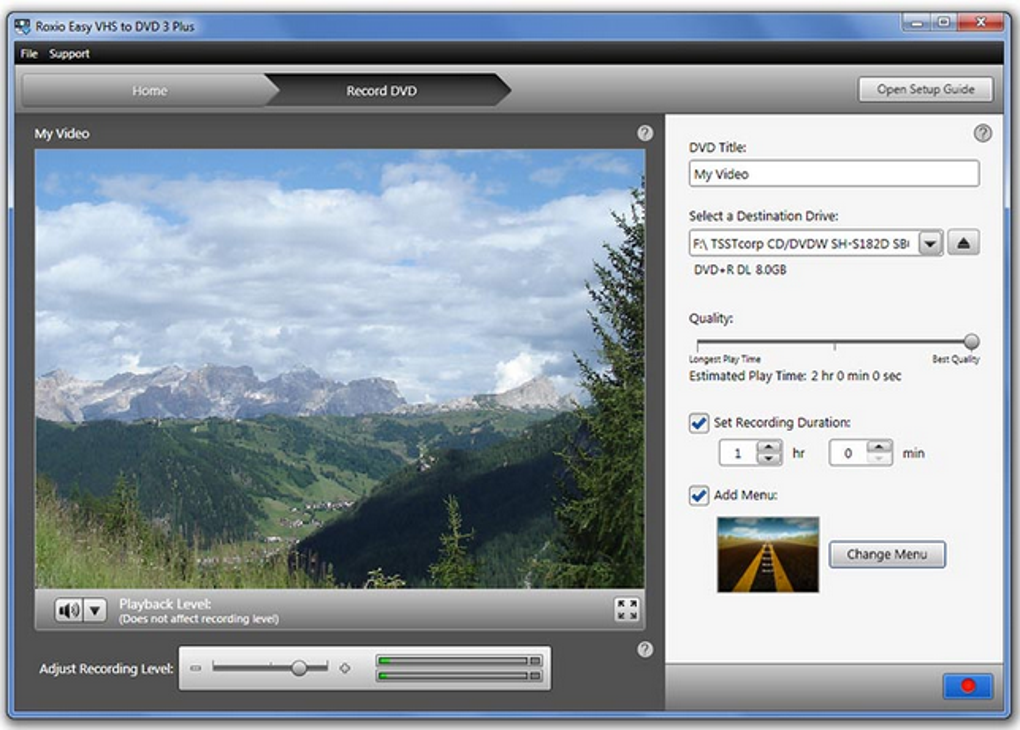
The software boasts a simplified interface designed for ease of use. While not as feature-rich as professional video editing suites, it provides essential tools for basic video enhancement and manipulation. These include:
-
Video Capture and Conversion: The core function of Easy VHS to DVD is converting analog VHS footage into a digital format suitable for burning onto DVDs. The software guides users through the capture process, ensuring a relatively seamless transfer.
-
Basic Video Editing: The program offers fundamental video editing features, enabling users to trim unwanted sections of their video, remove commercials, or adjust the video’s sequence. This allows for a more refined final product.
-
Video Enhancement Tools: Recognizing the potential for degradation in older VHS tapes, the software incorporates tools to address common issues such as shaky footage, background noise, and faded colors. These enhancements aim to improve the visual quality of the transferred videos.
-
Title and Credit Creation: Easy VHS to DVD allows users to personalize their videos by adding titles, credits, and transition effects. This provides an opportunity to add a professional touch and context to the converted content.
-
Multi-Disc Support: For longer VHS recordings, the software enables splitting the content across multiple DVDs, ensuring that the entire video can be preserved even if it exceeds the capacity of a single disc.
-
Audio Conversion: Beyond video, Easy VHS to DVD extends its functionality to audio media. With the appropriate video capture device, users can convert audio recordings from LP vinyl records and cassette tapes into digital audio files. The software allows users to add metadata such as artist names, genres, song titles, and track names, facilitating easier organization and playback. Additional audio editing features allow users to adjust volume levels, add effects, and enhance the sound quality.
-
Output Options: The software offers flexibility in terms of output format, allowing users to save the converted videos to their computer hard drives, transfer them to mobile devices, or create DVDs. This versatility caters to various user needs and storage preferences.
-
Automatic Saving: A significant advantage of Easy VHS to DVD is its automatic saving feature. This ensures that the progress made during the conversion and editing process is preserved, minimizing the risk of data loss.
System Requirements and Hardware Considerations
Before embarking on the conversion process, it’s essential to ensure your system meets the minimum requirements. While the specific requirements may vary depending on the version of the software, generally, you will need a computer with a compatible operating system (typically Windows), sufficient processing power, and adequate RAM to handle the video capture and conversion process.
Crucially, you will require:
-
A VHS Player (or VCR): This is the source of your analog video signal. Ensure it’s in good working condition.
-
An RCA Cable: This cable connects your VHS player’s output to the video capture device.
- A Video Capture Device: This is a hardware component that converts the analog signal from the VHS player into a digital signal your computer can process. This is a critical piece of equipment, and its quality can significantly impact the final video quality.
Workflow and Step-by-Step Guide
The process of converting VHS tapes to DVD using Easy VHS to DVD generally follows these steps:
-
Hardware Connection: Connect your VHS player to your computer via the RCA cable and video capture device. Ensure all connections are secure and that the devices are correctly powered on.
-
Software Installation: Install the Easy VHS to DVD software on your computer. Follow the on-screen instructions for installation.
-
Software Launch and Setup: Launch the Easy VHS to DVD software. You may need to configure the software to recognize your video capture device. Follow the software’s instructions for setup.
-
Video Capture: Begin the video capture process. The software will guide you through the steps of capturing the video from your VHS tape. The capture time will depend on the length of your VHS tape.
-
Video Editing (Optional): Once the video is captured, you can use the software’s editing tools to trim, enhance, and adjust the video. This is where you can address issues such as shaky footage or adjust audio levels.
-
DVD Authoring: After editing (if any), use the software’s DVD authoring capabilities to create a DVD from the captured and edited video. You can select menu options, add chapters, and customize the DVD’s appearance.
-
DVD Burning: Finally, burn the DVD using a compatible DVD burner. Ensure you have a blank DVD-R or DVD-RW disc ready.
-
Testing: After burning, test your DVD to ensure the video and audio play correctly.
Alternatives and Considerations
While Easy VHS to DVD offers a convenient solution for VHS to DVD conversion, it’s important to consider alternatives and other factors that may influence your choice. Other software options may provide more advanced editing features, support for a wider range of formats, or better compatibility with different hardware. Additionally, free and open-source software alternatives may exist, though they might require a steeper learning curve.
The quality of your video capture device significantly impacts the final output. Investing in a higher-quality device can yield better results, particularly when dealing with older or degraded VHS tapes. Furthermore, consider the overall condition of your VHS tapes. Worn or damaged tapes may result in lower-quality conversions, regardless of the software or hardware used.
Finally, remember to back up your digital files. While DVDs are more durable than VHS tapes, they’re still susceptible to damage. Storing your converted videos in multiple locations (e.g., cloud storage and a hard drive) can provide added protection against data loss. Regularly checking the condition of your DVDs and making backups can ensure the long-term preservation of your precious memories.
File Information
- License: “Full”
- Version: “1.0”
- Latest update: “May 6, 2019”
- Platform: “Windows”
- OS: “Windows 7”
- Language: “English”
- Downloads: “18K”


