
Easy2Boot is a free utility for Windows PCs that simplifies the creation of multiboot USB drives. Unlike single-purpose bootable USB creators, Easy2Boot allows users to store multiple operating system installers and other bootable utilities on a single USB drive, transforming it into a versatile troubleshooting and installation tool. This comprehensive guide will delve into the functionality, usage, and advantages of Easy2Boot, exploring its features and comparing it to other similar software.
Understanding Easy2Boot’s Functionality
Easy2Boot’s core function is to create bootable USB drives capable of launching various operating systems and utilities. This contrasts with tools like Rufus, which typically create bootable USBs for a single ISO image at a time. Easy2Boot’s strength lies in its ability to manage multiple ISO files, along with other bootable image formats, all accessible from a single, unified menu. This eliminates the need for numerous USB drives or constant re-formatting, saving time and resources. The software dynamically builds its menu system based on the files present on the drive, offering a user-friendly interface regardless of the content.
The program’s versatility extends beyond simple ISO images. It supports a wide range of file formats, including but not limited to:
- ISO: The standard format for optical disc images, commonly used for operating system installers.
- WIM: A Windows Imaging Format used for deploying and managing Windows installations.
- EFI: Extensible Firmware Interface images, crucial for booting modern systems, particularly those using UEFI firmware.
- IMG: A generic disk image format, which may contain various types of bootable content.
Easy2Boot also boasts compatibility with large files. By formatting the USB drive using the NTFS file system, users can easily manage files exceeding the 4GB limit typically imposed by FAT32, the standard file system for many bootable drives. Importantly, this functionality doesn’t hinder the USB’s usability as a standard storage device; it remains fully functional for regular file storage and transfer.
For Windows users, Easy2Boot offers a significant advantage: the ability to automate installations. Users can pre-configure the installation process to include essential drivers and applications, streamlining the entire experience. This automated setup eliminates the manual installation steps typically involved, making the deployment of Windows or other systems significantly more efficient.
Easy2Boot’s Menu Systems and Compatibility
One of Easy2Boot’s key features is its adaptability through different menu systems. This ensures compatibility with a broad range of computer systems, regardless of their boot methods (BIOS or UEFI). The exact menu system employed depends on the capabilities of the target computer. The flexibility in menu systems is a testament to Easy2Boot’s commitment to broad compatibility. This dynamic menu adaptation sets it apart from many competitors, which might only offer a single menu structure with limited compatibility.
The software’s support for various menu systems contributes significantly to its versatility. This means the same USB drive created with Easy2Boot can function across a wide range of hardware configurations, making it an ideal tool for IT professionals and system administrators working with diverse environments.
The Easy2Boot Workflow: A Step-by-Step Guide
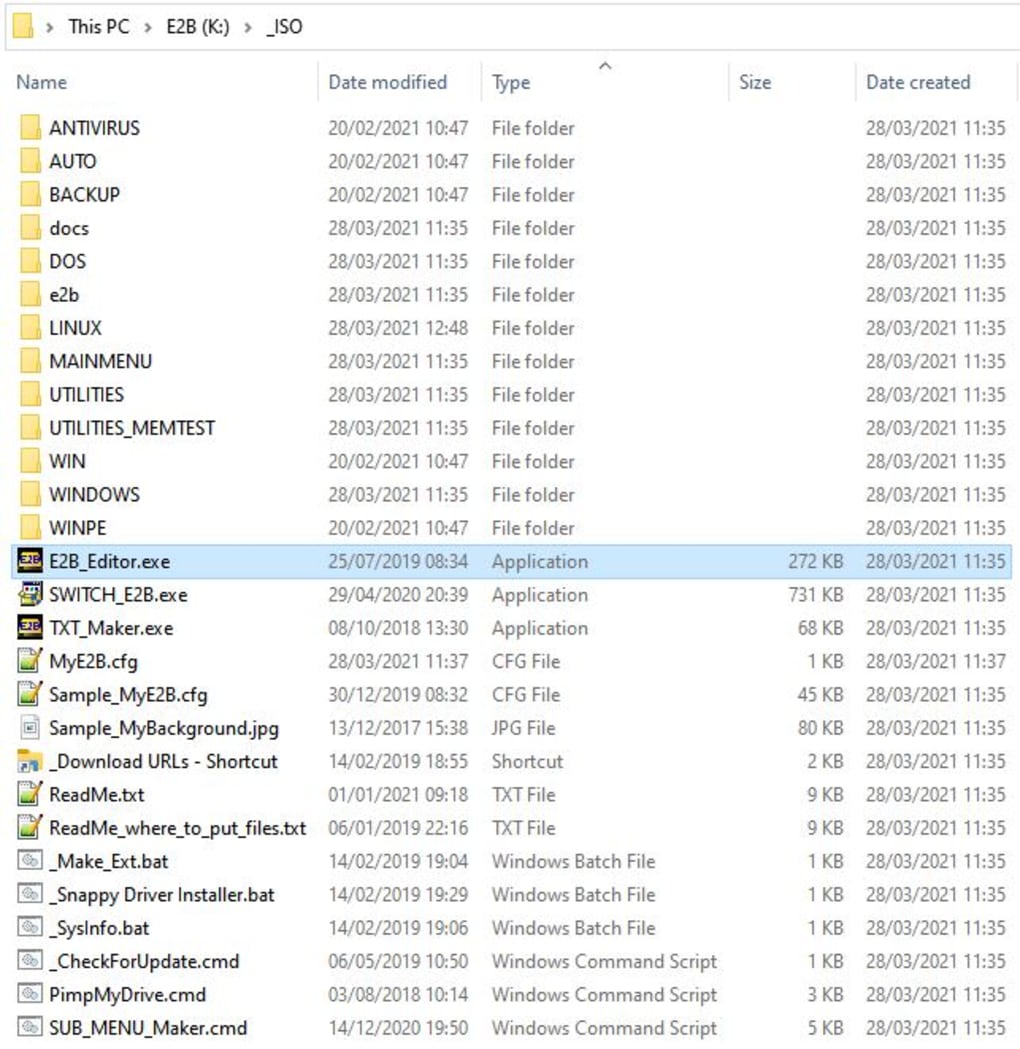
While the software itself is relatively straightforward, creating a multiboot USB with Easy2Boot might require some initial learning. The developers provide extensive documentation on their website, offering comprehensive guides and tutorials. However, the process, though powerful, can present a steeper learning curve compared to simpler, single-purpose bootable USB creation tools.
The general workflow typically involves the following steps:
- Preparation: Download and extract the Easy2Boot package. Select a USB drive with sufficient storage space, considering the sizes of the ISO images and other files to be included. Properly backing up data from the USB drive is essential before proceeding.
-
Formatting: Format the USB drive using the NTFS file system. This step is crucial for accommodating files larger than 4GB and for optimal performance with Easy2Boot.
-
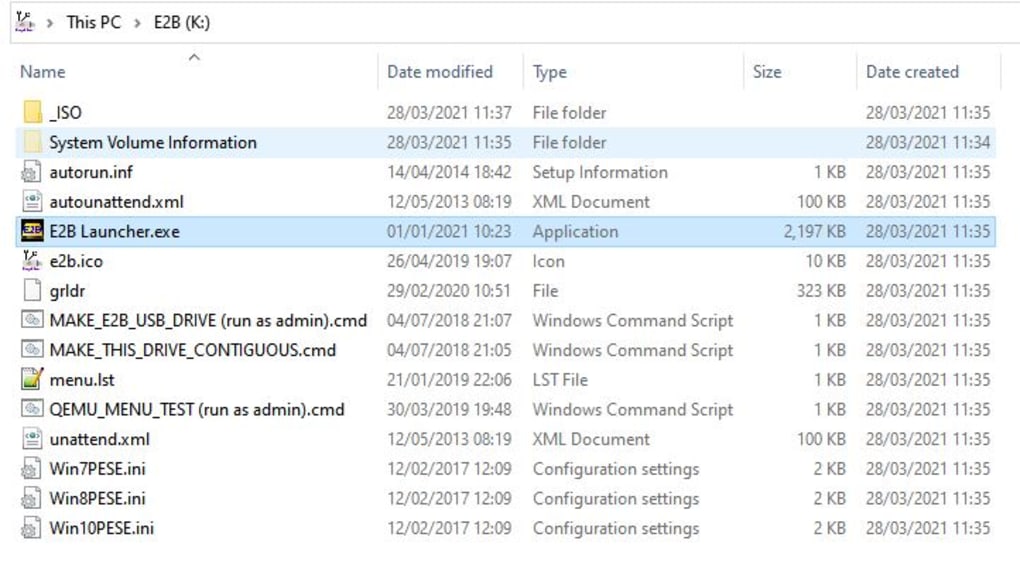
Copying Files: Copy the Easy2Boot files to the root directory of the USB drive. Then, copy the various ISO images, WIM files, or other bootable image files into designated folders within the Easy2Boot directory structure. The software’s documentation provides detailed instructions on organizing files appropriately for optimal menu generation and boot functionality.
-
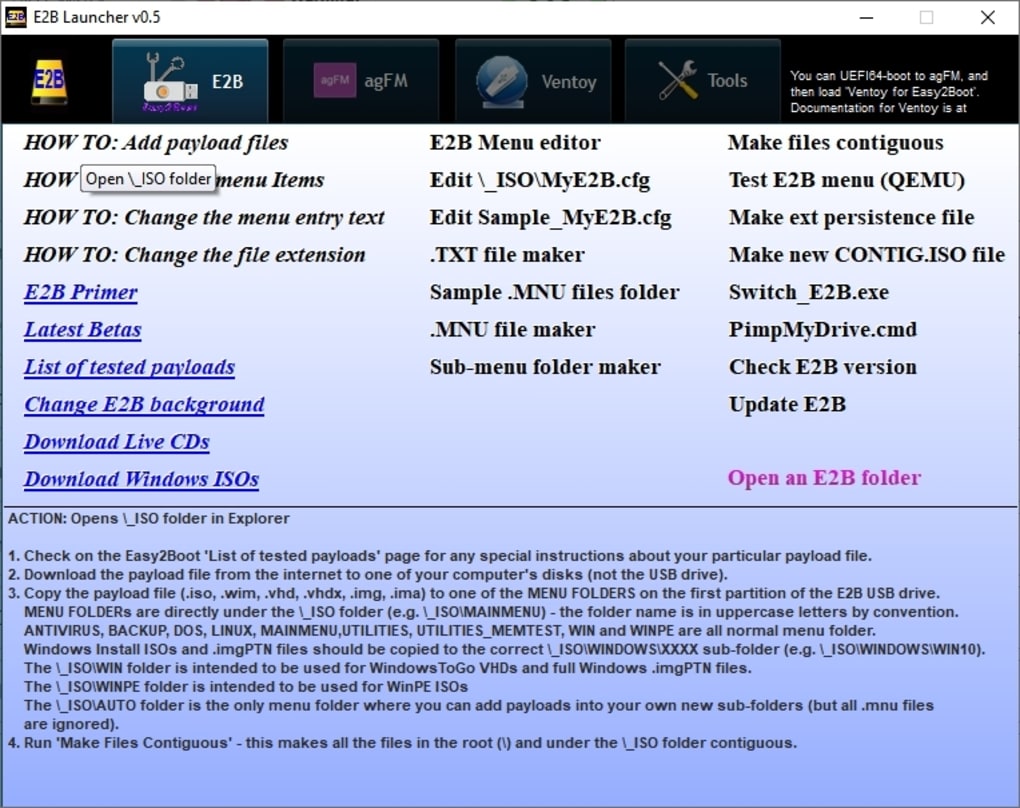
Menu Configuration (Optional): Easy2Boot provides options for customizing the boot menu. This includes adding descriptions, changing the menu appearance, and configuring boot parameters. The configuration options allows for a highly tailored multiboot experience.
-
Testing: After the files are copied and the menu is configured, it’s vital to test the bootable USB on a test machine before deploying it to production systems. This testing phase helps identify any potential issues or compatibility problems early in the process.
Comparing Easy2Boot to Other Multiboot Solutions
While Easy2Boot offers a robust and versatile solution for creating multiboot USB drives, it’s worthwhile to compare it to other tools available in the market. Some popular alternatives include:
- Rufus: Primarily known for creating single-bootable USB drives, Rufus is a simple and efficient tool. It lacks Easy2Boot’s multiboot capability but boasts a simpler user interface and faster creation times for single boot scenarios.
-
Grub2Win: Another multiboot solution, Grub2Win allows users to add multiple operating systems to the boot menu, however it is generally perceived as having a steeper learning curve than Easy2Boot, and it lacks the comprehensive support for various file formats that Easy2Boot provides.
-
YUMI (Your Universal Multiboot Installer): YUMI provides a user-friendly interface for creating multiboot USBs, but may have limitations on the number of images it can handle and the supported operating systems in comparison to Easy2Boot.
Each of these tools caters to different needs. Rufus excels in simplicity and speed for single-boot creation, while Easy2Boot and Grub2Win are focused on flexibility and managing multiple bootable images. The optimal choice depends on the user’s specific requirements and technical expertise.
Conclusion: Easy2Boot – A Powerful Tool for Experienced Users
Easy2Boot is a powerful and versatile tool for creating multiboot USB drives. Its ability to handle various file formats, create dynamic menus, and automate Windows installations makes it an invaluable asset for IT professionals, system administrators, and tech-savvy users. However, the slightly steeper learning curve means it might not be the ideal choice for absolute beginners. Users should be comfortable navigating command-line interfaces and understanding basic concepts of boot processes before attempting to utilize Easy2Boot effectively. For those willing to invest the time in learning its capabilities, Easy2Boot offers a robust and flexible solution that significantly simplifies the management and deployment of multiple bootable images. The rewards in terms of time saved and versatility gained certainly make the learning curve worthwhile for many users.
File Information
- License: “Free”
- Version: “2.09”
- Latest update: “August 10, 2021”
- Platform: “Windows”
- OS: “Windows 10”
- Language: “English”
- Downloads: “3.5K”
- Size: “32.49 MB”


