
EasyCapture is a free screen capture software for Windows that offers a robust set of features for capturing and editing screenshots. This review delves into its capabilities, strengths, weaknesses, and overall user experience, providing a comprehensive assessment of its suitability for various needs.
Versatile Capture Modes: Capturing Any Screen Element with Ease
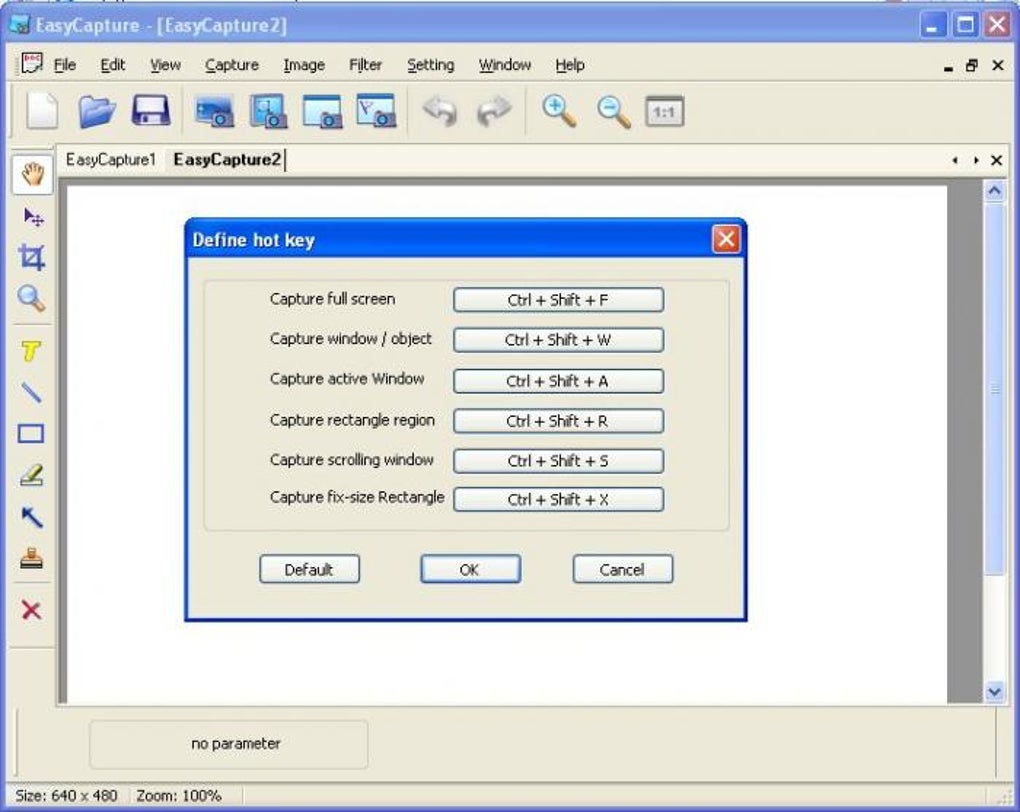
EasyCapture distinguishes itself through its diverse range of capture modes, catering to a wide array of user requirements. The software allows users to capture specific screen elements with precision and efficiency. These modes include:
-
Region Capture: This allows for the selection of a custom rectangular area on the screen, providing the flexibility to capture only the desired portion of the screen content. This is ideal for capturing specific sections of websites, documents, or applications without including unnecessary surrounding elements.
-
Capture Screen Window/Object: This mode focuses on capturing individual windows or specific objects within the screen. This functionality simplifies the process of obtaining screenshots of individual applications or elements within a larger screen, eliminating the need for manual selection.
-
Full Screen Capture: A straightforward option for capturing the entire screen content, providing a complete snapshot of the desktop environment. This is useful for capturing an overview of multiple applications or a complete visual representation of a specific task.
-
Active Window Capture: This mode intelligently identifies and captures the currently active window, simplifying the process when users want a screenshot of a specific application they’re currently interacting with. This function is particularly beneficial for multitasking users and speeds up the workflow.
-
Scrolling Window Capture: Designed for capturing long web pages or documents that extend beyond the visible screen area. This is arguably one of EasyCapture’s most useful features. By automatically scrolling through the content, it ensures the entirety of the lengthy document or page is captured in a single screenshot. However, user reviews suggest that the efficacy of this mode may need improvement.
- Fixed Rectangle Region Capture: This option enables users to define a fixed-size rectangular area for consistent capture. This ensures uniformity across multiple screenshots, ideal for users with specific image size requirements or those creating a series of images for a presentation or other applications.
The versatility of these capture modes makes EasyCapture suitable for a wide range of tasks, from capturing quick snapshots of information to creating detailed documentation or tutorials.
Editing and Enhancing Screenshots: Beyond Simple Capture
EasyCapture goes beyond simple screen capture by offering a range of editing and enhancement tools. These features allow users to refine their screenshots and add annotations, improving clarity and presentation. The editing tools include:
-
Cropping and Resizing: These fundamental image editing functions allow for the precise adjustment of captured images. Users can crop out unwanted areas or resize images to meet specific dimensions for various purposes.
-
Brightness, Contrast, and Color Level Adjustments: These tools provide granular control over the visual appearance of screenshots. This allows for the correction of lighting issues, enhancement of image clarity, or adjustment of color balance to optimize the visual quality.
-
Color Tone Modification: Users can manipulate the color tone of their screenshots to achieve a specific aesthetic or to improve the image’s overall visual appeal. This can involve subtle adjustments or more dramatic changes depending on the desired effect.
-
Special Effects: EasyCapture features a variety of special effects, such as Flip, Invert, Hue and Saturation adjustments, and various Image Processing effects. These include blur, emboss, oil paint, halftone, mosaic, and 3D grid effects. These effects add a layer of creativity and allow for stylistic enhancement of screenshots.
- Annotation Tools: The annotation capabilities of EasyCapture are perhaps one of its strongest points. It provides several tools that make screenshots more informative and easy to understand, including:
- Text Annotations: Allows users to add text directly to the screenshot, making it ideal for adding labels, explanations, or other important details.
- Lines and Arrows: Users can draw lines and arrows to highlight specific areas of interest within the screenshot, directing attention to key information or elements.
- Highlighting: This tool enables users to highlight sections of text or images, making important content stand out visually.
- Stamps with Text Balloons: Adds stamps to highlight important notes or areas of interest within a more visually dynamic way.
- Rectangular Marking Areas: Allows users to draw rectangles to highlight specific areas within the screenshot.
The extensive editing and annotation features enhance the usability of EasyCapture, making it a powerful tool not just for capturing screenshots but also for creating visually compelling and informative images.
Seamless Output and File Management: Sharing and Saving Made Easy
EasyCapture simplifies the process of sharing and saving screenshots. Users can easily output their captures to the clipboard for immediate pasting into other applications or save them to image files in various formats. Supported image formats include BMP, GIF, JPEG, and PNG, offering compatibility with a broad range of applications and devices. This straightforward output process streamlines the workflow, allowing users to seamlessly integrate EasyCapture into their existing workflows.
User Experience and Interface: Intuitive Design and Functionality
EasyCapture’s user interface is designed for ease of use. The layout is straightforward and intuitive, allowing users to quickly access all the key features and tools. The program’s tabbed interface provides a smooth experience in handling multiple screenshots concurrently. While some users have reported minor frustrations with features like the scrolling window capture and the real-time text editing, the overall experience is generally considered positive. The inclusion of hotkeys further improves the efficiency of the capturing process. While the program lacks an extensive preferences menu, its simplicity is a strong point for users who prefer a less cluttered interface.
EasyCapture’s Strengths and Weaknesses: A Balanced Perspective
While EasyCapture offers a wealth of features, a balanced perspective requires acknowledging both its strengths and weaknesses:
Strengths:
- Free and Open Source: EasyCapture is free to use, making it an accessible option for all users.
- Multiple Capture Modes: The diverse range of capture modes ensures users can capture any type of screen element with ease and precision.
- Extensive Editing Tools: The advanced editing features, including annotation tools and special effects, enhance the usability and creative potential of the software.
- Intuitive Interface: The simple and easy-to-navigate interface makes the software readily usable for both beginners and experienced users.
- Fast Performance: EasyCapture performs quickly and efficiently, avoiding lags or delays during capture or editing.
- Multiple File Format Support: Support for various image formats (BMP, GIF, JPEG, PNG) provides compatibility with a wide range of applications and devices.
Weaknesses:
- Scrolling Window Capture Issues: As noted by several users, the scrolling window capture mode doesn’t always work perfectly, requiring improvement.
- Lack of Real-time Text Editing: The lack of real-time updates when editing text can be somewhat inconvenient.
- Limited Advanced Editing Options: While offering a variety of basic editing features, EasyCapture lacks advanced features found in more comprehensive image editors like Photoshop.
- Absence of Preferences Menu: The lack of an extensive preferences menu limits user customization options.
Conclusion: A Valuable Tool for Everyday Use
EasyCapture is a capable free screen capture tool offering a wide array of features for capturing, editing, and annotating screenshots. While it has minor shortcomings, such as occasional issues with the scrolling capture mode and the lack of real-time text editing, its strengths significantly outweigh these weaknesses. Its versatile capture modes, extensive editing options, user-friendly interface, and fast performance make it a valuable tool for students, professionals, and casual users alike. For users seeking a straightforward, efficient, and free screen capture solution, EasyCapture is a highly recommended option. The developer’s continued updates and responsiveness to user feedback suggest a commitment to improvement, which is promising for future versions.
File Information
- License: “Free”
- Version: “1.2.0”
- Latest update: “January 31, 2023”
- Platform: “Windows”
- OS: “Windows 2000”
- Language: “English”
- Downloads: “369.3K”
- Size: “2.68 MB”


