
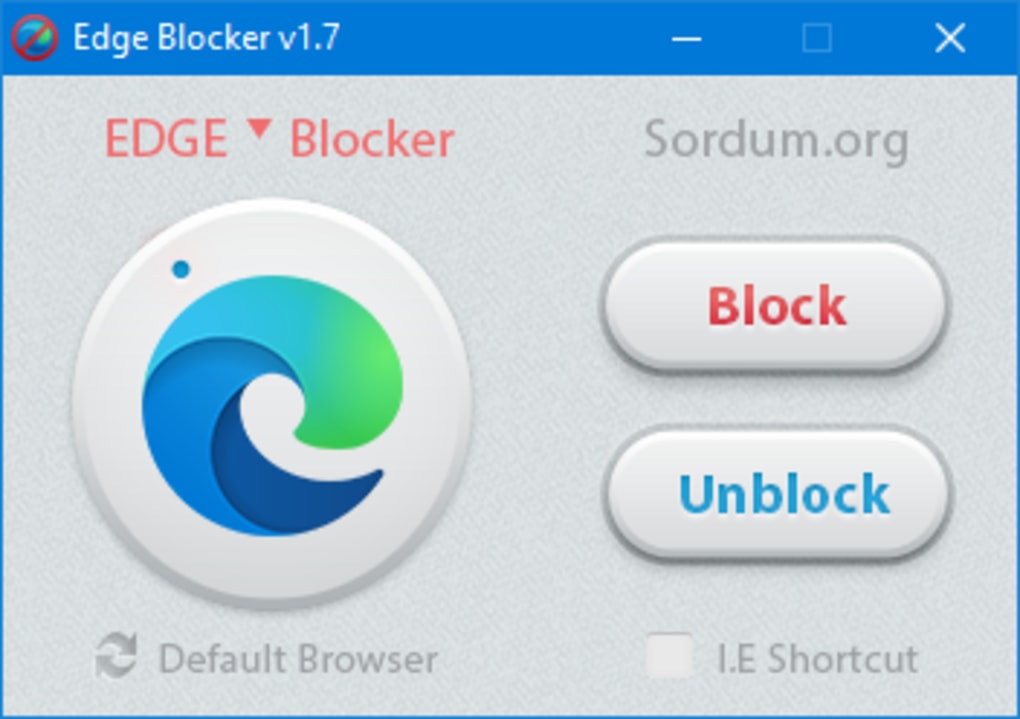
Edge Blocker is a free, lightweight Windows application designed to disable the Microsoft Edge browser. While seemingly simple, its functionality addresses a variety of user needs and offers a unique solution for managing browser access on Windows systems. This guide delves into the details of Edge Blocker, exploring its features, uses, and considerations for users.
Understanding Edge Blocker’s Functionality
At its core, Edge Blocker serves as a straightforward tool to prevent the launching of Microsoft Edge. This is achieved through a process that effectively blocks Edge’s execution, preventing it from running even if it’s set as the default browser or launched through other applications. This blocking mechanism is robust, working against various attempts to open the browser. Unlike some solutions that merely alter settings or redirect requests, Edge Blocker directly intercepts and prevents Edge’s processes from starting, making it particularly effective for users seeking complete control over Edge’s accessibility.
The application’s simplicity is a key strength. It doesn’t require extensive configuration or system-level permissions beyond those necessary for standard application execution. This user-friendly design makes it accessible to both technically proficient and novice users, eliminating the need for complex setup procedures often associated with similar software. The minimalist approach minimizes system resource usage, ensuring minimal impact on overall system performance.
Practical Applications of Edge Blocker
Edge Blocker’s straightforward design belies its versatility. Its primary function translates into several practical applications across various user scenarios:
- Enforced Browser Selection: For users committed to other browsers like Chrome, Firefox, or Opera, Edge Blocker provides a simple means of ensuring Edge remains inactive. This eliminates the potential for accidental or unwanted launches of Edge, reinforcing a preferred browser setting. This is especially useful in shared computer environments or where maintaining a consistent browsing experience across multiple users is crucial.
-
Child Safety and Parental Controls: In family settings, Edge Blocker can be a valuable addition to parental control measures. By blocking access to Edge, parents can create a safer online environment for children, preventing them from accessing potentially inappropriate websites or applications that might be associated with Edge. This enhances the effectiveness of other parental control software or strategies. Combined with appropriate content filtering and parental control applications, Edge Blocker adds an additional layer of protection.
-
Preventing Distractions: For individuals prone to distractions or those seeking increased focus during work or study sessions, Edge Blocker offers a potent solution. By effectively disabling Edge, it eliminates the temptation to browse non-work related content, allowing for a more productive environment. This can be particularly valuable for students or individuals working from home, where distractions are often plentiful.
-
Troubleshooting and System Maintenance: In specific troubleshooting scenarios, temporarily disabling Edge might be necessary. Edge Blocker provides a quick and easy way to temporarily eliminate Edge as a potential source of conflicts or interference, assisting in diagnosing and resolving issues with other applications or system functionalities.
-
System Resource Optimization: In resource-constrained environments, disabling Edge through Edge Blocker might slightly improve overall system performance, especially if Edge is consuming significant resources in the background or experiencing performance issues of its own. The improved resource allocation allows other applications to operate more efficiently.
Technical Aspects and Considerations
Edge Blocker is designed with simplicity in mind, reflecting its core functionality. It’s a small, lightweight application, minimizing its impact on system resources. Its installation process is straightforward, and uninstallation is equally simple, leaving no residual files or configurations behind.
However, it’s important to note that Edge Blocker operates at a system-level, intervening with Edge’s execution processes. While generally safe and reliable, unintended consequences are always a possibility, particularly in complex system configurations or when interacting with other security software. Therefore, it’s recommended to back up important data before installing or using any system-level application, including Edge Blocker.
The application’s focus is on blocking Edge’s launch; it doesn’t inherently provide other security features like ad-blocking, privacy enhancements, or malware protection. It operates solely as a means of disabling Edge access. Users requiring enhanced security features should complement Edge Blocker with dedicated security software.
Additionally, updates to Windows or Microsoft Edge itself could potentially affect Edge Blocker’s functionality. While the developer attempts to maintain compatibility, occasional updates might necessitate an update to Edge Blocker or even render it temporarily ineffective. Users should remain vigilant for updates and engage with the developer’s community or support channels for guidance if issues arise.
Alternatives to Edge Blocker
While Edge Blocker provides a focused and straightforward solution for disabling Edge, alternative approaches exist for managing browser access. These alternative methods offer different levels of control and functionality, catering to various user needs and technical preferences:
-
Uninstalling Edge: The most drastic approach involves uninstalling Edge completely. This is typically not recommended unless specific circumstances dictate its necessity, as it requires more effort and may affect other Windows functionalities. Reinstalling Edge later also adds further complexity.
-
Modifying Default Browser Settings: Windows allows users to select their default browser. Setting a different browser as the default minimizes the likelihood of accidentally opening Edge. However, this approach doesn’t prevent launching Edge manually or through other applications.
-
Using Parental Control Software: Comprehensive parental control software often includes browser management features, allowing granular control over web access and preventing access to specific websites or applications, including Edge. These tools usually provide more elaborate management features than Edge Blocker.
-
Creating User Accounts with Restricted Permissions: Windows allows the creation of user accounts with limited permissions. Restricting access to specific system features within a user account can effectively limit the ability to launch Edge, offering a more comprehensive approach to access control. This method is more involved but offers greater flexibility and security.
Conclusion
Edge Blocker presents a simple yet effective solution for users seeking to disable Microsoft Edge. Its straightforward approach and lightweight design make it an ideal choice for various scenarios, ranging from enforced browser selection to enhanced focus and simplified troubleshooting. However, understanding its limitations and considering alternative approaches is crucial for aligning its functionality with specific user requirements and system configurations. Always exercise caution when using system-level applications and consider backing up important data before making significant system changes. While it offers a straightforward solution, it’s important to remember its limitations and consider it within the context of a broader digital strategy.
File Information
- License: “Free”
- Latest update: “May 23, 2023”
- Platform: “Windows”
- OS: “Windows 8”
- Language: “English”
- Downloads: “9K”
- Size: “1.17 MB”


