
The Epson Smart Panel is a user-friendly mobile application designed to streamline the setup and management of your Epson wireless printer or scanner. This comprehensive guide will explore its features, functionalities, and benefits, helping you harness the full potential of this powerful tool. Whether you’re a seasoned tech user or a printing novice, the Epson Smart Panel offers an intuitive and efficient way to interact with your Epson devices.
Effortless Setup and Wireless Connectivity
One of the most significant advantages of the Epson Smart Panel is its simplified setup process. Connecting your Epson printer or scanner to your mobile device is typically a multi-step process involving network configuration, driver installations, and potentially troubleshooting connectivity issues. The Epson Smart Panel significantly streamlines this process. The app guides you through each step with clear, concise instructions and visual aids, minimizing the technical hurdles often associated with wireless printer setup. This intuitive design makes it accessible to users of all technical skill levels. Within minutes of launching the app, you can typically have your device connected and ready for printing or scanning.
The app’s seamless integration with your Epson wireless printer or scanner eliminates the need for cumbersome cable connections. This wireless freedom allows you to print or scan from anywhere within your wireless network’s range, enhancing productivity and convenience. No more walking back and forth to your computer or dealing with tangled wires. Instead, the Epson Smart Panel empowers you to complete printing and scanning tasks from the comfort of your couch, your office chair, or even outdoors, if your Wi-Fi network extends that far.
Managing Your Epson Devices with Ease
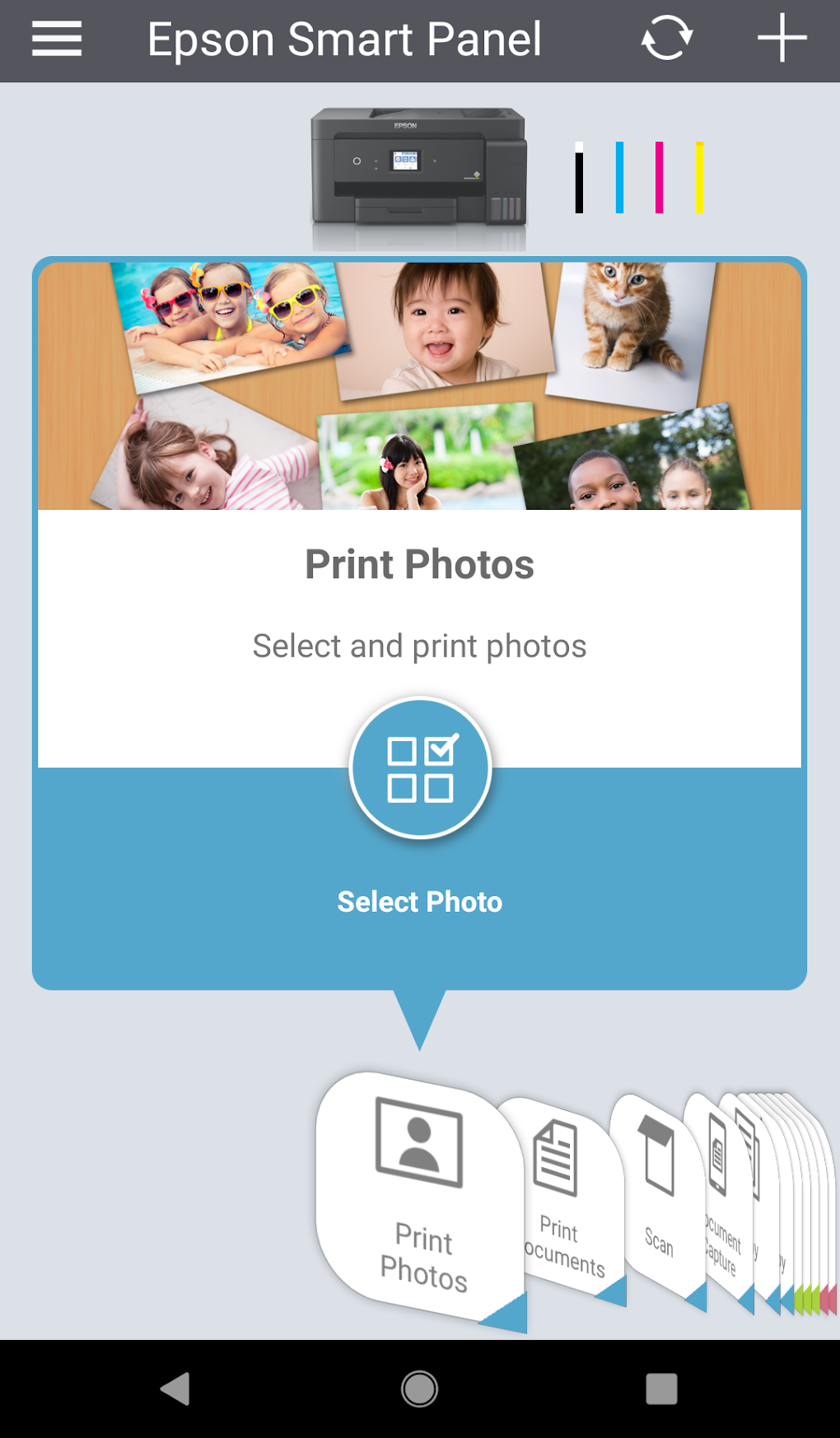
Beyond its setup capabilities, the Epson Smart Panel offers a suite of tools for managing your Epson devices effectively. The app provides a centralized dashboard for monitoring printer status, ink levels, and paper supply. This proactive monitoring allows you to anticipate potential issues, like low ink or paper jams, before they disrupt your workflow. The app will often provide alerts or notifications when these low-level conditions are approaching, preventing unexpected interruptions.
The app also simplifies maintenance tasks. Cleaning your printer’s print heads is crucial for maintaining optimal print quality. The Epson Smart Panel often includes options to initiate automated cleaning cycles directly from the app, eliminating the need to navigate complex printer menus. This feature alone can save significant time and effort in the long run. Similarly, the app can sometimes provide guidance on other maintenance tasks, such as replacing ink cartridges or resolving paper jams.
Advanced Printing and Scanning Features
The Epson Smart Panel goes beyond basic printing and scanning functionalities. It often supports a range of advanced features designed to enhance your printing and scanning experience. For instance, the app often allows you to select specific print settings, such as print quality, paper size, and number of copies, directly from your mobile device. This level of control gives you the flexibility to tailor your print jobs to your specific needs.
Moreover, the Epson Smart Panel often supports various file formats, allowing you to print documents, photos, and other content from a wide range of applications. This versatility is particularly useful for users who work with diverse file types. Many users find the ability to easily print documents from cloud storage services, such as Google Drive or Dropbox, extremely helpful. This eliminates the need to download files to your device before printing.
Security and Privacy Considerations
Like any application that connects to your network and devices, the Epson Smart Panel raises considerations regarding security and privacy. It’s essential to understand that the app requires access to certain permissions on your mobile device to function correctly. These permissions might include access to your Wi-Fi network, location services, and storage. It’s crucial to review these permissions carefully before granting them, ensuring you understand the app’s access requirements and their implications for your privacy.
Many users are concerned about data transmitted between their device and the Epson servers. It’s essential to review Epson’s privacy policy to fully understand how your data is handled. This policy usually outlines the types of data collected, how it’s used, and the measures taken to protect your information. By understanding Epson’s privacy practices, you can make an informed decision about whether the level of data collection is acceptable to you.
Troubleshooting and Support
Despite the app’s user-friendly design, you might encounter occasional issues or require assistance. The Epson Smart Panel often incorporates built-in troubleshooting guides to assist you in resolving common problems. These guides offer step-by-step instructions for addressing various issues, such as network connectivity problems, printing errors, and scanner malfunctions. This self-help resource can save you valuable time and effort in resolving minor issues without needing external support.
For more complex problems or situations that the built-in troubleshooting doesn’t resolve, Epson typically provides a comprehensive customer support system. This might include online FAQs, email support, phone support, or even live chat options. These resources can provide personalized assistance to address your specific issues and get your Epson printer or scanner back up and running quickly.
Comparing Epson Smart Panel with Alternative Solutions
Several alternative mobile printing applications exist for Android and iOS. These alternatives may offer similar functionalities but might have different strengths and weaknesses compared to the Epson Smart Panel. Some alternatives may focus on broader compatibility with different printer brands, while others might offer more advanced features, such as cloud printing or specialized editing tools. When comparing Epson Smart Panel with alternative solutions, it’s important to consider your specific needs and priorities.
For example, Epson iPrint is another app offered by Epson. While functionally similar in many aspects, it might have variations in its user interface, feature sets, or compatibility with specific Epson printer models. Similarly, other third-party applications might offer broader compatibility with other printer manufacturers’ devices, but they may lack the seamless integration and specialized support provided by Epson’s dedicated app. Choosing the right application depends on your specific requirements and preferences.
User Reviews and Community Feedback
User reviews provide valuable insights into the real-world performance and user experience of the Epson Smart Panel. By reviewing user comments and ratings on app stores or online forums, you can gather feedback from other users who have already used the app. This feedback can help you understand the app’s strengths and weaknesses, identify potential issues, and assess whether the app meets your specific needs. Looking at both positive and negative reviews gives a more balanced perspective on the app’s overall performance.
Conclusion
The Epson Smart Panel is a valuable tool for users of Epson wireless printers and scanners. Its streamlined setup process, user-friendly interface, and comprehensive management features simplify the interaction with these devices. The app empowers users to print and scan effortlessly from their mobile devices, boosting productivity and enhancing convenience. While security and privacy considerations should always be addressed, the app’s functionality and support resources make it a powerful and effective solution for managing your Epson devices. Remember to compare it to other solutions to find the best fit for your specific requirements.
File Information
- License: “Free”
- Version: “5.1.0”
- Latest update: “August 1, 2025”
- Platform: “Android”
- OS: “Android 13.0”
- Language: “English”
- Downloads: “7.8K”
- Download Options: “Google Play”


