
Etcher, also known as balenaEtcher, is a powerful, free, and open-source application designed to simplify the process of writing image files, such as operating system (OS) images, to storage media like SD cards and USB drives. In a world increasingly dominated by laptops and desktops that lack built-in disc drives, Etcher provides a user-friendly solution for installing operating systems onto various devices. Its intuitive design and robust functionality make it an ideal choice for both novice and experienced users. This comprehensive guide explores Etcher’s features, benefits, and limitations, providing a detailed overview of its capabilities.
Streamlined Interface and Effortless Operation
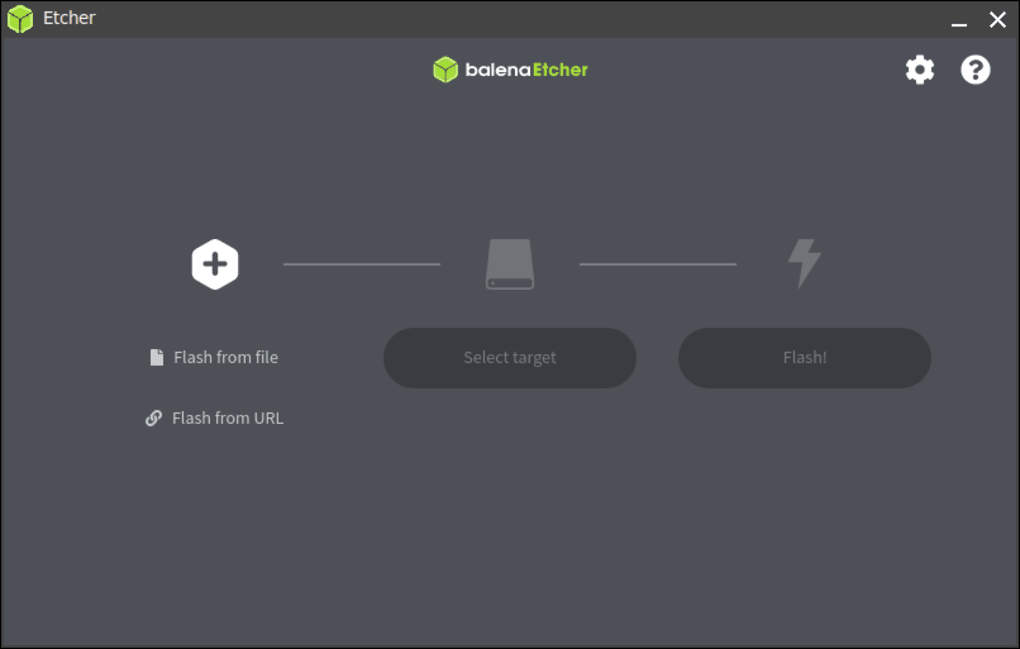
One of Etcher’s most appealing aspects is its remarkably streamlined interface. The application boasts a single-window design, eliminating the clutter often associated with more complex software. This minimalist approach ensures that users can focus on the core task: writing images to storage devices. The process is designed to be intuitive and straightforward, consisting of three simple steps:
-
Select Image: Users begin by selecting the image file they wish to write. Etcher supports a range of common image formats, including ISO, IMG, and ZIP, ensuring compatibility with most operating system images. The application clearly displays the selected file, minimizing the risk of accidental overwriting of incorrect files.
-
Choose Drive: After selecting the image file, users choose the target drive. Etcher displays a list of connected drives, clearly identifying each one to prevent accidental overwriting of data on the wrong drive. This step is crucial for data safety, as selecting the incorrect drive could lead to significant data loss. Etcher’s clear presentation of drive information greatly minimizes this risk. If multiple drives are connected, Etcher allows users to choose the correct drive without any ambiguity.
-
Flash! Once the image and drive have been selected, users simply initiate the flashing process by clicking the “Flash!” button. Etcher then handles the entire writing process automatically. A progress bar provides real-time feedback, displaying the percentage completed, write speed, and estimated time to completion. This ensures users are kept informed throughout the process.
The entire process is remarkably efficient. While the validation step (detailed below) can add to the overall time, the core flashing operation is often considerably faster than similar applications. The speed advantage, combined with the clear interface, makes Etcher a highly efficient tool for anyone needing to create bootable media.
Data Validation and Error Handling
A significant strength of Etcher lies in its built-in data validation feature. After each write operation, Etcher verifies the integrity of the data to ensure that the image has been written correctly and completely. This verification step helps to prevent corruption issues that might arise during the OS installation or subsequent use. While this validation adds to the overall time required for the flashing process, it significantly reduces the likelihood of encountering problems due to incomplete or corrupted images. Users can disable this validation step in the settings if speed is prioritized over absolute data integrity, although this is generally not recommended unless absolutely necessary. Etcher also provides detailed error reporting, making it easy to identify and troubleshoot any issues that may arise during the writing process. The automatic unmounting of the drive upon completion of the flashing process further enhances safety and ensures the data is properly written before use.
Flash with Etcher: Seamless OS Deployment
Etcher goes beyond simply providing a user-friendly image writing application; it also offers a unique feature called “Flash with Etcher.” This feature allows users to embed a button on their website or blog, enabling visitors to easily flash a specific OS image directly from the site. This eliminates the need for users to manually download the image and use Etcher separately, streamlining the OS installation process for a significantly improved user experience. The integration of the “Flash with Etcher” button is simple, involving the embedding of a single code snippet onto the desired webpage or blog post. This functionality is particularly beneficial for developers and organizations distributing their own custom OS images or providing support for specific operating systems. It presents a powerful method of simplifying the installation process and improving user engagement.
Advantages and Disadvantages of Etcher
Etcher offers several compelling advantages that make it a popular choice among users:
Pros:
- Simplified Process: The three-step process is incredibly intuitive, making it accessible to users of all skill levels.
- Hard Drive Friendly: The clear drive selection process significantly reduces the risk of accidentally overwriting data on the wrong drive.
- Clean and Organized Interface: The minimalist single-window design ensures a user-friendly experience free from distractions.
- Validated Burning: The data validation feature enhances data integrity and helps prevent corruption issues.
- Fast Writing Speed: Etcher’s performance compares favorably to other similar applications, often completing the writing process significantly faster.
Cons:
- Large Download Size: The application’s download size is comparatively large compared to some alternatives.
- Limited File Format Support: Etcher supports only a limited number of image formats, potentially limiting its compatibility with some niche OS images or specialized file formats.
- Limited Configuration Options: The application lacks extensive configuration options, which might be a drawback for users requiring advanced customization.
- Validation Time: Although beneficial, the data validation process can add significant time to the overall flashing process.
Despite these limitations, the advantages of Etcher significantly outweigh the disadvantages, particularly for users prioritizing simplicity, speed, and data security.
Etcher: A Powerful Tool for Modern OS Deployment
In conclusion, Etcher stands out as a robust and user-friendly tool for writing OS images to storage media. Its intuitive interface, streamlined process, and built-in data validation make it an excellent choice for users of all technical skill levels. While it may have limitations in file format support and configuration options, the benefits of its simplicity, speed, and data security measures are undeniable. Etcher’s “Flash with Etcher” feature further adds to its versatility, providing a seamless solution for developers and organizations seeking to simplify OS deployment for their users. For anyone needing a reliable and efficient way to create bootable media, Etcher is undoubtedly a powerful and worthy tool to consider.
File Information
- License: “Free”
- Latest update: “July 15, 2025”
- Platform: “Windows”
- OS: “Windows 8.1”
- Language: “English”
- Downloads: “43.7K”
- Size: “181.91 MB”


