
Executor is a free Windows application designed to streamline your access to programs, files, and websites. Tired of navigating a cluttered Start menu or repeatedly typing lengthy file paths? Executor offers a powerful alternative, allowing you to launch your favorite applications and open files simply by typing a few keywords. Its intuitive design, coupled with extensive customization options, makes it a valuable tool for boosting productivity and simplifying your workflow. This review delves into Executor’s features, benefits, and limitations, providing a comprehensive overview of this efficient application.
Launching Applications and Files with Keywords
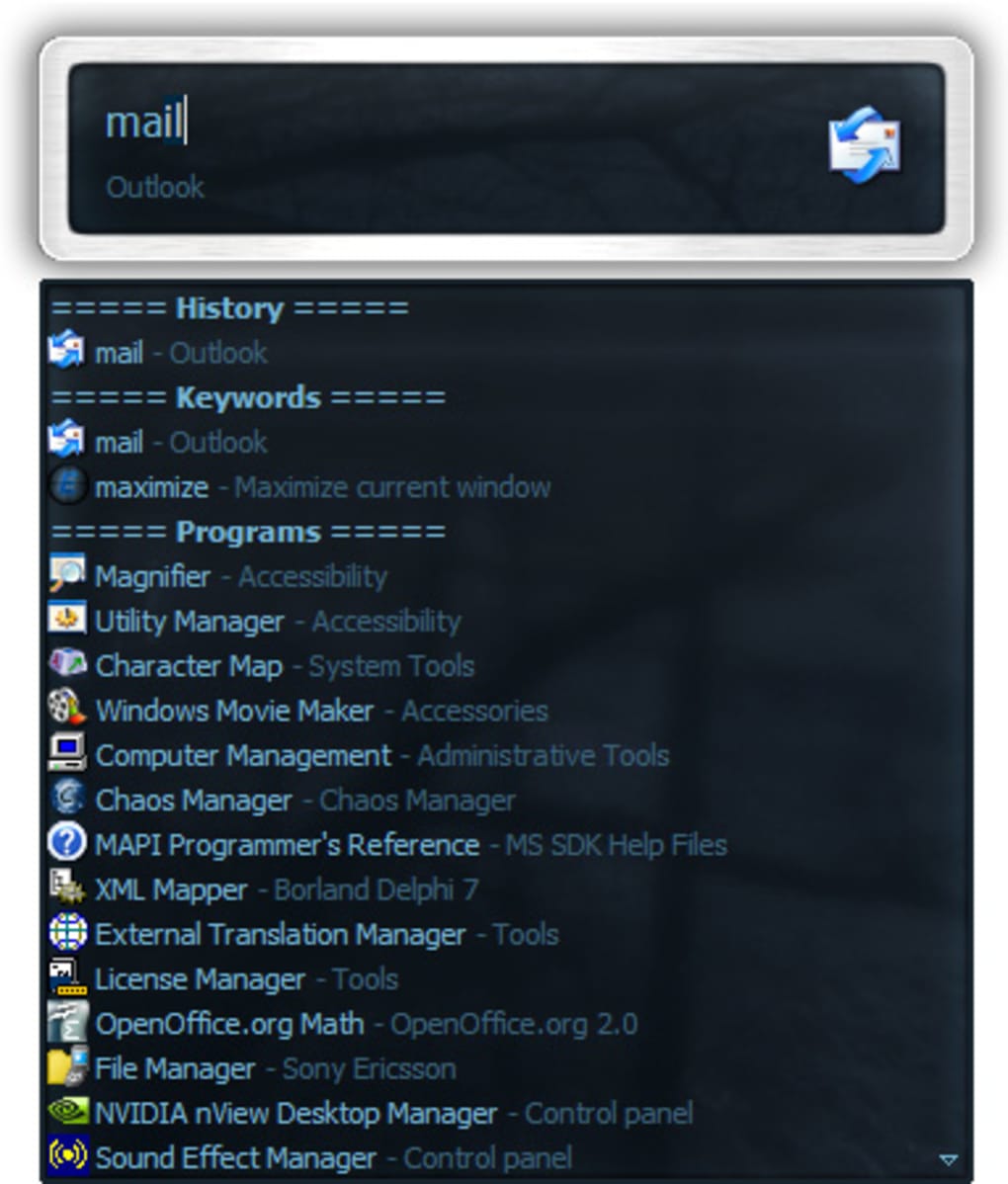
At its core, Executor functions as a keyword launcher. Instead of searching through menus or typing out full file paths, you assign custom keywords to your frequently used applications, documents, and websites. Once a keyword is assigned, typing even a few of its initial characters triggers Executor’s autocomplete functionality, instantly displaying matching entries. This rapid access significantly reduces the time spent searching for items, enhancing efficiency and saving valuable time. For example, you might assign the keyword “chrome” to launch Google Chrome, “word” to open Microsoft Word, or “photos” to access your image folder.
The power of Executor lies in its ability to adapt to your individual needs. The application isn’t limited to pre-defined keywords; its extensive configuration menu allows for the creation of virtually unlimited custom keywords, each linked to a specific program, file, or website. This flexibility enables users to tailor the application to their unique working style and preferences, ensuring a truly personalized experience. The process of adding keywords is straightforward, involving assigning the keyword and specifying the target file path or application executable.
Beyond simple launching, Executor supports more complex commands. Keywords can incorporate parameters, allowing for more sophisticated actions. For instance, a keyword like “search google [query]” could be configured to automatically perform a Google search using the text provided after the keyword. This eliminates the need for manually opening a web browser and typing the search query, further streamlining the process. This capability of handling parameters opens up a world of possibilities for customizing workflows and automating repetitive tasks.
Advanced Features and Customization
Executor goes beyond basic keyword launching with several noteworthy features:
- Auto-completion: Executor intelligently suggests keywords as you type, significantly speeding up the process of launching applications and files. This predictive feature anticipates your needs, minimizing keystrokes and maximizing efficiency.
-
URL Detection: The application automatically recognizes URLs, allowing for seamless opening of websites directly from the keyword interface. Simply typing a URL, such as “www.google.com,” will launch the specified website.
-
Dynamic Item Addition: Executor can optionally and dynamically add items from your Start menu, Control Panel, and other system locations to its dropdown/list. This expands the range of accessible applications and system functions, providing a centralized point of access for numerous system tools.
-
Keyword Properties: Keywords aren’t just labels; they can possess properties such as shortcuts. This feature allows users to drag and drop shortcuts, files, or folders directly onto Executor to create new keywords, streamlining the configuration process. Additionally, you can customize icons for each keyword, adding a visual layer of personalization and enhancing recognition. The addition of a “Group” property allows for the organization of keywords into logical categories, further improving usability and navigation.
-
Extensive Configuration Menu: Executor boasts a comprehensive configuration menu offering granular control over almost every aspect of its operation. From adjusting autocomplete behavior to setting custom skins, users can meticulously fine-tune the application to match their preferences. This level of customization ensures that Executor seamlessly integrates into any user’s workflow. The revised settings interface, introduced in recent updates, enhances organization and ease of navigation.
-
Support for Skins: While the default skins may be somewhat dark, the application supports custom skins. This feature enables users to create their own color combinations and save them, addressing potential readability issues with the built-in themes and ensuring a visually appealing experience tailored to personal preferences. The improved settings interface makes managing skins and other customization options more intuitive.
-
Built-in Keywords: Executor includes a set of useful default keywords, such as “google” (for searching on Google), “control panel,” “apps” (for listing currently running applications), “clipboard” (for listing previous clipboard content), and “recent” (for accessing recently opened documents). These pre-configured keywords provide immediate utility, reducing the initial setup time and offering quick access to frequently used functions.
Improvements and Updates
Recent updates to Executor have significantly enhanced the application’s functionality and usability:
-
Improved Indexing: Added the ability to add custom scan paths for indexing/scanning, offering more control over which folders and files are included in Executor’s searchable database.
-
Customizable Icons: Each keyword can now be assigned a custom icon, further enhancing personalization and improving visual recognition.
-
Organized Settings Interface: The settings interface has been reorganized for improved clarity and ease of navigation. Previously hidden options are now more accessible, making it easier to configure Executor’s behavior.
-
Support for Large List Items: The list can now display larger items, each with a 32x32 pixel icon, providing improved visual representation and better organization.
-
Group Keyword Property: The addition of a “Group” property facilitates the organization of keywords into logical categories, enhancing usability and improving the overall experience.
-
Enhanced Feedback: The index settings now clearly display the number of indexed items, and the “scan now” button provides more informative feedback.
-
Startup Command Execution: The ability to run keywords/commands on startup has been added to the settings menu.
-
Window Position and Size Locking: Users can now lock Executor’s window position and size.
-
Improved Auto-Completion: The auto-completion feature has been refined, including auto-completion in the dropdown menu.
-
Enhanced Scanning: The application now scans “Quick launch” and “Desktop” items for shortcuts.
Comparison to Other Launchers
While Executor offers a robust feature set, it’s worth comparing it to similar applications available for Windows. Other launchers exist, but many lack Executor’s combination of extensive customization, powerful keyword features, and dynamic item addition. Some alternatives might offer a simpler interface, but this often comes at the cost of reduced functionality. Executor provides a balance between ease of use and powerful features, making it a compelling choice for users seeking a highly customizable and efficient application.
Conclusion
Executor is a highly effective and customizable keyword launcher for Windows. Its intuitive interface, powerful features, and extensive configuration options make it an invaluable tool for boosting productivity. The ability to assign keywords to applications, files, and websites, coupled with its auto-completion feature, dramatically reduces the time spent navigating the operating system and launching applications. While the default skins might benefit from improved readability, the ability to create custom skins addresses this concern effectively. The continuous development and improvement shown through regular updates demonstrate the developer’s commitment to enhancing the user experience, making Executor a versatile and continually evolving application. Overall, Executor is a strong contender among Windows launchers, offering a powerful and personalized approach to accessing files and applications.
File Information
- License: “Free”
- Latest update: “May 23, 2023”
- Platform: “Windows”
- OS: “Windows 8”
- Language: “English”
- Downloads: “28.3K”
- Size: “2.33 MB”


