
F1 VM picture-in-picture Android virtual machine is a free application that allows users to run apps and games within a virtualized environment on their Android devices. This functionality provides several key benefits, including enhanced security, improved multitasking capabilities, and the ability to continue running apps even when the device’s screen is off. However, it’s important to understand that utilizing a virtual machine does come with potential drawbacks such as increased battery consumption and a possible decrease in overall device performance. This detailed review explores the features, advantages, and disadvantages of F1 VM to help users determine if it’s the right tool for their needs.
Enhanced Security and Privacy
One of the primary advantages of using F1 VM is the significant boost in security and privacy it offers. By running applications within a virtual machine, users create a layer of isolation between the apps and the underlying Android operating system. This means that any malware or malicious software contained within a virtualized app is less likely to compromise the main system and access sensitive personal data. Essentially, the virtual machine acts as a sandbox, limiting the potential damage of compromised applications. This is a crucial feature for users who download apps from less reputable sources or frequently handle files from unknown origins. If an app within the F1 VM environment becomes compromised, the damage is largely contained within the virtual environment, protecting the core system and user data stored on the device.
The isolation provided by F1 VM also extends to privacy concerns. The virtual environment helps prevent applications from accessing sensitive system files or user data outside the virtual machine’s boundaries. This is particularly valuable in situations where users are dealing with sensitive financial information, personal documents, or other private data. The added security layer provided by F1 VM gives users greater peace of mind when running apps that might otherwise pose a privacy risk.
Multitasking with Picture-in-Picture Mode
.webp)
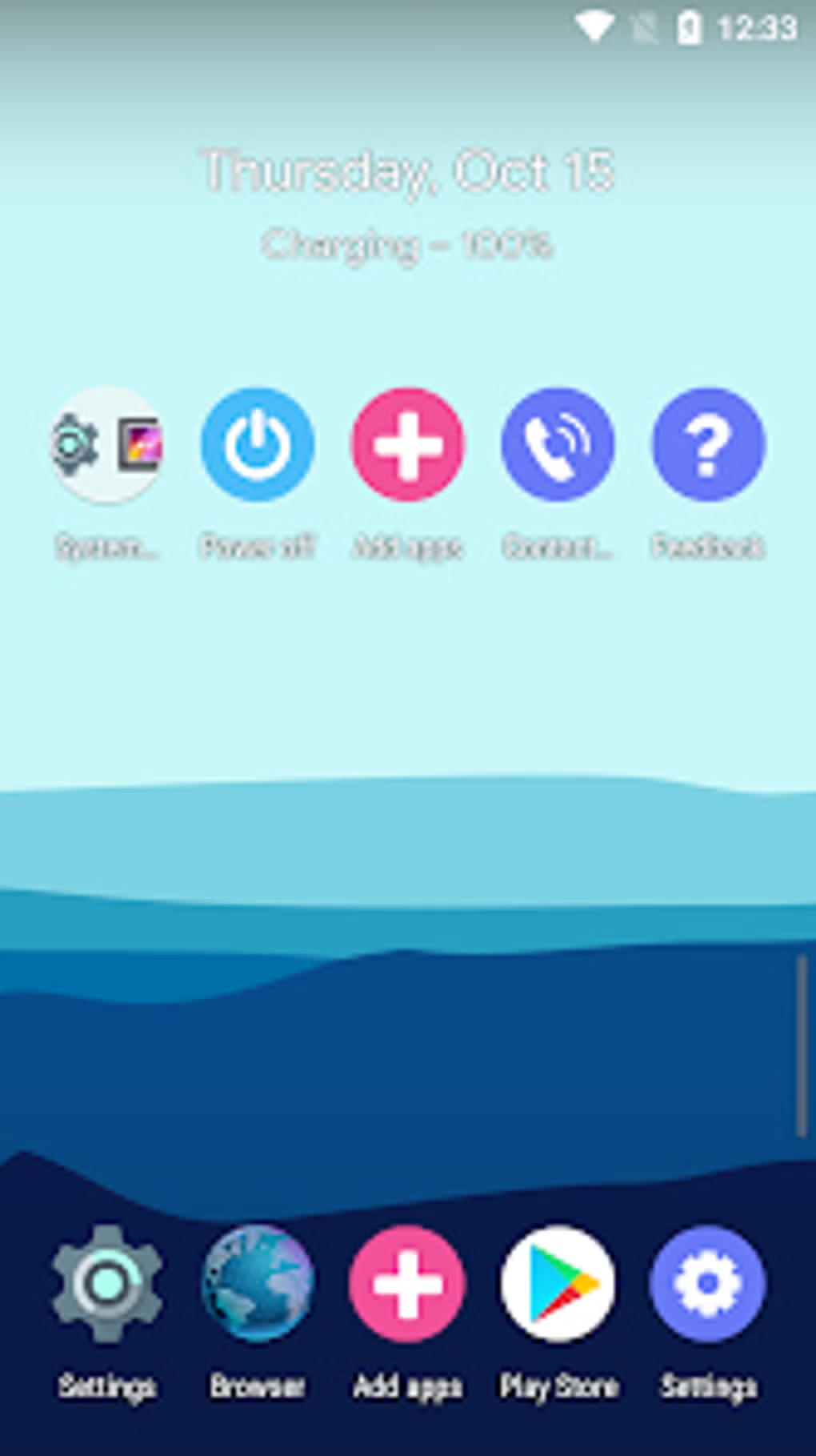
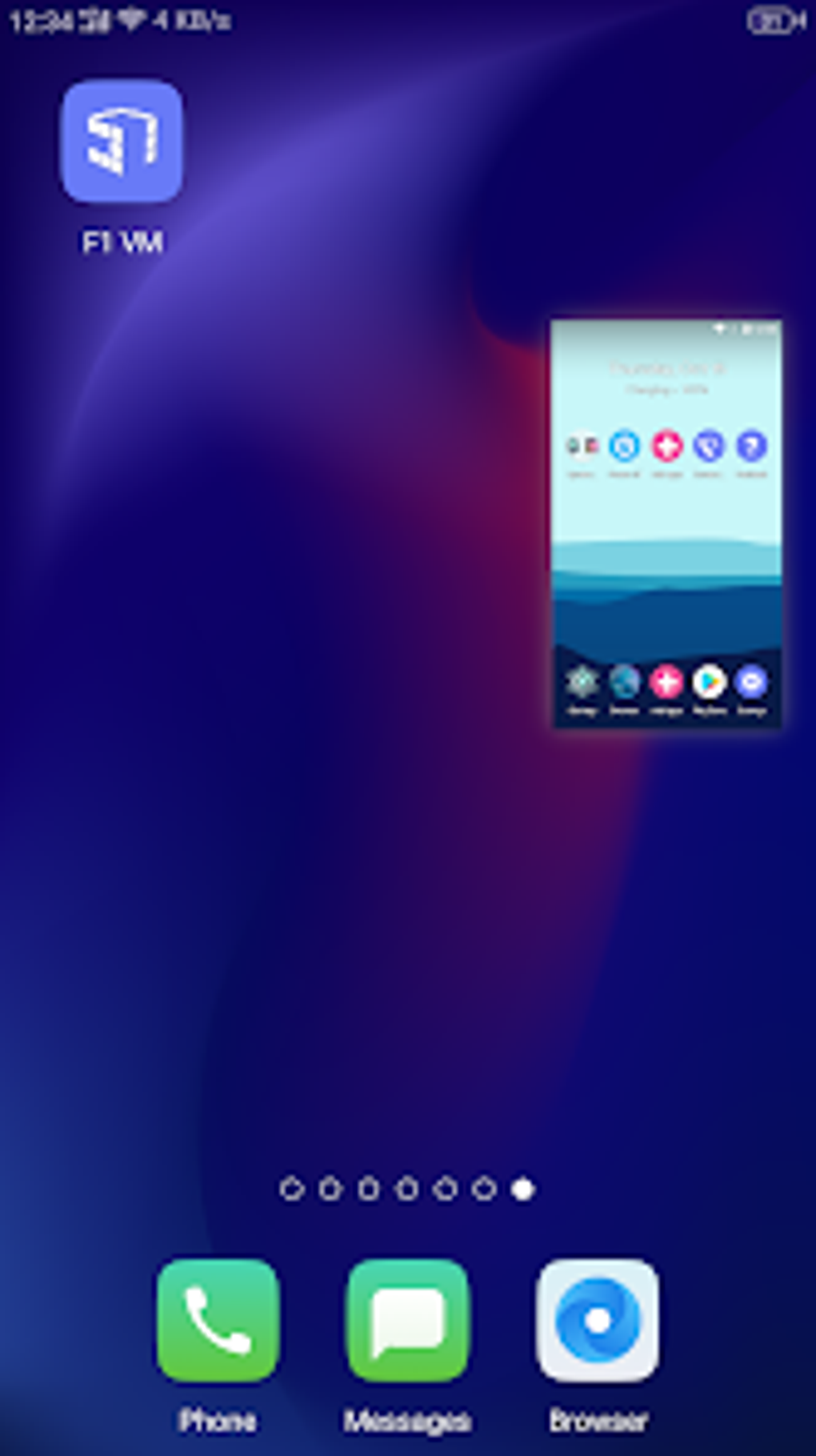
F1 VM enhances multitasking capabilities through its integrated picture-in-picture (PiP) mode. This allows users to run applications in a resizable window overlaid on top of other apps or the device’s home screen. This means users can engage in multiple activities simultaneously without constantly switching between different applications. For example, a user could watch a video in PiP mode while simultaneously checking emails or browsing the web. The flexibility of PiP mode makes F1 VM a powerful tool for users who frequently juggle multiple tasks. This feature is particularly beneficial for productivity and entertainment, allowing for a more seamless workflow and a more engaging multimedia experience.
Screen-Off Functionality
A distinctive feature of F1 VM is its ability to continue running applications even when the device’s screen is turned off. This functionality proves useful for tasks that don’t require continuous user interaction, such as downloading large files, streaming music, or running background processes. By keeping apps running in the background while the screen is off, users can conserve battery power in certain situations, as the screen is often the biggest consumer of battery life. This feature, however, is dependent on the app being used; some apps might not function properly or might not be designed to run in the background without user interaction. Additionally, using this function might still drain some battery power, though often less than keeping the screen on.
Resource Consumption and Performance Implications
While F1 VM provides several advantages, it’s essential to acknowledge its impact on device resources. Running a virtual machine requires additional processing power, RAM, and storage space. This can lead to slower performance compared to running applications directly on the host Android operating system. Users with low-end devices might experience significant performance drops when running multiple apps within the virtual environment. The extent of this performance impact will vary depending on the device’s hardware specifications and the intensity of the applications being run within the virtual machine. Older devices with limited processing power and RAM are more likely to experience noticeable slowdowns.
Similarly, F1 VM’s operation will consume more battery power than running apps directly on the host system. The virtual machine needs extra resources, which in turn increase the energy demand on the device’s battery. The increased battery drain is especially noticeable during intensive tasks or when running multiple apps simultaneously within the virtual environment. Users should be prepared for shorter battery life when utilizing F1 VM, especially if they are running demanding applications or leaving the screen off while apps continue to run in the background.
Alternative Virtual Machine Applications
Several alternative virtual machine apps are available for Android devices, each offering its own set of features and capabilities. Some popular alternatives include VMOS PRO and Game Plugins. VMOS PRO, similar to F1 VM, is known for its ability to create a separate Android system within the main system. It’s often praised for its stability and performance, but might not have the exact same picture-in-picture functionality as F1 VM. Game Plugins, on the other hand, focuses on improving the gaming experience within a virtualized environment. This app may offer specialized tools and settings to optimize performance for games, but could lack the broader functionality for general apps offered by F1 VM. Choosing the right alternative depends on a user’s specific needs and priorities. It is recommended to compare the features, performance, and user reviews of different virtual machine applications before making a decision.
.webp)
Conclusion
F1 VM offers a valuable solution for users seeking enhanced security, improved multitasking, and the capability to run applications even with the screen off. The picture-in-picture functionality adds a layer of convenience for multitasking. However, users must carefully consider the potential drawbacks, including increased battery consumption and possible performance degradation, especially on lower-end devices. The decision of whether to use F1 VM depends on individual needs and priorities. If the security benefits and multitasking advantages outweigh the potential performance and battery life compromises, then F1 VM could be a worthwhile addition to an Android device’s arsenal of apps. Users should carefully assess their device’s specifications and usage patterns before installing and utilizing the application to determine whether it aligns with their requirements. Exploring alternative virtual machine apps and reading user reviews can further aid in making an informed decision. Ultimately, F1 VM presents a valuable tool with its unique capabilities, but it’s important to approach its use with awareness of its potential resource demands.
File Information
- License: “Free”
- Latest update: “June 5, 2023”
- Platform: “Android”
- OS: “Android 13.0”
- Language: “English”
- Downloads: “99.7K”
- Download Options: “Google Play”


