
Fat32Formatter is a free, lightweight Windows program designed for formatting storage devices using the FAT32 file system. While seemingly simple, understanding its function and application within the broader context of file system management is crucial. This guide provides a detailed overview of Fat32Formatter, exploring its features, usage, alternatives, and its place within the digital landscape.
Understanding FAT32 and its Formatting Needs
Before diving into the specifics of Fat32Formatter, it’s essential to grasp the fundamentals of the FAT32 file system. FAT32 (File Allocation Table 32) is a file system commonly used for storage devices like USB flash drives, memory cards, and external hard drives. Its key features include:
-
Simplicity: FAT32 is a relatively simple file system, making it compatible with a wide range of operating systems and devices. This broad compatibility is a significant advantage, allowing easy data transfer between different platforms.
-
Compatibility: Its widespread support across various operating systems (Windows, macOS, Linux, etc.) makes it a convenient choice for sharing files across different environments.
-
File Size Limitations: A notable limitation of FAT32 is its maximum file size limit of 4GB. This restriction makes it unsuitable for storing very large files, such as high-resolution videos or large uncompressed data sets. For files exceeding this limit, other file systems like NTFS (New Technology File System) or exFAT (Extended File Allocation Table) are necessary.
-
Partition Size Limitations: Similar to file size limitations, FAT32 also has restrictions on the size of partitions it can manage. While these limitations are less stringent than the file size limit, they can still pose challenges for very large storage devices.
Formatting a storage device involves preparing it for use by a specific file system. This process erases all existing data on the drive, creating the necessary file system structure to store new information. This is where Fat32Formatter comes in. It provides a straightforward tool to format devices using the FAT32 file system, addressing the specific needs of users who require this functionality.
Fat32Formatter: Features and Functionality
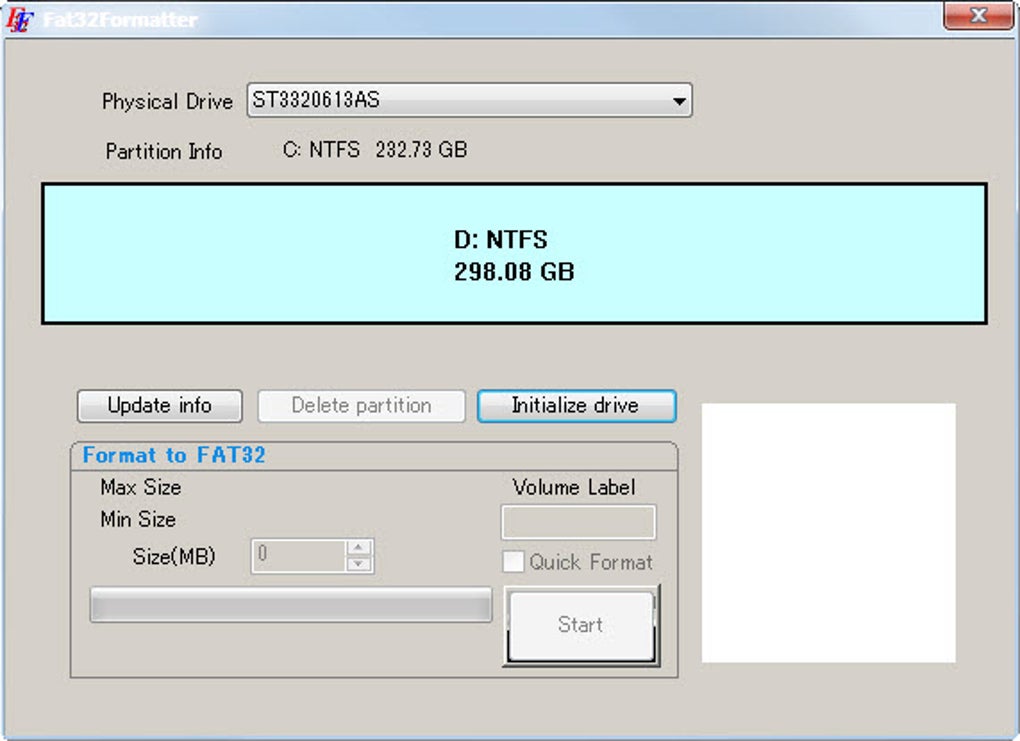
Fat32Formatter offers a streamlined interface focused solely on formatting storage devices. It lacks advanced features found in some more comprehensive disk management tools, making it easy to use even for less technically inclined individuals. Its core functionality includes:
-
Drive Selection: The program allows users to select the drive to be formatted. It’s crucial to carefully select the correct drive, as formatting the wrong drive will result in irreversible data loss.
-
Volume Label: Users can assign a volume label (a name) to the formatted drive, allowing for easier identification.
-
FAT32 Format: The primary function is to format the selected drive using the FAT32 file system.
-
Quick Format Option: This option performs a faster format, generally suitable for most situations. A full format, which is usually slower but can resolve some issues, might not be readily available.
-
Simplicity and Ease of Use: The minimal interface makes the process straightforward, with clear instructions and minimal options to avoid confusion.
The program’s simplicity is both its strength and its limitation. While its ease of use is a significant advantage for casual users, power users might find it lacking advanced options such as cluster size selection or bad sector checking.
Using Fat32Formatter: A Step-by-Step Guide
Using Fat32Formatter is a straightforward process:
- Download and Installation: Download the Fat32Formatter executable from a trusted source and install it on your Windows system.
-
Launch the Program: Open the Fat32Formatter application.
-
Select Drive: Carefully choose the drive you wish to format from the dropdown menu or list displayed by the program. Double-check the selected drive to ensure it’s the correct one. Formatting the wrong drive can lead to permanent data loss.
-
Assign Volume Label (Optional): If desired, enter a volume label (name) for the formatted drive in the designated field.
-
Initiate Formatting: Click the “Format” button to begin the formatting process.
-
Confirmation: The program might prompt you to confirm the formatting process before proceeding. Carefully review the selected drive and settings one last time before confirming.
-
Completion: Once the formatting process is complete, the program will indicate its success. The selected drive will now be formatted with the FAT32 file system and ready for use.
Alternatives to Fat32Formatter
While Fat32Formatter provides a simple solution for formatting drives with FAT32, several alternatives offer more advanced features:
- Windows Disk Management: Built into Windows, Disk Management offers a wider range of functionalities, including formatting with various file systems (including FAT32, NTFS, and exFAT), partitioning, and other disk management tasks. However, its interface might be slightly more complex than Fat32Formatter.
-
GUI-based Partition Managers: Third-party disk management tools like EaseUS Partition Master or MiniTool Partition Wizard provide more comprehensive features, including advanced formatting options, partition resizing, and data recovery capabilities. These tools often have more user-friendly interfaces than the built-in Windows Disk Management tool.
-
Command-Line Tools: For experienced users, command-line tools such as
format(in Windows) offer greater control over the formatting process, enabling finer-grained customization of formatting options. However, command-line tools require a higher level of technical expertise.
The choice of alternative depends on the user’s needs and technical skills. If simple FAT32 formatting is the only requirement, Fat32Formatter is sufficient. However, for more advanced tasks or users seeking greater control, alternatives offer more extensive capabilities.
Security Considerations
Formatting a drive involves erasing all data on it. While it’s generally assumed that data is permanently deleted during formatting, sophisticated data recovery tools might potentially retrieve some residual data. For sensitive data, it’s recommended to use secure deletion techniques that overwrite the data multiple times to ensure complete erasure. While Fat32Formatter itself doesn’t provide secure deletion capabilities, using dedicated data wiping tools before formatting can significantly enhance security.
Conclusion
Fat32Formatter offers a simple and effective solution for formatting storage devices with the FAT32 file system. Its straightforward interface caters to users who require a quick and easy way to prepare their drives for use. However, understanding the limitations of FAT32 and considering the available alternatives is crucial to selecting the most appropriate tool for your specific needs. Always back up important data before formatting any drive to prevent accidental data loss. Remember to exercise caution when selecting the drive to be formatted, as incorrect selection can lead to irreversible data loss. For advanced functionalities or larger file management tasks, exploring the alternatives outlined above is recommended.
File Information
- License: “Free”
- Version: “1.1”
- Latest update: “March 9, 2017”
- Platform: “Windows”
- OS: “Windows Vista”
- Language: “English”
- Downloads: “27.1K”
- Size: “188.13 KB”


