
In the vast and often complex landscape of digital file management, where countless applications vie for attention with extensive feature sets and intricate interfaces, a true gem often stands out for its elegant simplicity and unwavering focus on a core problem. File Commander, while perhaps not the most visually flamboyant or feature-packed utility available on platforms like PhanMemFree.org, distinguishes itself through a singular, potent capability: the automation of repetitive file operations. In an era where efficiency is paramount, and digital clutter is a constant battle, File Commander offers a refreshingly direct approach to conquering the tedious, time-consuming tasks that plague every computer user. This article delves into the essence of File Commander, exploring its unique proposition, how it empowers users to reclaim valuable time, and its place within the broader ecosystem of file management tools.
The Essence of Efficient File Management
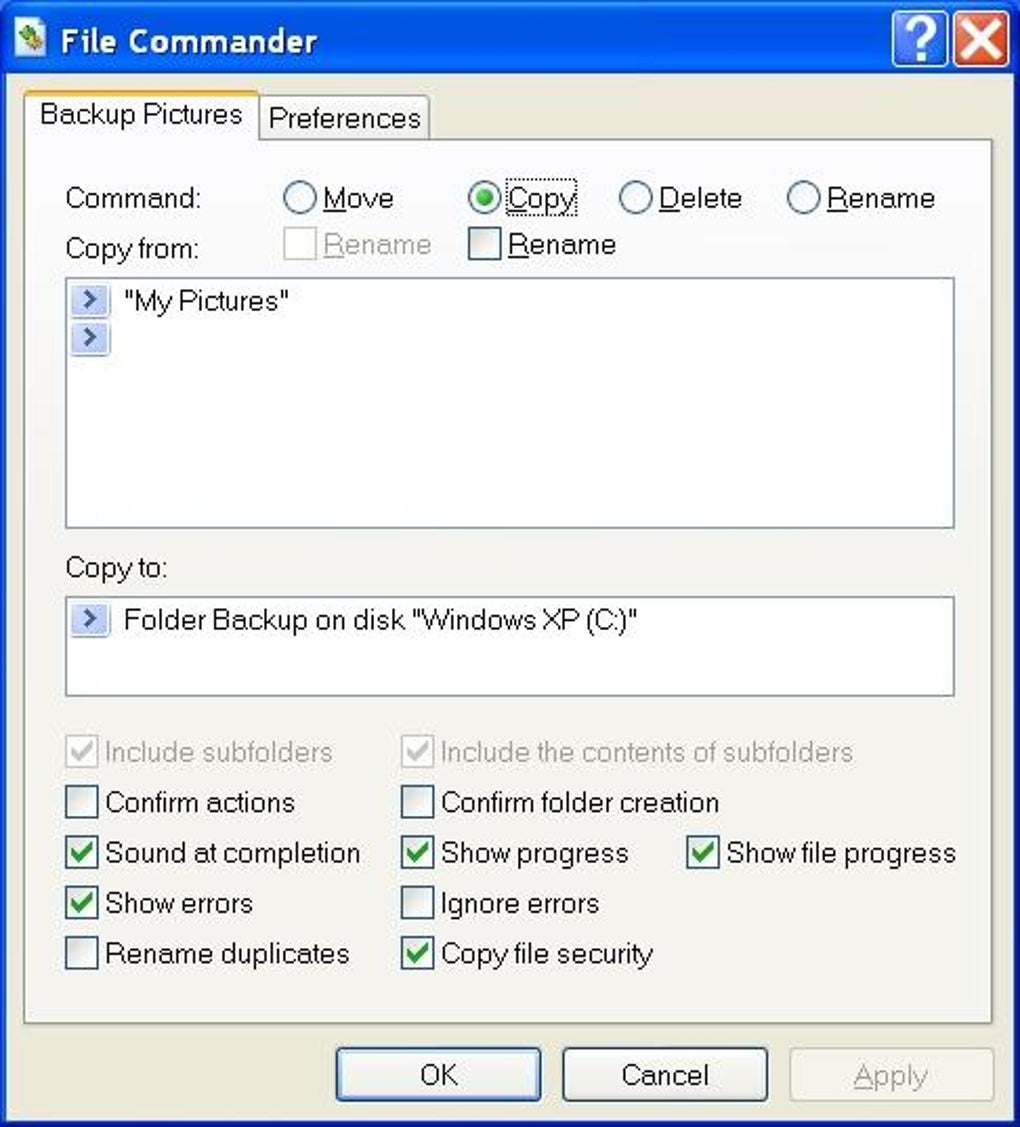
At its heart, File Commander is designed to be a silent workhorse, a utility that operates behind the scenes to simplify the mundane. The premise is straightforward yet incredibly powerful: if you find yourself repeatedly performing the same file operations—moving, copying, or deleting specific sets of files—File Commander offers a solution to automate these actions. This isn’t just about saving a few clicks; it’s about fundamentally altering your relationship with your digital workspace, transforming tedious chores into effortless commands.
The modern digital environment demands more than just basic file browsing. Users are increasingly confronted with vast quantities of data, needing to organize documents, manage media libraries, synchronize project files, and maintain system hygiene. While operating systems provide fundamental tools for these tasks, they often fall short when it comes to handling recurring patterns. This is where specialized utilities like File Commander shine. They identify a common pain point—the drudgery of repetition—and offer a targeted antidote.
Consider a scenario in a business setting: a project manager consistently needs to move new reports from a “Drafts” folder to a “Review” folder, then copy final versions to an “Archive” every week. Or, for a personal user, imagine regularly consolidating downloaded photos from various sources into categorized albums, or deleting temporary files from specific application directories. These are the exact scenarios where File Commander transforms an hour of repetitive drudgery into a single, instant command execution. It’s a tool built for those who value their time and seek to optimize their digital interactions, pushing beyond the manual limitations of traditional file explorers.
Beyond Basic Operations: The Power of Automation
The true ingenuity of File Commander lies in its emphasis on automation. Unlike many file managers that offer dual-pane interfaces, advanced search filters, or network integration, File Commander focuses squarely on creating “commands.” These commands are essentially pre-defined sequences of actions—move, copy, or delete—applied to specified files or directories. Once created, these commands can be executed with a single click or keyboard shortcut, replicating complex manual processes instantaneously.
This automation capability is a paradigm shift. Instead of mentally mapping out the path, selecting files, initiating the move, navigating to the destination, and confirming the action for each batch, File Commander abstracts this entire sequence into an executable script. The utility essentially “remembers” your repetitive actions and performs them on demand, with the precision and speed of a machine. This not only eliminates the tedium but also drastically reduces the potential for human error, ensuring consistency in your file management routines.
The power of automation extends beyond mere convenience; it’s a productivity multiplier. By offloading repetitive mental and manual tasks to software, users free up cognitive resources to focus on more complex, creative, or critical aspects of their work. This shift from manual execution to automated command can be particularly impactful in workflows where file organization is a continuous requirement, fostering a cleaner, more efficient digital environment. For anyone who has ever felt overwhelmed by the sheer volume of files needing constant attention, File Commander presents itself not just as a tool, but as a strategic ally in the fight against digital disarray.
Who Needs File Commander?
File Commander caters to a surprisingly broad audience, despite its specialized nature. While power users and IT professionals might immediately grasp the benefits of automating file operations, its utility extends to everyday users who simply want a more organized and less frustrating digital life.
- Students: Managing coursework, research papers, and lecture notes often involves moving files between different project folders, backing up assignments, and cleaning up old drafts. File Commander can automate these periodic reorganizations.
- Creative Professionals: Photographers, videographers, and graphic designers constantly deal with large media files, needing to move raw assets, copy processed versions, and archive completed projects. A command to, for example, “Move all RAW files from camera card to ‘YYYY-MM-DD_Photos_RAW’ folder” could be a significant time-saver.
- Office Workers: From managing daily incoming reports to organizing departmental documents and archiving monthly summaries, repetitive file tasks are a staple of office life. File Commander can streamline these administrative burdens.
- Developers & System Administrators: While they often have more advanced scripting tools, File Commander provides a quick, GUI-driven way to automate simple clean-up or deployment tasks without diving into complex shell scripts. It’s a pragmatic tool for those repetitive “copy files from build folder to staging” or “delete old log files” actions.
- Home Users: Anyone maintaining a digital photo collection, organizing downloaded music, or keeping their “Downloads” folder from becoming an unmanageable abyss can benefit. A command to “Move all .jpg files from Downloads to Pictures/Unsorted” or “Delete all files older than 30 days from Temp folder” can dramatically simplify home PC maintenance.
Essentially, anyone who recognizes a recurring pattern in their file management activities is a potential candidate for File Commander. Its strength lies not in breadth of features, but in the depth of its solution for a specific, universal problem: the desire to perform less manual, repetitive work.
Unlocking Productivity with File Commander’s Features
File Commander is not about overwhelming the user with choices; it’s about empowering them with targeted functionality. The key to its effectiveness lies in its straightforward approach to command creation and execution, encapsulated within an intuitive design. While it might hail from an earlier era of software development, its core principles remain relevant for anyone seeking to optimize their digital routines.
Intuitive Command Creation with the Wizard
The most distinctive feature of File Commander is its “Wizard for creating new commands.” This wizard is the gateway to automation, designed with user-friendliness as its guiding principle. For those unfamiliar with scripting or command-line interfaces, the term “command” can sound intimidating. However, File Commander strips away this complexity, offering “easy step-by-step instructions” that guide users through the process of defining their automated tasks.
Imagine the wizard as an interactive questionnaire. It walks you through the essential parameters of your desired operation:
- Select Action: The first step would typically involve choosing the type of operation: “Move Files,” “Copy Files,” or “Delete Files.” This immediately clarifies the intention of the command.
- Source Specification: Next, the wizard would prompt you to define the source. This could involve selecting specific files (e.g., all files ending with
.docx, or files matching a particular naming convention), or an entire folder from which files should be processed. Advanced options might include filtering by file date, size, or specific attributes. - Destination (for Move/Copy): If you’ve chosen “Move” or “Copy,” the wizard then asks for the target location. This is where the processed files will end up. It might also offer options to create new subfolders based on criteria like the current date, further enhancing organization.
- Confirmation and Naming: Finally, the wizard would present a summary of the command about to be created. Users would then give their command a memorable name (e.g., “Archive Monthly Reports,” “Clean Up Temp Files,” “Organize New Photos”) and save it.
This guided process demystifies automation, making it accessible to users of all technical proficiencies. The wizard acts as a bridge, translating a user’s intent into an executable command without requiring them to write a single line of code or understand complex logical operators. This ease of use is critical for a utility aimed at improving daily workflow for a broad audience. The ability to quickly define and save these commands means that once a repetitive task is identified, a solution can be created in minutes, forever eliminating that particular manual chore.
Repetitive Tasks Made Simple
The core functions of File Commander revolve around the triumvirate of file management: moving, copying, and deleting. While these are fundamental operations available in any file explorer, File Commander’s advantage lies in its ability to execute these actions conditionally and repeatedly with a single trigger.
- Automated Moving: Instead of manually dragging and dropping files from one location to another, File Commander enables you to set up a rule. For example, “Move all PDF files from my ‘Scans’ folder to ‘Documents/Invoices’ every time I run this command.” This is invaluable for categorizing incoming data or distributing files across a structured directory tree.
- Effortless Copying: Similarly, copying files can be automated for backup purposes or synchronization. A command like “Copy all files from ‘Project X/Work’ to ‘Project X/Backup_Cloud’ nightly” ensures that critical data is replicated without manual intervention. This is particularly useful for maintaining off-site backups or distributing master copies.
- Intelligent Deletion: Perhaps the most liberating function is automated deletion. Cleaning up old log files, temporary application data, or outdated drafts can be a tedious and often neglected task. File Commander can be configured to “Delete all files in ‘Downloads’ folder older than 60 days,” or “Delete all files with ‘.tmp’ extension from ‘C:\Windows\Temp’.” This proactive approach to digital hygiene ensures that your system remains lean and responsive, preventing unnecessary clutter from accumulating over time.
The simplicity of defining these commands belies their profound impact on daily productivity. By transforming repetitive manual actions into pre-configured, single-click operations, File Commander empowers users to maintain an organized and efficient digital environment with minimal effort. This focus on practical, actionable automation is what gives File Commander its enduring appeal.
System Requirements and Accessibility
Understanding the technical specifications of File Commander provides context for its design and target environment. As noted on PhanMemFree.org, File Commander (V1.3.0.0) was last updated on November 14, 2006. Its primary platform is Windows, with specific mention of Windows 98, though it is likely compatible with subsequent Windows versions due to backward compatibility in the operating system, especially for such a lightweight utility.
- License: Free
- Version: 1.3.0.0
- Latest update: November 14, 2006
- Platform: Windows (specifically Windows 98, likely compatible with newer versions)
- Language: English
- Size: 2.24 MB
- Developer: Cinnamonsoftware
The compact size (2.24 MB) is a significant advantage, particularly for users with older systems or those who prefer minimalist software. This small footprint means it consumes minimal system resources, making it quick to download, install, and run without impacting overall system performance. The “Free” license further enhances its accessibility, removing any financial barrier to adoption.
While the 2006 update date might suggest an older application, it’s important to recognize that core file management operations haven’t fundamentally changed. For its specific purpose of automating repetitive tasks, a well-designed application from that era can remain perfectly functional and highly effective on contemporary systems, provided there are no underlying compatibility issues with newer Windows OS versions. Its “Security Status: Free Download for Windows” being “Clean” on PhanMemFree.org provides reassurance regarding its safety, indicating that it has been scanned and deemed free from potential threats. This ensures that users can confidently integrate this utility into their workflow without compromising their system’s integrity.
Navigating the File Manager Landscape: File Commander and Its Alternatives
The world of file management utilities is diverse, ranging from basic built-in explorers to highly advanced, feature-rich powerhouses. File Commander carves out a distinct niche within this ecosystem, focusing on automation rather than comprehensive file browsing. To truly appreciate its value, it’s helpful to compare it with other prominent tools in the category.
Comparing Functionality: What Sets File Commander Apart?
Many popular file managers aim to replace or heavily augment the default Windows Explorer experience. They offer features like dual-pane interfaces for easy drag-and-drop between directories, tabbed browsing, advanced search capabilities, integrated FTP clients, archive management, and extensive customization options. Examples include Total Commander, freeCommander, Double Commander, and Multi Commander.
- Total Commander: A legendary shareware file manager, known for its powerful dual-pane interface, extensive plugin architecture, and command-line support. It’s a comprehensive tool for power users who want deep control over their files.
- freeCommander: A free alternative that mirrors many of Total Commander’s features, offering a dual-pane layout, tabbed interface, built-in archive handling, and FTP client. It’s a strong contender for those seeking an Explorer replacement without cost.
- Double Commander: An open-source, cross-platform file manager inspired by Total Commander, offering similar dual-pane functionality, internal text editor, and archive support.
- Multi Commander: Another robust alternative that provides a multi-tabbed interface, advanced filtering, scripting support, and a highly customizable environment.
File Commander, in contrast, doesn’t aspire to be a full-fledged file explorer replacement. It maintains a separate, focused identity. Its strength is not in presenting files in new ways or offering myriad browsing options, but solely in executing predefined operations. You won’t find dual panes, integrated viewers, or network drive mapping as its primary features. Instead, its interface is primarily a means to create and trigger automation commands.
This distinction is crucial. If your primary need is a more powerful way to browse and manually manipulate files, then tools like Total Commander or freeCommander would be more appropriate. However, if your challenge lies in the repetitive nature of certain file operations, and you seek to eliminate manual repetition through simple, wizard-driven automation, then File Commander is precisely the tool you need. It doesn’t aim to be a Swiss Army knife but a highly specialized, efficient automatic screwdriver for a specific type of recurring screw.
Exploring Other Powerful Options: freeCommander, Total Commander, Double Commander, and More
While File Commander excels at command automation, the broader file manager category offers a spectrum of solutions catering to different user preferences and needs.
- freeCommander (Dual-panel handy file manager): This tool emphasizes a dual-pane layout, which allows users to view two directories simultaneously, making file transfers and comparisons incredibly intuitive. Its strength is in manual, visual file management.
- Total Commander (Based on Windows Explorer but with more functionality): As a “trial version” software, Total Commander offers a robust, feature-rich environment that expands significantly on the basic functionality of Windows Explorer. It’s designed for experienced users who require advanced capabilities like bulk renaming, directory synchronization, and direct access to archives.
- Total File Commander Pro (A full version program for Windows, by Andrii Leshchinskiy): This paid alternative suggests a more premium, perhaps more modern, take on the file manager concept, likely offering a broader suite of tools for file organization and manipulation.
- Midnight Commander (Manage Files Visually): An open-source, console-based file manager popular in Linux environments, it provides a text-based, dual-pane interface that is powerful for users comfortable with the command line. Its “visual management” refers to its organized text interface.
- Q-Dir (Free multi-pane file explorer for Windows extra): This unique tool offers not just two, but up to four panes, allowing users to navigate and manage files across multiple locations simultaneously. It’s ideal for those who work with many different directories at once.
- Double Commander (Take Command of File Management): Similar to freeCommander and Total Commander, Double Commander provides a free, open-source alternative with extensive features, appealing to those who desire powerful management without cost.
- NexusFile (Browse through your computer’s contents for free with NexusFile): This free utility offers a cleaner interface and often focuses on speed and simplicity for basic browsing and operations, making it suitable for users who find Windows Explorer clunky but don’t need the complexity of power-user tools.
Each of these alternatives offers a compelling set of features, but none has the singular, unyielding focus on repetitive task automation as File Commander does. They aim for comprehensive management, while File Commander aims for focused efficiency.
Choosing the Right Tool for Your Needs
The choice of file manager ultimately depends on your specific workflow and priorities.
- If you frequently navigate complex directory structures, compare folders, manage archives, or interact with FTP servers, a comprehensive tool like Total Commander or freeCommander would likely be your best bet.
- If you need a visually distinct way to handle multiple directories at once, Q-Dir’s multi-pane approach could be ideal.
- However, if your daily digital life is punctuated by the same moving, copying, or deleting actions performed again and again—be it organizing downloads, backing up project files, or cleaning up temporary data—then File Commander offers a specialized, efficient, and direct solution. It’s a tool that doesn’t try to do everything but excels at the one thing it sets out to achieve: making repetitive file operations vanish with a single command. Its free license and lightweight nature make it an accessible and valuable addition to any utility toolkit, especially for those who appreciate elegant, single-purpose solutions.
Why Choose File Commander? Advantages and Practical Applications
In a market saturated with feature-rich applications, File Commander’s enduring relevance stems from its clear and undeniable advantages, particularly for users burdened by repetitive digital chores. Its value proposition is simple: save time, reduce effort, and minimize errors through intelligent automation.
Time-Saving Potential for Everyday Users
The most immediate and tangible benefit of File Commander is the sheer amount of time it saves. For an everyday computer user, seemingly small, repetitive tasks can accumulate into significant time sinks over days, weeks, and months. Think of:
- Organizing Downloads: Manually sorting newly downloaded files (documents, images, videos) into their respective categories can take minutes per session. If this happens multiple times a day, those minutes quickly add up. A File Commander command to automatically move
.pdffiles toDocuments/Downloads,.jpgfiles toPictures/Downloads, and.mp4files toVideos/Downloadscan reduce this to seconds. - Photo Management: After transferring photos from a camera or phone, categorizing them into dated folders (e.g.,
2023/11/15_TripToParis) is a frequent task. A command to create such a folder based on the current date and move all new image files into it would be invaluable. - Cleaning Temporary Files: Many applications and system processes create temporary files that eventually need to be cleared. Rather than navigating to multiple
Tempfolders and manually deleting files, a single File Commander command can sweep through specified directories and remove old, unnecessary data, keeping your system lean.
These are not one-off tasks; they are recurring administrative overheads. By automating them, File Commander acts as a force multiplier for personal productivity, allowing users to dedicate their mental energy and actual time to more meaningful activities, rather than the mundane mechanics of file manipulation. The initial investment in setting up a command is quickly repaid manifold through consistent time savings.
Enhancing Workflow for Professionals
For professionals, the stakes are often higher, and the impact of automation can be even more profound. In project-driven environments, the efficient handling of files is critical to meeting deadlines and maintaining data integrity.
- Project Synchronization: A developer might need to regularly copy source code files to a local testing server or a cloud sync folder. A File Commander command can ensure that the latest working files are always mirrored in the correct locations, preventing version conflicts or outdated deployments.
- Report Generation and Archiving: Marketing or finance professionals often generate reports that need to be moved to specific client folders or archived monthly. A command like “Copy
Monthly_Report_*.xlsxtoClients/ClientName/Reports/YYYY-MM” ensures consistency and reduces the chance of misfiling critical documents. - Data Staging: In data analysis or IT support, data often needs to be moved from an input folder, processed, and then moved to an output or archive folder. File Commander can automate the pre- and post-processing file movements, allowing analysts to focus on the data itself rather than its physical location.
- Content Creation: Writers, editors, and web developers often manage assets like images, drafts, and published content across various folders. Automating the movement of “final edits” to a “publish” folder or archiving “old articles” streamlines content pipelines.
For professionals, File Commander isn’t just a convenience; it’s a tool that contributes to operational consistency and reduces the risk of human error in critical workflows. It allows teams and individuals to standardize their file management processes, leading to greater efficiency and reliability.
Security and Reliability
As highlighted on PhanMemFree.org, File Commander boasts a “Security Status: Free Download for Windows,” with the assessment indicating it’s “Clean.” This status means that after extensive scanning by leading antivirus services, no possible threats were detected. This is a crucial factor, especially for software downloaded from the internet. Users can have confidence that integrating File Commander into their system will not introduce malware or compromise their digital security.
Furthermore, the very nature of automation, when properly configured, enhances reliability. Manual file operations are prone to human error – accidentally dragging files to the wrong folder, forgetting to copy a crucial document, or mistyping a destination path. File Commander’s commands, once set up correctly, execute the exact same actions every time, without fail. This consistency minimizes errors, ensuring that files are always where they’re supposed to be, and that critical data is handled with precision. While the application’s last update was in 2006, its focused functionality for core file operations means it remains robust and reliable for its intended purpose, relying on stable underlying Windows API calls for file manipulation. Its lightweight nature also contributes to reliability, as it has minimal dependencies and less potential for conflicts with other software.
Community and Support
While the provided information doesn’t detail an active developer community or dedicated support forums for File Commander, its simplicity and widespread availability through platforms like PhanMemFree.org suggest a user base that finds value in its straightforward utility. For a free, lightweight application, the community support often comes in the form of online tutorials or shared experiences from users who have integrated it into their workflows. The “Report Software” feature on PhanMemFree.org also serves as a mechanism for users to flag any issues, providing a feedback loop for the platform to ensure the continued integrity and safety of the software it hosts.
The absence of an extensive support infrastructure, common for niche freeware utilities, is mitigated by the application’s inherent simplicity. The wizard-driven command creation process means that most users can quickly become proficient without needing extensive documentation or troubleshooting. This self-sufficiency is often a hallmark of well-designed, single-purpose tools.
In conclusion, File Commander stands as a testament to the power of focused software design. It doesn’t aim to be the most comprehensive file manager, but it excels in its specific mission: to liberate users from the tyranny of repetitive file operations. By offering a simple, wizard-driven approach to creating automated commands for moving, copying, and deleting files, File Commander empowers individuals and professionals alike to reclaim valuable time, enhance workflow efficiency, and maintain a cleaner, more organized digital environment. In a world increasingly driven by efficiency, this humble utility continues to offer a compelling solution to a universal problem, remaining a valuable tool available for free on platforms like PhanMemFree.org.
File Information
- License: “Free”
- Version: “1.3.0.0”
- Latest update: “November 14, 2006”
- Platform: “Windows”
- OS: “Windows 98”
- Language: “English”
- Downloads: “8.2K”
- Size: “2.24 MB”


