
FileFort File Backup Software is a Windows-based application designed to simplify and automate the process of backing up crucial business data. In an era where data loss can cripple a company, reliable backup solutions are no longer a luxury but a necessity. FileFort aims to provide this reliability, offering users a straightforward approach to safeguarding their valuable information. This review will delve into the software’s features, strengths, weaknesses, and overall usability.
Ease of Use and User Interface
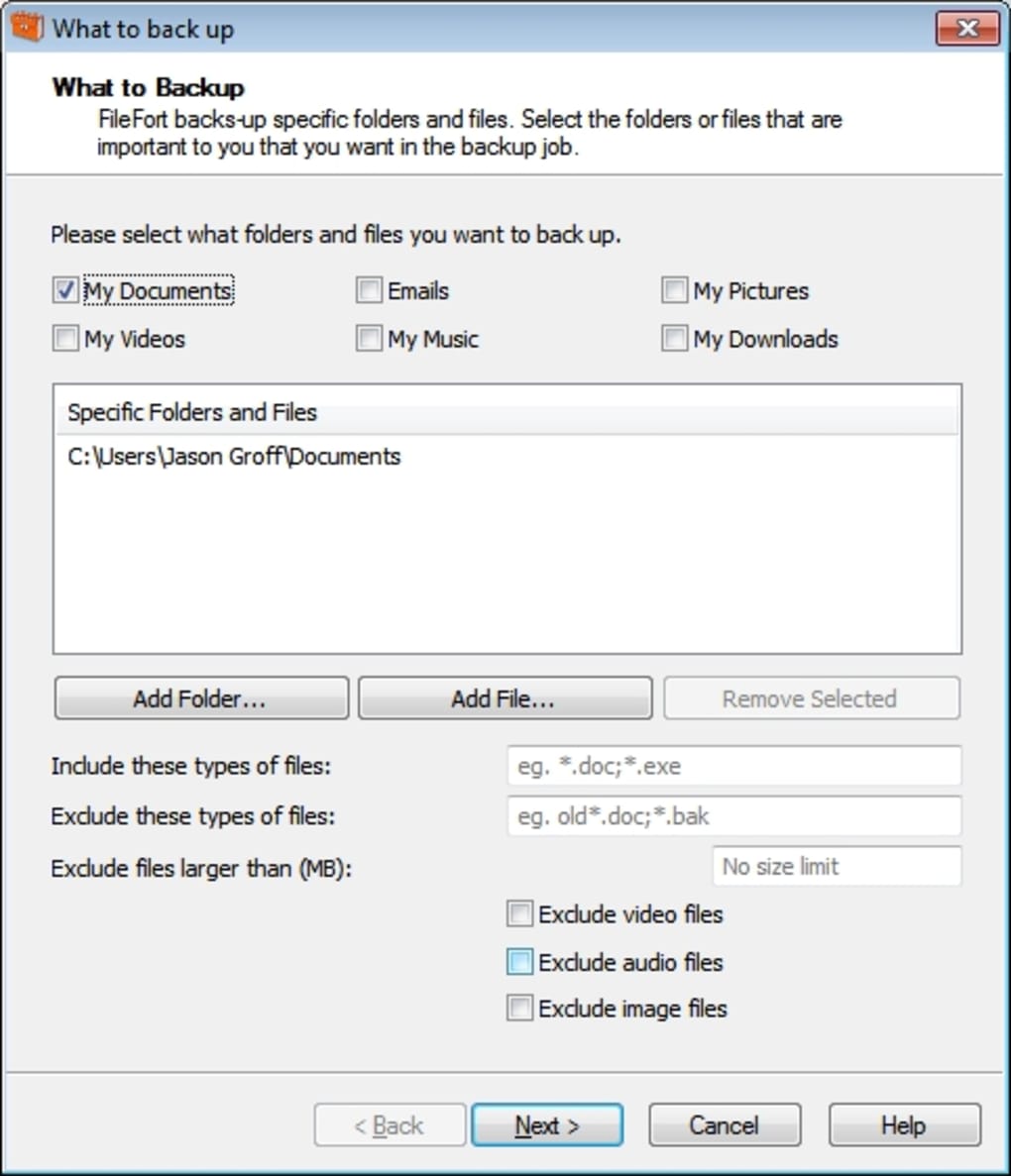
FileFort distinguishes itself through its intuitive interface and user-friendly design. The software is clearly aimed at users of all technical skill levels, prioritizing simplicity and accessibility. A guided setup wizard walks newcomers through the initial configuration process, minimizing the learning curve associated with data backup software. This wizard simplifies the often-daunting task of choosing backup destinations, scheduling backups, and selecting files or folders for inclusion. The main interface presents a clean and uncluttered layout, with all essential options readily available without overwhelming the user with unnecessary complexities. Even those unfamiliar with backup software will find the program relatively straightforward to navigate and utilize effectively.
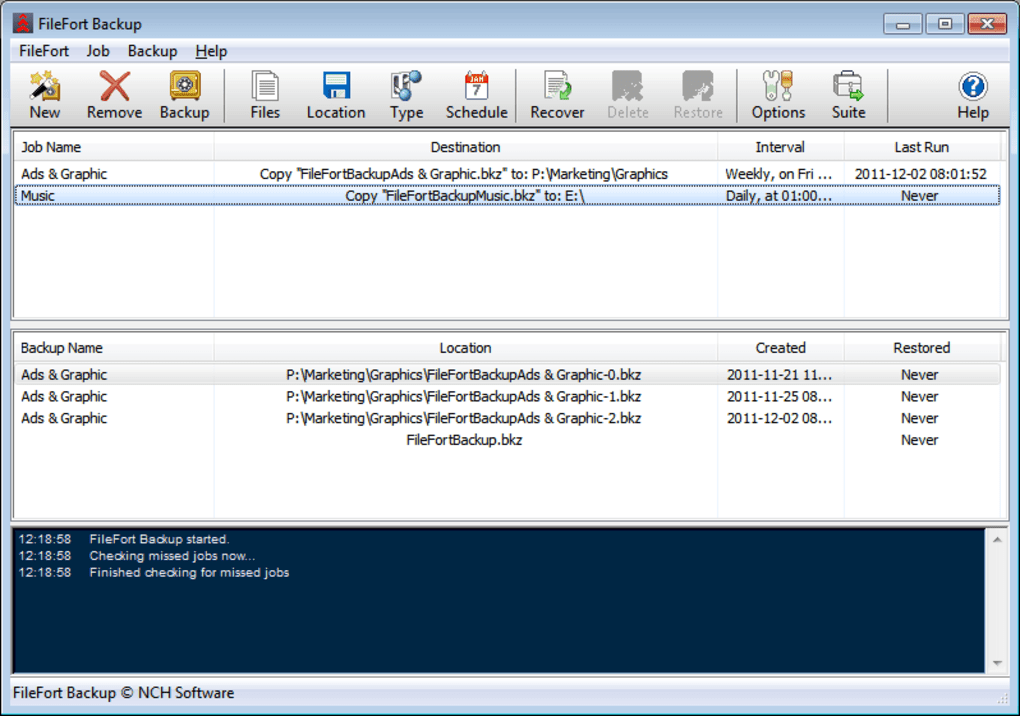
The software’s simplicity extends beyond its initial setup. Scheduling backups is effortlessly managed through a clearly defined calendar interface, allowing users to specify the frequency and timing of their backups with ease. This eliminates the need for intricate command-line instructions or complex configuration files. Users can opt for automated backups that run in the background, ensuring that their data is regularly protected without requiring constant user intervention. The program also supports manual backups, providing users with the flexibility to initiate backups on demand.
Backup Flexibility and Options
FileFort offers impressive flexibility in terms of backup destinations and media types. Unlike some backup software that limits options, FileFort supports a wide range of storage solutions. Users can back up their data to local hard drives, network folders, CD-ROMs, DVDs, Blu-ray discs, and even remote FTP servers. This versatility is particularly beneficial for businesses with diverse storage infrastructure requirements.
The software seamlessly integrates with the “Express Burn” utility, allowing for direct burning of backup data onto optical media (CD, DVD, Blu-ray). This feature eliminates the need for separate burning software, streamlining the entire backup process. Furthermore, its compatibility with FTP servers opens the door for offsite backups, providing an extra layer of security against local disasters such as fire, theft, or hardware failure. The ability to back up to cloud storage services, such as Dropbox (although not explicitly mentioned in the original information, this is a common feature in similar software), would enhance this already robust feature set further.
Automated Backups and Scheduling
One of FileFort’s key strengths lies in its automated backup functionality. The software enables users to configure scheduled backups that run automatically at pre-defined times. This ensures that data is consistently backed up without manual intervention. The scheduled backups can be set to occur daily, weekly, monthly, or based on custom intervals. This level of automation is crucial for businesses that need to guarantee regular data protection without disrupting workflows. The recommendation to perform large backups overnight is a practical suggestion that minimizes the impact on system performance during working hours. This attention to user experience and operational efficiency is a hallmark of well-designed backup software.
Moreover, FileFort provides granular control over the backup process. Users can specify which files and folders should be included in the backup, allowing for selective backups of critical data while excluding less important files. This helps to optimize storage space and backup times, which is especially helpful when dealing with large datasets. The ability to exclude certain files or folders also allows for more precise control over the backup process and the exclusion of unnecessary files.
Performance and Limitations
While FileFort excels in user-friendliness and flexibility, its performance can be a limiting factor. The original information notes that backups of large datasets can take considerable time. This is a common characteristic of many backup applications, particularly when dealing with extensive data or slower storage media like optical discs. The overnight backup recommendation is a practical workaround, but users with extremely large datasets might need to explore alternative solutions or optimize their backup strategy for better performance. The potential for long backup times should be considered a key limitation when evaluating FileFort. Future development could focus on optimizing compression algorithms and potentially incorporating incremental backups to reduce the time required for subsequent backups.
Another potential concern is the lack of recent updates. The last update mentioned is from January 18, 2016. While the software may still function adequately, the absence of recent updates could indicate a lack of ongoing support and potential compatibility issues with newer operating systems or hardware. This lack of ongoing development should be considered carefully, especially for businesses that rely on the software for mission-critical data protection.
Security Considerations
Data security is paramount in any backup solution. While the original description highlights the ability to back up to various locations, including remote servers, it lacks detailed information regarding the security protocols implemented by FileFort. The inclusion of robust encryption during the backup process is a crucial aspect of data security, and the lack of information on this front raises concerns. Ideally, FileFort should utilize strong encryption methods to protect data during transmission and storage, especially when using external media or remote servers.
Further investigation into the software’s security features is needed to assess its ability to adequately protect sensitive business data. Users should also take appropriate precautions when selecting backup destinations, ensuring that the chosen locations are themselves secure and adequately protected against unauthorized access.
Overall Assessment
FileFort File Backup Software presents a compelling option for businesses seeking an easy-to-use and flexible backup solution. Its intuitive interface, automated backup capabilities, and support for diverse storage media make it accessible to a broad range of users. However, the potential for lengthy backup times, the lack of recent updates, and the absence of detailed information regarding security features are noteworthy drawbacks. Businesses should carefully weigh these limitations against the software’s strengths before making a decision. The software’s ease of use is a strong point, particularly for users new to data backup, but the performance and long-term support aspects require consideration. Ideally, future updates should address the performance limitations and provide more detailed information regarding security features, including encryption methods. While FileFort offers a viable solution for many users, it’s crucial to have realistic expectations regarding backup times and to supplement the software with appropriate security practices.
File Information
- License: “Free”
- Latest update: “January 18, 2016”
- Platform: “Windows”
- OS: “Windows 7”
- Language: “English”
- Downloads: “4.1K”
- Size: “408.12 KB”


