
Folder2Iso is a lightweight, portable application designed for creating ISO images from existing folders. This functionality proves invaluable in various scenarios, from backing up important data to preparing files for burning onto CDs or DVDs. Unlike many similar programs, Folder2Iso doesn’t require installation, boasting a small file size and straightforward interface. This guide will delve into the specifics of Folder2Iso, exploring its features, benefits, and limitations.
Understanding ISO Images and Their Uses
Before diving into the intricacies of Folder2Iso, it’s crucial to understand the purpose and functionality of ISO images. An ISO image is essentially a single file that contains a complete, bit-for-bit copy of a disc or a folder structure. This single file accurately reflects the contents and file system of the original source. Think of it as a digital clone of your data.
The primary benefits of using ISO images include:
-
Data Backup and Archiving: ISO images provide a reliable method for creating backups of crucial data. This is particularly useful for archiving entire folders or even entire operating system installations. Having an ISO image allows for easy restoration of data in the event of a hard drive failure or other data loss scenarios.
-
Disc Image Creation: ISO images are the standard format for disc image files. This means that they can be easily burned onto CDs, DVDs, or Blu-rays using various burning software. This allows for the creation of bootable discs, software installation discs, or data storage discs.
-
Software Distribution: Software developers and distributors often utilize ISO images for distributing their products. This provides a convenient and standardized way to package software and ensure data integrity during distribution.
-
Virtualization: Virtual machine software often uses ISO images to install operating systems and applications within a virtual environment. This allows users to test software or run different operating systems without needing physical hardware.
-
Portability: ISO images are easily transferable between different computer systems. This makes them ideal for sharing data or software across multiple platforms.
Folder2Iso: Features and Functionality
Folder2Iso’s primary function is to create ISO images from the contents of a given folder. Its simplicity is a key strength. The application does not require installation, making it highly portable and easily usable on any Windows machine with the program executable. It functions as a graphical user interface (GUI) for the command-line utility mkisofs, streamlining the process for users who aren’t comfortable with command-line operations.
Key features of Folder2Iso include:
-
Portable Application: No installation is required; simply run the executable file. This makes it ideal for use on multiple computers or for situations where installing software isn’t permitted.
-
Simple Interface: The user interface is intuitive and easy to navigate, even for novice users. Selecting the source folder and the output ISO file location is straightforward.
-
Support for Subfolders: Folder2Iso handles subfolders within the source folder seamlessly, creating an accurate reflection of the original directory structure within the generated ISO image.
-
ISO Image Creation: The program exclusively generates ISO image files, which are widely compatible with various operating systems and applications. This consistency ensures broad compatibility and usability.
-
Small File Size: Folder2Iso’s compact size minimizes storage space requirements. This is advantageous, particularly when dealing with limited storage space on portable drives or older systems.
Using Folder2Iso: A Step-by-Step Guide
The process of creating an ISO image with Folder2Iso is remarkably straightforward:
- Download and Extract: Download the Folder2Iso executable file from a trusted source (the official website is recommended). If downloaded as a compressed archive (like a ZIP file), extract the contents to a folder of your choice.
-
Run the Executable: Locate and run the Folder2Iso executable file. No installation is necessary.
-
Select Source Folder: Upon launching the program, browse your file system and select the folder containing the files you wish to include in your ISO image. This folder will become the root directory of the resulting ISO file.
-
Specify Output Location: Choose the location where you want to save the generated ISO image file. It’s recommended to create a dedicated folder for your ISO images to keep your files organized.
-
Choose File Name: Provide a name for your ISO file. Remember to include the
.isoextension. -
Create the ISO: Click the “Create” button (or an equivalent button depending on the Folder2Iso version). The program will begin creating the ISO image. The time required depends on the size of the source folder.
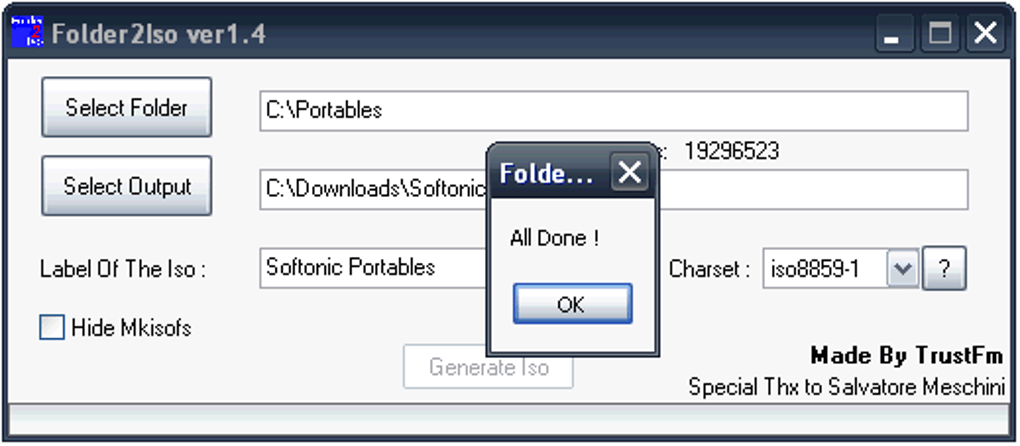
- Verification: Once the process completes, verify the size of the created ISO file to confirm it matches the total size of the files and folders included in the source directory.
Limitations and Alternatives to Folder2Iso
While Folder2Iso is a useful tool, it’s essential to be aware of its limitations:
- Windows Only: Folder2Iso is currently only compatible with Windows operating systems. Users of macOS, Linux, or other operating systems will need to find alternative software.
-
Basic Functionality: Folder2Iso focuses solely on ISO creation. It doesn’t offer advanced features such as compression, encryption, or the ability to create different image formats.
-
No Error Handling: The application may lack robust error handling. In case of issues with the source folder or file system, it might terminate without providing detailed error messages.
Several alternative applications offer similar functionality or broader features:
-
7-Zip: This popular archiving tool can create ISO images among many other archive formats. It’s free, open-source, and supports various operating systems.
-
ImgBurn: A powerful and versatile disc burning software which also allows for ISO image creation and burning.
-
PowerISO: A commercial application offering comprehensive features including ISO creation, editing, and burning.
Conclusion
Folder2Iso is a simple, efficient, and portable tool perfectly suited for creating ISO images from folders on Windows systems. Its ease of use and small footprint make it a valuable asset for users needing a quick and straightforward solution for this specific task. However, users seeking more advanced features or cross-platform compatibility should explore alternative options detailed above. Understanding the strengths and limitations of Folder2Iso will help you choose the most appropriate tool for your specific needs.
File Information
- License: “Free”
- Latest update: “July 11, 2023”
- Platform: “Windows”
- OS: “Windows 7”
- Language: “English”
- Downloads: “58.4K”
- Size: “2.75 MB”


