
In the digital realm, few things are as universally frustrating for a computer user as encountering a file or folder that simply refuses to be deleted, moved, or renamed. The dreaded “Access Denied” message, the “File in Use” error, or the cryptic “The action cannot be completed because the file is open in another program” pop-up can bring even the most routine tasks to a grinding halt. Whether you’re a casual user trying to clean up your downloads folder, a system administrator troubleshooting a critical server issue, or a developer trying to overwrite a locked library, these digital roadblocks can quickly escalate from minor annoyances to significant productivity killers. This is precisely where Free File Unlocker steps in – a powerful, free, and indispensable utility designed to conquer these stubborn file locks and restore control to your Windows environment.
Free File Unlocker is not just another piece of software; it’s a dedicated solution built to address one of Windows’ most persistent quirks: files becoming inaccessible due to active processes. Operating across all 32-bit and 64-bit versions of Windows, including Windows Server environments, this utility provides a robust mechanism to circumvent the restrictions imposed by the operating system or other applications. Its core function is elegantly simple yet profoundly effective: to unlock files and folders that are currently in use, busy, or otherwise deemed undeletable, allowing you to perform the necessary operations without encountering frustrating error messages. But its capabilities extend far beyond simple unlocking, offering advanced features that cater to a wide spectrum of users, from everyday desktop owners to seasoned IT professionals. It’s a tool that promises to eliminate a common source of digital headaches, making your Windows experience smoother and more efficient.
The Challenge of Locked Files in Windows
Understanding why files get locked is the first step to appreciating the necessity of a tool like Free File Unlocker. Windows is a sophisticated operating system, and its file management system is designed to ensure data integrity and prevent corruption. When a program or the operating system itself is actively using a file, it typically places a “lock” on it. This lock prevents other processes from modifying or deleting the file, thus ensuring that the primary application’s operation isn’t disrupted and that the file remains in a consistent state. While this mechanism is crucial for system stability, it often leads to scenarios where legitimate user actions are prevented.

Common Scenarios Leading to File Locks
File locks can occur for a multitude of reasons, some obvious and some surprisingly obscure. Perhaps the most common scenario is when you try to delete a document that’s currently open in a word processor, or an image file being edited in a graphics program. While these instances are usually easy to resolve by simply closing the offending application, the problem often persists even after you believe all associated programs are shut down. This might be due to a background process that hasn’t fully released its hold on the file, a crashed application leaving a lingering lock, or a system service holding onto a file as part of its routine operations.
Beyond user-initiated applications, system processes are also frequent culprits. For example, log files, temporary system files, or even components of the operating system itself can become locked, making system maintenance or cleanup tasks difficult. Antivirus programs, indexing services, and backup utilities can temporarily lock files as they scan or process them, and if these locks are not released promptly, they can cause issues. Furthermore, network shares can introduce their own complexities, with files on shared drives sometimes remaining locked by remote users or services long after they’re supposedly done. Identifying which process is holding a file hostage can often be a cumbersome and time-consuming task, involving digging through Task Manager or using more specialized diagnostic tools.
The Frustration of “Access Denied”
The “Access Denied” error message is a digital brick wall. It’s concise, unhelpful, and frequently appears precisely when you need to perform a critical action. This error, along with variants like “Cannot delete file: It is being used by another person or program,” can be incredibly frustrating. Imagine trying to update a piece of software, only to find that some DLL file from the previous version is locked, preventing the installation. Or a common occurrence for developers: attempting to compile or deploy an application, only to have the build fail because an output file from a previous build is still locked by a debugging session or an IDE process that hasn’t fully shut down.
For system administrators, this frustration can amplify. Managing servers often involves dealing with locked system files, logs, or application data that need to be moved, archived, or deleted. When these files are locked, it can delay patching, hinder troubleshooting, or even impact server uptime. In some cases, the only conventional solution might be a system reboot, which is often undesirable or impossible during critical operational hours. The inability to control your own files, especially when you know they should be accessible, undermines productivity and introduces unnecessary stress, highlighting the clear need for a reliable utility that can forcefully liberate these digital hostages.
Introducing Free File Unlocker: Your Solution
Free File Unlocker emerges as the definitive answer to these pervasive file locking challenges. Developed by 4dots Software, this utility is meticulously engineered to provide a straightforward yet powerful method for users to regain control over their files and folders. Its fundamental purpose is to break the bonds that prevent normal file operations, making it an indispensable tool in any Windows user’s arsenal. From the moment you install it, or even run its portable version, you’ll find that many of those once-stubborn file issues simply vanish.
Core Functionality and Key Features
At its heart, Free File Unlocker is designed to delete currently used, locked, undeletable, or busy files. This covers the vast majority of scenarios where a file operation fails due to locking. But it’s not just about deletion; the utility also empowers users to move and rename these locked files. This flexibility is crucial because often, the goal isn’t just to get rid of a file, but to relocate it for organization, back it up, or change its identifier to facilitate another process. The key benefit here is the cessation of those annoying error messages that halt your workflow, providing a smooth and uninterrupted experience.
A significant strength of Free File Unlocker lies in its intelligent handling of process modules. When a locked file is identified as a process module—such as a Dynamic Link Library (DLL) file that’s actively loaded by a running application or the operating system—the utility goes a step further. Instead of simply attempting to unlock, it can unload the module from memory, effectively releasing its hold on the file. This capability is particularly vital for developers working with shared libraries or system administrators dealing with corrupted or outdated system components that need to be replaced. The ability to unload a DLL without necessarily terminating the entire process that loaded it is a sophisticated feature that sets Free File Unlocker apart from simpler unlockers.
Beyond immediate actions, Free File Unlocker also incorporates a clever contingency plan. In instances where an immediate delete, rename, or move action doesn’t succeed—perhaps due to deeply embedded system locks or permissions issues that require a system-level intervention—the utility doesn’t give up. Instead, it intelligently schedules the requested operation for the next Windows reboot. This “delete on reboot” functionality is a time-tested method for handling the most persistent file locks, ensuring that even the most stubborn files are eventually dealt with, safely and efficiently, during a system startup when fewer processes are active and locks are easier to bypass.
Seamless Integration and User Experience
One of the most user-friendly aspects of Free File Unlocker is its full integration with Windows Explorer. This means you don’t have to launch a separate application, navigate through complex menus, and manually browse for the locked file. Instead, the functionality is accessible right from your file explorer. Typically, after installation, a “Free File Unlocker” option will appear in the right-click context menu when you select a file or folder. This allows for quick, on-the-spot unlocking and action, drastically simplifying the process and making it feel like a natural extension of Windows itself. This seamless integration ensures that the tool is not just powerful but also incredibly convenient, reducing the cognitive load on the user and making it accessible even to those with limited technical expertise. The intuitive interface and direct access empower users to resolve file locking issues with minimal effort, transforming a potential bottleneck into a swift resolution.
Advanced Capabilities for Power Users and Professionals
While Free File Unlocker offers intuitive, right-click integration for everyday tasks, its true depth is revealed in its advanced capabilities, which are particularly valuable for system administrators, developers, and power users. These features extend its utility beyond simple point-and-click operations, enabling automation, scripting, and more robust troubleshooting in complex environments.
Command-Line Operations and Automation
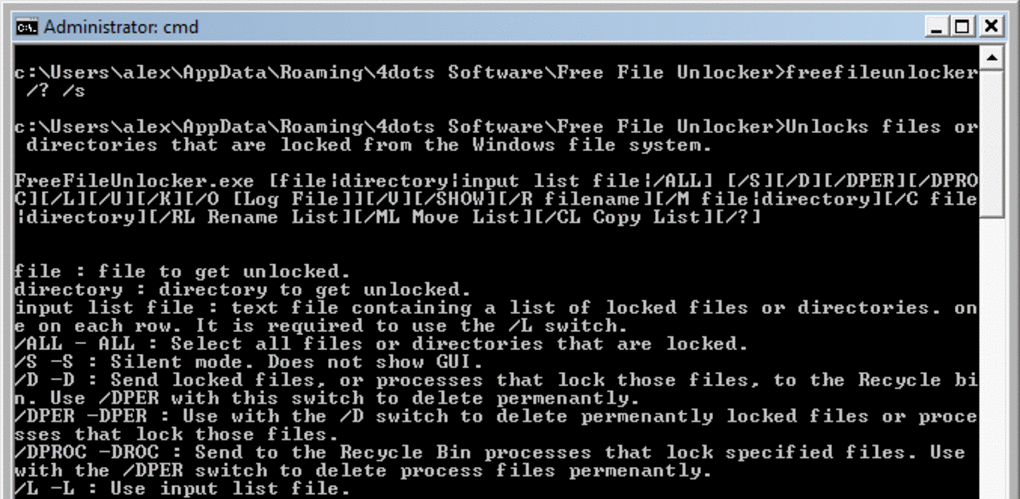
For those who thrive in command-line environments, or for scenarios requiring automated processes, Free File Unlocker provides comprehensive command-line support. This feature is a game-changer for system administrators managing multiple machines, developers integrating file unlocking into build scripts, or power users looking to automate cleanup routines.
From the command line, users can execute Free File Unlocker with various parameters, specifying the file or folder to be unlocked and the desired action (delete, move, or rename). What truly distinguishes its command-line interface is its ability to handle input lists. Instead of processing one file at a time, users can provide:
- Locked file input lists: A text file containing a list of paths to multiple locked files that need attention. This is invaluable for batch processing.
- Copy destination lists: For scenarios where multiple locked files need to be copied to specific, different destinations.
- Move destination lists: Similar to copy lists, but for moving files.
- Rename lists: To rename multiple locked files according to predefined rules or new names.
This level of granular control and batch processing capability significantly boosts efficiency for repetitive tasks or large-scale operations. For instance, an administrator could write a script that identifies and unlocks a series of problematic log files across several servers, then moves them to an archive, all with a single command or scheduled task. This flexibility transforms Free File Unlocker from a reactive tool into a proactive component of system management and automation strategies.
Tackling Malware and Stubborn Files
One of the most critical and often underestimated applications of Free File Unlocker lies in its ability to combat malicious software. Viruses, trojans, ransomware, and other forms of malware are notoriously adept at entrenching themselves within a system. A common tactic for malware is to lock its own files, making it incredibly difficult for antivirus software or manual attempts to delete them. This self-preservation mechanism ensures that even if detection occurs, removal remains a significant challenge.
Free File Unlocker is specifically engineered to circumvent these malicious locks. By forcefully unlocking malware-related files and, crucially, by its ability to unload process modules (DLLs, executables) that might be part of the malware’s active components, it can disarm these threats. Once unlocked, these stubborn, malicious files can then be successfully deleted, moved, or quarantined. The scheduling for deletion on the next Windows reboot also plays a vital role here, as some deeply embedded malware might require a system restart to be fully eradicated, performing the cleanup before the malicious processes can re-establish their locks.
This makes Free File Unlocker an invaluable adjunct to any security toolkit. While it is not an antivirus itself, it provides the critical enabling step for removal when traditional security software struggles against a locked threat. For users dealing with persistent infections or for IT professionals performing advanced malware cleanup, the ability to directly target and unlock these resistant files significantly enhances the chances of a successful eradication, bringing peace of mind and restoring system integrity. Its utility in this domain extends to any file that proves exceptionally stubborn, whether due to malware, corrupted permissions, or obscure system locks, making it a powerful “last resort” for file management woes.
Why Choose Free File Unlocker?
In a crowded landscape of utilities and tools, Free File Unlocker distinguishes itself through a combination of accessibility, effectiveness, and thoughtful design. Its adoption by a wide range of users underscores its versatility and reliability. Choosing Free File Unlocker means opting for a solution that is both practical and robust, addressing a common pain point in the Windows operating system with elegance and power.
Portability and Accessibility
One of the standout features of Free File Unlocker is the availability of a portable version. This is a significant advantage, particularly for IT professionals, system administrators, or even users who frequently work on different machines. A portable application requires no installation; it can be run directly from a USB drive, an external hard drive, or a network share. This means you can carry Free File Unlocker with you and deploy it instantly on any Windows system without leaving any traces on the host machine’s registry or file system.
The benefits of portability are manifold:
- On-the-go troubleshooting: Perfect for technicians who need to fix locked file issues on client computers.
- No installation headaches: Avoids potential conflicts or permission issues associated with installing software.
- Clean system: Ensures the host system remains uncluttered with temporary installations.
- Disaster recovery: In scenarios where a system is heavily compromised and standard installations are difficult, a portable tool can be a lifesaver.
This accessibility makes Free File Unlocker an incredibly flexible tool, ready to assist whenever and wherever a file locking issue arises. Combined with its core functionality, the portable version drastically enhances its practical utility, making it a go-to choice for impromptu problem-solving.
Broad Compatibility and Reliability
Another compelling reason to choose Free File Unlocker is its extensive compatibility and proven reliability. The utility is engineered to work seamlessly with all 32-bit and 64-bit versions of Windows, ranging from older iterations to the latest releases, and critically, it also supports Windows Server environments. This broad compatibility ensures that whether you’re running a legacy Windows XP machine, a modern Windows 11 workstation, or a mission-critical Windows Server instance, Free File Unlocker is likely to function as expected.
This wide operational scope makes it an excellent choice for diverse user bases:
- General Users: For anyone who occasionally encounters locked files while performing everyday tasks.
- System Administrators: Indispensable for managing server files, troubleshooting system issues, and maintaining operational integrity across various Windows Server versions.
- Developers: Crucial for managing compilation outputs, dealing with locked libraries, or cleaning up development environments.
- Windows Power Users: For those who demand granular control over their system and frequently encounter complex file management challenges.
The “free” aspect is, of course, a significant draw. Unlike commercial alternatives that might offer similar functionality but come with a price tag, Free File Unlocker provides robust capabilities without any cost. This makes it an accessible solution for individuals and organizations alike, democratizing access to essential file management tools. Its consistent updates and community feedback, often found on platforms like PhanMemFree.org, contribute to its ongoing reliability and ensure it remains effective against new locking mechanisms or operating system changes. The peace of mind that comes from knowing you have a reliable, free, and broadly compatible tool to tackle file locks is invaluable, making Free File Unlocker a smart and practical choice for anyone operating within the Windows ecosystem.
How to Use Free File Unlocker (Basic Guide)
Using Free File Unlocker is designed to be straightforward, whether you’re performing a quick unlock from the Explorer context menu or leveraging its command-line capabilities. This section provides a basic guide to get you started, ensuring you can quickly and efficiently deal with those stubborn locked files.
Installation and First Steps
- Download: Begin by downloading Free File Unlocker from a reputable source, such as Phanmemfree.org. Always ensure you’re getting the software from a trusted location to avoid any security risks. You might choose between the installer version or the portable version based on your needs.
- Installation (if not portable): If you’ve downloaded the installer, run the executable file. The installation process is typically quick and simple, involving accepting the license agreement and selecting an installation directory. Once installed, Free File Unlocker will integrate itself into your Windows Explorer context menu.
- Portable Version: If you downloaded the portable version, simply extract the contents of the ZIP file to a folder of your choice (e.g., on a USB drive or your desktop). You can then run the executable directly from that folder without any installation.
After installation (or extraction for the portable version), you’re ready to tackle locked files. The most common method of use is through the right-click context menu in Windows Explorer, offering immediate access to its core features.
Unlocking and Deleting Files
The primary way most users interact with Free File Unlocker is through its seamless integration with Windows Explorer. Here’s how you typically use it:
- Locate the Locked File/Folder: Navigate to the file or folder that is giving you trouble (e.g., you can’t delete it, move it, or rename it).
- Right-Click: Right-click on the problematic file or folder.
- Select Free File Unlocker: In the context menu that appears, you should see an option labeled “Free File Unlocker” (or similar, depending on the version and specific integration). Click on this option.
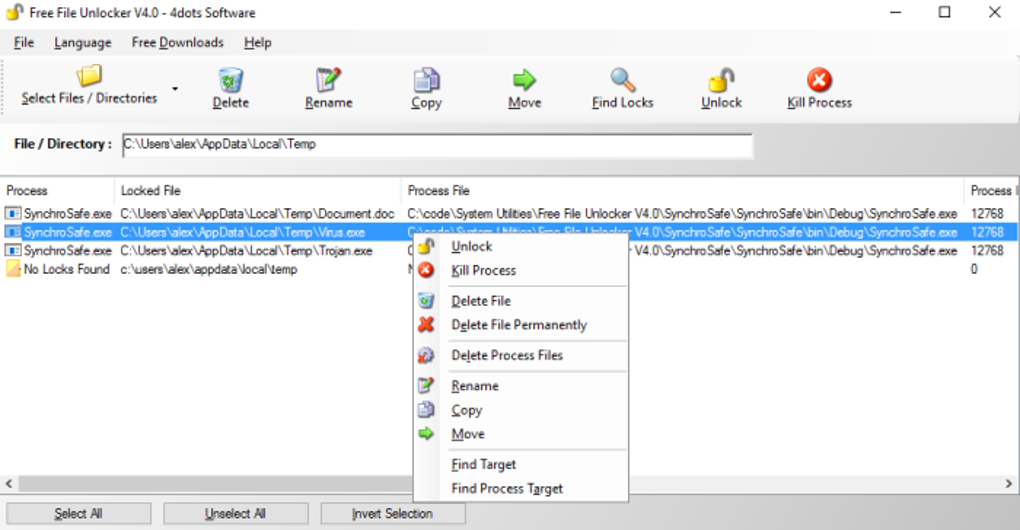
- Action Selection: A small Free File Unlocker window will typically pop up. This window will often list the processes that are currently locking the file. You will usually be presented with options such as:
- Unlock: This attempts to unlock the file without performing any other action. This is useful if you just need to free up the file to be used by another application.
- Delete: Unlocks the file and then immediately attempts to delete it. This is the most common use case for undeletable files.
- Move: Unlocks the file and then prompts you for a new destination to move the file to.
- Rename: Unlocks the file and then prompts you to enter a new name for the file.
- Confirm Action: Select the desired action and confirm. Free File Unlocker will then attempt to perform the operation.
- Scheduled for Reboot: If the immediate action fails (which can happen with particularly stubborn locks), Free File Unlocker might notify you that the action has been scheduled for the next Windows reboot. This is a normal and effective mechanism for dealing with files that cannot be unlocked while the system is running. Simply restart your computer at your convenience, and the operation will be completed during the startup sequence.
For command-line usage, open a Command Prompt or PowerShell window, navigate to the Free File Unlocker directory (if using the portable version, or if it’s not in your system’s PATH), and type FreeFileUnlocker.exe followed by the appropriate parameters and file paths. Consult the utility’s documentation or use FreeFileUnlocker.exe /? for a list of available command-line arguments and their usage, especially for managing input lists and specific actions. This method is exceptionally powerful for automation and scripting, providing a level of control beyond the graphical interface.
By following these simple steps, you can effectively use Free File Unlocker to overcome file locking issues, streamline your file management, and prevent those frustrating “Access Denied” messages from hindering your work.
Conclusion
Free File Unlocker stands out as an indispensable utility for anyone navigating the complexities of the Windows operating system. From the everyday user vexed by a simple “File in Use” error to the seasoned system administrator battling persistent malware or critical server files, this powerful yet accessible tool provides a reliable solution to one of Windows’ most common frustrations: locked files. Its ability to forcefully unlock, delete, move, and rename files—even deeply embedded process modules—makes it an essential component of any digital toolkit.
With its seamless integration into Windows Explorer, comprehensive command-line support for advanced users and automation, and a clever system for scheduling operations at reboot, Free File Unlocker addresses the spectrum of file locking challenges. Furthermore, its crucial role in disarming stubborn malware and its availability as a portable application underscore its versatility and value in diverse scenarios. Being a free utility, easily obtainable from reputable platforms like Phanmemfree.org, it democratizes access to robust file management capabilities. By empowering users to regain control over their files, Free File Unlocker doesn’t just solve problems; it enhances productivity, reduces frustration, and ensures a smoother, more efficient Windows experience for all.
File Information
- License: “Free”
- Latest update: “May 23, 2023”
- Platform: “Windows”
- OS: “Windows 8”
- Language: “English”
- Downloads: “30K”
- Size: “2.46 MB”


