
In today’s fast-paced digital environment, the ability to seamlessly transform information between different formats is paramount for both individuals and businesses. While office documents like Word, Excel, and PowerPoint are indispensable for creation and editing, there are numerous scenarios where converting these editable files into static image formats becomes incredibly advantageous, if not essential. This is precisely where a robust “Free Office Document to Image Converter” steps in, offering a bridge between dynamic document creation and universally accessible, immutable visual content. This article delves into the functionalities, benefits, and practical applications of such a tool, highlighting how a free solution can meet a broad spectrum of conversion needs.
The core essence of an office document to image converter lies in its capacity to render the precise visual representation of a document as an image. This means preserving the original text, formatting, embedded pictures, charts, and graphics exactly as they appear in the source file, but presenting them in a format that is universally viewable without specialized software. Imagine needing to share a report, a presentation slide, or an Excel chart with someone who doesn’t have the corresponding office suite installed, or wanting to embed a document’s content directly into a webpage or social media post. In these instances, an image file offers unparalleled compatibility and ease of access. The specific tool we’re exploring, often referred to as “free office Document To Image Converter,” offers a comprehensive suite of features designed to make this conversion process efficient, accurate, and user-friendly, catering to a wide array of document types and output image formats.
Unveiling the Free Office Document to Image Converter: Core Functionality and Features
The free office Document To Image Converter is engineered to provide a powerful yet accessible solution for transforming a variety of standard office documents into popular image formats. At its heart, the converter focuses on precision and efficiency, ensuring that the visual integrity of the original document is perfectly maintained throughout the conversion process. This section explores the fundamental capabilities that make this tool an indispensable asset for many users.
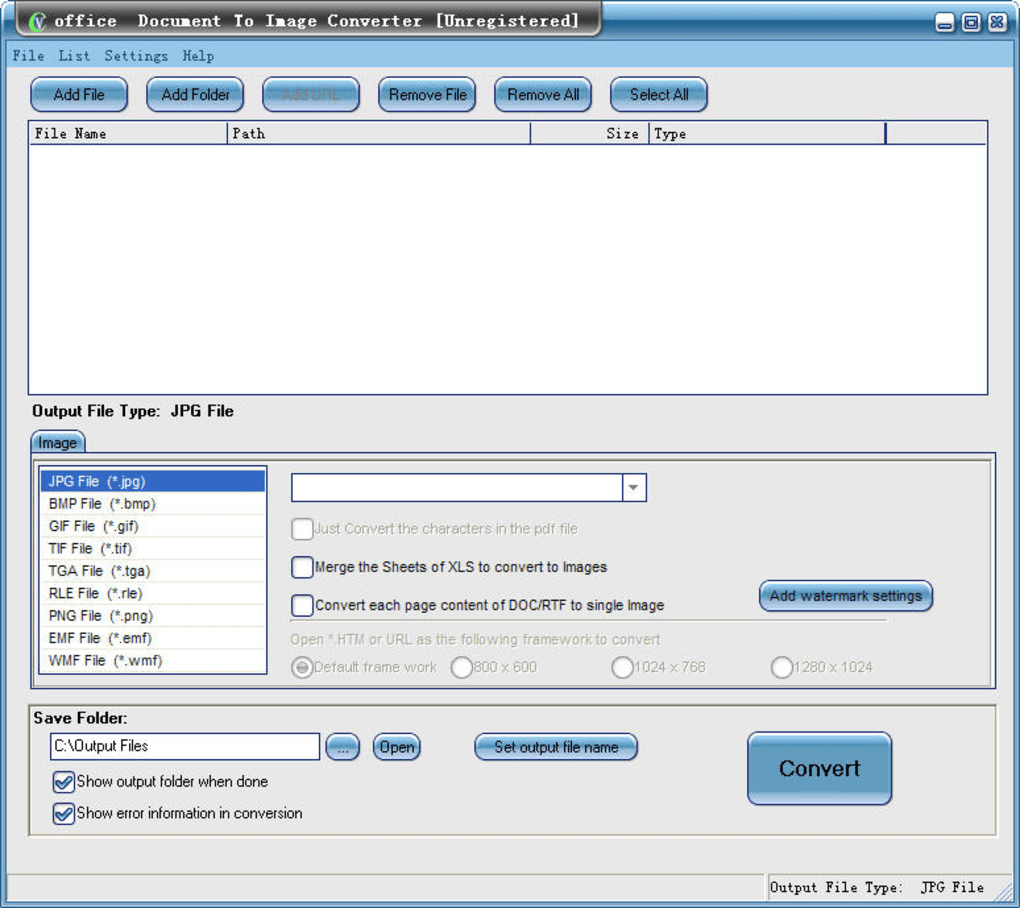
One of the most significant strengths of this converter is its comprehensive document support. It can process an extensive range of input formats from the Microsoft Office suite, including:
- Word documents: .doc, .docx, and .docm
- Excel spreadsheets: .xls, .xlsx, and .xlsm
- PowerPoint presentations: .ppt, .pptx, and .pptm Beyond the mainstream Office formats, it also supports common text-based documents such as Rich Text Format (.rtf) and plain Text files (.txt). This broad compatibility ensures that users can handle virtually any typical office document without needing multiple conversion tools. When a document is converted, the tool diligently works to retain its original style, layout, fonts, colors, and embedded objects, resulting in an image that is a faithful reproduction of the source.
Upon conversion, the software offers a diverse array of image format outputs, catering to different needs and applications. Users can choose to convert their documents into:
- JPG/JPEG: A widely used lossy compression format, ideal for photographs and web use due to its balance of file size and quality.
- BMP: A standard bitmap image format, known for its high quality but larger file sizes, often used for uncompressed images.
- GIF: Supports animation and transparency, best for simple graphics, logos, and web buttons with limited color palettes.
- TIF/TIFF: A high-quality, often uncompressed format, popular in publishing, printing, and archiving due to its flexibility and support for multiple pages.
- TGA: Often used in graphic design and video editing, supporting high color depth and alpha channels.
- RLE: A run-length encoded bitmap format, sometimes used for simple graphics, offering lossless compression for certain types of images.
- PNG: A lossless compression format, excellent for web graphics, transparent backgrounds, and images requiring high fidelity without large file sizes.
- EMF (Enhanced Metafile): A Windows vector metafile format, capable of storing both vector and raster graphics, commonly used for graphics interchange in Windows applications.
- WMF (Windows Metafile): An older vector metafile format, similar to EMF, also used for storing graphics objects in Windows environments, crucial for its vector nature. The inclusion of vector formats like EMF and WMF is particularly noteworthy. While most image formats are raster-based (pixelated), vector formats allow images to be scaled indefinitely without loss of quality, making them ideal for professional graphics, printing, and applications where scalability is critical.
Beyond format flexibility, this converter emphasizes efficiency and user experience. It offers batch conversion capabilities, allowing users to process multiple documents simultaneously. This feature drastically improves productivity, eliminating the need to convert files one by one, which is invaluable when dealing with large volumes of documents. The interface is designed to be professional and easy to use, often incorporating intuitive features like drag and drop functionality. Users can simply drag their desired files or even entire folders into the converter’s window, streamlining the selection process. Once files are loaded, a one-click conversion option often initiates the process, simplifying the workflow even for novices.
For documents with complex structures, the converter provides intelligent processing. It supports detaching pages of DOC/RTF documents, allowing each page to be converted into a separate image file. Similarly, it can combine the sheets of XLS (Excel) workbooks, consolidating multiple spreadsheet tabs into a single image or a sequence of images, depending on user preference. The ability to choose an entire folder to convert further enhances batch processing efficiency, automatically identifying and converting all supported documents within a specified directory. The tool is also capable of intelligent processing of large files, handling voluminous documents without crashing or significant performance degradation, ensuring reliability for demanding tasks.
Speed is another critical attribute; the converter is designed to process conversions at very high speed, minimizing waiting times. After conversion, it can automatically view the output files, providing immediate feedback and allowing users to verify the quality and accuracy of the converted images without manual navigation. Additionally, the option to save the imported file list is a small but useful feature for repetitive tasks or for maintaining records of conversion jobs. All these functionalities combine to create a powerful, free tool that delivers high-quality image output from office documents with remarkable ease and speed.
Why Convert Office Documents to Images? Practical Applications and Advantages
The act of converting office documents into image formats might seem counterintuitive at first, given that editable documents offer flexibility. However, there are numerous practical scenarios and distinct advantages that make this conversion highly desirable. A free office Document To Image Converter serves a vital role in addressing these specific needs across various domains.
One of the primary benefits is enhanced portability and compatibility. Editable office documents require specific software (like Microsoft Word, Excel, or PowerPoint) to be viewed correctly. If a recipient doesn’t have the necessary software or is using a different operating system, viewing the document can be challenging or impossible, leading to formatting issues. Images, on the other hand, are universally compatible. Almost every device and operating system has a built-in image viewer, ensuring that the content can be accessed and displayed correctly without any specialized applications. This makes sharing documents across diverse platforms and with a broad audience much simpler and more reliable.
Another significant advantage is security and immutability. Once an office document is converted to an image, its content becomes static. Unlike editable documents, images are not easily altered or tampered with. This provides a layer of security, safeguarding the integrity of the information. For sensitive reports, contracts, certificates, or official records, sharing them as images can prevent unauthorized modifications, ensuring that the recipient views the content exactly as intended by the sender. While not a substitute for robust encryption, it adds a practical barrier against casual editing.
Web integration and social sharing are also key drivers for image conversion. Websites and social media platforms are optimized for displaying images. Embedding a direct document file is often cumbersome, requires downloads, and may not render consistently across browsers. By converting documents into image formats (like JPG or PNG), content from presentations, infographics from reports, or important announcements can be easily uploaded, embedded, and shared online. This greatly enhances visual engagement, as users can see the content immediately without extra steps, making it ideal for marketing materials, online tutorials, blog posts, or social media updates.
For archiving and digital preservation, images offer a robust solution. Older document formats can become obsolete over time, making it difficult to open them with newer software. Converting crucial documents into standard image formats creates a timeless, visually accessible record. TIFF, for instance, is a preferred format for archival purposes due to its high fidelity and ability to store rich metadata. Images are also generally less susceptible to macro viruses or other embedded malicious code often associated with executable document formats, further enhancing their long-term stability and safety for archival.
In graphics and design applications, images derived from documents can be invaluable. Designers might need to incorporate specific charts from an Excel spreadsheet into an Adobe Illustrator project, or a page layout from a Word document into a larger design composition. By converting these elements into high-quality images, especially vector formats like WMF or EMF, designers gain flexibility in manipulating and integrating document content into their creative workflows without losing resolution or needing to recreate elements from scratch.
Finally, for presentation and reporting clarity, converting elements of a document to images can be highly effective. When compiling reports or presentations, inserting screenshots or specific graphs as images can prevent accidental formatting shifts that sometimes occur when copying and pasting live document elements. It ensures that the visual data remains exactly as intended, providing clear and consistent information to the audience. This is particularly useful in environments where visual consistency is critical, such as legal documents, financial reports, or academic papers.
The free office Document To Image Converter, therefore, isn’t just about changing a file extension; it’s about unlocking new avenues for document usage, enhancing security, improving accessibility, and streamlining workflows across personal and professional spheres.
Advanced Control and Flexibility: Tailoring Your Conversion Workflow
While the core functionality of converting documents to images is foundational, a truly effective free office Document To Image Converter distinguishes itself through its advanced features, offering users greater control and flexibility over the conversion process. These sophisticated capabilities cater to more specific needs and power users, enabling a highly customized workflow.
One of the most powerful features for developers and system administrators is the Customized Command Line service for server and developer. This option moves beyond the graphical user interface (GUI) to allow for automated, script-driven conversions. For businesses or large organizations, integrating document-to-image conversion into existing software applications, batch scripts, or server-side processes is crucial. A command-line interface (CLI) enables developers to programmatically trigger conversions, specify input/output paths, define formats, and control other parameters without human intervention. This is invaluable for tasks like:
- Automated content processing: Converting incoming documents into images as part of an automated workflow (e.g., for document management systems or web content ingestion).
- Batch processing on servers: Handling thousands of document conversions during off-peak hours without manual oversight.
- Integration with custom applications: Allowing developers to build their own tools that leverage the converter’s engine. The command-line service ensures that the converter isn’t just a desktop utility but also a robust backend component, capable of scaling to meet enterprise-level demands.
Another significant aspect of advanced control relates to how multi-page or multi-sheet documents are handled. The converter offers specific functionalities for these common document types:
- Support detaching the pages of DOC/RTF to convert: For Word documents or Rich Text Files that span multiple pages, users often need each page to become a distinct image file. This feature allows the converter to intelligently parse the document, render each page separately, and output them as individual image files (e.g., page1.jpg, page2.jpg, etc.). This is extremely useful for creating image galleries from reports, breaking down a large document into manageable visual chunks, or preparing content for slide-by-slide web display. It ensures granular control over how multi-page documents are presented in image format.
- Support combining the sheets of XLS to convert: Conversely, Excel workbooks can contain multiple worksheets (tabs), each with its own data and layout. This feature allows the converter to either combine all these sheets into a single, comprehensive image (often a very tall or wide one, depending on the layout) or to treat each sheet as a separate entity, converting it into an individual image file. Combining sheets can be useful for creating a holistic visual summary of an entire workbook, while individual sheet conversion offers flexibility for specific data visualizations or sharing only relevant parts of a spreadsheet. This intelligent handling ensures that complex Excel files can be accurately and flexibly converted to images.
Furthermore, the converter’s ability to convert documents to Vector format WMF (Windows Metafile) significantly enhances its utility for professional applications. As mentioned earlier, WMF is a vector graphics format, meaning it describes images using mathematical equations rather than fixed pixels. The benefit of vector graphics is infinite scalability without any loss of quality or pixelation. For documents containing intricate diagrams, charts, or logos, converting them to WMF ensures that these graphic elements can be resized to any dimension (e.g., for large-format printing, high-resolution displays, or integration into other vector-based design software) while maintaining crisp lines and sharp details. This capability elevates the converter from a simple raster image producer to a tool that supports professional graphic design and print workflows, providing a critical advantage for users who require high-quality, scalable output.
These advanced features collectively underscore the free office Document To Image Converter’s commitment to providing a versatile and powerful solution. By offering command-line integration, intelligent handling of multi-page and multi-sheet documents, and support for vector output, the converter empowers users to precisely tailor their conversion workflow, addressing complex requirements and maximizing efficiency across a wide range of applications, from automated server processes to high-quality graphic design tasks.
Selecting the Optimal Document to Image Converter: Key Considerations
Choosing the right free office Document To Image Converter can significantly impact your workflow and the quality of your output. While many tools promise similar functionalities, certain considerations will help you determine which converter best suits your specific needs. The “free office Document To Image Converter” we’ve been discussing offers a strong set of features, but understanding the broader criteria for selection is essential for an informed decision.
1. Compatibility with Operating Systems: The first and most fundamental criterion is ensuring the converter is compatible with your operating system. The discussed tool, for instance, is specifically designed for Windows (compatible with Windows 8 and likely earlier versions). If you’re on macOS or Linux, you would need to look for alternative solutions or consider running Windows software through emulation or virtualization. Always check the platform requirements before downloading.
2. Supported Document and Image Formats: A good converter should support a wide array of input document formats (e.g., Word, Excel, PowerPoint, RTF, TXT) and offer a comprehensive range of output image formats (e.g., JPG, PNG, GIF, TIFF, BMP, EMF, WMF). The more formats supported, the more versatile the tool will be for different use cases, from web sharing (JPG, PNG) to professional printing and archiving (TIFF, EMF, WMF). Ensure the specific formats you frequently use are covered.
3. Ease of Use and User Interface: For most users, an intuitive and straightforward interface is paramount. Features like drag-and-drop functionality, clear button labels, and a logical workflow contribute significantly to a positive user experience. A “one-click conversion” option, as highlighted by our featured tool, indicates a focus on simplicity. Even for advanced features like batch processing, the setup should be manageable without a steep learning curve.
4. Performance and Quality: The speed of conversion and the fidelity of the output image are critical. The converter should process files quickly, especially when dealing with large documents or batch operations. More importantly, the converted images must faithfully reproduce the original document’s layout, fonts, colors, graphics, and embedded objects without any loss of detail or unintended alterations. Look for tools that emphasize “high good quality” and “retaining the original style,” as our tool does. Poor quality conversions, with skewed text or pixelated images, render the tool ineffective.
5. Batch Processing Capabilities: For anyone regularly converting multiple documents, batch conversion is a non-negotiable feature. The ability to convert numerous files simultaneously, or even entire folders, saves immense amounts of time and effort. Options to “save the imported file list” and “intelligent processing of large files” further enhance batch processing efficiency.
6. Advanced Control Features: For specific needs, advanced functionalities are crucial. This includes: * Command-Line Service: Essential for developers and businesses needing to automate conversions or integrate the tool into custom applications. * Page/Sheet Handling: The ability to “detach pages” from multi-page documents or “combine sheets” from spreadsheets offers fine-grained control over how complex documents are transformed into images. * Vector Output: Support for vector formats like WMF/EMF is vital for graphic designers or anyone requiring scalable images for high-resolution printing or professional use.
7. Security and Privacy Considerations: While typically less of a concern for offline desktop applications, if you opt for online converters, always review their privacy policy regarding data handling. For desktop tools, ensure they are from reputable sources and scan them with antivirus software, especially for free versions. The tool discussed here is a desktop application, which generally offers better privacy as files are processed locally.
8. Support and Updates: For any software, ongoing support and regular updates are important, though this can be less predictable for older or free tools. While the specific free office Document To Image Converter mentioned has a version history (v4.9, updated August 2012), for newer operating systems or evolving document formats, checking for compatibility and community feedback might be necessary.
In conclusion, a free office Document To Image Converter like the one described can be an incredibly valuable utility. By carefully considering these factors, users can select a tool that not only performs the basic conversion but also provides the necessary features, quality, and flexibility to meet their specific document-to-image transformation requirements, ensuring efficiency and high-quality results.
The free office Document To Image Converter stands out as a powerful and versatile solution for transforming a wide range of editable office documents into universally accessible image formats. From its comprehensive support for Word, Excel, and PowerPoint files to its extensive list of output image formats including JPG, PNG, TIFF, and even vector-based WMF, it addresses a multitude of user needs. Whether the goal is to enhance document portability, secure content against unauthorized edits, facilitate web integration, aid in digital archiving, or provide flexible assets for graphic design, this converter delivers. Its emphasis on user-friendly features like batch conversion, drag-and-drop functionality, and one-click processing, coupled with advanced capabilities such as command-line integration and intelligent handling of multi-page documents, ensures that both casual users and developers can tailor their workflow for optimal efficiency and high-quality output. In an increasingly visual and interconnected digital world, tools like the free office Document To Image Converter offered on PhanMemFree.org empower users to bridge the gap between dynamic documents and static, shareable visual content, making information more accessible and secure across diverse platforms and applications.
File Information
- License: “Free”
- Version: “4.9”
- Latest update: “August 10, 2012”
- Platform: “Windows”
- OS: “Windows 8”
- Language: “English”
- Downloads: “21.7K”
- Size: “10.36 MB”


