
Converting PDF files to Word documents is a common task for many users, whether they’re students, professionals, or anyone working with digital documents. The need to edit, modify, or repurpose the content within a PDF often necessitates conversion to a more editable format like Microsoft Word’s DOC or DOCX. This guide explores the process of converting PDFs to Word documents, focusing on the features and considerations of various methods, including dedicated software applications.
Understanding the Need for PDF to Word Conversion
PDF (Portable Document Format) files are widely used for their ability to preserve the formatting and layout of documents across different platforms and operating systems. However, their primary strength—the preservation of formatting—is also a significant limitation. PDFs are not inherently designed for easy editing. While some minor edits might be possible using annotation tools, significant changes typically require conversion to an editable format. Microsoft Word’s DOC and DOCX formats are among the most popular choices for editing text documents due to their extensive features, ease of use, and widespread compatibility.
The need to convert PDFs to Word stems from several common scenarios:
-
Editing Existing Content: Perhaps you received a document as a PDF, and now need to modify the text, add or remove sections, update images, or rearrange the layout. Converting to Word allows for full editing capabilities.
-
Reusing Content: You might need to extract specific sections of a PDF for use in a new document. Converting to Word makes it easy to copy and paste selected content, avoiding the limitations of directly copying from a PDF.
-
Improving Accessibility: For individuals with disabilities, converting PDFs to Word can improve accessibility by allowing the use of screen readers and other assistive technologies that work better with editable document formats.
-
Collaboration: If you need to collaborate with others on a document that initially arrived as a PDF, converting to Word facilitates easier sharing and joint editing.
Free PDF to Word Software: An Overview
Numerous software applications are available to convert PDF files to Word documents, ranging from free utilities to sophisticated commercial products. Free options offer a viable solution for basic conversion tasks, although they may lack the advanced features found in paid software. Choosing the right tool depends on the complexity of your needs and the volume of conversions you expect to perform.
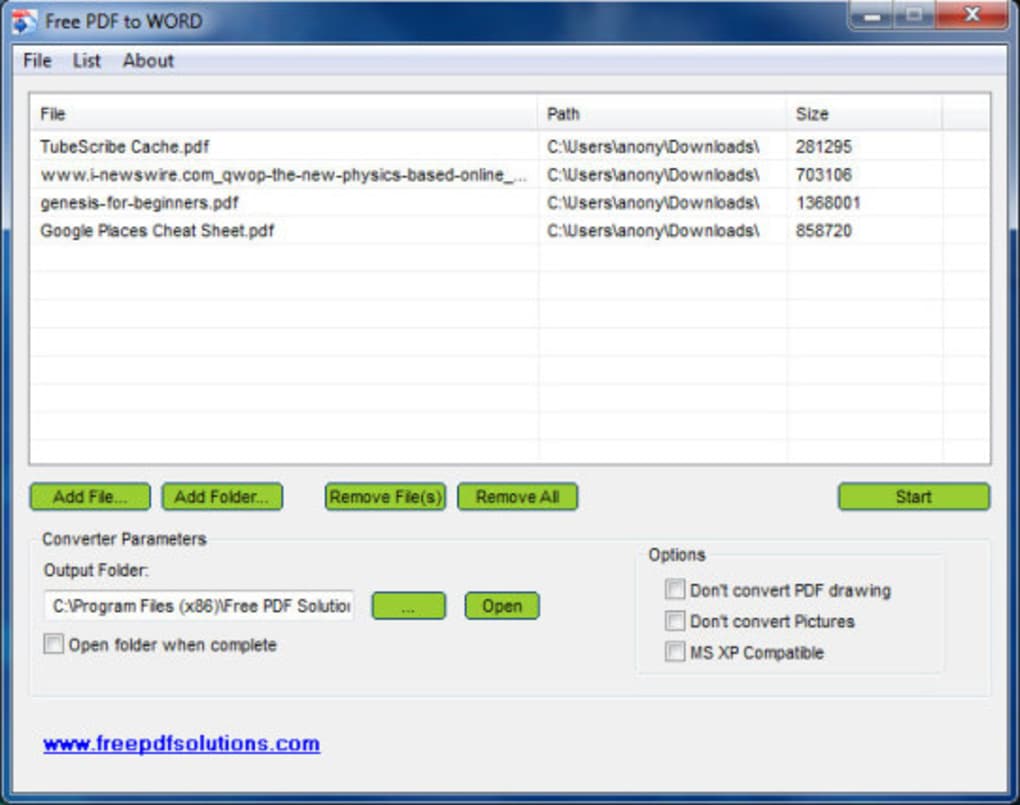
One example of free PDF to Word software is Free PDF to WORD, a program developed by Free PDF Solutions. This application boasts a user-friendly interface, enabling straightforward conversion of PDF files to both DOC and DOCX formats. Its support for batch conversion proves particularly valuable when handling multiple files simultaneously, significantly saving time and effort. Users can also fine-tune the conversion process by specifying which pages to convert and opting to exclude images, which can be helpful when dealing with image-heavy documents where image quality might be compromised during conversion or if the images are irrelevant to the text content.
While generally reliable, some users might encounter minor layout discrepancies in the converted Word documents. Additionally, converting particularly large PDF files can be time-consuming, a common limitation with many free conversion tools due to their resource constraints. The program’s functionality is primarily focused on PDF-to-Word conversion; users looking for the reverse function (Word-to-PDF) will need a separate tool. Furthermore, its effectiveness may vary with scanned PDFs, which are essentially image-based representations of text, making accurate text extraction challenging.
Alternatives and Considerations
Free PDF to Word converters, while convenient, often have limitations. These limitations might include:
-
Accuracy: The accuracy of the text and layout conversion can vary depending on the complexity of the original PDF. Tables, complex formatting, and scanned documents are often problematic.
-
Speed: Conversion speed can be slow, especially with large files.
-
Features: Free tools typically lack advanced features like OCR (Optical Character Recognition) for scanned PDFs, selective page conversion, or the ability to edit metadata.
Consider these alternatives and factors:
-
Online Converters: Numerous online services provide free PDF to Word conversion. These are often convenient for quick conversions of small files, but they usually come with limitations on file size and may raise privacy concerns regarding the handling of your documents.
-
Commercial Software: Paid software solutions generally offer superior accuracy, speed, and advanced features. If you frequently convert PDFs or deal with complex documents, a commercial package might be a worthwhile investment.
-
OCR Software: If you often work with scanned PDFs, investing in dedicated OCR software is highly recommended. OCR technology converts image-based text into editable text, enabling accurate conversions.
Optimizing PDF to Word Conversion
To maximize the success of your PDF to Word conversions, consider the following tips:
-
File Size: For larger files, consider splitting them into smaller, more manageable chunks before conversion.
-
Document Complexity: Very complex PDFs with extensive tables, graphics, or unusual formatting may not convert perfectly. Consider simplifying the document before conversion, if possible.
-
Scanned PDFs: Ensure you use a high-quality OCR tool if converting scanned documents. Pre-processing the scanned document to improve image quality (e.g., increasing contrast and resolution) can significantly improve OCR accuracy.
-
Testing: Always test the converted Word document thoroughly to check for errors in text, formatting, and layout.
Choosing the Right Tool: A Practical Approach
The choice between free and commercial PDF to Word converters hinges on several factors:
-
Frequency of Use: For occasional conversions, a free tool or online converter might suffice. Frequent users, however, will likely find commercial software more efficient and reliable.
-
Document Complexity: Simple text-based PDFs are easily handled by free tools. Complex documents with extensive tables, graphics, or scanned pages are better suited to commercial solutions with advanced features.
-
Budget: Free tools represent cost-effective options, but commercial software offers superior performance and support. Consider the value of your time and the potential cost of errors versus the price of a commercial product.
-
Features: Consider what features are essential for your needs. If OCR, batch conversion, or advanced formatting options are crucial, look for software that provides them.
By understanding the various methods available and considering these factors, you can make an informed decision and select the PDF to Word conversion tool that best fits your needs and workflow, ensuring efficient and accurate conversions for your documents.
File Information
- License: “Free”
- Version: “1”
- Latest update: “October 1, 2018”
- Platform: “Windows”
- OS: “Windows 2003”
- Language: “English”
- Downloads: “15.3K”
- Size: “1.22 MB”


