
In the vibrant and ever-evolving world of PC gaming, the quality and reliability of your peripherals can make or break the immersive experience. Among these, the game controller stands as a crucial interface, translating your every intent into in-game action. From executing precision headshots in first-person shooters to navigating complex combos in fighting games or simply enjoying the smooth ride in a racing simulator, a responsive and perfectly calibrated controller is indispensable. Yet, like all technology, game controllers are susceptible to wear, tear, and occasional malfunction. Buttons can stick, analog sticks can drift, and triggers can lose their sensitivity, leading to frustrating moments that pull you out of the game. This is where a dedicated game controller testing application becomes not just a luxury, but a vital tool for any serious gamer.
The Game Controller Tester for Windows, a simple yet effective application, emerges as a straightforward solution to this perennial problem. Developed with the sole purpose of assessing the functionality of your gaming peripherals, it offers a quick and accessible way to ensure that every button, axis, and vibration motor is performing exactly as it should. In a gaming landscape where competitive edges are often sought in high-refresh-rate monitors and powerful GPUs, the foundational element of a reliable input device is sometimes overlooked. However, a faulty controller can undermine even the most sophisticated setup, turning potential victories into exasperating defeats. This article delves into the intricacies of Game Controller Tester, examining its features, benefits, limitations, and how it fits into the broader ecosystem of gaming utility software, ultimately helping you maintain peak performance for your digital adventures.
Unlocking Optimal Performance: What is Game Controller Tester?
Game Controller Tester is a utility designed with a clear and singular objective: to provide a quick, efficient, and comprehensive method for checking the operational status of your gaming controllers on a Windows PC. In essence, it acts as a diagnostic suite, presenting a visual representation of all inputs received from your connected controller. Imagine the scenario: you’ve just invested in a brand-new controller, or perhaps your trusty old gamepad has started acting erratically. Before diving into an intense multiplayer match or a critical single-player campaign mission, the last thing you want is to discover a sticky button or a drifting analog stick mid-game. This application helps preempt such frustrations by allowing you to systematically test every facet of your device.
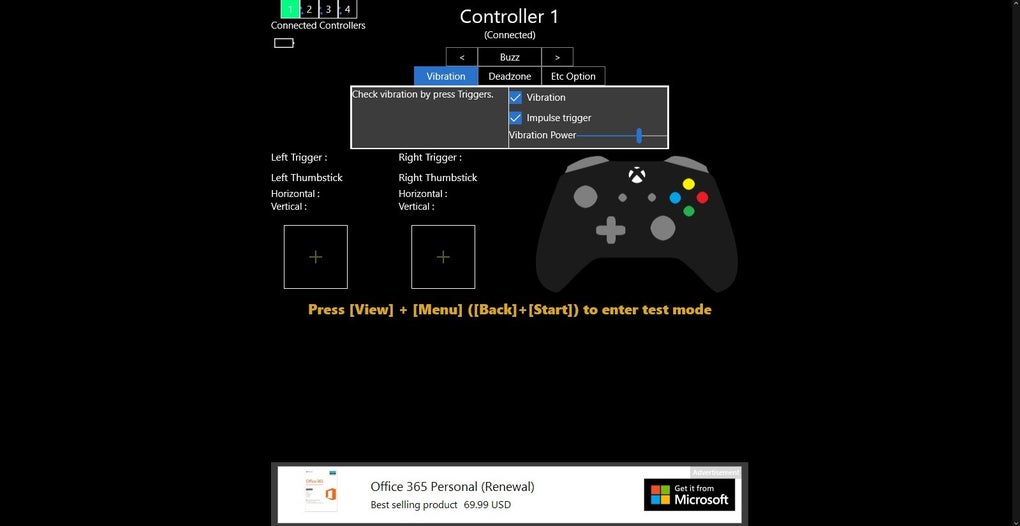
At its core, Game Controller Tester presents a clean and uncluttered interface that displays all the recognized buttons, triggers, and analog sticks of your connected controller. As you interact with your gamepad – pressing buttons, moving sticks, or engaging triggers – the application provides instant, real-time feedback. For instance, pressing the ‘A’ button might illuminate a corresponding indicator on the screen, or moving the left analog stick will show its current X and Y coordinates changing dynamically. This immediate visual confirmation is incredibly valuable, as it removes any guesswork about whether an input is being registered correctly.
The utility is built to accommodate a wide variety of game controllers. While the specifics often lean towards standard Xbox-style gamepads due to their prevalence on Windows, the application generally aims for broad compatibility with any controller recognized by the Windows operating system. This means whether you’re using a wired USB gamepad, a wireless Xbox controller connected via adapter, or a PlayStation controller (with appropriate drivers/wrappers), Game Controller Tester should be able to interpret and display its inputs. This versatility makes it a go-to tool for gamers who might own multiple controllers for different genres or preferences.
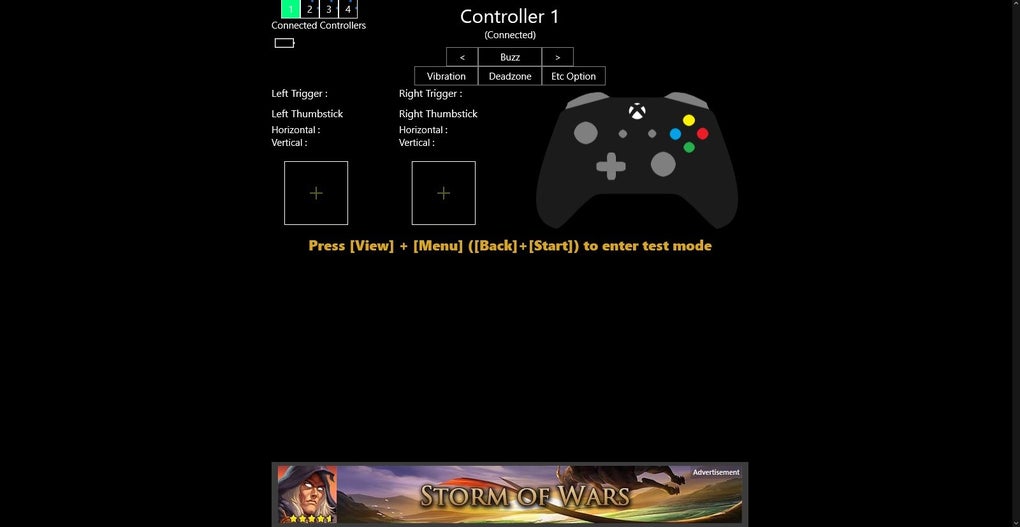
Beyond simple button presses, the application also typically tests analog inputs, which are crucial for fine motor control in games. Analog sticks, for example, are scrutinized for their full range of motion, ensuring that they can register inputs from the extreme corners to the center without dead zones or inaccuracies. Similarly, analog triggers, commonly used for acceleration and braking in racing games or aiming in shooters, are checked for their sensitivity and full depression range. Some advanced controllers also feature gyroscopic sensors or haptic feedback motors, and while simpler testers might not delve into these highly specific functionalities, the basic premise is to cover the most common and critical inputs. By providing this thorough diagnostic capability, Game Controller Tester empowers users to identify potential issues with their hardware before they impact their gaming experience, ensuring that their devices are always functioning optimally and ready for action.
Key Features and Functionality of the Game Controller Tester
The allure of Game Controller Tester lies in its straightforward approach to a common problem. While it might not boast a plethora of advanced features, its core functionalities are meticulously designed to fulfill its primary purpose effectively. Let’s delve deeper into what makes this application a practical utility for gamers.
Firstly, its simplicity and ease of use are paramount. In an era where software can often be bogged down by complex menus and obscure settings, Game Controller Tester stands out for its user-friendly design. Upon launching the application, it typically auto-detects any connected game controller and immediately presents a visual layout of its buttons and axes. There’s no convoluted setup process, no need to navigate through intricate configuration files, and virtually no learning curve. This makes it accessible to everyone, from tech-savvy enthusiasts to casual gamers who simply want to confirm their controller is working. The intuitive interface ensures that users can quickly perform the necessary checks without getting lost in unnecessary options, allowing them to get back to gaming as fast as possible.
Secondly, a significant advantage is its compatibility with various game controllers. While specific support can vary with application updates and Windows versions, Game Controller Tester is generally designed to work with a broad spectrum of input devices that adhere to standard Windows controller protocols (like XInput or DirectInput). This includes official Xbox controllers (Xbox 360, Xbox One, Xbox Series X/S), many third-party gamepads, and even PlayStation controllers when used with appropriate PC drivers or wrappers (like DS4Windows for DualShock/DualSense controllers). This wide-ranging support means that most PC gamers won’t need to hunt for a specific tester for each different controller they own. The ability to test diverse models simplifies peripheral management and reduces the need for multiple diagnostic tools.
Thirdly, the application’s ability to test all buttons and functions comprehensively is a major selling point. It’s not just about registering a simple button press. Game Controller Tester typically provides feedback for:
- Face Buttons (A, B, X, Y or their PlayStation equivalents): Confirms if each button registers a press and release correctly.
- Directional Pad (D-pad): Checks input for all eight directions (up, down, left, right, and diagonals).
- Analog Sticks: This is critical. It tests the full range of motion for both X and Y axes, indicating their precise coordinates. It often includes checking for “stick drift” where the stick registers input even when untouched, or “dead zones” where the stick needs to be moved significantly before input is registered. Pressing down on the analog sticks (L3/R3) is also typically included.
- Shoulder Buttons (LB/RB or L1/R1) and Triggers (LT/RT or L2/R2): Verifies the digital press of shoulder buttons and, for triggers, checks the analog input range from unpressed to fully depressed, which is vital for games requiring nuanced control.
- Start/Select/Menu/View Buttons: Ensures these auxiliary buttons are also functioning.
- Vibration Feedback: While less common in simpler testers, some might offer a basic test to confirm the rumble motors are operational.
This holistic approach ensures that gamers can confidently assess the health of their controllers, catching even subtle issues that might only become apparent during intense gameplay.
Finally, a notable practical advantage of Game Controller Tester is that it is very light on system resources. Unlike some comprehensive gaming suites or driver packages, this application is typically small in file size, requires minimal RAM, and exerts negligible CPU usage. This characteristic is particularly important for gamers, as it means the diagnostic tool won’t interfere with their system’s performance, even if run in the background. It allows for quick checks without the worry of bogging down a system that’s already taxed by resource-intensive games. This lightweight nature contributes to its overall efficiency and user convenience, making it a quick and unobtrusive addition to any gamer’s utility toolkit.
A Balanced Look: Advantages and Disadvantages
While Game Controller Tester provides a valuable service for Windows PC gamers, like any software, it comes with its own set of strengths and weaknesses. Understanding these can help users determine if it’s the right tool for their specific needs or if they might benefit from exploring alternatives.
Advantages:
-
Simplicity and Accessibility: As highlighted earlier, the application’s primary strength is its straightforward design. It requires no technical expertise to use, making it incredibly accessible. For someone who just wants to verify that their new controller is working out of the box or quickly troubleshoot a suspected issue, the lack of complex features is a boon. It strips away all extraneous elements to focus solely on input detection, presenting information in an easy-to-understand visual format. This minimalist approach reduces potential frustration and encourages quick diagnostics.
-
Comprehensive Basic Testing: Despite its simplicity, Game Controller Tester does an excellent job of covering all fundamental aspects of a gamepad’s functionality. From the click of face buttons to the full sweep of analog sticks and the pressure sensitivity of triggers, it provides real-time feedback for all standard inputs. This thoroughness ensures that common issues like unresponsive buttons, stick drift, or non-registering triggers can be quickly identified. For many gamers, this level of testing is all that’s required to confirm their controller’s health.
-
Broad Controller Compatibility: The application’s ability to work with a wide array of Windows-compatible controllers is a significant plus. Whether it’s an Xbox, PlayStation (with wrappers), or a generic USB gamepad, the tool generally accommodates them, making it a versatile addition to any gamer’s utility folder. This saves users from needing to download separate testing utilities for each brand of controller they might own.
-
Resource Efficiency: Its lightweight nature means it doesn’t consume significant system resources. This is particularly crucial for gaming PCs, where every bit of CPU and RAM can contribute to in-game performance. Running a diagnostic tool that barely registers on the system monitor ensures that you can test your controller without impacting other running applications or even a background game download.
-
Cost-Free Solution: The fact that Game Controller Tester is available for free significantly lowers the barrier to entry. Gamers can download and use it without any financial investment, making it an attractive option for budget-conscious users or those who only occasionally need to check their peripherals. Free access ensures that essential diagnostic capabilities are available to everyone.
Disadvantages:
-
Lack of Advanced Features: This is perhaps the most significant drawback. Game Controller Tester is intentionally simplistic, which means it omits many advanced functionalities that more sophisticated utilities offer. For instance, it typically lacks:
- Calibration Tools: The ability to recalibrate analog sticks or triggers, adjust dead zones, or fine-tune sensitivity.
- Control Mapping/Rebinding: Features to remap buttons or create custom profiles for specific games.
- Macro Functionality: The capacity to record and assign macros to controller inputs.
- Detailed Haptic Feedback Testing: Beyond a simple on/off, it may not offer granular control or testing of different vibration patterns.
- Firmware Updates: It’s a tester, not a firmware management tool for controllers.
This absence of advanced features means that while it can identify a problem, it often cannot help resolve it directly, requiring users to turn to other software or manufacturer-specific utilities.
-
Overly Simplistic Interface for Power Users: While its simplicity is a pro for beginners, it can be a con for experienced users or those who require more granular control and information. The interface, while clean, doesn’t offer deep insights or customization options that some users might desire, such as raw input data, response curves, or detailed latency measurements.
-
No Ability to Map Controls: This is a crucial missing feature for many PC gamers. The ability to remap controller inputs to keyboard keys or mouse actions is often essential for playing games that lack native controller support or for tailoring the experience to personal preferences. Since Game Controller Tester is purely a diagnostic tool, it doesn’t venture into input configuration. Users will need separate tools like Input Mapper or antimicro for this functionality.
-
Occasional Application Instability (Crashes): Based on user feedback, the application can sometimes crash. While software stability varies across versions and system configurations, intermittent crashes during diagnostic use can be disruptive and undermine confidence in the tool’s reliability. Such issues, if frequent, necessitate finding more stable alternatives.
-
Limited Diagnostic Depth: While it covers basic functions, it may not provide deeper diagnostic information crucial for resolving complex issues. For example, it might not differentiate between a purely mechanical stick drift and one caused by driver issues, or offer insights into controller communication protocols. Its utility is largely confined to confirming whether an input is registered, rather than diagnosing why it might not be.
In summary, Game Controller Tester is an excellent free tool for quick, basic checks of a gamepad’s functionality. Its ease of use and broad compatibility make it a convenient first line of defense against controller malfunctions. However, users seeking advanced calibration, remapping, or deeper diagnostic capabilities will find its features too limited and will need to supplement it with more robust, specialized software.
System Requirements, Availability, and Installation
Understanding the practical aspects of acquiring and running Game Controller Tester is crucial for potential users. Its minimal demands and widespread availability contribute significantly to its utility as a quick diagnostic solution.
System Requirements:
Game Controller Tester is remarkably undemanding in terms of system resources, reflecting its lightweight design philosophy.
- Platform: Primarily designed for Windows. This means it’s compatible with various versions of Microsoft’s operating system, from Windows 7, 8, and 10, up to the latest Windows 11. Its prevalence on Windows machines makes it a natural fit for the vast majority of PC gamers.
- Operating System: Specifically targets Windows environments. The reference content confirms its compatibility with Windows 11.
- Language: The application interface is in English, ensuring broad accessibility for a global user base. While some platforms like PhanMemFree.org list it being available in other languages for download links (e.g., Bahasa Indonesia, Italiano, Deutsch), the core application itself typically operates in English.
- Memory and Processor: Given its simple functionality, it requires negligible RAM and CPU power. Any modern Windows PC capable of running games will easily handle Game Controller Tester without any performance hit.
- Storage: The application file size is minimal, typically just a few megabytes, meaning it occupies very little disk space.
Availability and Versioning:
- License: Game Controller Tester is available as Freeware. This means users can download, install, and use it without any cost or licensing fees, making it an incredibly accessible tool for everyone.
- Version: The version is often listed as “varies-with-device” or similar on download portals. This indicates that there might be slightly different builds or that the version number isn’t rigidly fixed across all distributions. However, the core functionality remains consistent.
- Latest Update: According to the reference content, the last update was around November 24, 2021. While this might suggest less frequent updates compared to actively developed commercial software, for a utility with a focused purpose like this, infrequent updates are not necessarily a detriment if the core functionality remains stable and effective. Many basic utilities, once functional, don’t require constant revisions unless significant operating system changes dictate them.
- Downloads: The application has seen substantial uptake, with over 37.2K downloads and 119 downloads in the last month on platforms like PhanMemFree.org (as per the reference data). This indicates a healthy user base and a sustained interest in its utility.
Installation Process:
The installation of Game Controller Tester is typically straightforward and hassle-free:
- Download: Users would generally navigate to a reputable software download portal (such as PhanMemFree.org) and locate the Game Controller Tester page.
- Free Download: Click on the “Free Download for Windows” or “Free Download for PC” button. The download will usually be a small executable file.
- Run Installer: Once downloaded, running the executable file will launch a simple installer.
- Follow Prompts: The installer will usually guide the user through a few basic steps, which might include accepting a license agreement and choosing an installation directory (though for such a simple tool, it might even be a portable application that runs directly without a formal installation).
- Launch: After installation (or extraction, if portable), the application can be launched from the Start Menu, desktop shortcut, or directly from its executable.
Because of its minimal system requirements, free availability, and straightforward installation, Game Controller Tester stands as an easily adoptable utility. It doesn’t demand specialized hardware or complex setup, making it an ideal candidate for anyone needing a quick diagnostic check for their PC game controllers. Its “set it and forget it” nature, combined with its utility, ensures it remains a relevant tool despite its focused scope.
Exploring Alternatives and Complementary Tools
While Game Controller Tester provides a solid foundation for basic controller diagnostics, the rich ecosystem of PC gaming offers numerous alternative and complementary tools that cater to a wider range of needs, from deeper testing and calibration to extensive remapping and customization. Understanding these options helps users build a comprehensive toolkit for their gaming peripherals.
Dedicated Controller Management and Testing Suites:
-
Xbox Accessories: For users primarily on official Xbox controllers (Xbox One, Xbox Series X/S, Xbox Elite), the Xbox Accessories app is an indispensable tool. Available for free from the Microsoft Store, it goes beyond simple testing. It allows for:
- Button Remapping: Customize button layouts for individual profiles.
- Analog Stick and Trigger Calibration: Adjust sensitivity, dead zones, and even trigger travel.
- Vibration Control: Modify rumble intensity.
- Firmware Updates: Essential for keeping controllers up-to-date.
- Profile Management: Save multiple configurations for different games or user preferences. While it provides basic testing of inputs, its strength lies in configuration and maintenance for Xbox hardware.
-
Input Mapper: This application is a favorite among PlayStation controller users who want to use their DualShock 4 or DualSense controllers on PC with greater flexibility. Input Mapper enables:
- Full PS Controller Support: Makes PlayStation controllers appear as Xbox controllers (XInput) to games, ensuring wide compatibility.
- Advanced Control Mapping: Extensive options to map controller inputs to keyboard keys, mouse movements, or other controller inputs.
- Macro Support: Create complex sequences of inputs.
- Profile Management: Create and switch between different profiles.
- Trackpad and Gyro Support: Utilize advanced features of PS controllers. While it doesn’t have a dedicated “tester” mode like Game Controller Tester, its comprehensive remapping features implicitly allow users to verify inputs by assigning them to actions and observing results.
-
antimicro (or antimicroX): A free and open-source program that allows users to map keyboard keys and mouse controls to a gamepad. It’s incredibly versatile, enabling:
- Keyboard/Mouse Emulation: Play games without native controller support using your gamepad.
- Profile Creation: Save and load custom configurations.
- Advanced Mapping Options: Including turbo buttons, dead zones, and sensitivity adjustments. Like Input Mapper, its testing is integrated into its mapping capabilities. If you can map a button and it works, you know it’s functional.
-
JoyToKey: Similar to antimicro, JoyToKey is a popular utility that converts joystick input into keyboard or mouse input. It’s particularly useful for older games or applications that only recognize keyboard/mouse input. It offers a trial version and a paid full version, providing a reliable way to extend controller compatibility.
Simple Testers and Manufacturer-Specific Tools:
-
Xbox One Controller Tester / Sp777 Controller Tester: These are often simpler, often free utilities similar to Game Controller Tester, specifically designed for Xbox One controllers. They provide a quick visual check of button presses, stick movements, and trigger inputs, without the advanced mapping features. They serve the same primary purpose of verifying basic functionality.
-
Controller Companion: A paid utility on Steam that aims to turn your PC into a console-like experience when using a controller. It offers a robust set of features, including mouse and keyboard emulation via your gamepad, an on-screen keyboard, and launching games. While its primary focus is convenience, it inherently relies on and confirms controller functionality.
-
Joypad (iPhone as a controller): This is a different type of tool entirely, allowing users to leverage their iPhone or Android device as a game controller for their PC or Mac. While not a “tester” in the traditional sense, it demonstrates the ingenuity in the controller space and provides an alternative if you lack a physical gamepad.
Broader System Utilities:
Beyond direct controller software, other utilities mentioned in the reference content, such as 3uTools (data management), GS Auto Clicker (mouse automation), and TinyTask (automation), serve entirely different purposes but highlight the rich landscape of free productivity and utility software available on platforms like PhanMemFree.org. These are not alternatives to Game Controller Tester but rather examples of other valuable tools that can enhance the PC user experience in different areas.
In conclusion, Game Controller Tester is an excellent starting point for basic controller diagnostics due to its simplicity and cost-free nature. However, for gamers requiring more advanced features such as calibration, detailed mapping, macro creation, or specific support for PlayStation controllers, exploring tools like Xbox Accessories, Input Mapper, or antimicro will be necessary. Often, a combination of these utilities provides the most robust solution for ensuring all gaming peripherals are optimally configured and consistently ready for the next adventure.
Conclusion: The Indispensable Role of a Reliable Controller Tester
In the vast and ever-expanding universe of PC gaming, the integrity of one’s peripherals often goes unnoticed until a critical moment of failure. A game controller, the primary conduit between a player’s intent and in-game action, is an unsung hero that, when compromised, can swiftly transform enjoyment into exasperation. The Game Controller Tester for Windows, as we have explored, stands as a simple yet profoundly effective guardian against such frustrations. It is a testament to the idea that sometimes, the most valuable tools are not the most complex, but rather those that fulfill a clear need with unwavering efficiency.
This free, lightweight utility has carved out an important niche by offering a straightforward method to diagnose the functionality of various game controllers. Its primary strengths lie in its exceptional ease of use, making it accessible to gamers of all technical proficiencies, and its comprehensive coverage of fundamental inputs—from the crisp response of face buttons to the fluid motion of analog sticks and the nuanced pressure of triggers. It acts as a preventative measure, allowing gamers to identify and address potential hardware issues before they escalate into game-ruining malfunctions, thereby ensuring that their devices are always performing optimally. The fact that it consumes minimal system resources further solidifies its position as an unobtrusive, yet essential, addition to any Windows gamer’s toolkit.
However, a balanced perspective reveals its inherent limitations. Its deliberate simplicity, while a virtue for basic diagnostics, means it lacks the advanced features demanded by power users or those facing more intricate calibration and customization challenges. The absence of integrated control mapping, dead zone adjustments, or detailed haptic feedback controls necessitates a foray into more specialized software. Furthermore, occasional reports of instability, while not universal, underscore that even the simplest applications can encounter intermittent hiccups.
Ultimately, Game Controller Tester serves as an ideal entry-level diagnostic tool. It is perfectly suited for quick checks, troubleshooting initial setup problems, or performing routine health assessments of your gaming peripherals. For the gamer who values a smooth, uninterrupted experience and wishes to avoid the disappointment of a malfunctioning controller mid-quest, this application offers an immediate, no-cost solution.
For those requiring deeper customization, recalibration, or advanced input remapping, the broader ecosystem of tools like Xbox Accessories, Input Mapper, and antimicro provides robust alternatives and complements. These programs empower users with granular control over their input devices, tailoring every aspect of their controller’s behavior to their specific gaming style and the demands of individual titles.
In conclusion, the Game Controller Tester on PhanMemFree.org is more than just a piece of software; it’s a small but significant step towards an unhindered and more enjoyable gaming journey. It underscores the importance of reliable hardware and offers a direct pathway to ensuring your trusty gamepad is always ready for the next epic adventure, the next intense battle, or simply the next relaxing drive through a virtual landscape. In a world where digital experiences are increasingly immersive, ensuring the perfect harmony between player and game begins with a perfectly functioning controller, and Game Controller Tester helps achieve just that.
File Information
- License: “Free”
- Version: “varies-with-device”
- Latest update: “November 24, 2021”
- Platform: “Windows”
- OS: “Windows 11”
- Language: “English”
- Downloads: “37.2K”


