
Git is a distributed version-control system (DVCS) designed to handle everything from small to very large projects with speed and efficiency. Unlike centralized systems, Git doesn’t rely on a central server to manage the repository’s history. Instead, each developer has a complete copy of the repository, allowing for offline work and distributed collaboration. This decentralized approach offers significant advantages in terms of speed, reliability, and flexibility. This guide explores the core functionalities of Git, its advantages, and how it’s used in software development workflows.
Understanding Git’s Core Concepts
Before diving into specific commands, it’s crucial to grasp the fundamental concepts that underpin Git’s functionality. These concepts form the basis for effective version control and collaborative development:
1. The Repository: The repository (or “repo”) is the central location where all project files and their version history are stored. This can be a local repository on your computer or a remote repository hosted on a platform like GitHub, GitLab, or Bitbucket. A repository contains all the files, directories, and the complete history of changes made to those files.
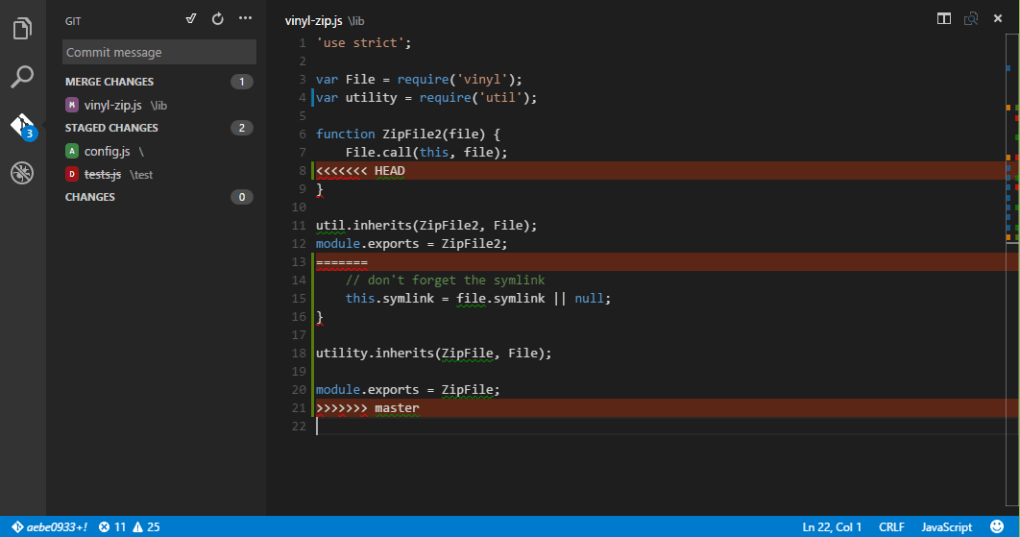
2. Staging Area: The staging area acts as a buffer between your working directory (the files you’re currently editing) and the repository’s history. Before committing changes to the repository, you add them to the staging area. This allows you to selectively choose which modifications should be included in the next commit.
3. Commit: A commit represents a snapshot of your project at a specific point in time. Each commit includes a unique identifier, a timestamp, a commit message describing the changes, and the modifications made to the files since the previous commit. Commits form a chronological chain, allowing you to easily navigate the project’s history.
4. Branches: Branches are parallel versions of your project. They allow developers to work on new features or bug fixes independently without affecting the main development line (typically called the “main” or “master” branch). This isolation prevents conflicts and allows for seamless integration once the work on the branch is complete.
5. Merging: Merging combines changes from different branches into a single branch. This is a crucial step in collaborative development, where multiple developers work on separate branches and then integrate their changes back into the main branch. Git provides tools to resolve conflicts that may arise during merging.
6. Remote Repositories: Remote repositories are typically hosted on a server and serve as a central point for collaboration. Developers push their local commits to the remote repository to share their changes with others, and they pull updates from the remote repository to incorporate changes made by other collaborators.
7. Forks: A fork is a copy of a remote repository. Forking allows you to create your own version of a project, make changes without affecting the original repository, and then submit those changes as a pull request to the original repository’s maintainers. This is a common practice for contributing to open-source projects.
Common Git Commands
Git’s power lies in its command-line interface, which offers fine-grained control over every aspect of version control. Here are some essential Git commands:
Initialization:
git init: Creates a new Git repository in the current directory.
Adding and Committing Changes:
git add <file>: Adds a file or directory to the staging area. You can usegit add .to add all changes in the current directory.git commit -m "Your commit message": Commits the changes in the staging area to the repository. The message describes the changes made.
Branch Management:
git branch: Lists all branches in the repository.git branch <branch-name>: Creates a new branch.git checkout <branch-name>: Switches to a different branch.git checkout -b <branch-name>: Creates a new branch and switches to it.git merge <branch-name>: Merges a branch into the current branch.
Remote Repository Interaction:
git clone <repository-url>: Clones a remote repository to your local machine.git remote add origin <repository-url>: Adds a remote repository (often called “origin”).git push origin <branch-name>: Pushes your local branch to the remote repository.git pull origin <branch-name>: Pulls changes from the remote repository to your local branch.
Viewing History:
git log: Displays the commit history.git log --graph --oneline --decorate: Shows a graphical representation of the branch history.
Other Useful Commands:
git status: Shows the status of your working directory and staging area.git diff: Shows the differences between files in your working directory and the staging area or between commits.git revert <commit-hash>: Undoes a commit by creating a new commit that reverses the changes.git reset <commit-hash>: Resets your working directory or staging area to a previous commit. Use with caution!git stash: Temporarily saves uncommitted changes without committing them.
Git for Windows: A User-Friendly Interface
While the command line offers powerful control, Git for Windows provides a user-friendly interface for those who prefer a graphical approach. Git for Windows includes:
- Git Bash: An emulation of the Bash shell, providing a familiar command-line experience for users accustomed to Linux or macOS environments.
- Git GUI: A graphical user interface that simplifies common Git operations, such as committing changes, viewing history, and managing branches. This is particularly beneficial for beginners.
- Shell Integration: Seamless integration with Windows Explorer, enabling direct access to Git commands via right-click context menus. This streamlines workflows by eliminating the need to switch between applications.
- Git Credential Manager: Securely stores credentials for popular Git hosting services like GitHub and Azure DevOps, preventing repeated password prompts and enhancing security.
Git vs. GitHub: Clarifying the Distinction
It’s important to distinguish between Git and GitHub (or GitLab, Bitbucket, etc.). Git is the underlying version control system—the engine that tracks changes and manages the project history. GitHub, GitLab, and Bitbucket are platforms that host Git repositories. They provide additional features like issue tracking, pull requests, collaboration tools, and code review functionalities. You can use Git without ever using a platform like GitHub, but for collaborative projects, a remote hosting service is often necessary.
You would install Git on your computer to manage your local repositories and interact with remote repositories. You would then use a platform like GitHub to store your project’s remote repository, collaborate with others, and benefit from its additional features.
Choosing the Right Version Control System
Git’s popularity stems from its flexibility, scalability, and powerful feature set. While other version control systems exist (like SVN or Mercurial), Git’s distributed nature, branch management capabilities, and large community support make it a dominant force in modern software development. For individuals and teams working on software projects of any size, Git offers a robust and efficient solution for managing code, collaborating effectively, and maintaining a detailed history of project evolution. The learning curve may initially seem steep, but the long-term benefits far outweigh the initial investment in learning the commands and workflows. The availability of numerous resources, tutorials, and online communities makes mastering Git a manageable and rewarding endeavor.
File Information
- License: “Free”
- Version: “2.14.2”
- Latest update: “November 14, 2023”
- Platform: “Windows”
- OS: “Windows 11”
- Language: “English”
- Downloads: “9K”
- Size: “38.81 MB”


