
Google Drawings is a free, versatile diagramming and drawing tool integrated within the Google Workspace suite (formerly G Suite). Accessible via a web app and a Chrome OS installable program, it provides a user-friendly platform for creating various graphics, from simple diagrams to more complex visuals, without demanding extensive design expertise. While it doesn’t offer the granular control of professional-grade software like Adobe Photoshop or Canva, its simplicity and seamless integration with other Google Workspace applications make it a powerful and convenient option for a wide range of users. This article will explore its features, applications, advantages, and limitations.
Understanding Google Drawings: Functionality and Features
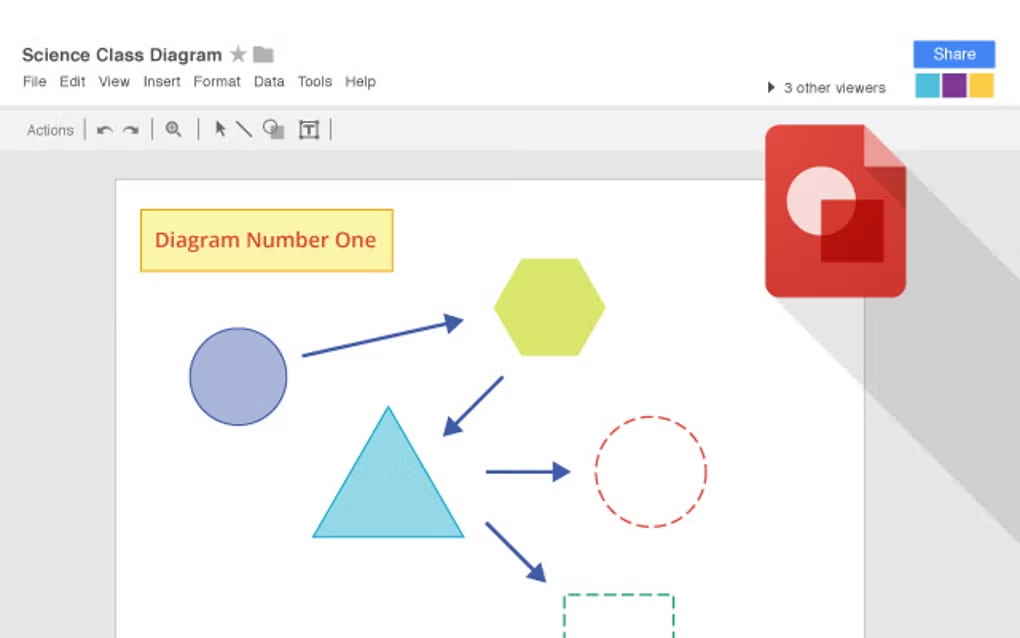
Google Drawings functions as a collaborative, web-based diagramming software, allowing users to create and edit diagrams, illustrations, and graphics online. Its intuitive interface is designed for ease of use, making it accessible to individuals with varying levels of design experience. The core functionality revolves around creating and manipulating visual elements. These include:
-
Shapes: A wide selection of pre-defined shapes—from basic geometric forms to more specialized symbols—are available for immediate insertion into the drawing. These shapes can be customized extensively in terms of size, color, fill, and outline.
-
Images: Users can import images from their local storage or directly from online sources. This allows for the creation of visually rich diagrams and illustrations by incorporating photographs, graphics, and other visual assets.
-
Text: Text boxes can be added and formatted with various font styles, sizes, and colors, enabling the creation of labeled diagrams, presentations, or illustrated documents. Text formatting options provide sufficient flexibility for conveying information clearly and attractively.
-
Lines and Connectors: The ability to draw lines and connectors is crucial for creating diagrams such as flowcharts or organizational charts. These connectors aid in visually representing relationships and connections between different elements within the drawing.
-
Collaboration Tools: Google Drawings’ real-time collaboration feature allows multiple users to work on the same drawing concurrently. This feature is invaluable for teamwork and shared projects, enabling efficient and synchronous editing.
-
Export Options: Once a drawing is completed, users can export it in several commonly used formats, including JPEG, PNG, SVG, and PDF. This versatility makes sharing and utilizing the created graphics in different contexts simple and straightforward.
-
Integration with Google Workspace: The deep integration with Google Docs, Sheets, and Slides facilitates seamless embedding of drawings into documents, spreadsheets, and presentations. This integration enhances the functionality of the broader Google Workspace ecosystem and streamlines the workflow for creating comprehensive projects.
Applications of Google Drawings: From Education to Marketing
The seemingly simple functionality of Google Drawings belies its remarkable versatility across a multitude of applications. Its user-friendly nature and cross-platform compatibility make it a suitable tool for both casual users and professionals. Some prominent applications include:
-
Education: Google Drawings serves as an exceptional tool in educational settings. Teachers can create interactive learning materials, visual aids, and engaging assignments. Students can use it to produce diagrams, presentations, and collaborative projects, fostering active learning and visual communication skills. The ability to incorporate interactive elements, such as links or embedded videos, within the drawings further enhances their pedagogical value.
-
Business and Marketing: In a business environment, Google Drawings is useful for creating flowcharts, organizational charts, wireframes (for website design), mind maps, and other visual aids. Its ease of use makes it an efficient tool for quickly creating presentations and marketing materials, including posters, flyers, and social media graphics. The collaborative nature of the tool allows for streamlined teamwork on marketing campaigns and project development.
-
Personal Use: Beyond educational and professional applications, Google Drawings offers a convenient platform for personal projects. Users can create visual journals, family trees, travel itineraries, or simply design custom graphics for personal use. The ability to easily share these creations with others enhances the functionality and utility of the tool for personal use.
Advantages and Disadvantages of Google Drawings
Like any software, Google Drawings comes with its own set of strengths and weaknesses. Understanding these advantages and disadvantages helps potential users make an informed decision about whether it’s the right tool for their needs.
Advantages:
-
Free and Accessible: As part of Google Workspace, it’s free to use for anyone with a Google account, making it a cost-effective solution for individuals and organizations. Its web-based nature ensures accessibility from virtually any device with an internet connection.
-
User-Friendly Interface: Its intuitive interface makes it easy to learn and use, even for individuals with limited design experience. The simple drag-and-drop functionality and readily available tools reduce the learning curve significantly.
-
Seamless Integration: The tight integration with other Google Workspace applications streamlines workflow and enhances productivity. The ability to seamlessly embed drawings into other documents or presentations is a key advantage.
-
Real-time Collaboration: The real-time collaboration feature allows multiple users to work simultaneously on the same drawing, promoting efficient teamwork and facilitating shared projects.
-
Cross-Platform Compatibility: It’s accessible across multiple operating systems and devices, ensuring consistent usability regardless of the platform used.
Disadvantages:
-
Limited Features: Compared to professional-grade design software, Google Drawings offers a more limited set of features. Advanced editing tools and specialized effects are not available, potentially limiting its usability for complex design projects.
-
Lack of Templates: While it provides a range of basic shapes and images, it lacks pre-made templates, requiring users to create everything from scratch. This can be time-consuming for users who need ready-made designs.
-
Dependence on Internet Connection: Being a web-based application, it requires a stable internet connection to function. Offline editing capabilities are not available, which can be limiting for users in areas with unreliable internet access.
-
Storage Limitations: While Google Drive offers ample storage, extremely large or numerous drawings might eventually reach storage limits, particularly for free accounts.
Conclusion: Google Drawings – A Valuable Tool for Many
Google Drawings, while not a replacement for professional-grade design software, stands as a highly valuable and readily accessible tool for a wide range of tasks. Its simplicity, collaborative capabilities, and seamless integration within the Google Workspace ecosystem make it a powerful asset for education, business, and personal use. While its limited features might not suit every need, its ease of use and free accessibility make it an excellent option for individuals and organizations seeking a straightforward and efficient diagramming and drawing solution. For those seeking a simple, user-friendly, and collaborative drawing tool, Google Drawings deserves strong consideration.
File Information
- License: “Free”
- Version: “1.1”
- Latest update: “May 2, 2025”
- Platform: “Windows”
- OS: “Windows 8”
- Language: “English”
- Downloads: “12.6K”


