
Google Slides is a powerful and versatile cloud-based presentation software that allows users to create, edit, collaborate on, and share presentations seamlessly. Its intuitive interface, robust features, and seamless integration with other Google Workspace applications make it a popular choice for individuals, students, businesses, and organizations of all sizes. This comprehensive guide explores the various aspects of Google Slides, covering its functionality, features, benefits, and how it can be effectively utilized for diverse presentation needs.
Getting Started with Google Slides
Google Slides offers an incredibly straightforward approach to presentation creation, even for first-time users. The process is intuitive and requires minimal technical expertise. To begin, you simply need a Google account. Once logged in, navigate to Google Slides, either through your Google Workspace dashboard or directly via the Google Slides website.
The initial screen presents two primary options: starting with a blank presentation or selecting a pre-designed template. Choosing a blank presentation provides a completely customizable canvas, allowing for maximum creative freedom. Alternatively, selecting a template offers a pre-formatted structure and stylistic elements, speeding up the initial design process and providing a framework for your content. Templates are categorized by theme and purpose, offering a wide range of options from professional business presentations to more casual or creative designs.
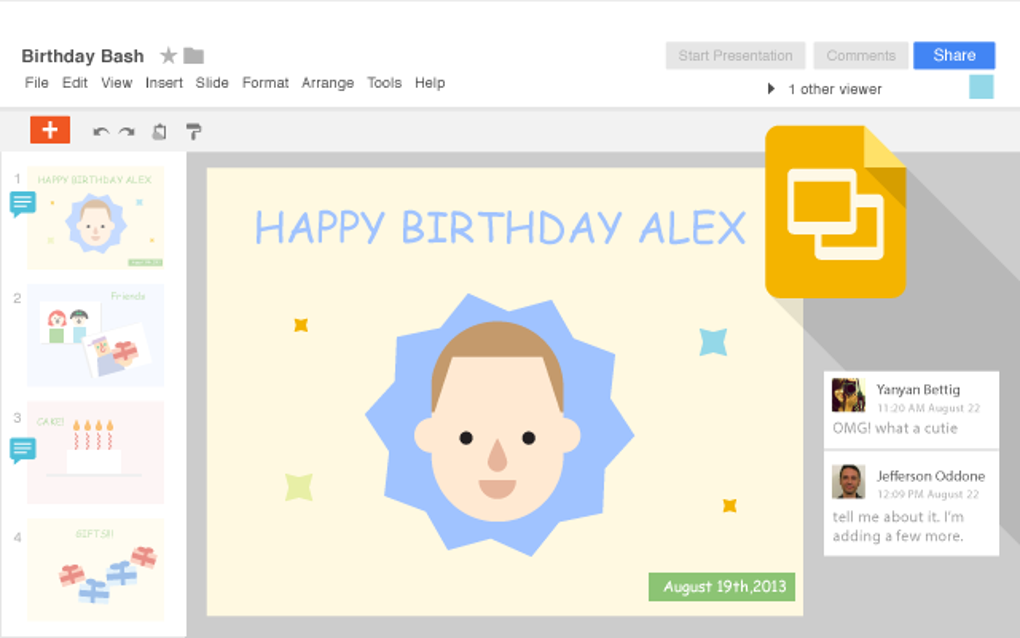
Once you’ve chosen your starting point, the real work begins. The user interface is clean and user-friendly, featuring a familiar ribbon-style menu at the top, offering easy access to all the essential functions. The workspace itself is a clean, uncluttered area dedicated to the creation and manipulation of individual slides.
Mastering the Fundamentals: Creating and Editing Slides
Creating a presentation in Google Slides involves a straightforward, step-by-step process:
1. Adding a Title: The first step is usually to add a descriptive title to your presentation. This not only organizes your work but also makes it easily identifiable later. Google Slides allows you to change the title at any point in the process.
2. Selecting a Theme: Google Slides offers a diverse range of themes, each providing a different aesthetic and color palette. Choosing a theme sets the overall visual tone of your presentation. Themes can be easily changed throughout the creation process, allowing for experimentation and refinement. While built-in themes provide a strong starting point, users can also create custom themes for a truly unique presentation style. This involves adjusting colors, fonts, and other visual elements to create a personalized aesthetic.
3. Setting the Aspect Ratio: The aspect ratio defines the dimensions of your slides. Google Slides provides standard options, such as 4:3 and 16:9, to ensure compatibility with various display types. Choosing the right aspect ratio is crucial for ensuring your presentation looks its best on the intended screen.
4. Adding Text and Media: Adding text is a fundamental part of presentation creation. Google Slides offers various text formatting options, including font selection, size, style, color, and alignment. The software also allows the insertion of images, videos, charts, tables, and other multimedia elements to enhance the visual appeal and engagement of your presentation. These media elements can be sourced from your computer, Google Drive, or directly from the web.
5. Navigating Slides: Google Slides allows for easy navigation between slides. Users can add new slides, duplicate existing ones, rearrange the order of slides, and delete unwanted slides, all with simple drag-and-drop functionality or via the menu options.
6. Collaborating in Real-time: One of the key advantages of Google Slides is its real-time collaboration capabilities. Multiple users can work on the same presentation simultaneously, making it ideal for team projects. Changes are instantly reflected for all collaborators, fostering seamless teamwork and reducing the need for email exchanges or version control issues.
Advanced Features and Enhancements
Beyond the basic functionality, Google Slides offers a range of advanced features designed to enhance both the creation and delivery of presentations. These features significantly boost the overall quality and impact of your presentations.
1. Keyboard Shortcuts: Similar to other word processing applications, Google Slides supports a comprehensive set of keyboard shortcuts, allowing for faster navigation and increased efficiency. These shortcuts significantly speed up the creation process, allowing users to perform common actions without needing to use the mouse. A full list of keyboard shortcuts is readily available within the application’s help section.
2. Explore Feature: The “Explore” function, typically located in the bottom right corner, is a powerful tool that provides design suggestions based on your content. It uses AI to suggest relevant images, formatting options, and even entire themes to enhance the presentation’s overall visual appeal. The Explore feature also provides quick access to online image search, directly integrating visual elements from the web.
3. Compatibility and File Formats: Google Slides offers excellent compatibility with various file formats. It allows you to import presentations from other office suites like Microsoft PowerPoint, seamlessly integrating existing work. It also allows for exporting your presentations in a variety of formats, ensuring compatibility with different platforms and devices.
4. Voice Typing: Google Slides’ built-in voice typing feature enables users to dictate their content directly into the application, saving time and effort. This is particularly helpful for users who prefer verbal input or who need to create presentations quickly. The voice-to-text functionality is highly accurate and seamlessly integrates with the text editing capabilities of the application.
5. Q&A Feature: Google Slides includes a Q&A feature designed to facilitate interaction during presentations. This feature allows the audience to submit questions in real-time, which the presenter can then address during the presentation. This encourages audience engagement and turns presentations into a more interactive and dynamic experience.
Benefits of Using Google Slides
Google Slides boasts a multitude of benefits that set it apart from other presentation software options:
-
Cost-effectiveness: Google Slides is free for individual users with a Google account, making it an accessible option for everyone. The paid Google Workspace suite provides additional features and storage, but the core functionality remains free.
-
Real-time Editing: The real-time collaborative editing feature allows multiple users to work simultaneously on a presentation, significantly improving efficiency and teamwork.
-
Secure Sharing: Google Slides allows for secure sharing of presentations, enabling users to control who can view, edit, or comment on their presentations. This ensures the security and confidentiality of sensitive information.
-
Revision History: Google Slides automatically keeps track of all revisions made to a presentation, providing a history of changes. This feature allows users to easily revert to previous versions if needed and aids in tracking collaborative contributions.
-
Compatibility and Accessibility: Its broad compatibility with different file formats and operating systems makes it an accessible choice across a range of devices and platforms.
-
Professional Features: Google Slides offers a range of professional features, such as advanced formatting options, multimedia integration, and custom themes, enabling the creation of polished and high-quality presentations.
-
Template Availability: A large library of pre-designed templates is readily available, saving users time and effort in creating a visually appealing presentation.
- Online Publishing: Google Slides allows for the easy online publishing of presentations, facilitating the sharing and viewing of presentations by a wider audience.
Who Should Use Google Slides?
Google Slides caters to a broad range of users, including:
-
Students: It’s an excellent tool for creating engaging presentations for school projects.
-
Individuals: It’s a user-friendly option for creating personal presentations for various purposes.
-
Organizations and Businesses: It’s ideal for collaborative team projects and creating professional presentations for clients or internal use. Its seamless integration with other Google Workspace apps makes it a natural choice for businesses already invested in that ecosystem.
-
Small and Medium Businesses (SMBs): Google Slides provides cost-effective and powerful tools for creating professional-looking presentations without the need for expensive software licenses.
In conclusion, Google Slides offers a comprehensive and user-friendly solution for creating and sharing presentations. Its combination of intuitive design, powerful features, and collaborative capabilities makes it a versatile and effective tool for individuals and organizations alike. Whether you’re a student preparing a class presentation or a business professional crafting a compelling pitch, Google Slides provides the tools and flexibility to create presentations that inform, engage, and inspire.
File Information
- License: “Free”
- Version: “0.10”
- Latest update: “March 25, 2025”
- Platform: “Windows”
- OS: “Windows 8.1”
- Language: “English”
- Downloads: “228.5K”


