
Hasleo Disk Clone is a free, multi-lingual disk cloning utility for Windows operating systems. Developed by Hasleo Software, it offers a straightforward approach to migrating your Windows installation, cloning entire disks, or cloning individual partitions without data loss. While its simplicity is a major selling point, understanding the underlying technical processes can enhance the user experience. This review delves into the functionalities, ease of use, advantages, and disadvantages of Hasleo Disk Clone, comparing it to paid alternatives and addressing common user queries.
Understanding Hasleo Disk Clone’s Core Functionalities
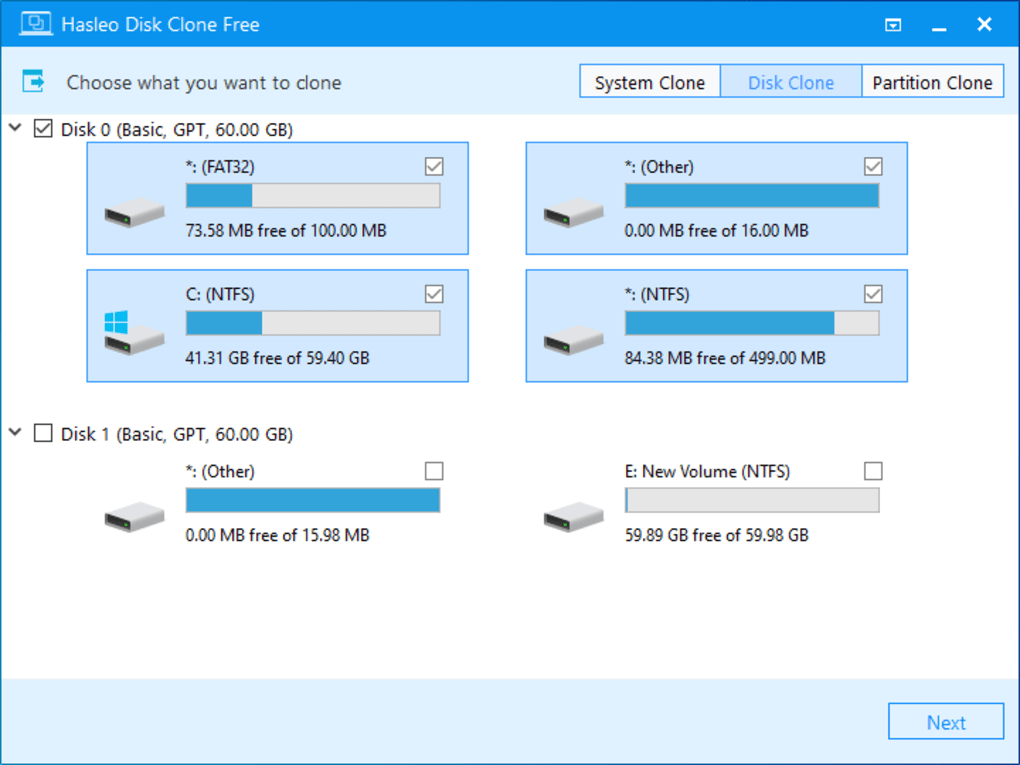
Hasleo Disk Clone distinguishes itself through its ability to perform three primary types of cloning operations: System Clone, Disk Clone, and Partition Clone. Each operation serves a specific purpose, catering to different user needs and levels of technical expertise.
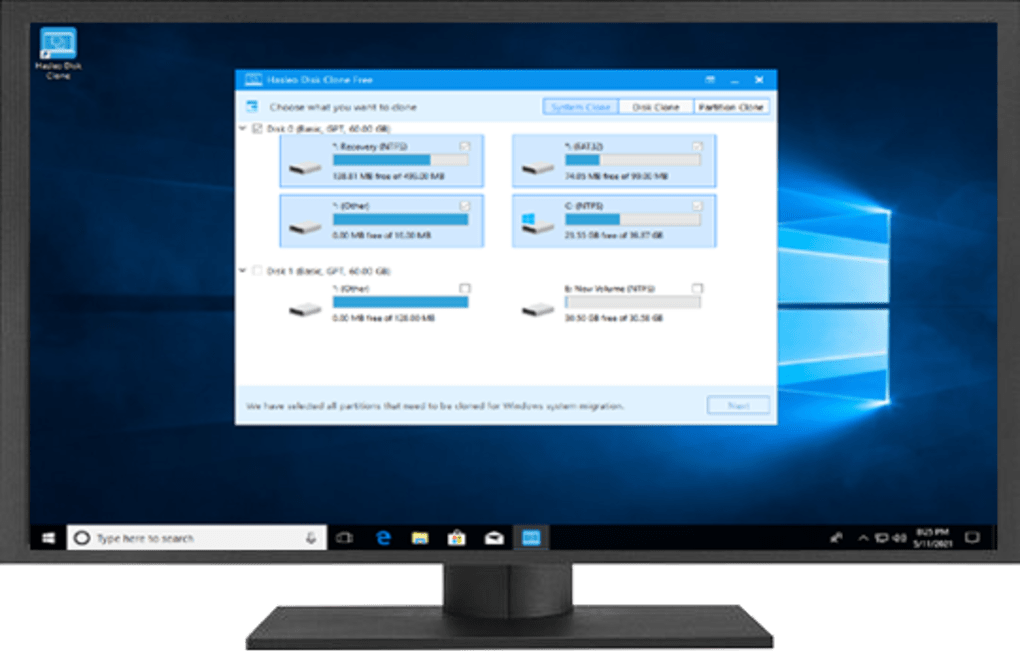
System Clone: This is the most user-friendly option. It automatically selects the system drive as the source, simplifying the process for users aiming to migrate their Windows installation to a new drive. This makes upgrading to a larger SSD or replacing a failing hard drive a relatively painless undertaking. The software handles the intricacies of identifying the necessary system files and partitions, minimizing the risk of manual errors.
Disk Clone: This feature allows for a complete, bit-by-bit copy of an entire hard drive or SSD. This is ideal for creating an exact duplicate of a drive, useful for backup purposes or for quickly transferring all data and operating system configurations to a new drive. This option requires manual selection of both the source and destination drives, providing more control but demanding a greater level of user understanding regarding drive identification and selection.
Partition Clone: This targeted approach enables users to clone specific partitions from a source drive to a destination drive. This functionality proves particularly valuable when migrating only specific data or applications, avoiding the need to clone an entire drive. It offers a precise method for transferring crucial data or applications without unnecessary duplication. Similar to Disk Clone, users need to explicitly specify the source and destination partitions.
A Step-by-Step Guide to Using Hasleo Disk Clone
The process of using Hasleo Disk Clone is surprisingly intuitive despite involving some technical terminology. The software provides a user-friendly interface guided by clear, step-by-step instructions and comprehensive visual aids.
- Software Launch and Clone Selection: Upon launching the program, users are presented with a clear choice among the three cloning methods: System Clone, Disk Clone, and Partition Clone. Each choice opens a corresponding wizard.
-
Source and Destination Selection: The next step involves selecting the source drive (the drive to be cloned) and the destination drive (the drive that will receive the clone). In System Clone, the source is automatically detected; however, in Disk Clone and Partition Clone, the user must manually identify the appropriate source and destination drives. This requires basic understanding of drive letter designations and potential drive sizes.
-
Partition Size and Location Adjustment (Optional): Before proceeding, users have the opportunity to adjust the size and location of the partitions on the destination drive. This allows for customized partitioning schemes to accommodate different needs or drive layouts. This is particularly useful when migrating to a drive with different storage capacity.
-
Warning and Confirmation: Before initiating the cloning process, a prominent warning message appears, clearly indicating that all data on the destination drive will be erased. This safety measure reinforces the importance of data backup before proceeding. Users must explicitly confirm the deletion of data to proceed.
-
Cloning Process: Once confirmed, the cloning process begins. The duration of this process varies significantly depending on the size of the data being cloned and the speed of the drives involved. A progress bar provides visual feedback on the cloning progress.
-
Post-Clone Verification: After completion, it’s recommended to verify the integrity of the cloned drive. Boot from the cloned drive to ensure that the operating system and applications function correctly.
Advantages and Disadvantages of Hasleo Disk Clone
Hasleo Disk Clone boasts several key advantages, solidifying its position as a viable alternative to commercial disk cloning software:
Advantages:
- Free of Charge: This is arguably its most significant benefit. It eliminates the considerable cost associated with commercial cloning software, making it accessible to a broader range of users.
-
Multi-lingual Support: The software’s availability in multiple languages breaks down language barriers, making it accessible to a global user base.
-
Ease of Use: Despite handling potentially complex technical processes, the user interface is surprisingly straightforward, requiring minimal technical expertise. The guided wizard simplifies the process for even novice users.
-
Comprehensive Functionality: Offering three distinct cloning modes – System, Disk, and Partition Clone – addresses a variety of user needs and scenarios.
Disadvantages:
-
Technical Terminology: While user-friendly, some technical terms (like “partition” or “MBR”) may pose challenges for completely non-technical users. However, the software’s detailed user guide effectively mitigates this potential barrier.
-
Limited Customer Support: As a free software, Hasleo Disk Clone may not provide the same level of dedicated customer support as commercial alternatives. However, the comprehensive documentation usually suffices.
Comparison with Paid Alternatives
Commercial disk cloning software, such as Acronis Disk Director and EaseUS Partition Master, often offer more advanced features, enhanced customer support, and more sophisticated interfaces. However, these come at a significant cost. Hasleo Disk Clone presents a compelling alternative for users who prioritize cost-effectiveness and do not require advanced, niche functionalities. The trade-off is the slight reduction in customer support and potentially less intuitive interface for extremely novice users.
Addressing Common User Queries
Several common questions often arise regarding Hasleo Disk Clone:
-
Data Loss Prevention: The software prominently warns users about data deletion on the destination drive. Data backup is always crucial before initiating any cloning process.
-
Drive Compatibility: Hasleo Disk Clone generally supports a wide range of hard drives and SSDs, but compatibility may vary based on specific drive models and firmware versions. Checking compatibility is recommended, especially when dealing with less common drives.
-
Cloning Process Duration: The time required for cloning depends heavily on the size of the data being transferred and the speed of the involved drives. Larger drives and slower drives will naturally take longer.
-
Technical Issues Troubleshooting: Although customer support may be limited, the software’s comprehensive user guide often offers solutions to common issues. Online forums and community support can also provide helpful insights.
Conclusion
Hasleo Disk Clone effectively bridges the gap between free and paid disk cloning solutions. Its intuitive interface, comprehensive functionality, and free-of-charge availability make it an excellent option for users requiring straightforward disk cloning or system migration capabilities. While some users might find the technical terminology slightly challenging or miss the extended support found in paid software, the ease of use and its comprehensive features far outweigh the minor drawbacks. It’s a powerful tool for everyday users who need a simple and effective solution for cloning or migrating their drives without the need for extensive technical expertise or a large budget.
File Information
- License: “Free”
- Version: “2.0”
- Latest update: “January 31, 2023”
- Platform: “Windows”
- OS: “Windows 8”
- Language: “English”
- Downloads: “11.1K”
- Size: “24.89 MB”


