
HDClone is a versatile and powerful disk cloning and imaging tool available for Windows. This comprehensive guide explores its features, functionality, and various editions, providing a detailed overview for both novice and experienced users. We’ll also delve into user reviews and compare HDClone with alternative software solutions.
Understanding HDClone’s Capabilities
HDClone’s primary function is creating exact, bit-by-bit copies of hard drives, solid-state drives (SSDs), and other storage media. This process, known as cloning, allows for seamless data migration to new drives or the creation of backup images. The software operates at a low level, independent of the operating system and file system, making it compatible with a wide range of storage devices and operating systems. This means HDClone can function even if your current operating system is corrupted or inaccessible.
One of the significant advantages of HDClone is its ability to handle data migration with ease. Transferring an entire system installation to a new hard drive (hard disk migration) becomes a straightforward process, significantly reducing downtime and simplifying upgrades. The software even offers the option of automatically adding additional disk space to the new drive if required, accommodating expansion needs.
Beyond its cloning capabilities, HDClone functions as a robust data recovery tool. Its self-booting capability means it can operate independently of the host system, proving invaluable when dealing with damaged operating systems or hard drives. This feature makes it an indispensable asset in data rescue scenarios, allowing users to retrieve critical data even from severely compromised storage devices.
The software’s low-level operation ensures that the cloning process captures every sector of the source drive, guaranteeing a complete and faithful replication of the data. This is particularly crucial when dealing with critical system files and complex configurations.
HDClone Editions: A Feature Comparison
HDClone offers a tiered system of software editions, catering to varying user needs and budgets. While the free edition provides core cloning and imaging functionality, the commercial versions unlock advanced features and enhanced capabilities. Let’s examine the key differences:
-
HDClone Free Edition: This edition provides the basic functionality of cloning, migrating, and imaging internal and external hard drives, SSDs, and USB media. Its low-level operation and self-booting capability make it suitable for various tasks, including system migration and data recovery. However, it may lack advanced features found in the commercial editions.
-
HDClone Basic Edition: (Commercial) This edition builds upon the free edition, often including features like improved performance, potentially advanced scheduling options, and enhanced error handling. The precise features may vary with updates.
-
HDClone Standard Edition: (Commercial) This edition expands on the Basic Edition, introducing features that may include support for more advanced storage technologies, more sophisticated scheduling options, and possibly additional data verification mechanisms for increased reliability.
-
HDClone Advanced Edition: (Commercial) The Advanced Edition targets professional users and administrators, offering more features like enhanced sector editing, the ability to handle complex RAID configurations, and potentially advanced reporting capabilities.
-
HDClone Professional Edition: (Commercial) This edition typically includes all the features of the previous versions, plus advanced features tailored for professional use cases, such as enhanced scripting capabilities, extensive reporting functionalities, and potentially support for enterprise-level storage systems.
-
HDClone Enterprise Edition: (Commercial) This edition represents the most comprehensive offering, designed for large organizations and demanding environments. It often includes features like centralized management tools, enhanced security features, and dedicated technical support. The specific features can vary considerably depending on the current licensing terms and the vendor’s support plans.
Choosing the appropriate HDClone edition requires careful consideration of your specific needs and budget. The Free Edition is an excellent starting point for basic cloning tasks, while the commercial editions cater to users requiring more advanced features and capabilities.
HDClone’s User Interface and Ease of Use
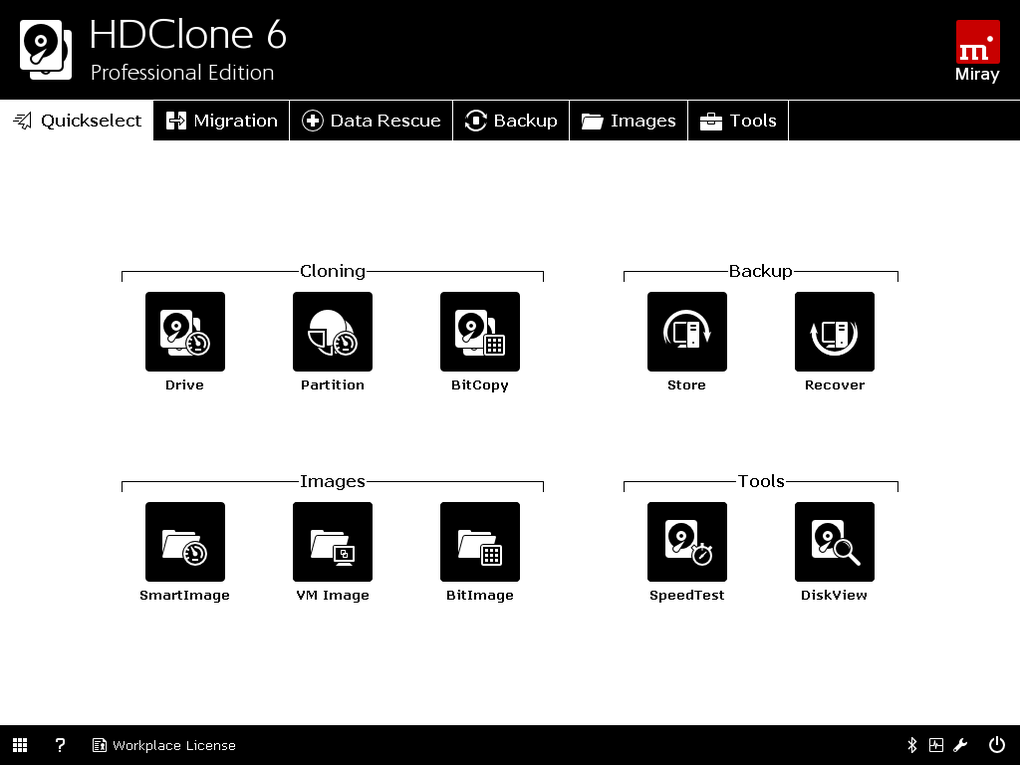
While not known for a visually stunning interface, HDClone prioritizes functionality and ease of use for its intended tasks. The interface is generally straightforward and well-organized, guiding users through the cloning and imaging processes with minimal complexity. The clear presentation of options reduces the learning curve for novice users while still offering sufficient flexibility for experienced users. While the visual presentation might be considered basic, the user-friendliness and clear process makes this a strong point of the application.
The software’s intuitive workflow simplifies complex tasks, minimizing the chance of errors during the critical cloning or imaging process. The process is typically guided through a series of clearly defined steps, minimizing the risk of user error. This is crucial, given the sensitive nature of the data being manipulated.
HDClone: User Reviews and Community Feedback
User reviews for HDClone consistently highlight its reliability, ease of use, and ability to handle challenging data recovery situations. Many users praise the software’s ability to successfully clone drives even when dealing with corrupted or damaged operating systems. The free edition is frequently commended for its accessibility and capabilities, enabling many users to overcome technical challenges without incurring software costs.
However, some critiques highlight the software’s relatively basic user interface and lack of advanced features in the free version. While the simplified interface contributes to ease of use, some users familiar with more advanced cloning tools might find it lacking in flexibility or customization options. The performance could also be a point of concern, with some users observing comparatively slower processing speeds, especially when working with large drives. Yet, this is often balanced by the reliability of the process.
HDClone Alternatives: A Comparative Look
Several alternative disk cloning and imaging tools are available, each with its own strengths and weaknesses. Here’s a brief comparison:
- Acronis True Image: A comprehensive backup and recovery solution, Acronis True Image offers a wide range of features beyond cloning, including full system backups, incremental backups, and cloud storage integration. However, it’s typically a commercial product with a higher price point than HDClone.
-
EaseUS Todo Backup: Another popular choice, EaseUS Todo Backup offers a balance between functionality and affordability. It provides cloning and imaging capabilities along with various backup options and scheduling features. The pricing model can vary considerably.
-
Macrium Reflect: Predominantly known for its backup and recovery capabilities, Macrium Reflect offers robust cloning and imaging functionality. It’s generally well-regarded for its reliability and versatility. This is often a commercial offering.
-
Clonezilla: An open-source alternative, Clonezilla is a powerful and free tool, particularly well-suited for large-scale deployments. However, its command-line interface and advanced configuration options may be daunting to novice users.
The choice of alternative software will depend on specific needs and priorities. Acronis and EaseUS are excellent options offering a comprehensive suite of tools and features but at a cost, whereas Macrium reflects a focus on backup and recovery, while Clonezilla represents a powerful free, open-source alternative that requires more technical expertise.
Conclusion
HDClone remains a reliable and versatile solution for disk cloning, imaging, and data recovery, offering a good balance between functionality and ease of use. The free edition provides an excellent entry point, while the commercial editions cater to more demanding users. While alternative solutions exist, HDClone’s strength lies in its robust low-level operation, making it a dependable tool in challenging scenarios. The choice of using HDClone or an alternative will depend greatly on your experience and specific need. The availability of a free edition certainly makes it a strong contender for many users.
File Information
- License: “Free”
- Latest update: “February 4, 2025”
- Platform: “Windows”
- OS: “Windows Vista”
- Language: “English”
- Downloads: “24.4K”
- Size: “90.11 MB”


