
HDDScan is a free, open-source utility designed for low-level hard drive diagnostics. Available exclusively for Windows operating systems, it offers a powerful and comprehensive suite of tools for assessing the health and performance of your hard drives, both traditional HDDs and solid-state drives (SSDs). This detailed guide explores HDDScan’s features, functionality, and how it can help you maintain the optimal performance and longevity of your storage devices.
Understanding HDDScan’s Capabilities
HDDScan goes beyond simple surface scans, providing users with a detailed analysis of their hard drives’ physical and logical components. Its capabilities include, but are not limited to:
-
Surface Scan: This fundamental function meticulously examines the entire surface of your hard drive, identifying potential bad sectors or areas with read/write errors. This scan helps to pinpoint physical issues that could indicate impending drive failure. The depth and thoroughness of this scan are configurable, allowing users to tailor the process to their specific needs and time constraints. Longer scans provide more comprehensive results, but require more time to complete.
-
SMART Attributes Monitoring: Self-Monitoring, Analysis and Reporting Technology (SMART) is a built-in feature of most modern hard drives that monitors various operational parameters. HDDScan can access and interpret this data, providing a clear picture of the drive’s overall health. This includes critical parameters such as temperature, power-on hours, read/write error rates, and reallocated sector counts. Analyzing these attributes can proactively identify potential problems before they lead to data loss. The software presents this data in a user-friendly format, allowing even novice users to understand the health of their drives.
-
Low-Level Tests: Beyond surface scans, HDDScan performs more intensive low-level tests. These tests delve deeper into the drive’s physical functionality, assessing aspects that are not always accessible through standard operating system utilities. These tests can reveal underlying issues that might not be apparent in a surface scan. While these tests are more comprehensive, they also require significantly more time to complete.
-
Temperature Monitoring: Monitoring the operating temperature of your hard drive is crucial for its longevity. HDDScan provides real-time temperature readings, allowing you to identify potential overheating issues. Excessive heat can significantly reduce the lifespan of a hard drive. The software can be configured to alert the user if the temperature exceeds a user-defined threshold.
-
Drive Information Retrieval: HDDScan displays comprehensive information about your connected drives, including model number, firmware version, serial number, interface type, and capacity. This detailed information can be useful for troubleshooting and identifying specific drive models.
-
A Comprehensive Report Generation: Once the scan is complete, HDDScan generates a detailed report summarizing the results. This report can be saved for future reference or shared with technical support if necessary.
Using HDDScan: A Step-by-Step Guide
While HDDScan offers powerful features, its interface remains relatively straightforward and user-friendly. Here’s a breakdown of the typical workflow:
-
Download and Installation: Download the latest version of HDDScan from a reputable source, such as the official developer’s website or a trusted software repository. The installation process is typically straightforward, following the standard Windows installer procedure.
-
Launching the Application: Once installed, launch the HDDScan application. You should see a list of detected hard drives and other storage devices connected to your computer.
-
Selecting a Drive: Select the drive you wish to diagnose from the list. You can typically select multiple drives for simultaneous analysis.
-
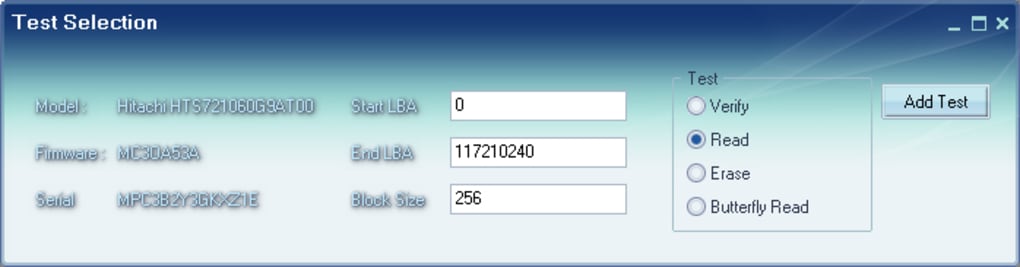
Choosing the Scan Type: HDDScan provides various scan options, ranging from quick surface scans to more intensive low-level tests. Choose the scan type appropriate for your needs and the available time. A quick scan is suitable for routine checks, while a more thorough scan is recommended if you suspect problems.
-
Initiating the Scan: Once you’ve selected your drive and scan type, click the “Start” button to initiate the diagnostic process. The duration of the scan will depend on the chosen scan type and the size of the drive. Larger drives and more thorough scan types will naturally take longer.
-
Monitoring the Progress: HDDScan provides real-time progress updates during the scan. You can observe the percentage completion, the sectors scanned, and any potential errors encountered.
-
Reviewing the Results: Upon completion, HDDScan will present the results in a clear and concise format. This includes the overall health status of the drive, any identified bad sectors or errors, and detailed SMART attributes.
- Interpreting the Data: The interpretation of the results requires some technical understanding. However, HDDScan provides clear indicators of potential problems, such as high error rates or significant numbers of reallocated sectors. If you encounter any warnings or errors, it’s recommended to consult the software’s documentation or seek professional assistance.
HDDScan vs. Alternative Hard Drive Diagnostic Tools
While HDDScan provides a robust and comprehensive set of features, it’s important to consider alternative tools available in the market. Several popular alternatives offer similar functionalities, each with its own strengths and weaknesses. Comparing HDDScan to other tools helps users make an informed decision based on their specific needs and technical expertise.
Some notable alternatives include:
-
HD Tune: Offers a similar suite of diagnostic tools but with a more user-friendly interface. It’s particularly popular for its benchmark tests, which allow users to measure the read/write speeds of their hard drives.
-
CrystalDiskInfo: Focuses primarily on SMART attributes monitoring, providing an easy-to-understand representation of the drive’s health status. It’s excellent for quickly assessing the overall health of a drive, but may lack the depth of diagnostic capabilities offered by HDDScan.
-
HDD Health: Another straightforward tool that emphasizes SMART attributes and provides a clear indication of potential problems. Its simplicity makes it ideal for users with limited technical expertise.
The choice between HDDScan and these alternative tools often depends on the user’s technical skill level and the level of detail required. HDDScan provides a more in-depth and technically detailed analysis, while the others prioritize simplicity and ease of use.
Troubleshooting Common Issues with HDDScan
While HDDScan is generally reliable, users may occasionally encounter issues. These issues can range from minor inconveniences to more serious problems that prevent the software from functioning correctly. Here are some common issues and potential solutions:
-
Drive Not Detected: Ensure the drive is properly connected to your computer and that it’s recognized by the operating system. Check device manager for any errors related to storage controllers.
-
Scan Errors: If the scan encounters errors, it might indicate a serious problem with the hard drive. Try running a different type of scan or consulting the software’s documentation for further assistance.
-
Software Crashes: If HDDScan crashes unexpectedly, try updating to the latest version or reinstalling the software. Check for conflicting software or driver issues.
If you continue to encounter persistent problems, it’s advisable to seek help from online forums or contact technical support for assistance.
In conclusion, HDDScan provides a valuable tool for maintaining the health and performance of your hard drives. Its comprehensive diagnostic capabilities, along with its relatively user-friendly interface, make it a valuable asset for both novice and experienced users. Regular use of HDDScan can help prevent data loss and extend the lifespan of your valuable storage devices. Remember to always back up your important data regularly, regardless of the health status of your hard drive as reported by HDDScan or any other diagnostic tool.
File Information
- License: “Free”
- Version: “3.1”
- Latest update: “March 9, 2017”
- Platform: “Windows”
- OS: “Windows 2000”
- Language: “English”
- Downloads: “13.6K”
- Size: “1.83 MB”


