
Hotkey Resolution Changer is a lightweight Windows utility designed to simplify the process of switching between different screen resolutions. Instead of navigating through lengthy operating system settings menus, users can quickly cycle through pre-defined resolutions using custom keyboard shortcuts. This makes it an invaluable tool for web developers, graphic designers, and anyone frequently working with multiple display configurations. This comprehensive guide will delve into the features, benefits, and limitations of Hotkey Resolution Changer, providing a thorough understanding of its capabilities and how it can enhance your workflow.
Understanding the Need for Quick Resolution Switching
Many professionals, particularly those in creative fields, require the ability to quickly test their work across a range of screen resolutions. Web developers, for example, need to ensure their websites render correctly on various devices and screen sizes. Game developers may need to test their games at different resolutions to optimize performance and visual fidelity. Graphic designers might adjust their layouts depending on the intended output resolution. Manually changing the screen resolution through the Windows settings each time is cumbersome and time-consuming, significantly hindering productivity. Hotkey Resolution Changer directly addresses this problem by providing a streamlined, keyboard-driven solution.
Key Features and Functionality of Hotkey Resolution Changer
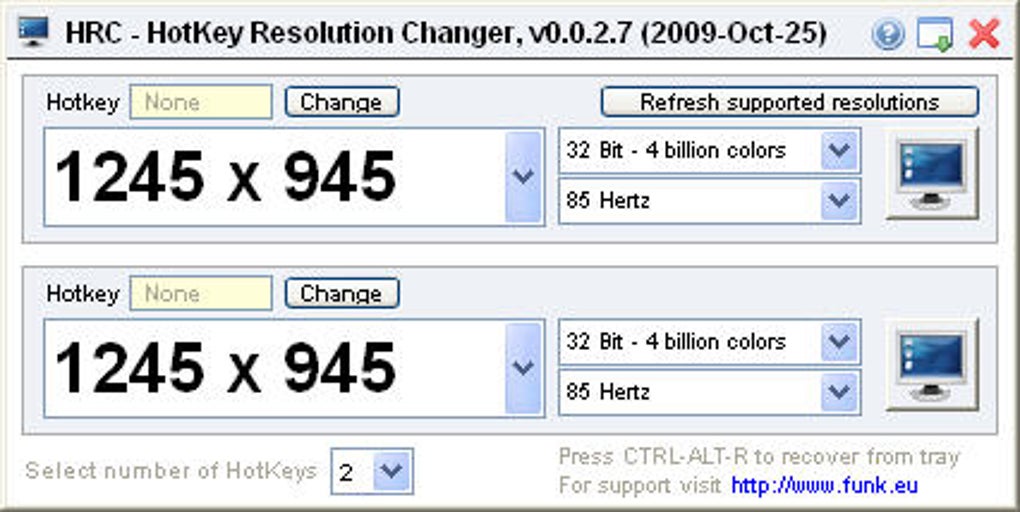
Hotkey Resolution Changer offers a simple yet effective interface, allowing users to easily configure and manage multiple screen resolutions. Its core functionality revolves around the ability to:
-
Define Multiple Resolutions: Users can input up to nine different screen resolutions, each with its own custom settings. This allows for comprehensive testing across a wide range of display configurations.
-
Assign Custom Hotkeys: Each predefined resolution is assigned a unique keyboard shortcut. This allows for instant switching between resolutions with a single key press. The elimination of the need to navigate menus drastically reduces the time spent configuring displays.
-
Customize Color Depth and Refresh Rate: Beyond resolution, users can also specify the color depth (e.g., 16-bit, 24-bit, 32-bit) and refresh rate (e.g., 60Hz, 75Hz, 120Hz) for each configuration. This allows for fine-grained control over the display settings and enables testing under various visual conditions.
-
System Tray Integration: The application minimizes to the system tray, remaining accessible without cluttering the desktop. This unobtrusive design ensures that it operates in the background without interfering with other applications.
- Ease of Use: The intuitive interface makes setup and usage straightforward. Even users with limited technical expertise can easily configure and utilize the application’s features. The streamlined design prioritizes simplicity and efficiency.
The combination of these features creates a powerful and efficient workflow, significantly improving productivity for tasks requiring frequent resolution changes.
Advantages and Disadvantages of Hotkey Resolution Changer
While Hotkey Resolution Changer offers several notable advantages, it also has some limitations that users should be aware of.
Advantages:
-
Enhanced Productivity: The ability to quickly switch resolutions using keyboard shortcuts dramatically increases workflow efficiency, especially for tasks involving frequent display configuration changes. The time saved adds up significantly over the course of a workday.
-
Simplified Workflow: Eliminating the need to navigate through multiple system menus streamlines the resolution-switching process, making it significantly more convenient and user-friendly.
-
Comprehensive Configuration: The option to adjust color depth and refresh rate, along with resolution, provides a level of customization that caters to a wider range of use cases and ensures comprehensive testing across different display settings.
-
Minimal System Impact: The lightweight nature of the application ensures minimal impact on system performance, making it suitable for use on a variety of machines without impacting the speed or responsiveness of other applications.
-
User-Friendly Interface: The straightforward design of the interface ensures that even users unfamiliar with advanced software settings can effortlessly configure and use the program.
Disadvantages:
-
Limited Hotkey Options: While offering custom keyboard shortcuts, the software does not support mouse and keyboard combinations for more complex hotkey assignments. This restriction limits the available key combinations for users who prefer more complex shortcuts.
-
Maximum of Nine Configurations: The limit of nine pre-defined resolutions might be insufficient for users who need to test across a much broader range of display configurations. For such users, more robust solutions may be necessary.
-
Outdated Software: The last update for Hotkey Resolution Changer was in 2010. This signifies a lack of recent development, raising concerns about compatibility with modern operating systems and the absence of potential bug fixes or feature enhancements. This also implies a lack of support from the developers.
-
No Advanced Features: The software lacks more advanced features that might be found in more comprehensive display management tools. For instance, it doesn’t offer features such as profile management, automated scripting, or support for multiple monitors.
Comparison with Alternative Solutions
While Hotkey Resolution Changer provides a straightforward solution, several alternative applications offer broader functionality and updated features. These alternatives often include advanced features such as:
-
Custom Resolution Utility (CRU): Allows users to create custom resolutions beyond those natively supported by the display driver, offering greater flexibility for advanced users.
-
PowerStrip: A more comprehensive display management tool with a wider array of options and advanced features beyond resolution switching.
-
Display Tuner: Provides a user-friendly interface to adjust various display settings, including resolution, color depth, and refresh rate. It might offer more features and a more modern user experience than Hotkey Resolution Changer.
The choice between Hotkey Resolution Changer and alternative solutions depends on individual needs and technical expertise. For users requiring only basic resolution switching via hotkeys, Hotkey Resolution Changer may suffice. However, for users requiring advanced capabilities or compatibility with newer operating systems, exploring alternative tools is advisable.
Conclusion
Hotkey Resolution Changer offers a simple and effective solution for users who need to quickly switch between multiple screen resolutions. Its ease of use, compact size, and straightforward approach make it a suitable choice for those who prioritize a minimal, functional solution. However, its limitations, primarily the restricted number of configurations, the lack of mouse-keyboard hotkey combinations, and its outdated status, should be carefully considered. Users with more demanding needs or a preference for more modern and feature-rich tools should explore the alternatives discussed earlier. Ultimately, the best solution depends on individual requirements and workflow preferences.
File Information
- License: “Free”
- Version: “0.0.2.7”
- Latest update: “May 6, 2010”
- Platform: “Windows”
- OS: “Windows XP”
- Language: “English”
- Downloads: “51.7K”
- Size: “419.56 KB”


