
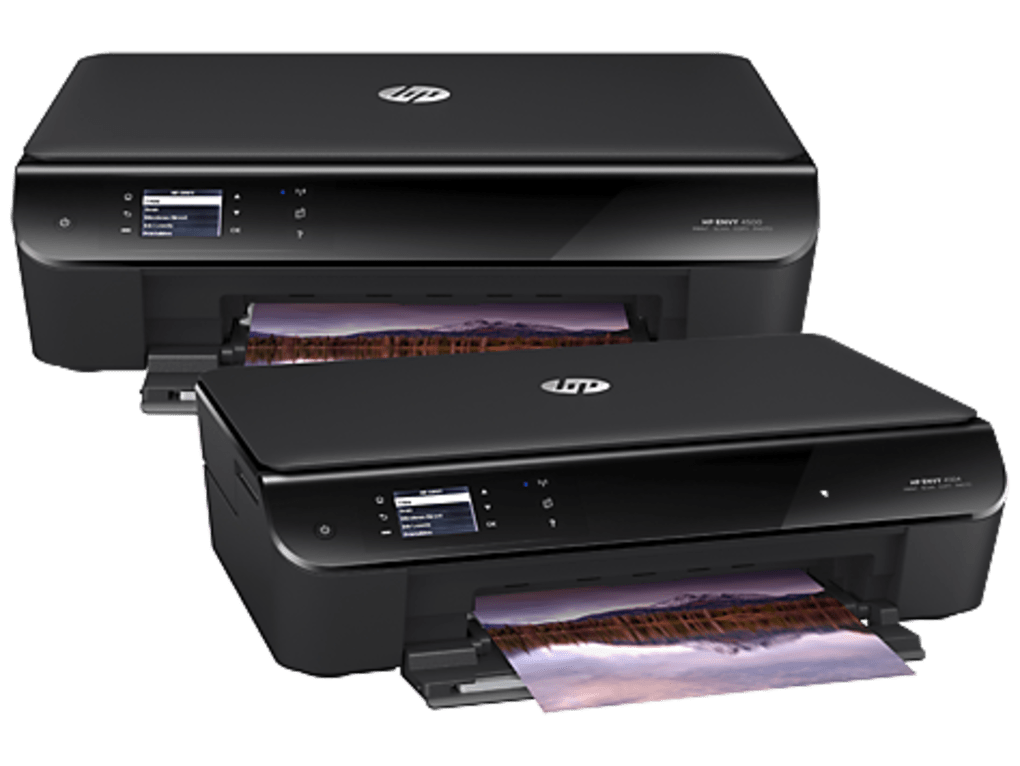
The HP ENVY 4500 printer series represents a range of versatile all-in-one devices designed for home and small office use. These printers combine printing, scanning, copying, and sometimes faxing capabilities into a single compact unit. To ensure optimal performance and functionality, installing the correct drivers is crucial. This guide provides a comprehensive overview of HP ENVY 4500 printer series drivers, covering installation, troubleshooting, and alternative solutions.
Understanding HP ENVY 4500 Printer Drivers
Printer drivers act as the crucial communication link between your computer’s operating system and your HP ENVY 4500 printer. They translate the data your computer sends—be it a document to print or an image to scan—into a language your printer understands. Without the correct driver, your computer won’t recognize the printer, and you won’t be able to utilize its functionalities.
The HP ENVY 4500 series encompasses several models, each potentially requiring a slightly different driver. While the core functionality remains similar across models, specific features and hardware variations necessitate model-specific drivers for optimal performance. Downloading the incorrect driver can lead to various issues, including printing errors, incorrect color representation, or even complete printer malfunction.
Drivers are software packages that contain instructions specific to your printer model and your computer’s operating system (OS). Different operating systems (like Windows, macOS, Linux) require different drivers. Furthermore, even within the same OS, 32-bit and 64-bit versions require distinct drivers.
Downloading and Installing HP ENVY 4500 Printer Drivers
The most reliable source for HP ENVY 4500 printer drivers is the official HP website. This ensures you get the latest version, free from malware or other potential issues that could arise from third-party download sites.
Here’s a step-by-step guide to downloading and installing the correct driver:
- Identify your HP ENVY 4500 model: Locate the model number on a sticker on the printer itself. This usually includes a series of alphanumeric characters (e.g., HP ENVY 4500, HP ENVY 4504, etc.). Precise identification is crucial for selecting the correct driver.
-
Visit the HP Support website: Go to the official HP support website (support.hp.com).
-
Enter your printer model: Use the search bar to enter your printer’s model number.
-
Select your operating system: Specify the operating system installed on your computer (Windows 10, Windows 11, macOS Monterey, etc.). The website will then filter the available drivers to show only those compatible with your system.
-
Download the driver: Choose the appropriate driver package (usually a .exe file for Windows or a .dmg file for macOS). Ensure you download the driver explicitly designed for your specific model and operating system (32-bit or 64-bit).
-
Run the installer: Once the download completes, locate the downloaded file and double-click it to start the installation process. Follow the on-screen instructions; the process is generally straightforward and self-explanatory.
-
Connect the printer: Connect your HP ENVY 4500 printer to your computer via USB or wireless network, depending on your setup. The installer may prompt you to connect the printer during the process.
-
Test the printer: Once the installation completes, test all the printer’s functions (printing, scanning, copying, faxing, if applicable) to ensure everything works correctly.
Troubleshooting HP ENVY 4500 Printer Driver Issues
Even with careful driver installation, you might encounter some problems. Here are some common issues and their solutions:
-
Printer not recognized: If your computer doesn’t detect the printer after installation, check the physical connections. Ensure the USB cable is securely connected to both the printer and your computer. If using a wireless connection, verify the printer is correctly connected to your network. Restart both the printer and your computer. If the issue persists, try reinstalling the driver.
-
Printing errors: Faulty printouts (e.g., blurry text, incorrect colors, missing pages) often indicate driver incompatibility or corruption. Try reinstalling the driver. Update your operating system to the latest version, as outdated OS versions can conflict with newer drivers.
-
Scanning issues: Problems with scanning could stem from similar issues—driver problems or connection errors. Check the connection between the printer and your computer. Reinstall the scanner driver, or, if you’re scanning to a network folder, ensure the network path and credentials are correct.
-
Driver conflicts: Occasionally, other software or drivers can conflict with your printer driver. This is less common with newer operating systems, but if you suspect a conflict, try disabling other recently installed programs or drivers to see if that resolves the issue.
-
Corrupted driver files: Corrupted driver files can cause erratic behavior. Uninstall the current driver completely using the Windows Control Panel or similar system settings. Then, download and install a fresh copy from the HP website.
-
Outdated drivers: Using an outdated driver can lead to compatibility problems and reduced functionality. Regularly check the HP website for driver updates and install any available updates to ensure optimal performance.
Alternative Driver Sources and Solutions
While the official HP website is the preferred source, you might sometimes find drivers on other sites. However, exercise extreme caution when downloading from unofficial sources. These websites might offer outdated, corrupted, or even malware-infected drivers, potentially harming your computer.
In some instances, the HP website might not list a driver specifically for your operating system. If this occurs, try searching for a driver from a slightly older or newer operating system version that’s still compatible with your printer.
Keeping Your HP ENVY 4500 Drivers Updated
Regularly updating your HP ENVY 4500 printer drivers is vital for maintaining optimal performance, security, and compatibility. HP periodically releases updates to address bugs, enhance features, and improve overall printer stability.
The best practice is to regularly check the HP support website for driver updates. You can also set up your printer to automatically check for and download updates, depending on its functionality and your network setup. Consider using the HP Smart app, where available, for simplified driver management and printer maintenance.
This comprehensive guide covers the essential aspects of using and maintaining HP ENVY 4500 printer series drivers. By following these steps and troubleshooting tips, you can ensure seamless printing, scanning, and other functionalities of your HP ENVY 4500 all-in-one printer. Remember, always prioritize downloading drivers from the official HP website to avoid potential issues and maintain the security of your computer.
File Information
- License: “Free”
- Version: “varies-with-device”
- Latest update: “July 15, 2022”
- Platform: “Windows”
- OS: “Windows 8.1”
- Language: “English”
- Downloads: “2.7K”


