
The HP ENVY 5660 is a versatile all-in-one inkjet printer designed for both home and small office use. This guide provides a comprehensive overview of the printer, its functionalities, driver installation, troubleshooting, and frequently asked questions. We’ll delve into its features, advantages, and limitations to help you determine if the HP ENVY 5660 is the right printer for your needs.
Understanding the HP ENVY 5660’s Capabilities
The HP ENVY 5660 isn’t just a printer; it’s a multi-functional device that combines printing, scanning, and copying capabilities into a single, compact unit. This all-in-one design saves space and simplifies your workflow. Let’s examine its key features:
-
Printing: The HP ENVY 5660 delivers high-quality prints, suitable for both everyday documents and more demanding tasks like photo printing. It supports various paper sizes and types, offering flexibility for different printing needs. The ability to print on both sides of the paper (duplex printing) is a significant advantage, saving paper and reducing costs, particularly useful for larger documents and reports.
-
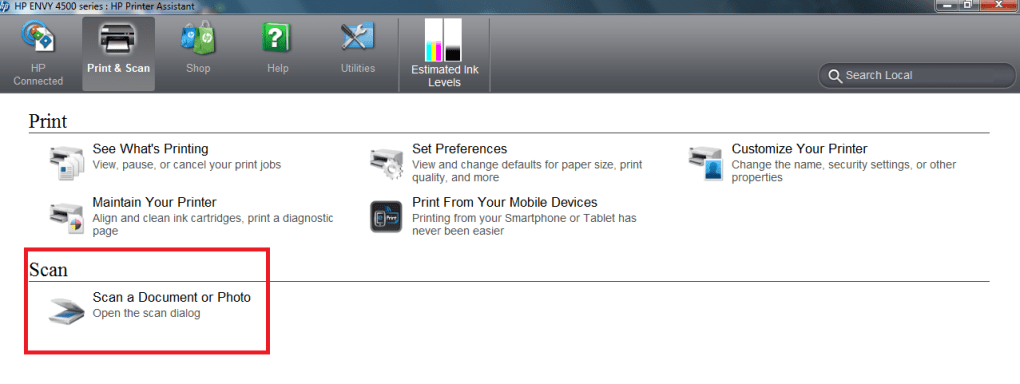
Scanning: The integrated scanner allows you to digitize documents and photos easily. You can save scans as various file formats (PDF, JPEG, etc.), making them easily shareable and manageable.
-
Copying: The HP ENVY 5660 simplifies copying tasks with its intuitive interface and straightforward operation. You can create copies of documents and photos with ease, adjusting settings like size and number of copies as needed.
-
Wireless Connectivity: One of the most significant advantages of the HP ENVY 5660 is its wireless capability. This feature allows you to connect the printer to your Wi-Fi network, enabling seamless printing from laptops, smartphones, and tablets. No more struggling with tangled cables! This wireless functionality extends to cloud printing, meaning you can send print jobs from virtually anywhere with an internet connection, a feature particularly beneficial for remote workers and those on the go.
-
Ease of Use: HP has designed the ENVY 5660 with user-friendliness in mind. The control panel is intuitive, and the printer software makes setup and operation straightforward.
Installing the HP ENVY 5660 Printer Driver
The printer driver is the crucial software that allows your computer to communicate with the HP ENVY 5660. Without the correct driver installed, your computer won’t be able to send print jobs to the printer. The installation process typically involves these steps:
-
Download the Driver: Visit the official HP website’s support section. Search for “HP ENVY 5660” and locate the drivers and software section for your operating system (Windows, macOS, etc.). Download the appropriate driver package. Ensure you download the driver specifically designed for your operating system version (Windows 10, Windows 11, macOS Monterey, etc.).
-
Run the Installer: Once downloaded, locate the driver file and run the installer. Follow the on-screen instructions carefully. The installer will guide you through the process of installing the necessary software and configuring the printer connection.
-
Connect to the Printer: The installer will typically prompt you to connect the printer to your computer (either via USB or wirelessly). Follow the instructions provided by the installer to establish the connection.
-
Test the Connection: After the installation is complete, test the connection by printing a test page. This verifies that the driver is installed correctly and that your computer can communicate with the printer.
If you encounter problems during the driver installation, consult the HP support website for troubleshooting tips or contact HP support directly.
Troubleshooting Common HP ENVY 5660 Issues
Despite its reliability, the HP ENVY 5660 can sometimes experience issues. Here are some common problems and their solutions:
-
Printer Offline: Check the printer’s power cord and ensure it’s securely plugged into both the printer and a working power outlet. Verify that the printer is turned on and connected to your Wi-Fi network. Check your computer’s printer settings to ensure the HP ENVY 5660 is selected as the default printer and is not set to “offline.”
-
Printing Errors: If you receive printing errors, check the printer’s ink levels. Low ink can cause printing problems. Replace empty cartridges. Also, inspect the printer for paper jams. Clear any jams according to the printer’s instructions. Check the paper tray to ensure you’re using the correct paper type and size.
-
Wireless Connection Problems: If you’re unable to connect the printer wirelessly, ensure your router is working correctly and that your computer and printer are connected to the same Wi-Fi network. Check the printer’s wireless settings to ensure it’s correctly configured. Restart both your router and the printer. If the issue persists, consult your router’s documentation or contact your internet service provider.
-
Driver Issues: If you suspect driver problems, try uninstalling the current driver and reinstalling it from the HP website. Ensure you’re downloading the correct driver for your operating system.
Advantages and Disadvantages of the HP ENVY 5660
The HP ENVY 5660 offers a compelling combination of features, but it’s important to acknowledge both its strengths and weaknesses:
Advantages:
- All-in-One Functionality: Printing, scanning, and copying capabilities in a single device.
- Wireless Connectivity and Cloud Printing: Convenience and flexibility for remote printing.
- Two-Sided Printing: Paper saving and cost-effectiveness.
- Relatively Affordable: Offers good value for its price range.
- Easy to Use: User-friendly interface and software.
Disadvantages:
- Print Speed: The print speed might be slower compared to some laser printers.
- Ink Costs: Inkjet printers generally have higher running costs than laser printers.
- No Fax Functionality: Lacks a fax machine, a feature present in some competing models.
Conclusion: Is the HP ENVY 5660 Right for You?
The HP ENVY 5660 is a solid all-in-one inkjet printer that offers a good balance of features and affordability. It’s ideal for home users, students, and small offices that need a versatile and convenient printing solution. However, if print speed is a critical factor or you require fax capabilities, you might want to consider other printer options. Weighing the advantages and disadvantages outlined above, you can make an informed decision based on your specific printing needs and budget. Remember to always download the latest drivers from the official HP website to ensure optimal performance and compatibility.
File Information
- License: “Free”
- Version: “varies-with-device”
- Latest update: “January 31, 2023”
- Platform: “Windows”
- OS: “Windows 7”
- Language: “English”
- Downloads: “3.4K”


