
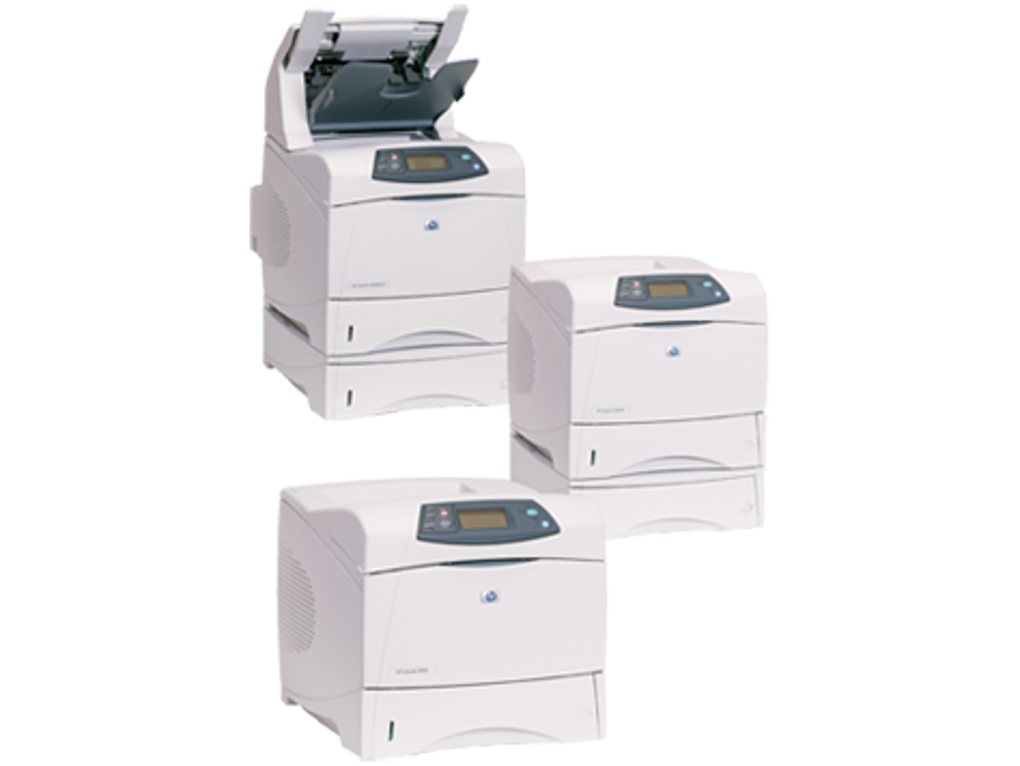
The HP LaserJet 4250 printer series enjoyed considerable popularity during its time, known for its reliability and print quality. However, like all technology, it requires the correct drivers to function seamlessly with modern operating systems. This guide provides a comprehensive overview of HP LaserJet 4250 printer series drivers, addressing compatibility, installation, troubleshooting, and alternative solutions.
Finding and Downloading the Correct Drivers
The first step in ensuring your HP LaserJet 4250 printer works optimally is to obtain the correct drivers. While the printer may be considered outdated by today’s standards, finding the appropriate drivers is still possible. The most reliable source is the official HP website. Here’s a step-by-step process:
-
Navigate to the HP Support Website: Open your web browser and go to the official HP support website (support.hp.com).
-
Identify Your Printer Model: Precisely identifying your HP LaserJet 4250 model (e.g., 4250n, 4250dtn) is crucial. The specific model number is usually printed on a sticker on the printer itself. Note any distinguishing features like network connectivity (n for network) or duplex printing capabilities (dtn for duplex, network).
-
Enter Your Printer Model: Use the search bar on the HP support website to enter your exact printer model number. This will lead you to a dedicated support page for your specific printer.
-
Locate the Drivers Section: On the support page, navigate to the “Software and Drivers” or a similarly named section. This section usually features a list of available drivers and software for your printer.
- Select Your Operating System: You’ll be prompted to select your operating system (OS). Ensure you select the correct OS version (e.g., Windows 10 64-bit, macOS Monterey). Incorrect OS selection will result in incompatibility.
-
Download the Driver: Once you’ve selected the correct OS, locate the download link for the printer driver. Download the file to a location you can easily access, like your desktop. The file will often be in a compressed format (like a .zip or .exe).
-
Install the Driver: After the download is complete, locate the downloaded file and run the installer. Follow the on-screen instructions to install the driver. This process might require administrative privileges, so ensure you have the necessary permissions. During the installation, your computer will likely connect to the printer, so make sure it’s turned on and connected properly (either via USB or network).
Compatibility and Supported Operating Systems
While HP may no longer actively support the LaserJet 4250 series, drivers are often still available for older operating systems. The degree of compatibility depends on the specific driver version and your operating system. Generally, compatibility is better with older operating systems like Windows XP, Windows Vista, Windows 7, and Windows 8. While drivers might exist for newer systems like Windows 10 and 11, they may not offer full functionality or may require additional troubleshooting. If you’re using a Mac, compatibility will be significantly limited, and you might need to seek out third-party drivers or alternative solutions.
It’s important to check the HP support website’s driver details for your specific printer model to confirm supported operating systems. The information provided usually includes a list of compatible Windows and macOS versions.
Troubleshooting Installation Issues
Encountering problems during driver installation is not uncommon, especially with older printers. Here are some common issues and their solutions:
-
Driver Installation Fails: This could be due to insufficient permissions, corrupted download, or antivirus software interference. Try restarting your computer, running the installer as administrator, temporarily disabling your antivirus, and redownloading the driver from the HP website.
-
Printer Not Recognized: If your computer doesn’t recognize the printer after installation, check your printer’s USB connection, ensure the printer is turned on, and try restarting both the printer and your computer. If using a network connection, verify network connectivity and the printer’s network settings.
-
Print Quality Issues: Poor print quality after driver installation might suggest issues like low toner, incorrect driver settings, or mechanical problems with the printer itself. Check toner levels, adjust printer settings (like print resolution), and perform printer maintenance as needed (such as cleaning the rollers).
-
Driver Conflicts: If you’ve previously installed other printer drivers, a conflict might occur. Uninstall conflicting drivers before installing the HP LaserJet 4250 driver. Use your operating system’s device manager to identify and remove unwanted printer drivers.
-
Incorrect Driver Version: Always ensure you’re installing the correct driver version for your operating system. Downloading a driver intended for a different OS version will lead to incompatibility.
Alternative Solutions and Considerations
If you’re unable to find or install suitable drivers for your HP LaserJet 4250 printer, consider the following alternatives:
- Use a Different Printer: The most straightforward solution is to replace the HP LaserJet 4250 with a newer printer that supports your operating system and offers better features. Modern printers provide significantly improved speed, resolution, and connectivity options.
-
Virtual Printer Drivers: Some software allows emulating a printer, effectively creating a “virtual” printer that can bypass the need for specific drivers. These solutions may have limitations and may not be suitable for all applications.
-
Third-Party Driver Solutions: While not recommended due to potential security risks, some third-party websites offer drivers for older printers. However, proceed with extreme caution, as these drivers may not be properly tested or could contain malware. Always prioritize official drivers from the manufacturer.
Maintaining Your HP LaserJet 4250 Printer
Even with the correct drivers, proper maintenance is essential for optimal printer performance. Regularly check toner levels, clean the printer’s rollers and paper path, and ensure proper paper handling. Ignoring maintenance can lead to reduced print quality, paper jams, and ultimately, printer failure.
By following these steps and recommendations, you can significantly improve your chances of successfully installing and utilizing HP LaserJet 4250 printer series drivers. Remember that while the printer is outdated, with careful attention to detail and troubleshooting, you can still achieve reliable printing. If you continue to face difficulties, seeking assistance from HP’s support community or a qualified technician might be necessary.
File Information
- License: “Free”
- Version: “varies-with-device”
- Latest update: “January 31, 2023”
- Platform: “Windows”
- OS: “Windows 7”
- Language: “English”
- Downloads: “4.3K”


