
The HP LaserJet P1006 printer driver is a crucial software component that enables your computer to communicate with and control the HP LaserJet P1006 printer. This driver acts as a bridge, translating commands from your computer into a language the printer understands, allowing you to print documents, images, and other files. This guide provides a detailed overview of the HP LaserJet P1006 printer driver, its features, installation process, troubleshooting tips, and alternative options.
Understanding the HP LaserJet P1006 Printer Driver
The HP LaserJet P1006 is a monochrome laser printer designed for personal or small office use. While not the most economical printer in terms of cost-per-page, its affordability and relatively high printing speed make it a popular choice for users who prioritize speed and convenience over the lowest possible printing expenses. The printer driver is the software that makes this hardware functionality accessible to your computer’s operating system. Without the correct driver installed, your computer will not recognize the printer, and you will be unable to print.
The driver itself is not a physical component; it’s a software program containing instructions that allow your operating system (Windows, primarily) to interact with the printer’s hardware. These instructions cover a range of functions, including:
-
Sending print jobs: This is the primary function, allowing you to send documents and other files to the printer for printing. The driver manages the data transfer, ensuring the information reaches the printer correctly.
-
Managing printer settings: The driver provides an interface through which you can configure various printer settings, such as paper size, print quality, and duplex printing (double-sided printing).
-
Troubleshooting: In the event of printing issues, the driver often provides diagnostic tools and error messages that can help identify and resolve problems.
-
Firmware Updates (Indirectly): While the driver itself doesn’t directly update the printer’s firmware, it often facilitates the process by indicating if a firmware update is available and guiding the user through the update procedure using HP’s support tools.
Installing the HP LaserJet P1006 Printer Driver
Installing the HP LaserJet P1006 printer driver is a relatively straightforward process. However, the exact steps may vary slightly depending on your operating system and whether you’re using a physical installation disc or downloading the driver from HP’s website. The recommended approach is always to download the latest driver from the official HP website. This ensures you have the most up-to-date features, bug fixes, and security patches.
Here’s a general guide for the installation process:
-
Download the Driver: Go to the official HP support website (support.hp.com). Search for “HP LaserJet P1006” and navigate to the driver downloads section for your specific operating system (Windows 7, 8, 10, 11, etc.). Download the appropriate driver file, usually a .exe file.
-
Run the Installer: Once the download is complete, locate the downloaded file and double-click it to run the installer. Follow the on-screen instructions. This typically involves accepting license agreements and selecting the installation location.
-
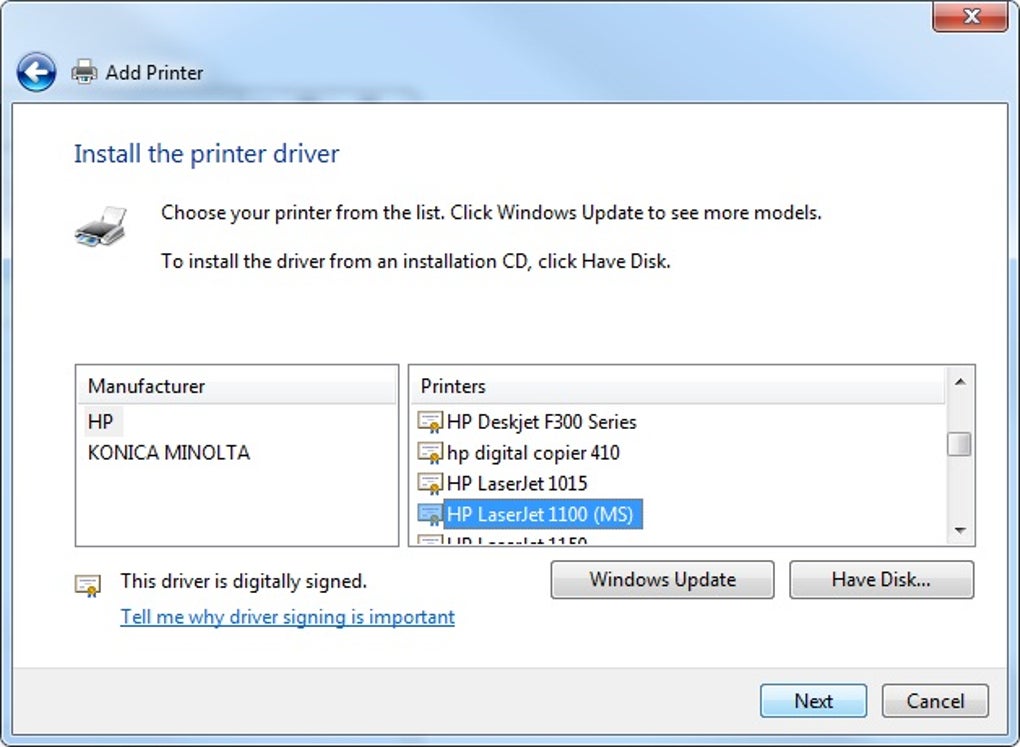
Connect the Printer: Ensure your HP LaserJet P1006 printer is physically connected to your computer via USB cable. The installer may detect the printer automatically. If not, you may need to select it from a list of available printers.
-
Complete the Installation: The installer will copy the necessary files to your computer and configure the printer settings. Once the installation is complete, you should be able to print from your computer.
-
Test Print: To ensure everything is working correctly, try printing a test page. Most printer drivers include a built-in test page option.
Troubleshooting Common HP LaserJet P1006 Driver Issues
Despite the generally smooth installation process, users occasionally encounter problems with the HP LaserJet P1006 printer driver. Here are some common issues and their solutions:
-
Printer Not Detected: This often occurs if the printer is not properly connected or the driver is not installed correctly. Verify the USB cable connection, restart your computer, and reinstall the driver.
-
Print Jobs Failing: Check the printer’s paper tray, ensure the printer is not jammed, and verify that the printer has sufficient toner. If the problem persists, check the printer’s status for error messages.
-
Poor Print Quality: Ensure you are using appropriate paper and that the toner cartridge is not empty or nearing depletion. Adjust the printer settings to improve print quality. A low-quality toner cartridge can lead to faint printing.
-
Driver Conflicts: If you’ve recently installed other printer drivers, there might be a conflict. Try uninstalling other drivers to isolate the issue. Also, ensure you’re running the correct driver version compatible with your operating system.
-
Windows Update Issues: Sometimes, Windows updates can interfere with printer drivers. Try reinstalling the driver after a Windows update. Check Windows update history to see if there are any relevant updates related to printer drivers.
If these basic troubleshooting steps fail to resolve your issue, consult HP’s support website for more advanced troubleshooting options or contact HP support directly.
Alternative Printer Drivers and Considerations
While the official HP LaserJet P1006 driver is generally recommended, alternative driver solutions may exist in some cases:
-
Generic PCL or PostScript drivers: These are universal drivers that might work with the HP LaserJet P1006, though they may not offer all the advanced features of the HP-specific driver. These drivers usually provide basic functionality for printing text-based documents.
-
Third-party driver solutions: While less common, third-party companies sometimes offer modified drivers or tools that claim to enhance printer functionality. However, use extreme caution when installing third-party drivers, as they could introduce malware or security vulnerabilities. Stick with the official HP driver whenever possible.
Choosing the Right Driver: Always prioritize using the official HP LaserJet P1006 driver downloaded from the official HP website. This guarantees compatibility, optimal performance, and access to the latest updates and bug fixes.
Conclusion: Maximizing Your HP LaserJet P1006 Experience
The HP LaserJet P1006 printer driver is essential for successful operation of your HP LaserJet P1006 printer. By following the installation and troubleshooting steps outlined in this guide, you can ensure a smooth printing experience. Remember to always download the latest driver version from the official HP website to benefit from enhanced features, performance improvements, and critical security updates. Choosing the correct driver and keeping it updated is key to maximizing your printer’s capabilities and minimizing potential problems. If you encounter persistent issues, don’t hesitate to seek assistance from HP’s support resources.
File Information
- License: “Free”
- Version: “varies-with-device”
- Latest update: “December 7, 2021”
- Platform: “Windows”
- OS: “Windows 7”
- Language: “English”
- Downloads: “130K”


