
The HP LaserJet P2035 printer, a reliable workhorse for many businesses and home offices, requires the correct drivers for optimal performance. This guide delves into the specifics of HP LaserJet P2035 printer drivers, addressing installation, troubleshooting, and alternative solutions. Understanding these drivers is crucial for ensuring seamless printing and avoiding common issues.
Understanding HP LaserJet P2035 Printer Drivers
Printer drivers act as the crucial intermediary between your computer’s operating system and your HP LaserJet P2035 printer. They translate the print commands from your software into a language the printer understands, enabling you to send documents, images, and other data to be printed. Without the correct drivers, your computer won’t recognize the printer, and you won’t be able to print.
The HP LaserJet P2035 printer drivers are specifically designed for this monochrome laser printer model. They ensure compatibility and unlock all the printer’s functionalities, including basic printing, advanced settings adjustments, and troubleshooting capabilities. These drivers are essential for addressing potential issues like connection problems, printing errors, and configuration discrepancies.
The drivers themselves are software packages, usually available for download from the official HP website. These packages contain all the necessary files and instructions for installation. The installation process is generally straightforward, often involving a simple step-by-step wizard. Post-installation, the printer should automatically be detected and configured by the system.
It’s important to note that while the drivers themselves may not receive constant updates, older versions often still maintain functionality. However, regularly checking the HP website for updated drivers is always recommended to benefit from potential bug fixes, performance improvements, or added features.
Downloading and Installing HP LaserJet P2035 Printer Drivers
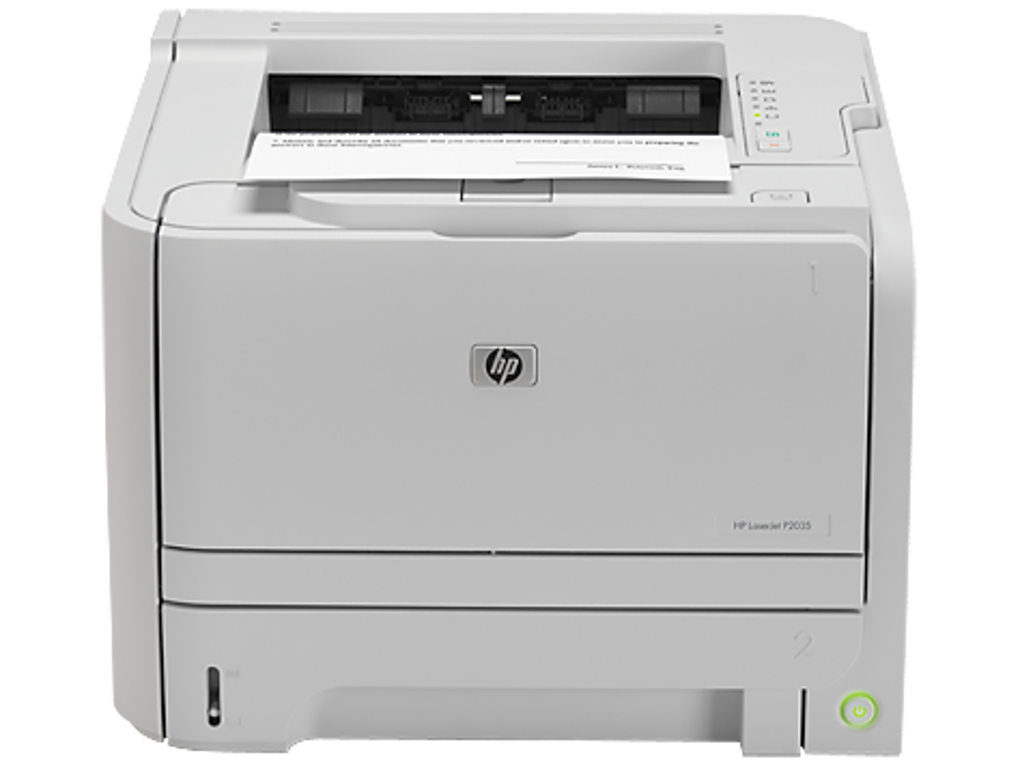
The process of obtaining and installing the necessary drivers is relatively simple. Here’s a step-by-step guide:
-
Identify Your Operating System: Before downloading, ascertain the exact operating system (OS) running on your computer. This is crucial as drivers are OS-specific. Common OS options include Windows 10, Windows 11, and older versions of Windows. Incorrect OS selection leads to driver incompatibility.
-
Visit the Official HP Website: Navigate to the official HP support website. Use a search engine to find “HP LaserJet P2035 support” or directly access the support section on HP’s main site.
-
Locate the Drivers Section: Once on the support page, you’ll find a section dedicated to downloads or software. You might need to specify your printer model (HP LaserJet P2035) and operating system to filter results.
-
Download the Correct Driver Package: Download the driver package explicitly designed for your HP LaserJet P2035 and your operating system. The download is usually a compressed file (.exe or .zip format) that contains the driver software.
-
Run the Installation File: After downloading, locate the downloaded file and run the installer. Follow the on-screen instructions. The installer will guide you through the process, typically requiring administrator privileges.
-
Connect Your Printer: Ensure your HP LaserJet P2035 printer is physically connected to your computer via USB or network cable before starting the installation. The installer should detect the printer automatically once the drivers are installed.
-
Test Your Printer: After installation, test your printer by sending a test print job. This confirms proper driver installation and functionality. If issues persist, refer to troubleshooting steps.
Troubleshooting Common HP LaserJet P2035 Driver Issues
Despite the straightforward installation process, you might encounter some difficulties. Below are common issues and their solutions:
-
Printer Not Detected: If your computer fails to detect the printer after driver installation, check the following:
- Physical Connection: Ensure a secure physical connection between the printer and the computer. Inspect cables for damage.
- Power Supply: Confirm that the printer is turned on and receiving power.
- USB Ports: Try different USB ports to rule out a faulty port.
- Network Connectivity: If using a network connection, verify network configuration settings.
- Firewall/Antivirus: Temporarily disable firewalls or antivirus programs to see if they’re interfering.
- Restart: Restart both your computer and the printer.
-
Printing Errors: Error messages during printing indicate potential driver or printer problems. Check the printer’s control panel for error codes. These codes can provide insight into the specific issue. Refer to the HP LaserJet P2035 printer manual or the HP website’s support section for guidance on resolving the specific error.
-
Driver Conflicts: If you’ve previously installed other printer drivers, a conflict might occur. Consider uninstalling previous printer drivers and reinstalling the HP LaserJet P2035 driver.
-
Outdated Drivers: Using outdated drivers can result in reduced functionality or compatibility issues. Regularly check the HP website for updated driver versions.
-
Incorrect Driver Installation: If the installation process was interrupted or incomplete, reinstall the drivers. Ensure you have the appropriate administrator privileges.
-
Corrupted Driver Files: Corrupted driver files can cause various problems. Reinstalling the driver from the official source often resolves this.
Alternative Solutions and Considerations
If you experience persistent issues with the official HP LaserJet P2035 printer drivers, consider the following alternatives:
-
HP Print and Scan Doctor: HP provides a diagnostic tool called the “Print and Scan Doctor.” This tool can automatically detect and fix common printing problems related to drivers and connections.
-
Reinstalling the Operating System (Last Resort): In extreme cases, reinstalling your operating system might resolve deeply rooted driver conflicts. This is a last resort and should only be considered after trying all other solutions. Ensure you back up all important data before proceeding with a system reinstall.
-
Using a Different Computer: Test the printer on a different computer to isolate whether the problem lies with the printer, the driver, or the computer itself.
-
Contacting HP Support: If all else fails, contact HP’s customer support for assistance. Their experts can guide you through troubleshooting and provide further support.
Remember, maintaining up-to-date drivers is crucial for a smoothly functioning HP LaserJet P2035 printer. By following the steps outlined in this guide and troubleshooting effectively, you can ensure consistent printing capabilities and maximize the printer’s performance. Always refer to the official HP website for the latest information, driver updates, and support documentation.
File Information
- License: “Free”
- Version: “varies-with-device”
- Latest update: “February 24, 2025”
- Platform: “Windows”
- OS: “Windows 10”
- Language: “English”
- Downloads: “60.6K”


