
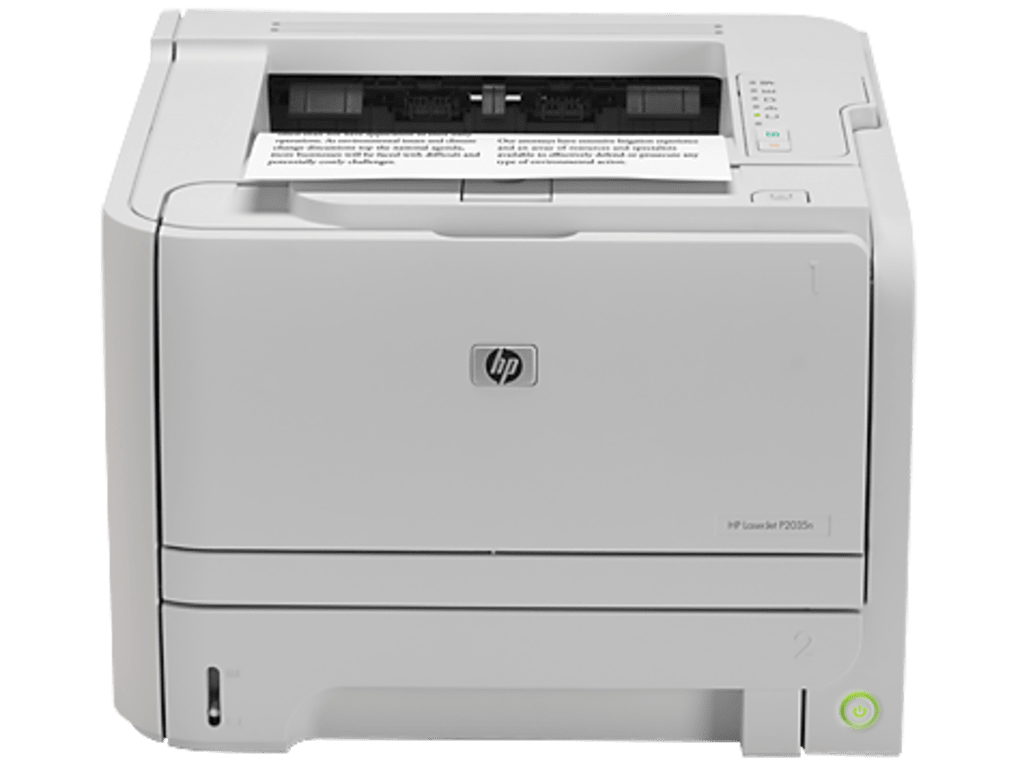
Finding and installing the correct drivers for your HP LaserJet P2035n printer is crucial for ensuring seamless operation. This guide will walk you through the process, addressing common issues and providing alternative solutions. Whether you’re a seasoned tech user or a novice, this guide will equip you with the knowledge to get your printer up and running smoothly.
Understanding Printer Drivers
Before diving into the specifics of HP LaserJet P2035n drivers, let’s clarify what printer drivers are and why they’re essential. A printer driver acts as a translator between your computer’s operating system and your printer. It allows your computer to communicate with the printer, sending print jobs and receiving status updates. Without the correct driver, your computer won’t recognize the printer, and you won’t be able to print.
Think of it like this: your computer speaks “computer language,” and your printer speaks “printer language.” The driver is the interpreter that allows them to understand each other. Each printer model requires its own specific driver because printers have varying functionalities, capabilities, and communication protocols. Using the wrong driver can lead to printing errors, poor print quality, or even prevent the printer from working at all.
The HP LaserJet P2035n, being a monochrome laser printer, requires a driver specifically designed for its hardware and firmware. This driver manages various aspects of the printing process, including:
- Print Job Processing: The driver receives print data from your applications and formats it according to the printer’s specifications.
- Communication Protocol: The driver handles the communication between your computer and the printer, ensuring data transmission is accurate and efficient.
- Error Handling: The driver detects and reports errors during the printing process, helping you troubleshoot potential issues.
- Printer Settings: The driver allows you to configure various printer settings, such as print quality, paper size, and duplex printing (double-sided printing).
- Firmware Updates: Some drivers also include functionality to check for and install firmware updates to keep your printer functioning optimally.
Locating and Downloading HP LaserJet P2035n Drivers
The most reliable source for HP LaserJet P2035n drivers is the official HP website. This ensures you are downloading genuine, virus-free drivers optimized for your printer model and operating system. Here’s a step-by-step guide:
-
Visit the HP Support Website: Open your web browser and navigate to the official HP support website (support.hp.com).
-
Identify Your Printer: You’ll likely need to enter your printer model number (“HP LaserJet P2035n”) in the search bar. This is crucial to ensure you get the correct drivers.
-
Select Your Operating System: After selecting your printer, you will be presented with a list of drivers. Choose the driver compatible with your operating system (Windows 10, Windows 7, macOS, etc.). HP’s website typically detects your operating system automatically, but it’s always a good idea to double-check.
-
Download the Driver: Download the driver file. This will usually be a .exe file (for Windows) or a .dmg file (for macOS). Save the file to a location you can easily find, such as your desktop.
-
Run the Installer: Once the download is complete, locate the downloaded file and double-click it to run the installer. Follow the on-screen instructions. The installer will typically guide you through the process of installing the driver, and may even automatically detect and configure your printer.
-
Test the Printer: After installation, test your printer by printing a test page. This verifies the driver is installed correctly and your printer is communicating with your computer.
Troubleshooting Driver Installation Issues
Despite following the instructions carefully, you might encounter problems installing the HP LaserJet P2035n drivers. Here are some common issues and their solutions:
-
Printer Not Recognized: If your computer doesn’t recognize the printer after installing the driver, ensure the printer is properly connected to your computer (via USB or network) and turned on. Restart your computer after installing the driver; this often resolves connectivity issues. Check your computer’s Device Manager (in Windows) to see if the printer is listed and if there are any error messages.
-
Driver Installation Errors: If you receive error messages during driver installation, check for potential conflicts with other software or hardware. Try uninstalling any conflicting software before reinstalling the driver. Make sure you have administrator privileges to install the driver.
-
Incorrect Driver Version: Downloading the wrong driver version for your operating system is a common mistake. Always double-check the operating system compatibility on the HP website before downloading.
-
Corrupted Driver File: If the downloaded driver file is corrupted, you’ll need to re-download it from the HP website.
Alternative Driver Sources (Use with Caution)
While the official HP website is the recommended source for drivers, there are other potential sources, including third-party websites and driver update utilities. However, use caution when downloading drivers from unofficial sources as these may contain malware or may not be compatible with your printer, potentially causing damage to your system.
Before using any third-party driver source, ensure it’s reputable and trustworthy. Read user reviews and check for security certifications before downloading anything. If you’re unsure about a source’s legitimacy, it’s always best to stick with the official HP website.
Maintaining Your HP LaserJet P2035n Drivers
Keeping your printer drivers updated is crucial for optimal performance and security. While HP doesn’t automatically update drivers for older models like the P2035n through a built-in update mechanism, periodically checking the HP website for newer driver versions is recommended. New drivers often include bug fixes, performance improvements, and enhanced compatibility with newer operating systems. Regularly checking for and installing updates ensures your printer remains compatible and performs at its best.
By following these steps and troubleshooting techniques, you can effectively install and maintain the necessary drivers for your HP LaserJet P2035n printer, ensuring smooth and reliable printing for all your needs. Remember that using the official HP website is always the safest and most reliable method for obtaining the correct drivers.
File Information
- License: “Free”
- Version: “varies-with-device”
- Latest update: “January 31, 2023”
- Platform: “Windows”
- OS: “Windows 8.1”
- Language: “English”
- Downloads: “12K”


