
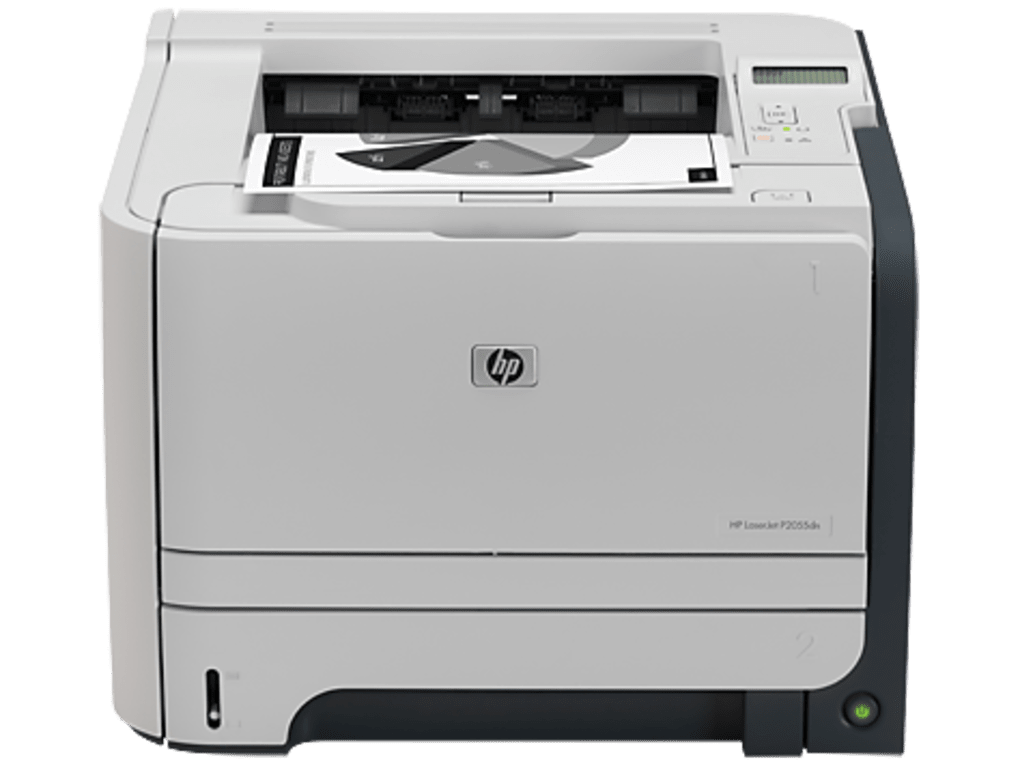
The HP LaserJet P2055dn is a reliable monochrome laser printer designed for home and small office environments. Its compact size and relatively fast print speeds make it a popular choice for users needing efficient black and white printing capabilities. However, to fully utilize its features and ensure optimal performance, installing the correct printer drivers is essential. This guide will comprehensively cover the HP LaserJet P2055dn printer drivers, their functionality, installation process, troubleshooting tips, and alternative solutions.
Understanding HP LaserJet P2055dn Printer Drivers
Printer drivers act as the crucial communication link between your computer and the HP LaserJet P2055dn printer. They translate the print commands from your computer’s operating system into a language that the printer understands, allowing you to successfully print documents, images, and other files. Without the correct drivers, your computer won’t recognize the printer, and printing will be impossible. The HP LaserJet P2055dn Printer Drivers package, officially provided by Hewlett-Packard (HP), ensures seamless integration and optimal functionality.
This driver package is specifically tailored to the P2055dn model, enabling access to all its features. These features can include various print settings, such as print quality, paper size, duplex printing (double-sided printing), and potentially other advanced options depending on the driver version. The drivers also handle error management and troubleshooting, providing feedback to the user if any issues arise during the printing process.
Downloading and Installing HP LaserJet P2055dn Printer Drivers
While HP may no longer offer official support or updates for the older P2055dn model, finding the drivers for your operating system shouldn’t be overly difficult. The best approach is to directly visit the HP support website. While the official download may not be readily available, archived versions or community forums often contain reliable driver packages. Use the exact printer model number (“HP LaserJet P2055dn”) to ensure you download the correct drivers.
Steps for Installation (General Process):
-
Download: Once you locate the driver package, download it to your computer. The file will likely be a compressed archive (like a .zip or .exe file).
-
Extraction (if necessary): If the downloaded file is a compressed archive, extract its contents to a temporary folder on your computer. This will typically involve double-clicking the archive and following the extraction instructions.
-
Installation: Locate the extracted installation file (often an .exe file for Windows). Double-click the file to begin the installation process. Follow the on-screen instructions carefully. The installer will guide you through the steps, allowing you to choose installation options and select the printer port.
-
Printer Connection: During or after installation, connect the HP LaserJet P2055dn printer to your computer using a USB cable. Windows should automatically detect the printer and install the drivers. If it doesn’t detect the printer automatically, you may need to manually add the printer through the Windows “Devices and Printers” settings.
-
Testing: Once the installation is complete, test the printer by printing a test page. This verifies the correct installation and ensures the printer is functioning as expected.
Troubleshooting Installation Issues:
If you encounter any issues during the installation process, several steps can help resolve them:
-
Check your computer’s operating system: Ensure the downloaded drivers are compatible with your version of Windows. Older drivers may not be compatible with newer operating systems, and vice versa.
-
Restart your computer: A simple restart can often resolve minor software glitches that might prevent the printer from being detected.
-
Check USB cable connection: Ensure the USB cable is securely connected to both the printer and your computer. Try a different USB port if necessary.
-
Check printer power: Make sure the printer is turned on and connected to a power source.
-
Use HP’s printer diagnostic tools: HP may provide diagnostic tools that help identify and fix printer-related issues.
-
Consult HP Support (if possible): If you continue to encounter problems, you can attempt to contact HP support or search their online forums for solutions to similar issues. Keep in mind that support for older models might be limited.
Features and Specifications of the HP LaserJet P2055dn
The HP LaserJet P2055dn offers a range of features that make it suitable for various home and small office tasks. While its specifications may seem outdated compared to modern printers, its reliability and cost-effectiveness remain attractive points for certain users. Key features and specifications usually include:
-
Monochrome Printing: The printer exclusively handles black and white printing.
-
Laser Printing Technology: Utilizing laser technology, it provides crisp, clear text and graphics.
-
Print Speed: While the exact speed varies based on the document complexity, it typically delivers a reasonably fast print speed for its class.
-
Paper Handling: It supports various paper sizes and weights, offering flexibility in document printing.
-
Duplex Printing (Optional): The driver likely includes settings for duplex printing, allowing you to print on both sides of the paper, saving paper and costs.
-
Connectivity: Primarily connects via USB.
-
Compact Design: Its compact footprint minimizes space requirements.
Alternative Drivers and Solutions
If you cannot find the official HP LaserJet P2055dn drivers, or if the official drivers are not compatible with your operating system, you might consider these alternatives:
-
Generic PCL or PostScript Drivers: Some operating systems include generic drivers that might work with the HP LaserJet P2055dn. These drivers may not support all features of the printer, but they might allow basic printing functionality.
-
Drivers from Similar HP Models: In some cases, drivers from similarly configured HP LaserJet printers (with similar print technologies) may work, although functionality may be limited. Always proceed with caution, downloading drivers only from trusted sources.
-
Community Forums and Support Sites: Online forums and support communities dedicated to HP printers or older printer models might have users sharing their experiences and potential alternative driver solutions.
Important Considerations for Alternative Drivers:
Remember that using unofficial or alternative drivers carries some risk. Incompatible drivers can lead to printing errors, poor print quality, or even system instability. It is vital to exercise caution and back up your system before installing any untested drivers.
Conclusion
The HP LaserJet P2055dn printer, though an older model, remains a functional and cost-effective option for black and white printing. Installing the correct printer drivers is critical for ensuring its optimal performance. While official HP support for this specific model may be discontinued, finding and installing the appropriate drivers (whether official or alternative) allows you to leverage its printing capabilities efficiently. By following the steps outlined above and practicing due diligence, you can successfully install and use the HP LaserJet P2055dn printer in your home or small office setting. Remember to always prioritize downloading drivers from trusted sources and back up your system before installing any new drivers.
File Information
- License: “Free”
- Version: “varies-with-device”
- Latest update: “February 19, 2025”
- Platform: “Windows”
- OS: “Windows 8”
- Language: “English”
- Downloads: “143.8K”


