
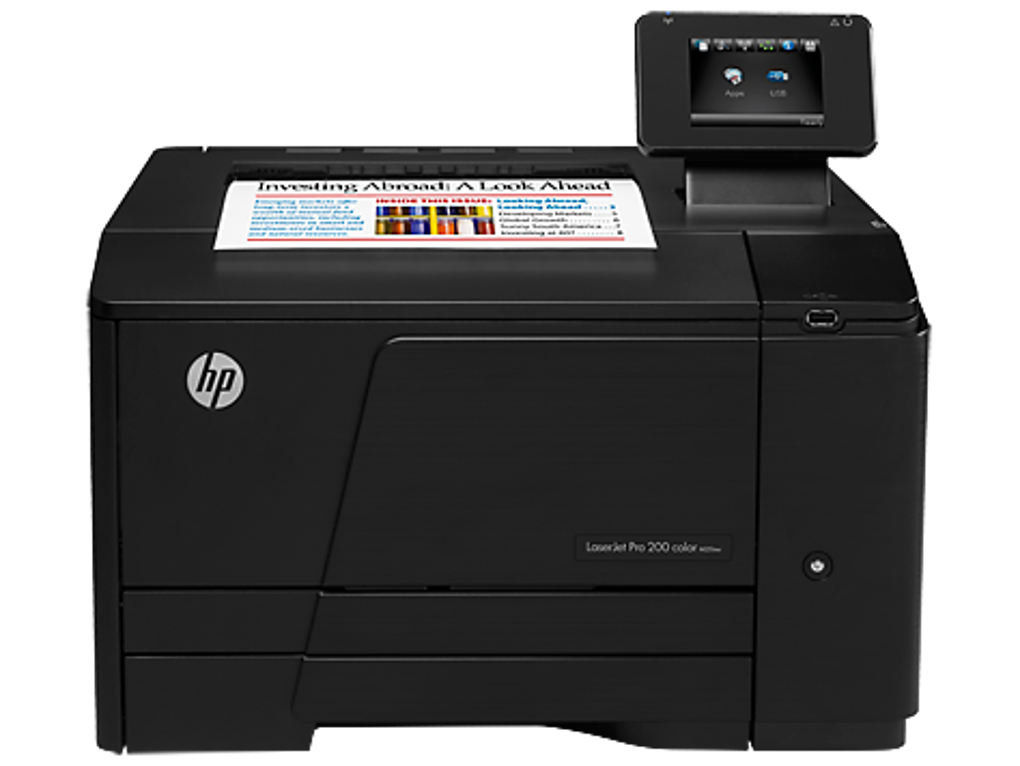
The HP LaserJet Pro 200 Color Printer M251nw is a versatile and reliable printer suitable for both home and small office environments. Its compact design, coupled with its ability to produce high-quality color prints, makes it a popular choice. However, like all printers, ensuring optimal performance hinges on having the correct drivers installed. This guide provides a comprehensive overview of HP LaserJet Pro 200 Color Printer M251nw drivers, covering their importance, installation process, troubleshooting common issues, and exploring alternative solutions.
Understanding the Importance of Printer Drivers
Printer drivers act as the crucial link between your printer and your computer’s operating system. They are software programs that translate the commands your computer sends to the printer into a language the printer understands. Without the correct drivers, your computer won’t recognize the printer, preventing you from printing documents, images, or any other data. Outdated or corrupted drivers can also lead to a range of problems, including:
-
Printing Errors: The most common issue is the inability to print altogether, or encountering various error messages during the printing process. These errors can range from generic “printer unavailable” messages to more specific codes related to communication issues between the printer and your computer.
-
Poor Print Quality: Outdated drivers might not support the printer’s full capabilities, resulting in faded colors, blurry images, or other print quality degradation. You might also experience issues like incorrect color representation or unexpected font substitutions.
-
Slow Print Speeds: Inefficient driver communication can dramatically slow down the printing process. What should be a quick task might take significantly longer due to driver bottlenecks.
-
Incompatibility Issues: Using outdated drivers with newer operating systems can lead to full or partial incompatibility, rendering the printer unusable.
-
Security Vulnerabilities: Outdated drivers can contain security flaws that hackers might exploit to gain unauthorized access to your system. Keeping drivers updated is crucial for protecting your computer from potential security threats.
Downloading and Installing HP LaserJet Pro 200 Color Printer M251nw Drivers
The recommended method for obtaining the correct drivers is through HP’s official website. This ensures you get the latest version, free from malware or other unwanted software. Here’s a step-by-step guide:
-
Access the HP Support Website: Open your web browser and go to the official HP support website. You can usually find this by searching “HP support” on a search engine.
-
Identify Your Printer Model: You’ll need to know the exact model number of your printer, which is usually found on a sticker on the printer itself. In this case, it’s the HP LaserJet Pro 200 Color Printer M251nw.
-
Navigate to the Drivers Section: Once on the HP support website, use the search bar to find your printer model. After finding your printer, look for the “Software and Drivers” or a similarly named section.
-
Select Your Operating System: HP will ask you to specify the operating system your computer is running (e.g., Windows 10, macOS, Linux). Selecting the correct operating system is critical for downloading the compatible driver.
-
Download the Driver Package: Once your operating system is selected, you’ll see a list of available drivers. Download the latest full feature driver package. This package usually contains all the necessary components for optimal printer functionality.
-
Run the Installer: After the download is complete, locate the downloaded file and double-click it to run the installer. Follow the on-screen instructions. The installer will guide you through the installation process, which usually involves accepting the license agreement, selecting the installation location, and potentially restarting your computer.
-
Test Your Printer: After installation, test your printer by trying to print a test page or a sample document. This verifies that the driver is working correctly and the printer is communicating properly with your computer.
Troubleshooting Common Driver Issues
Despite following the correct installation procedure, you might still encounter problems. Here are some common driver issues and their solutions:
-
Printer Not Recognized: If your computer doesn’t recognize the printer, check the printer’s power and USB connections. Ensure the printer is correctly connected to your computer and turned on. Also, check your computer’s Device Manager to see if the printer is listed and has any errors associated with it. If it’s not listed, try reinstalling the drivers.
-
Print Jobs Failing: If print jobs are failing or encountering errors, check the printer’s paper tray, toner levels, and any other physical issues. Restart both your printer and computer. Try printing a test page to isolate whether the problem is with the printer itself or the driver.
-
Poor Print Quality: Check the toner cartridges for low levels. Make sure the printer’s settings are correctly configured for the type of paper being used. If the problem persists, try reinstalling the drivers or updating to the latest version.
-
Driver Conflicts: If you have multiple printers installed, there might be a driver conflict. Try uninstalling other printer drivers temporarily to see if that resolves the issue.
-
Outdated or Corrupted Drivers: Outdated drivers are a frequent source of problems. Always update to the latest version available on the HP website. If the driver seems corrupted, uninstall it completely and then reinstall it.
Alternative Driver Solutions and Resources
While the official HP website is always the primary source, some alternative resources can provide assistance:
-
HP Support Assistant: HP provides a Support Assistant software that automatically detects your printer and checks for driver updates. This can simplify the process of keeping your drivers up-to-date.
-
Device Manager (Windows): The Device Manager allows you to view and manage all the devices connected to your computer, including printers. You can uninstall or update drivers from here, though this usually requires knowing which specific driver to target.
-
Third-Party Driver Update Software: While using caution is advised, several third-party software programs automatically scan your computer for outdated drivers and update them. However, it’s important to only use reputable and trusted software. Be aware that some of these programs may try to install additional software you may not want.
Conclusion
Having the correct HP LaserJet Pro 200 Color Printer M251nw drivers is essential for optimal printer performance and reliability. Downloading the latest drivers from HP’s official website is always the recommended approach. By understanding the importance of drivers, following the installation process correctly, and knowing how to troubleshoot common issues, you can ensure seamless printing and maximize the capabilities of your HP LaserJet Pro 200 Color Printer M251nw. Remember to regularly check for driver updates to maintain optimal performance and security. While alternative resources exist, the official HP channels should be your primary source for drivers and support, guaranteeing compatibility and avoiding potential risks associated with unofficial sources.
File Information
- License: “Free”
- Version: “varies-with-device”
- Latest update: “July 20, 2021”
- Platform: “Windows”
- OS: “Windows 10”
- Language: “English”
- Downloads: “4.1K”


