
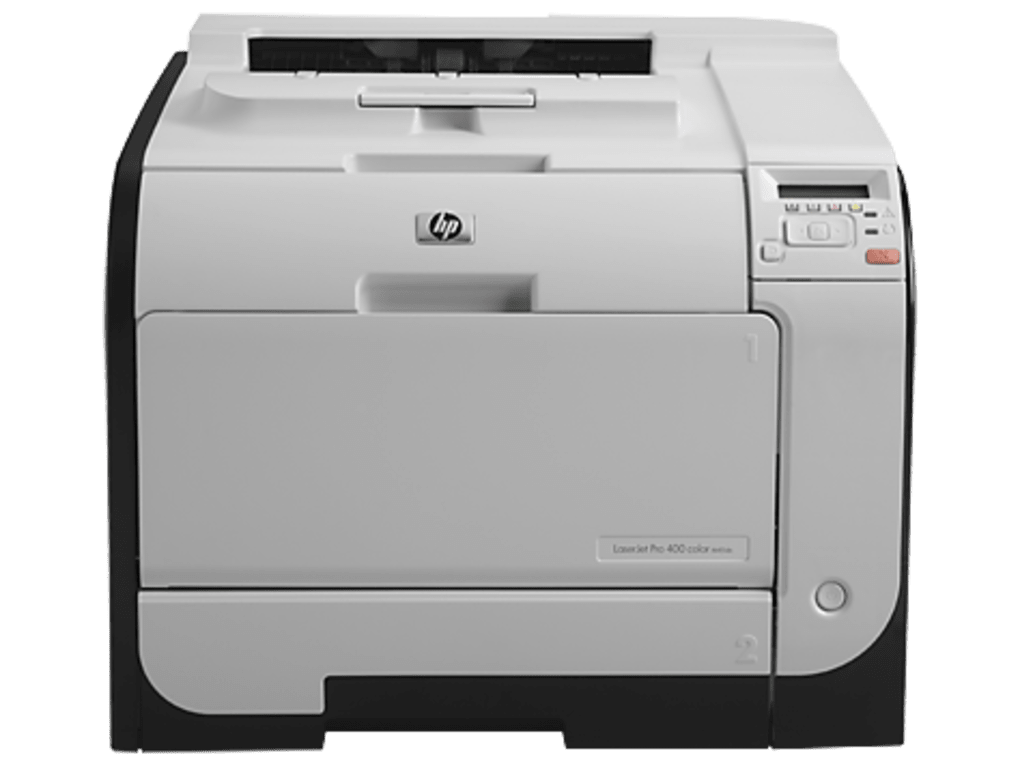
The HP LaserJet Pro 400 Color Printer M451dn is a robust and versatile printer designed for professional use. Its ability to handle demanding print jobs with high-quality color output makes it a popular choice for offices and businesses. However, to ensure optimal performance and seamless integration with your computer system, you need the correct drivers. This guide provides a comprehensive overview of HP LaserJet Pro 400 Color Printer M451dn drivers, including compatibility, installation, troubleshooting, and alternative options.
Understanding HP LaserJet Pro 400 Color Printer M451dn Drivers
Drivers are essential software programs that act as a bridge between your printer and your computer’s operating system. They translate the commands your computer sends to the printer into a language the printer understands, allowing you to print documents, images, and other files. Without the appropriate drivers, your computer won’t recognize the printer, and you won’t be able to use its functionalities. The HP LaserJet Pro 400 Color Printer M451dn requires specific drivers tailored to its hardware and functionalities, ensuring accurate color reproduction, optimal print speed, and compatibility with various operating systems.
The drivers themselves encompass various components crucial for printer operation. These include:
- Print Spooler: This manages the queue of print jobs, ensuring they are processed efficiently and in the correct order.
- Communication Protocols: These establish the connection between the computer and the printer, enabling data transmission. This often involves technologies like USB, Ethernet, or wireless networking (depending on your printer’s configuration).
- Hardware Management: The drivers interface with the printer’s internal mechanisms, controlling processes like paper feeding, toner management, and print head movement.
- Color Management: For color printers like the M451dn, the drivers play a vital role in accurately interpreting and reproducing color data, ensuring accurate and consistent output.
Downloading and Installing HP LaserJet Pro 400 Color Printer M451dn Drivers
The safest and most reliable way to obtain HP LaserJet Pro 400 Color Printer M451dn drivers is through the official HP website. This ensures you are downloading genuine software free from malware or viruses. Here’s a step-by-step guide:
- Navigate to the HP Support Website: Open your preferred web browser and go to the HP Support website (support.hp.com).
-
Identify Your Printer Model: Use the search bar to find the HP LaserJet Pro 400 Color Printer M451dn. Ensure you select the correct model number to avoid downloading incorrect drivers.
-
Select Your Operating System: The website will prompt you to specify the operating system installed on your computer (Windows 10, Windows 11, macOS, etc.). Choosing the correct OS is crucial, as drivers are typically OS-specific.
-
Download the Driver Package: After selecting your OS, the website will display a list of available drivers and software. Download the latest full feature driver package. This usually includes all the necessary components for optimal printer functionality.
-
Run the Installer: Once the download is complete, locate the downloaded file and double-click it to run the installer. Follow the on-screen instructions. This will typically involve accepting licensing agreements and selecting installation options.
-
Connect Your Printer: Make sure your printer is properly connected to your computer via USB, Ethernet, or Wi-Fi before proceeding with installation. The installer should detect your printer automatically. If it doesn’t, follow the on-screen prompts to manually add your printer.
-
Test Your Printer: After the installation is complete, test the printer by printing a test page. This verifies that the drivers are installed correctly and that the printer is functioning as expected.
Troubleshooting Common Driver Issues
Even with careful installation, you may encounter some issues. Here are some common driver problems and their solutions:
-
Printer Not Recognized: This is often due to incorrect installation, connection issues, or outdated drivers. Re-check your connections, try reinstalling the drivers, and ensure you are using the latest version.
-
Printing Errors: Check the printer’s error messages and consult the HP support documentation for solutions. Issues like low toner, paper jams, or internal printer errors can cause printing failures.
-
Poor Print Quality: This can be caused by outdated or corrupted drivers, low toner, or problems with the printer’s hardware. Try updating the drivers, replacing the toner cartridges, and checking for physical obstructions within the printer.
-
Color Issues: Inaccurate color representation may result from driver problems, incorrect color settings on your computer, or issues with the printer’s color calibration. Adjust the color settings on your computer and consult the printer’s manual for color calibration instructions.
Alternative Driver Sources and Compatibility
While the official HP website is the recommended source for drivers, you may find them listed on other websites. However, exercise caution when downloading drivers from unofficial sources. Unverified websites may distribute outdated, corrupted, or even malicious drivers that could compromise your computer’s security.
The HP LaserJet Pro 400 Color Printer M451dn generally supports a wide range of operating systems, including:
- Windows XP (32-bit)
- Windows Vista (32-bit and 64-bit)
- Windows 7 (32-bit and 64-bit)
- Windows 8 (32-bit and 64-bit)
- Windows 8.1 (32-bit and 64-bit)
- Windows 10 (32-bit and 64-bit)
- Windows Server 2003, 2008, and 2012
Compatibility may vary slightly depending on the driver version. Always refer to the HP website for the most up-to-date compatibility information.
Maintaining Optimal Printer Performance
Regular driver updates are crucial for optimal printer performance, security, and functionality. HP often releases updates to address bug fixes, enhance features, and improve compatibility. Check the HP website periodically for driver updates. Additionally, ensure that your printer’s firmware is also up to date. Outdated firmware can sometimes contribute to driver conflicts or performance issues. Check the printer’s display panel or the HP support website for firmware update instructions. Regular maintenance, including cleaning the printer and replacing toner cartridges as needed, will also contribute to a smoother printing experience. Following these guidelines will ensure your HP LaserJet Pro 400 Color Printer M451dn remains a reliable and productive addition to your workspace.
File Information
- License: “Free”
- Version: “varies-with-device”
- Latest update: “July 15, 2022”
- Platform: “Windows”
- OS: “Windows 8.1”
- Language: “English”
- Downloads: “4.5K”


