
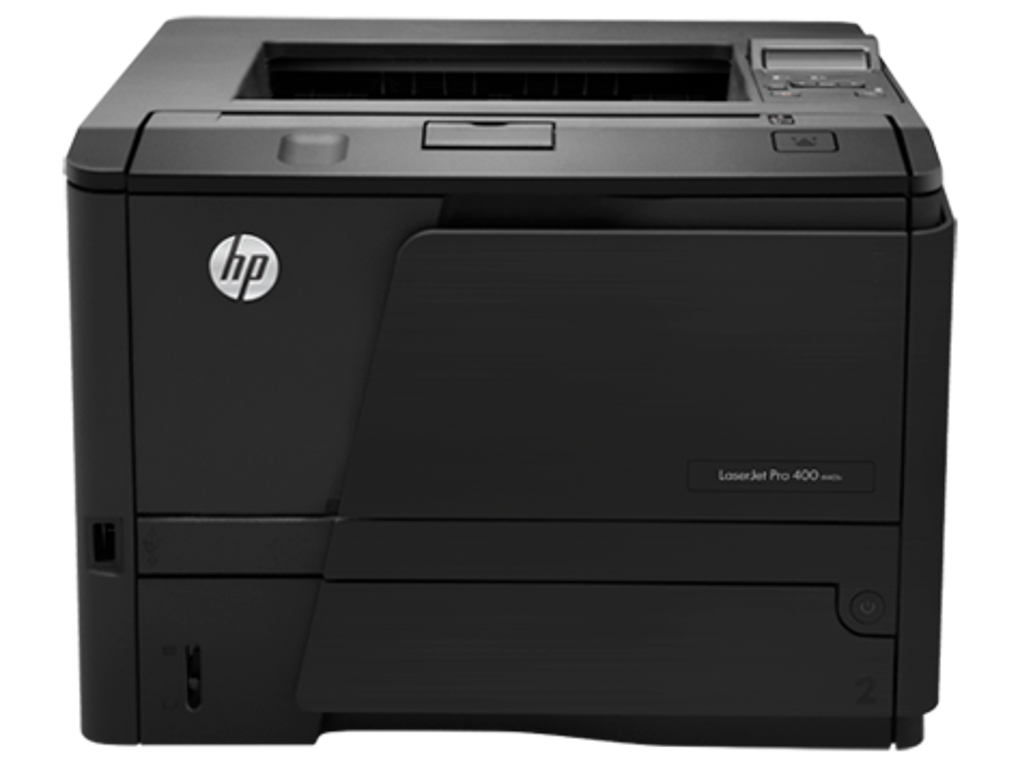
The HP LaserJet Pro 400 Printer M401 series is a popular choice for both home and office use, offering reliable monochrome printing capabilities. To fully utilize this printer’s features and ensure seamless operation with your computer, you need the correct drivers. This comprehensive guide explores the HP LaserJet Pro 400 Printer M401 Series Drivers, covering their functionality, installation, troubleshooting, and alternative solutions.
Understanding the HP LaserJet Pro 400 Printer M401 Series Drivers
The HP LaserJet Pro 400 Printer M401 Series Drivers are a crucial software package developed by Hewlett-Packard (HP) to enable communication between your HP LaserJet Pro 400 M401 series printer and your computer. These drivers act as a translator, allowing your operating system to understand and interact with the printer’s hardware. Without the appropriate drivers, your computer won’t recognize the printer, and you won’t be able to print, scan, or access other printer functions.
The driver package contains the necessary software components for various printer functions, including:
- Printing: Enables sending print jobs from your computer to the printer. This includes managing print settings like paper size, orientation, and print quality.
- Scanning (if applicable): Allows you to scan documents and images using the printer’s scanner (if your model includes one). This involves configuring scan settings, saving scan files, and managing scan destinations.
- Faxing (if applicable): Facilitates sending and receiving faxes through your printer (if your model has fax capabilities). This includes setting up fax numbers, configuring fax settings, and managing fax logs.
- Network Connectivity: Enables the printer to connect to your network, allowing multiple computers to share the printer. This often involves configuring network settings, such as IP addresses and network protocols.
The HP LaserJet Pro 400 M401 series includes several models, such as the M401dn, M401n, M401dne, and M401dw. While the core functionality remains consistent across these models, specific driver versions may be optimized for each variant. It’s crucial to download the driver package specifically designed for your printer model to ensure optimal performance and avoid compatibility issues.
Installing the HP LaserJet Pro 400 Printer M401 Series Drivers
Installing the drivers is generally straightforward. HP provides clear instructions, but the process typically involves these steps:
-
Download the Driver: Visit the official HP website’s support section. You’ll need to enter your printer model number (e.g., M401dn) to locate the correct driver package. Ensure you download the driver compatible with your operating system (Windows, macOS, etc.) and architecture (32-bit or 64-bit).
-
Run the Installer: Once the download is complete, locate the downloaded file (usually a
.exefile for Windows) and double-click it to run the installer. -
Follow On-Screen Instructions: The installer will guide you through the installation process. You may need to accept license agreements and choose installation options. In most cases, the default settings are suitable.
-
Connect the Printer: Connect your HP LaserJet Pro 400 printer to your computer using a USB cable or through your network connection, depending on your setup.
-
Printer Detection: The installer will usually automatically detect your printer. If not, you may need to manually add the printer using the appropriate options provided by the installer or your operating system.
-
Test Print: Once the installation is complete, perform a test print to verify that the printer is working correctly. Most installers include a test print option; otherwise, you can print a test page from your computer’s print settings.
If you encounter problems during installation, consult the HP support website for troubleshooting tips or contact HP support directly for assistance. The specific steps may vary slightly depending on your operating system and printer model.
Troubleshooting Common Driver Issues
Despite the generally smooth installation process, you may occasionally encounter issues with the HP LaserJet Pro 400 Printer M401 Series Drivers. Here are some common problems and solutions:
-
Printer Not Detected: Ensure the printer is properly connected to your computer and powered on. Check the USB cable or network connection. Restart both your computer and the printer. If the problem persists, try reinstalling the driver.
-
Print Quality Issues: If the print quality is poor (e.g., blurry text, faded images), check the toner cartridge level and replace it if necessary. Ensure the printer is using the correct paper type and size. Try cleaning the printer’s rollers and other print components.
-
Driver Errors: Driver errors may appear as error messages during installation or while printing. Check the HP support website for solutions specific to the error message. Try reinstalling the driver or updating to the latest version.
-
Network Connectivity Issues: If the printer is connected via a network, ensure it’s correctly configured with the appropriate IP address and other network settings. Check your network connection and router settings.
-
Outdated Drivers: While the driver package may not receive frequent updates, using the latest available version is recommended. Check the HP website periodically for driver updates for your specific printer model. Outdated drivers can sometimes cause compatibility problems and performance issues.
Alternatives and Considerations
While the HP LaserJet Pro 400 Printer M401 Series Drivers are essential for using your printer, it’s worth considering alternative solutions or approaches:
-
HP Printer Assistant: HP offers the HP Printer Assistant software, which provides a user-friendly interface for managing various printer functions, including troubleshooting, checking toner levels, and accessing advanced settings. This software often works in conjunction with the drivers and can simplify printer management.
-
Updating to the Latest Driver Version: While the original post mentions a lack of recent updates, it’s still crucial to check the HP support website for the most recent version of the driver for your specific printer model. Even if updates are infrequent, a newer version might address known bugs or improve compatibility with newer operating systems.
-
Using HP Easy Start: HP Easy Start is a utility that simplifies the printer setup and driver installation process. It can automatically detect your printer and download the necessary drivers, making the installation easier, especially for less tech-savvy users.
Remember to always download drivers from the official HP website to avoid malware or incompatible software. Using unofficial or third-party drivers can lead to instability, security risks, and printer malfunction.
By following the steps outlined above and understanding potential troubleshooting solutions, you can effectively install and maintain the HP LaserJet Pro 400 Printer M401 Series Drivers, ensuring optimal performance and functionality for your printer. Regularly checking the HP website for driver updates can also help prevent future compatibility issues and optimize your printing experience.
File Information
- License: “Free”
- Version: “varies-with-device”
- Latest update: “March 9, 2025”
- Platform: “Windows”
- OS: “Windows XP”
- Language: “English”
- Downloads: “25.8K”


