
The HP LaserJet Pro 400 Printer M401dn is a monochrome laser printer designed for small to medium-sized offices. Its compact design and robust features make it a popular choice for businesses requiring reliable and efficient printing solutions. This guide provides a detailed overview of the printer, its functionalities, driver installation, troubleshooting, and frequently asked questions.
Printer Overview and Features
The HP LaserJet Pro 400 M401dn stands out for its efficient performance and user-friendly design. It’s a cost-effective solution catering to the needs of businesses that prioritize high-quality monochrome printing without the complexities and expense of color printing. Key features include:
-
High-Quality Monochrome Printing: The printer delivers sharp, clear text and graphics, ideal for documents, reports, and other business materials requiring precision and readability. Its laser printing technology ensures consistent results, page after page.
-
High Paper Capacity: Unlike many printers in its class, the M401dn boasts a substantial 300-sheet paper tray capacity. This reduces the frequency of paper refills, minimizing interruptions in workflow and enhancing productivity. This large capacity is particularly beneficial for offices with high print volumes.
-
USB Direct Printing: The inclusion of a USB port allows for direct printing from USB drives. This bypasses the need for a computer connection, streamlining the printing process for simple tasks and improving flexibility. This feature is particularly useful for quick print jobs or situations where direct computer access is limited.
-
Easy Setup and Installation: The printer is designed for straightforward installation. The driver installation process, detailed further below, is generally uncomplicated, requiring minimal technical expertise. The printer’s intuitive control panel simplifies navigation and task management.
Driver Installation and Compatibility
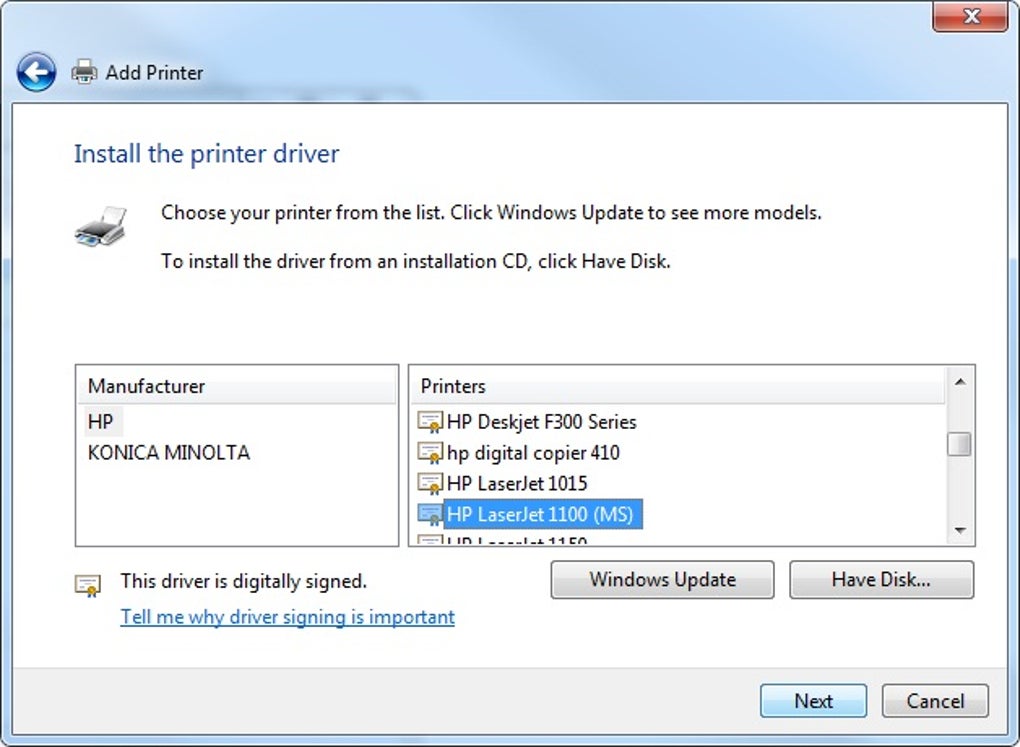
The HP LaserJet Pro 400 M401dn driver is essential for connecting the printer to your computer and enabling printing functionality. The driver acts as a translator, allowing your computer’s operating system to communicate with the printer’s hardware. Here’s a step-by-step guide to installing the driver:
- Download the Driver: First, navigate to the official HP website’s support section. Use the search bar to find the HP LaserJet Pro 400 M401dn printer model. Locate the “Drivers & Software” section for your specific operating system (Windows, macOS, etc.). Download the appropriate driver package.
-
Run the Installer: Once downloaded, locate the driver installation file and run it. Follow the on-screen instructions. The installer will guide you through the process, including accepting license agreements and selecting installation options. It’s crucial to follow the instructions meticulously to ensure a successful installation.
-
Connect the Printer: Ensure your printer is connected to your computer via USB or network. The installer might automatically detect your printer; otherwise, you might need to manually select it from a list of available devices.
-
Test the Printer: After the installation completes, test the printer by printing a test page. This verifies successful communication and driver functionality. If the test page prints correctly, the installation process is complete.
Compatibility: The HP LaserJet Pro 400 M401dn driver is compatible with a range of Windows operating systems, including Windows 7, Windows 8, Windows 8.1, and Windows 10. It might also be compatible with certain versions of macOS, though checking the HP support website for your specific macOS version is highly recommended. For optimal performance, always install the latest driver version available from HP’s official website.
Troubleshooting Common Issues
While the HP LaserJet Pro 400 M401dn is generally reliable, users may encounter occasional issues. Here are some common problems and their solutions:
-
Printer Offline: Check the printer’s physical connection (USB or network). Ensure the printer is turned on and not in sleep mode. If using a network connection, verify network connectivity and printer settings.
-
Driver Errors: Reinstall the printer driver, ensuring you download the latest version from HP’s website. If the problem persists, consider restarting your computer.
-
Paper Jams: Carefully clear any paper jams, following the instructions in the printer’s manual. Avoid forcing paper; this can damage the printer.
-
Print Quality Issues: Check the toner cartridge level. Replace the cartridge if it’s low or empty. Ensure the paper is correctly loaded and of the correct type. Clean the printer’s rollers and other components as needed.
-
Connectivity Issues: If using a network connection, check network settings on both the printer and your computer. Restart your router and the printer. Consult the printer’s manual or HP support for advanced network troubleshooting.
Advanced Features and Customization
While the M401dn is designed for straightforward operation, some advanced features offer greater control and customization:
-
Network Configuration: The printer can be configured for network printing, allowing multiple computers to share the printer resources. Network settings are accessible through the printer’s control panel or the HP printer software.
-
Print Settings: Various print settings, such as print quality, paper type, and duplex printing (though this model lacks duplex printing capability), are adjustable through the printer driver.
-
Firmware Updates: HP occasionally releases firmware updates to improve printer performance and address bugs. Check the HP support website for updates and instructions on how to apply them.
Frequently Asked Questions (FAQs)
Q: Does the HP LaserJet Pro 400 M401dn support duplex printing?
A: No, the M401dn does not have a built-in duplex printing feature (automatic double-sided printing). Double-sided printing would need to be done manually.
Q: What type of toner cartridge does the printer use?
A: Consult the printer’s manual or the HP website for the correct toner cartridge model number specific to your M401dn printer.
Q: How can I reset the printer to factory defaults?
A: The method for resetting to factory defaults varies slightly depending on the printer’s firmware version. Check the printer’s manual or the HP support website for specific instructions.
Q: Where can I find additional support and resources?
A: HP provides extensive online support resources, including manuals, troubleshooting guides, and frequently asked questions on their website. You can also contact HP support directly if needed.
The HP LaserJet Pro 400 M401dn offers a robust and reliable printing solution for small and medium-sized businesses. Its high paper capacity, straightforward operation, and high-quality printing make it a worthwhile investment for organizations needing efficient monochrome printing capabilities. By understanding the driver installation process, troubleshooting common problems, and utilizing its advanced features, businesses can maximize the printer’s productivity and efficiency.
File Information
- License: “Free”
- Version: “varies-with-device”
- Latest update: “December 8, 2021”
- Platform: “Windows”
- OS: “Windows 7”
- Language: “English”
- Downloads: “84.6K”


