
The HP LaserJet Pro 400 Printer M401dne is a reliable and efficient printer designed for office environments. Its performance, however, is heavily reliant on having the correct drivers installed. This guide will explore everything you need to know about finding, installing, and troubleshooting HP LaserJet Pro 400 M401dne printer drivers for various operating systems.
Understanding Printer Drivers and Their Importance
Before delving into the specifics of the HP LaserJet Pro 400 M401dne drivers, it’s crucial to understand what printer drivers are and why they are essential for printer functionality.
A printer driver acts as a translator between your operating system (Windows, macOS, etc.) and your printer. Your computer doesn’t inherently understand how to communicate with your printer’s hardware. The driver provides the necessary instructions and commands, allowing your computer to send print jobs to the printer and receive feedback (like error messages or status updates). Without the correct driver, your computer simply won’t recognize the printer, preventing you from printing documents, images, or any other data.
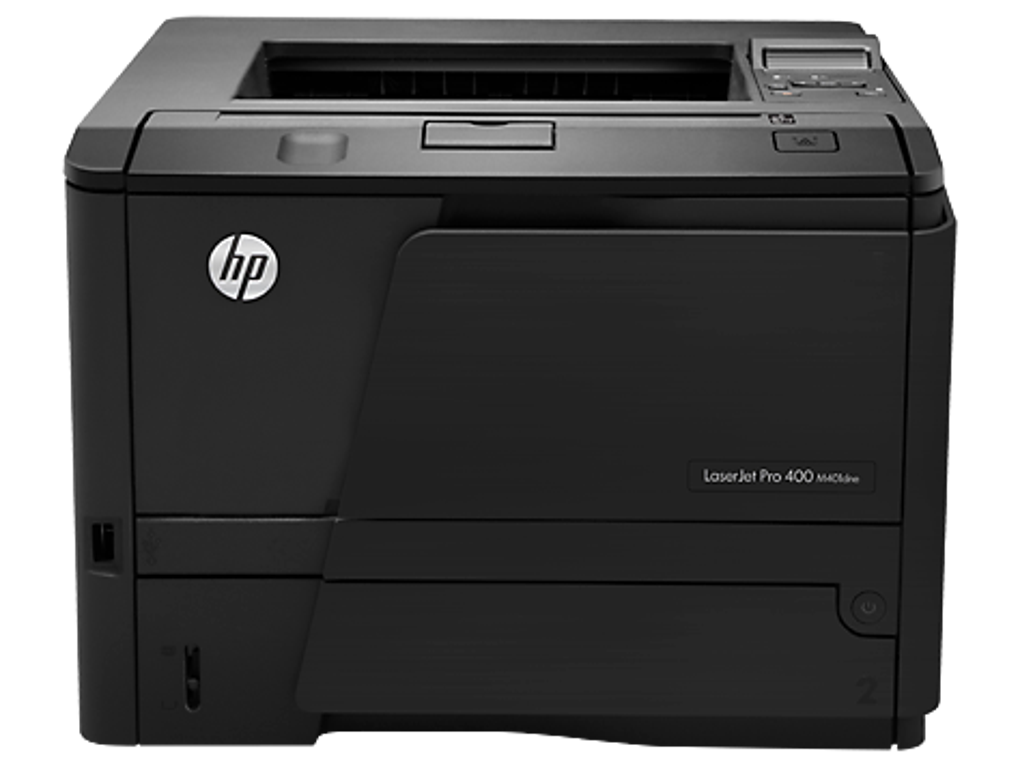
The HP LaserJet Pro 400 M401dne, like most modern printers, uses sophisticated technology. Its driver encompasses the instructions for managing various printer functions, including:
- Print Job Processing: The driver receives print data from applications, manages print queues, and sends the data to the printer in a format it understands.
- Printer Settings: It allows you to configure various printer settings from your computer, such as print quality (resolution), paper size and type, duplex printing (double-sided printing), and color settings (if applicable).
- Error Handling: The driver communicates error messages from the printer to your computer, providing helpful information to diagnose and resolve printing issues.
- Hardware Management: Some drivers provide functionalities to manage printer-specific hardware components, such as toner cartridges or paper trays.
Downloading the Correct HP LaserJet Pro 400 M401dne Drivers
Downloading the correct driver is the first crucial step in ensuring seamless printing. The wrong driver can lead to a variety of problems, ranging from printing failures to complete printer inoperability. To avoid these issues, always download drivers directly from the official HP website.
Steps to Download the Correct Drivers:
-
Visit the HP Support Website: Go to the official HP support website (support.hp.com).
-
Identify Your Printer Model: Make sure you accurately identify your printer model as “HP LaserJet Pro 400 M401dne”. Incorrect model identification will result in downloading the wrong driver.
-
Select Your Operating System: The HP website will prompt you to select your operating system (Windows 10, Windows 11, macOS, etc.). Choosing the correct OS is critical. Drivers are OS-specific, and using an incompatible driver will prevent the printer from functioning. The site might also ask for the bit version of your OS (32-bit or 64-bit). Check your computer’s system information to determine this.
-
Download the Driver Package: Once you’ve selected your operating system, HP’s website will present you with the latest available driver package for the HP LaserJet Pro 400 M401dne. Click the download link. The download will usually be a self-extracting executable file (.exe for Windows) or a compressed file (.zip or .dmg for macOS).
-
Run the Installer: After downloading, locate the downloaded file and run the installer. Follow the on-screen instructions to install the driver. The installation process typically involves several steps, including accepting license agreements and choosing installation options.
-
Connect Your Printer: Ensure your printer is correctly connected to your computer via USB or network (Wi-Fi or Ethernet). The installer may automatically detect your printer; otherwise, you might need to manually add it using the appropriate settings within your operating system.
-
Test Your Printer: After the installation is complete, test your printer by printing a test page to verify that everything is working correctly.
Important Considerations:
-
Automatic Driver Detection: HP’s website usually offers an automatic driver detection tool. This tool scans your system and identifies the correct driver for your printer and operating system. This is often the easiest and safest method.
-
Driver Version: Pay attention to the driver version number. Using the latest available driver is generally recommended as it often contains bug fixes and performance improvements.
Troubleshooting HP LaserJet Pro 400 M401dne Driver Issues
Even with careful driver installation, you might encounter issues. Here are some common problems and their solutions:
-
Printer Not Detected: If your computer doesn’t recognize the printer after installation, check the following:
- Correct Cable Connection: Verify the USB or network cable is securely connected to both the printer and the computer.
- Printer Power: Ensure the printer is switched on and properly functioning.
- Firewall/Antivirus Interference: Temporarily disable your firewall or antivirus software to see if they’re blocking communication with the printer.
- Network Settings (if applicable): Double-check your network settings to confirm the printer is correctly connected to your network.
- Reinstall the Driver: Uninstall the current driver and then reinstall it using the steps above.
-
Printing Errors: If you encounter printing errors, such as print job failures or incorrect output, try these steps:
- Restart Your Computer and Printer: A simple restart can often resolve temporary software glitches.
- Check Paper Tray: Ensure you’re using the correct paper type and size. Check that the paper tray is not jammed.
- Toner Cartridge Levels: Low toner can also cause printing problems. Check the toner cartridge levels and replace if necessary.
- Driver Update: Make sure you’re using the latest driver. Check HP’s website for updates.
- Printer Settings: Review and adjust the printer settings to match your needs. Incorrect settings can lead to printing errors.
-
Driver Conflicts: If you’ve recently installed other software or hardware, it might conflict with the printer driver. Try uninstalling recently installed software or hardware to see if that resolves the issue.
- Windows Driver Issues (Specific to Windows Users):
- Check Device Manager: Open Device Manager in Windows, look for the printer, right-click on it and select “Update Driver”. Windows might offer to automatically search for an updated driver or allow you to browse for one manually (from the downloaded driver package).
- Run the Printer Troubleshooter: Windows provides a built-in printer troubleshooter. Run this to attempt automatic diagnostics and fixes.
Maintaining Optimal Printer Performance with Driver Updates
Keeping your HP LaserJet Pro 400 M401dne drivers updated is essential for maintaining optimal printer performance and security. Regularly check the HP website for driver updates. While automatic updates are usually handled by your operating system, periodically checking the manufacturer’s website ensures you have the latest bug fixes, performance enhancements, and security patches.
Out-of-date drivers can lead to:
- Compatibility Issues: New operating systems or applications may not be compatible with older drivers, resulting in printing failures or other problems.
- Security Vulnerabilities: Outdated drivers can contain security vulnerabilities that can be exploited by malicious software. Updated drivers typically include security patches to address these risks.
- Performance Degradation: Newer drivers often incorporate performance optimizations that can improve print speed and overall efficiency.
By following these guidelines and regularly checking for updates, you can ensure your HP LaserJet Pro 400 M401dne printer operates smoothly and efficiently, providing reliable printing for your office needs. Remember, the key to a successful printing experience lies in utilizing the correct and up-to-date drivers directly from the HP support website.
File Information
- License: “Free”
- Version: “varies-with-device”
- Latest update: “January 31, 2023”
- Platform: “Windows”
- OS: “Windows 10”
- Language: “English”
- Downloads: “11.2K”


