
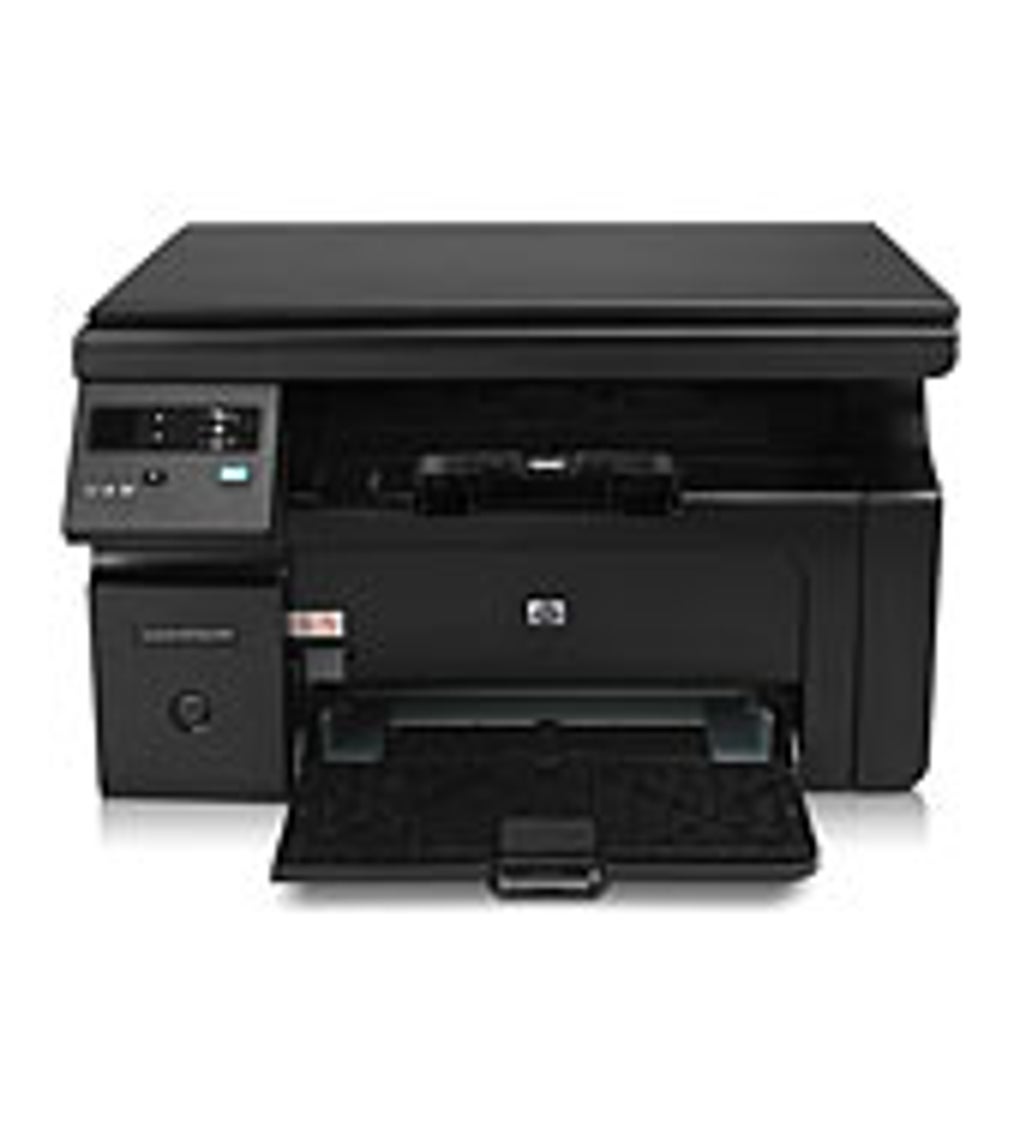
The HP LaserJet Pro M1136 Multifunction Printer is a reliable and versatile device capable of printing, scanning, and copying. However, to ensure optimal performance and functionality, installing the correct drivers is crucial. This guide provides a detailed overview of the HP LaserJet Pro M1136 multifunction printer drivers, covering their features, benefits, installation process, troubleshooting tips, and alternative solutions.
Understanding HP LaserJet Pro M1136 Printer Drivers
Printer drivers act as the crucial link between your computer’s operating system and your HP LaserJet Pro M1136 printer. They translate the print commands from your software applications into a language that your printer understands, enabling seamless printing, scanning, and copying. Without the appropriate drivers installed, your computer won’t recognize the printer, and you won’t be able to use its functionalities.
The HP LaserJet Pro M1136 Multifunction Printer drivers package typically includes several components:
-
Print Driver: This core component enables your computer to send print jobs to the printer. It handles tasks such as formatting the document, managing print queues, and controlling printer settings like paper size and print quality.
-
Scan Driver: This allows you to scan documents and images directly from your HP LaserJet Pro M1136 to your computer. It manages the scanning process, including resolution settings, color adjustments, and file formats.
-
Fax Driver (if applicable): If your printer has fax capabilities, the driver will manage the sending and receiving of faxes through your computer.
-
Utility Software: The driver package may include utility software that provides additional functionality, such as printer status monitoring, troubleshooting tools, and firmware updates. This software enhances the user experience and provides tools to manage the printer’s functions efficiently.
The official HP LaserJet Pro M1136 drivers are optimized for specific operating systems, ensuring compatibility and stability. Attempting to use incompatible drivers can lead to various issues, including printing errors, malfunctions, and even printer damage.
Driver Compatibility and System Requirements
The HP LaserJet Pro M1136 drivers are primarily designed for Windows operating systems. While drivers might exist for other operating systems through third-party sources, official support is mainly limited to Windows. The specific Windows versions supported may vary depending on the driver version; however, generally, support extends to a wide range of versions, including Windows 7, Windows 8, Windows 8.1, and Windows 10. The drivers typically detect whether your system is 32-bit or 64-bit and install the appropriate version automatically.
Before installing the drivers, it is essential to ensure that your system meets the minimum requirements:
- Operating System: A compatible Windows operating system (check the specific requirements on the HP website for the latest driver version).
- Processor: A reasonably modern processor should suffice. The specific requirements are generally low, allowing compatibility with a wide array of computer systems.
- Memory (RAM): Adequate RAM is essential for smooth driver installation and printer operation. The exact requirements will depend on the overall system configuration, but generally, a moderate amount of RAM will be sufficient.
- Hard Disk Space: Sufficient hard disk space is required to accommodate the driver files. The space needed is minimal, ensuring easy installation even on systems with limited storage capacity.
- USB Port: A functional USB port is required to connect the printer to your computer.
- Internet Connection: An active internet connection may be required for automatic driver installation and updates.
Downloading and Installing HP LaserJet Pro M1136 Drivers
The most reliable source for downloading the HP LaserJet Pro M1136 drivers is the official HP website. Downloading from unofficial sources increases the risk of installing malware or incompatible drivers.
Steps to Download and Install Drivers:
-
Visit the HP Support Website: Go to the official HP support website. Use the search function to find the HP LaserJet Pro M1136 printer.
-
Select Your Operating System: Select your operating system (e.g., Windows 10, 64-bit) from the provided options. This ensures you download the correct driver version.
-
Download the Driver Package: Download the driver package that includes the full set of necessary drivers and utilities. The download will typically be in the form of an executable file (.exe).
-
Run the Installer: Once the download is complete, run the installer file. Follow the on-screen instructions. The installer will guide you through the process. You will likely be prompted to select the printer’s connection type (USB) and confirm the installation location.
-
Restart Your Computer (if necessary): The installer may prompt you to restart your computer to complete the installation process. Restarting ensures the changes are implemented properly.
-
Test the Printer: After installation, test the printer’s functionality by printing a test page. Verify that printing, scanning, and copying operations are working correctly. If you encounter issues, proceed to troubleshooting steps.
Troubleshooting Common Driver Issues
Despite following the installation process accurately, you might encounter some common issues. Here are some troubleshooting steps:
-
Printer Not Recognized: Ensure the printer is properly connected to your computer via USB. Check device manager to ensure the printer is listed and has no errors. If the printer is not recognized, try reinstalling the drivers, or try a different USB port.
-
Printing Errors: Check for paper jams, low toner, or incorrect printer settings. If the issue persists, try reinstalling the drivers.
-
Scanning Issues: Verify the scanner settings are configured correctly, and the printer is connected properly. Try restarting the printer and computer. If the problem persists, reinstall the drivers.
-
Driver Conflicts: If other print drivers are causing conflicts, uninstall unnecessary drivers, leaving only the necessary HP LaserJet Pro M1136 drivers installed.
-
Outdated Drivers: Always keep your printer drivers updated to benefit from performance enhancements, bug fixes, and new features. Check the HP support website for updated driver versions.
Alternative Driver Solutions
While the official HP drivers are the recommended option, alternative driver solutions might exist if you’re having trouble accessing the official drivers or are using an unsupported operating system. These solutions might be less reliable and should be approached with caution. Always ensure you download drivers from trustworthy sources to avoid malware and ensure functionality.
Third-party websites that offer printer drivers should be thoroughly vetted to avoid potential security risks. Researching user reviews and checking for reputable sources is advisable.
In conclusion, installing the correct HP LaserJet Pro M1136 Multifunction Printer drivers is crucial for optimal printer performance. By following the steps outlined in this guide and using the official HP website as the primary source for drivers, you can ensure a smooth printing, scanning, and copying experience. Remember to troubleshoot effectively if problems arise and consider alternative solutions only if necessary and from trusted sources. Regularly check the HP website for driver updates to maintain peak performance and compatibility.
File Information
- License: “Free”
- Version: “20180815”
- Latest update: “February 3, 2025”
- Platform: “Windows”
- OS: “Windows XP”
- Language: “English”
- Downloads: “424.7K”


