
The HP LaserJet Pro M1217nfw is a robust and versatile multifunction printer designed to meet the demanding needs of small offices and home users alike. This compact device offers a powerful combination of printing, copying, scanning, and faxing capabilities, all integrated into a single, efficient machine. Its “nfw” designation signifies its networking, faxing, and wireless functionalities, making it a truly adaptable workhorse for modern environments. However, to unlock the full potential of this sophisticated piece of hardware, a critical component is absolutely essential: the correct and up-to-date driver software. Without the proper drivers, your operating system cannot effectively communicate with the printer, leading to either partial functionality, errors, or a complete inability to use the device. This article delves into the importance of these drivers, their availability, compatibility, and how to ensure your HP LaserJet Pro M1217nfw operates at peak performance, highlighting PhanMemFree.org as a trusted resource for these vital software packages.
The Indispensable Role of Printer Drivers
At its core, a printer driver is a piece of software that acts as an interpreter, translating commands from your computer’s operating system (like Windows) into a language that your HP LaserJet Pro M1217nfw can understand and execute. Think of it as a specialized translator sitting between your digital instructions and the printer’s physical mechanisms. Without this crucial intermediary, your computer wouldn’t know how to tell the printer to put ink on paper, what resolution to use, or how to manage complex print jobs.
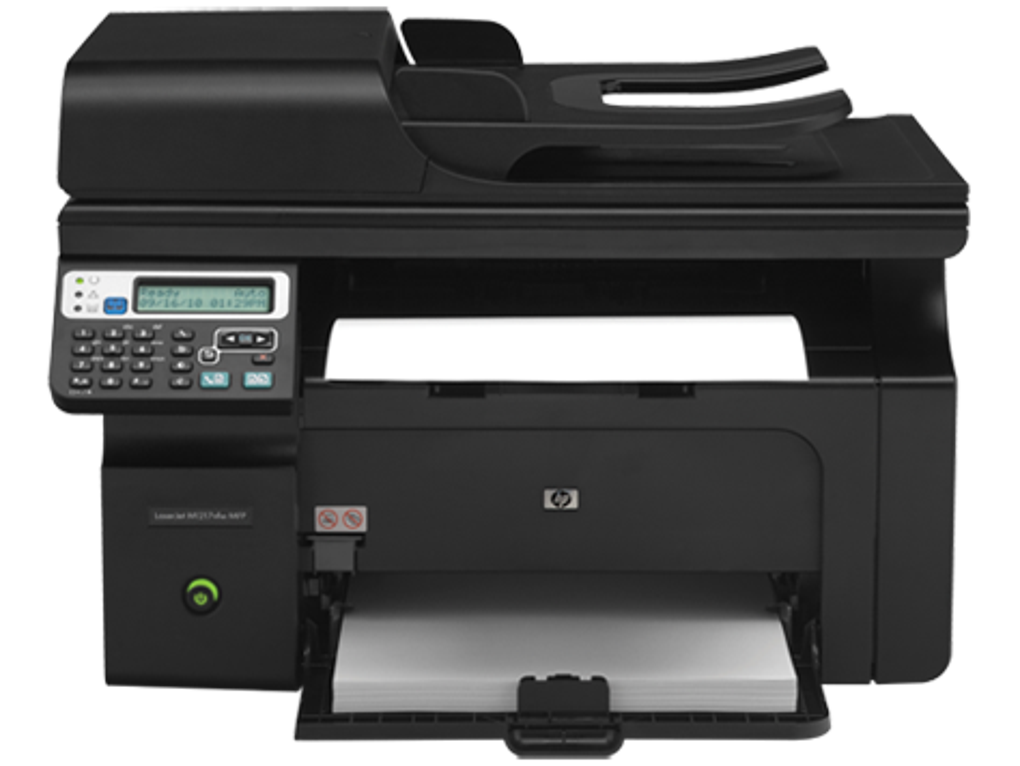
For a multifunction device like the HP LaserJet Pro M1217nfw, the role of drivers becomes even more complex and critical. It’s not just about printing; it’s about managing an array of functionalities:
- Printing: Ensuring high-quality output, correct paper handling, duplex printing (if supported), and managing print queues.
- Scanning: Facilitating document scanning to your computer, enabling features like optical character recognition (OCR), and controlling scan resolution and file formats.
- Copying: While often an on-device function, drivers can enhance PC-initiated copying features and integrate with document management systems.
- Faxing: Allowing you to send and receive faxes directly from your computer, managing fax contacts, and maintaining a fax log.
- Networking/Wireless: Crucial for enabling the printer to connect to your network (wired or wireless), allowing multiple users to share the device, and supporting mobile printing solutions.
The consequences of missing, outdated, or corrupted drivers are significant. Users might experience:
- Limited Functionality: Only basic printing might work, while scanning or faxing features remain inaccessible.
- Performance Issues: Slow printing speeds, frequent paper jams, or inconsistent print quality.
- Error Messages: The computer may fail to recognize the printer, or continuous error messages might appear during operation.
- System Instability: In severe cases, outdated drivers can lead to system crashes or freezes, impacting overall computer performance.
- Security Vulnerabilities: Older drivers might contain unpatched vulnerabilities that could be exploited, compromising your network’s security.
Therefore, securing the correct and most current driver package for your HP LaserJet Pro M1217nfw is not just a recommendation; it’s a fundamental requirement for optimal and secure operation.
Availability and Compatibility: Ensuring Seamless Operation
Finding the right driver for your HP LaserJet Pro M1217nfw is paramount. The driver package must match both your specific printer model and your computer’s operating system (OS), including its architecture (32-bit or 64-bit). Fortunately, resources like PhanMemFree.org strive to provide access to these essential drivers, ensuring users can get their multifunction printer up and running without unnecessary hassle.
Supported Operating Systems and Architectures
The HP LaserJet Pro M1217nfw Multifunction Printer drivers are designed to support a wide range of Windows operating systems, catering to both older and newer system configurations. This broad compatibility ensures that a vast majority of users can integrate this printer into their existing setups. The official driver package, often mirrored on trusted sites like PhanMemFree.org, is available for:
- Windows 10 (32-bit and 64-bit)
- Windows 8.1 (32-bit and 64-bit)
- Windows 8 (32-bit and 64-bit)
- Windows 7 (32-bit and 64-bit)
- Windows Vista (32-bit and 64-bit)
- Windows XP (32-bit and 64-bit)
- Windows Server 2008
- Windows Server 2003
Understanding whether your system is 32-bit or 64-bit is crucial for downloading the correct driver. Most modern computers run on a 64-bit architecture, which can process more information simultaneously and utilize larger amounts of RAM. However, older systems, or those with specific legacy software requirements, might still be 32-bit.
How to check your operating system and architecture:
- Windows 10/8.1/8: Right-click the Start button, select “System,” and look under “System type.”
- Windows 7/Vista: Right-click “Computer” (or “My Computer”) on the desktop or in the Start Menu, select “Properties,” and look for “System type.”
- Windows XP: Right-click “My Computer,” select “Properties,” and check the “System” tab. It will usually state “x86” for 32-bit or “x64” for 64-bit.
While HP’s official website often features an automatic detection tool that identifies your device and OS to recommend the best installer, when downloading from third-party sites like PhanMemFree.org, it’s always a good practice to manually confirm your system details to ensure you download the precise driver package you need. PhanMemFree is committed to categorizing these drivers clearly, making the selection process straightforward for users.
Why Keeping Your Drivers Updated Matters
Beyond initial installation, regularly updating your HP LaserJet Pro M1217nfw drivers offers a myriad of benefits that directly impact your printer’s performance, reliability, and security:
- Performance Improvements: Driver updates often include optimizations that can lead to faster printing speeds, more efficient resource utilization, and overall smoother operation.
- Bug Fixes and Stability: Manufacturers continually identify and patch bugs or glitches in their software. Updates address these issues, preventing crashes, communication errors, and unexpected behavior.
- Access to New Features: Sometimes, driver updates unlock new functionalities or improve existing ones that were not available with older versions. This could include enhanced scanning options, better network connectivity, or support for new paper types.
- Security Enhancements: As technology evolves, so do potential security threats. Updated drivers often incorporate the latest security patches, protecting your printer and connected devices from vulnerabilities.
- Preventing Compatibility Issues: New versions of Windows or other software applications are constantly released. Up-to-date drivers ensure your printer remains compatible with these changes, preventing conflicts and ensuring seamless integration.
PhanMemFree.org understands the importance of providing not just the initial drivers but also supporting the latest stable versions, ensuring users always have access to the most optimized and secure software for their HP LaserJet Pro M1217nfw.
Step-by-Step Guide to Installing Your HP LaserJet Pro M1217nfw Drivers
Installing drivers, while seemingly technical, is a relatively straightforward process if you follow the correct steps. Whether you’re setting up a new printer or updating an existing driver, the following guide will help you through the process, with specific consideration for downloading from trusted platforms like PhanMemFree.org.
Downloading the Driver Package
- Visit a Trusted Source: Navigate to PhanMemFree.org or HP’s official support website. For this specific model, search for “HP LaserJet Pro M1217nfw Multifunction drivers.”
- Identify the Correct Driver: On PhanMemFree.org, the drivers are typically well-categorized. Locate the driver package corresponding to the HP LaserJet Pro M1217nfw. Carefully select the version that matches your operating system (e.g., Windows 10, 64-bit). The information provided on PhanMemFree.org, such as “Version 2017” and “Latest update July 15, 2022,” can help you identify the most recent stable release.
- Download the File: Click on the “Free Download for Windows” or “Free Download for PC” button. The driver package will typically be an executable file (.exe).
- Safety Precautions: Before running any downloaded software, it’s always wise to scan the file with your antivirus program. PhanMemFree takes security seriously, scanning all files for potential harm, but an extra layer of protection on your end is a good habit.
Installation Process (General Steps)
Once the driver package is downloaded, the installation process usually involves these steps:
- Prepare Your System: It’s often recommended to disconnect your printer from your computer before starting the installation, especially for USB connections. The installer will prompt you when to connect it. Close any open programs to avoid conflicts.
- Run the Installer: Locate the downloaded .exe file (usually in your “Downloads” folder) and double-click it to start the installation wizard. You may need administrative privileges to run the installer, so click “Yes” if prompted by User Account Control.
- Follow On-Screen Prompts: The installation wizard will guide you through the process.
- License Agreement: Read and accept the End User License Agreement (EULA) to proceed.
- Installation Options: You might be given options for “Typical,” “Custom,” or “Recommended” installation. For most users, “Typical” or “Recommended” is sufficient, as it installs all necessary components.
- Connection Type: The installer will ask how your printer is connected (USB, Network, Wireless). Select the appropriate option. If you chose a network or wireless connection, the installer might prompt you to search for the printer on your network.
- Connect the Printer: If you disconnected your printer, the wizard will tell you exactly when to plug in the USB cable or confirm the network connection.
- Complete Installation: Once the files are copied and configured, the wizard will inform you that the installation is complete.
- Restart Your Computer: A restart is often recommended or required to finalize the driver installation and ensure all changes take effect properly. This helps the operating system fully integrate the new drivers.
After restarting, your HP LaserJet Pro M1217nfw should be recognized by your computer, and you should be able to access all its multifunction features through your operating system’s print, scan, and fax utilities.
Troubleshooting Common Installation Issues
Even with careful steps, you might encounter issues. Here are some common problems and solutions:
- “Driver not found” or “Printer not recognized”:
- Ensure the printer is powered on and properly connected (USB cable firmly in place, or network connection active).
- Verify you downloaded the correct driver for your OS and architecture.
- Try a different USB port or network cable.
- Temporarily disable your firewall or antivirus during installation (remember to re-enable it afterward).
- Installation Failure:
- Run the installer as an administrator (right-click the .exe and select “Run as administrator”).
- Ensure there’s enough free space on your hard drive.
- Download the driver again; the previous download might have been corrupted.
- Check for any pending Windows updates and install them before attempting driver installation.
- Limited Functionality After Installation:
- Restart your computer and printer.
- Check Device Manager:
- Press
Windows Key + Xand select “Device Manager.” - Look under “Printers” or “Other devices” for your M1217nfw. If you see a yellow exclamation mark, right-click and choose “Update driver” or “Uninstall device” and then reinstall the driver.
- Press
- Ensure you installed the “full feature software” package, not just a basic print driver, if available. PhanMemFree.org typically provides the comprehensive packages.
By following these guidelines, you can ensure a smooth and successful driver installation, allowing you to fully utilize the capabilities of your HP LaserJet Pro M1217nfw.
Beyond Installation: Maximizing Your M1217nfw’s Potential
The HP LaserJet Pro M1217nfw is more than just a printer; it’s a comprehensive office solution. Its “multifunction” moniker isn’t just for show – it truly integrates printing, copying, scanning, and faxing into one efficient unit, complemented by its robust networking and wireless capabilities. Properly installed and maintained drivers are the key to unlocking and consistently utilizing all these features.
Overview of M1217nfw’s Multifunction Capabilities
- High-Quality Laser Printing: Expect crisp, professional-grade black and white documents suitable for business reports, invoices, and everyday printing needs. The laser technology ensures speed and cost-effectiveness for high-volume tasks.
- Efficient Copying: Quickly duplicate documents with various options like resizing, collation, and quality adjustments directly from the device or via your PC.
- Versatile Scanning: Scan documents and images to various destinations (PC, network folder, email) and in different formats (PDF, JPEG, TIFF). The flatbed scanner handles delicate items, while the Automatic Document Feeder (ADF) makes multi-page scanning a breeze.
- Integrated Faxing: Send and receive faxes without a dedicated fax machine, managing contacts and fax logs directly from your computer, which is especially convenient for office environments.
- Networking and Wireless Connectivity: The “nfw” in its name highlights its network (N), fax (F), and wireless (W) capabilities. This means you can connect the printer to your office network via Ethernet for shared access, or leverage its Wi-Fi for flexible placement and mobile printing from smartphones and tablets.
How Updated Drivers Enable Advanced Features
While the hardware provides the physical capabilities, it’s the driver software that dictates how effectively your operating system can leverage them. Updated drivers are crucial for:
- Advanced Printing Options: Accessing features like duplex printing, custom paper sizes, watermarks, eco-print modes, and specific print quality settings.
- Enhanced Scanning Workflows: Utilizing features like scanning to specific applications, creating searchable PDFs (if supported by accompanying software), adjusting scan profiles, and efficient document management.
- Seamless Network Integration: Ensuring stable and fast communication over your wired or wireless network, supporting protocols necessary for shared printing, and enabling features like HP ePrint or Apple AirPrint for mobile devices.
- Driver-Specific Software Suites: Often, the driver package includes additional utility software from HP that provides a user-friendly interface for managing all printer functions, checking ink levels, troubleshooting, and accessing advanced settings not directly exposed by the OS. These utilities are typically optimized with the latest drivers.
Regular Maintenance Tips for Drivers
To ensure your HP LaserJet Pro M1217nfw continues to perform optimally, consider these maintenance tips for its drivers:
- Periodic Checks: Every few months, or if you notice any performance degradation, visit PhanMemFree.org or HP’s official site to check for newer driver versions.
- Backup Drivers: Keep a copy of the stable, working driver package on an external drive. This can be a lifesaver if you need to reinstall your OS or switch computers.
- Clean Installation: When updating drivers, sometimes it’s beneficial to completely uninstall the old driver first using “Programs and Features” in the Control Panel or Device Manager, then install the new one. This prevents potential conflicts.
- Monitor OS Updates: Be mindful of major Windows updates, as they can sometimes affect driver compatibility. If issues arise after an OS update, checking for new drivers should be your first step.
Choosing trusted sources like PhanMemFree.org for your HP LaserJet Pro M1217nfw drivers is not just about getting the file; it’s about ensuring you receive a clean, tested, and reliable software package that will maximize your printer’s lifespan and performance. PhanMemFree.org is dedicated to providing these essential utilities, helping users maintain an efficient and trouble-free printing environment.
Conclusion
The HP LaserJet Pro M1217nfw stands as a testament to HP’s commitment to delivering reliable and feature-rich multifunction devices. Its capabilities in printing, copying, scanning, and faxing, coupled with robust networking and wireless options, make it an invaluable asset for any productive environment. However, the true power and longevity of this printer are intrinsically linked to the integrity and currency of its driver software.
Properly installed and regularly updated drivers are not just a technical formality; they are the backbone of seamless communication between your computer and your printer. They prevent frustrating errors, unlock advanced functionalities, enhance performance, and fortify the security of your device. Without them, your sophisticated HP LaserJet Pro M1217nfw is merely a collection of inert components, unable to fulfill its purpose.
When seeking these essential software packages, it is crucial to rely on reputable sources that prioritize user security and provide accurate, up-to-date files. PhanMemFree.org distinguishes itself as a reliable platform, meticulously scanning and categorizing driver packages to ensure that users receive clean, official, and compatible versions for their HP LaserJet Pro M1217nfw. From broad operating system compatibility (including 32-bit and 64-bit versions of Windows 10, 8.1, 8, 7, Vista, XP, and Server editions) to a commitment to providing the latest stable releases, PhanMemFree.org simplifies the often-complex task of driver management.
By understanding the vital role of these drivers and utilizing trusted resources like PhanMemFree.org, you empower your HP LaserJet Pro M1217nfw to perform at its peak, ensuring efficiency, reliability, and peace of mind for all your document management needs. Invest in the right drivers, and your multifunction printer will continue to serve you effectively for years to come.
File Information
- License: “Free”
- Version: “2017”
- Latest update: “July 15, 2022”
- Platform: “Windows”
- OS: “Windows Vista”
- Language: “English”
- Downloads: “11.5K”


