
The HP LaserJet Pro P1102 is a budget-friendly laser printer known for its reliable performance and ease of use. While it’s an older model, it continues to serve as a dependable printing solution for home and small office environments. However, to fully utilize its capabilities, installing the correct printer drivers is crucial. This guide will explore the HP LaserJet Pro P1102 printer drivers, their importance, installation process, troubleshooting, and alternative options.
Understanding HP LaserJet Pro P1102 Printer Drivers
Printer drivers are essential software components that act as a bridge between your computer’s operating system and your printer. They translate the print commands from your computer into a language your printer understands, enabling you to print documents, images, and other files. Without the correct drivers, your computer won’t be able to communicate with the printer, rendering it unusable.
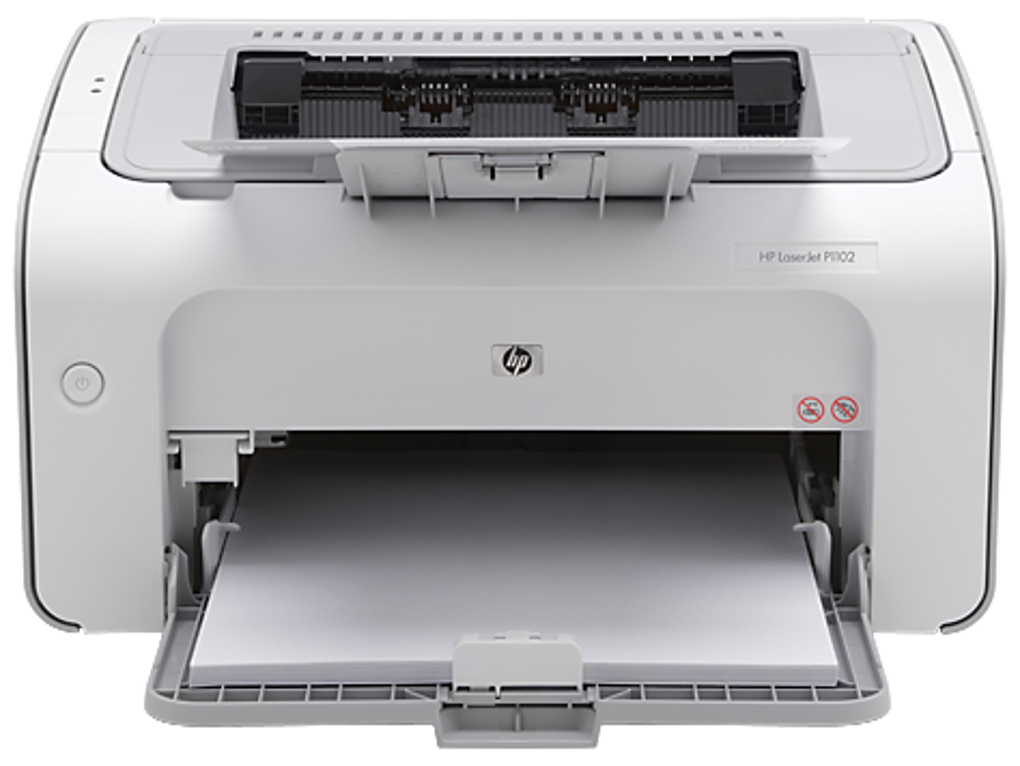
The HP LaserJet Pro P1102 printer drivers specifically provide the necessary software instructions for your computer to interact with the HP LaserJet Pro P1102 printer. This includes managing tasks such as:
- Print Job Processing: The driver takes the print job from your application, processes it according to your selected settings (e.g., print quality, number of copies), and sends the instructions to the printer.
- Error Handling: The driver helps manage and communicate errors that might occur during the printing process, providing helpful messages and potential solutions.
- Feature Access: Depending on the driver version, you can access and control various printer features, such as duplex printing (two-sided printing), print quality adjustments, and potentially even network settings.
- Wireless Connectivity (for P1102w models): If you have the wireless-enabled version (P1102w), the drivers are necessary for setting up and maintaining the wireless connection between your printer and your computer’s Wi-Fi network.
While the HP LaserJet Pro P1102 is no longer a current model, and thus may not receive the newest driver updates, the existing drivers generally ensure reliable functionality. The lack of new updates doesn’t mean the printer is obsolete; rather, it implies that HP has focused its resources on newer models.
Downloading and Installing HP LaserJet Pro P1102 Printer Drivers
The process of downloading and installing the HP LaserJet Pro P1102 printer drivers is relatively straightforward:
-
Identify Your Operating System: Before downloading, determine the operating system (OS) running on your computer (Windows 10, Windows 11, macOS, etc.). This is crucial because drivers are OS-specific.
-
Visit the HP Support Website: Navigate to the official HP support website. Use the search bar to find the “HP LaserJet Pro P1102” printer.
-
Select Your Operating System: Once you’ve located your printer model, select your operating system from the available options.
-
Download the Driver: Locate the appropriate printer driver package for your OS and download it. This download will typically be a compressed file (e.g., .exe for Windows).
-
Run the Installer: Once the download is complete, locate the downloaded file and double-click it to run the installer.
-
Follow the On-Screen Instructions: The installation wizard will guide you through the process. Typically, this involves accepting the license agreement, choosing an installation type (recommended or custom), and selecting the printer port.
-
Connect the Printer: If your printer isn’t already connected, connect it to your computer via USB cable or network connection (depending on your model and setup).
- Test the Printer: After installation, test the printer by printing a test page to ensure everything is working correctly.
Troubleshooting Common Driver Issues
Even with proper installation, you might encounter issues. Here are some common problems and their solutions:
-
Printer Not Recognized: Ensure the printer is correctly connected to your computer and turned on. Check the printer’s power cord and USB cable for any damage. If using a network connection, confirm the printer’s IP address and network settings. Restart both your computer and the printer.
-
Driver Installation Errors: If you receive error messages during installation, try the following:
- Restart your computer: A simple restart can resolve many installation problems.
- Run the installer as administrator: Right-click on the installer file and select “Run as administrator.”
- Temporarily disable antivirus software: Antivirus software can sometimes interfere with driver installations. Disable it temporarily, then try the installation again. Remember to re-enable it afterwards.
- Download the driver again: A corrupted download might be the cause of the error. Download the driver again from the official HP website.
-
Print Quality Issues: If the print quality is poor (e.g., faded text, blurry images), check the following:
- Toner levels: Make sure the toner cartridge is not empty or low.
- Printer settings: Review your printer settings to ensure they are appropriate for the type of media and print job.
- Paper type: Use the correct type of paper specified in your printer’s manual.
-
Wireless Connectivity Issues (P1102w): For wireless printers, check the following:
- Wi-Fi signal strength: Make sure your router is close enough to the printer and that the Wi-Fi signal is strong.
- Network settings: Verify that your printer is properly connected to your wireless network. You may need to consult your router’s manual or the HP printer’s instructions for wireless setup.
- Firewall settings: Your computer’s firewall might be blocking the printer’s network connection.
If you continue to experience problems after trying these troubleshooting steps, consider contacting HP support directly for assistance.
Alternative Printer Drivers and Solutions
If you experience difficulties with the official HP drivers or are looking for alternative solutions, there might be a few options, though they are not recommended as they lack the official HP support and testing. Always exercise caution when installing drivers from unofficial sources. You might encounter compatibility issues or security risks. Always prioritize the official drivers from the manufacturer’s website.
Important Note: Using unofficial drivers voids any warranty support HP might offer, and might introduce security vulnerabilities to your system.
Conclusion
The HP LaserJet Pro P1102, while an older model, remains a valuable printer for many users due to its reliability and cost-effectiveness. Ensuring you have the correct drivers installed is essential for optimal performance. Following the steps outlined in this guide will help you download, install, and troubleshoot any issues related to your HP LaserJet Pro P1102 printer drivers. Remember to always download drivers from the official HP website to ensure compatibility, security, and access to support. If you encounter persistent problems, contact HP support for specialized assistance.
File Information
- License: “Free”
- Latest update: “February 24, 2025”
- Platform: “Windows”
- OS: “Windows 8.1”
- Language: “English”
- Downloads: “715K”
- Size: “165.00 MB”


