
The HP LaserJet Pro P1102w printer is a popular choice for home and small office users seeking a reliable and cost-effective monochrome laser printer. Its compact design, wireless connectivity, and energy efficiency make it a convenient addition to any workspace. However, like all printers, its functionality depends heavily on the correct installation and maintenance of its printer driver. This guide provides a comprehensive overview of the HP LaserJet Pro P1102w printer driver, addressing its importance, installation, troubleshooting, and alternative solutions.
Understanding the Importance of Printer Drivers
A printer driver acts as a crucial intermediary between your printer and your computer’s operating system. It’s a software program that translates the print commands from your applications (like Word, Photoshop, or web browsers) into a language your HP LaserJet Pro P1102w printer understands. Without the correct driver, your computer won’t be able to communicate with the printer, rendering it unusable.
The HP LaserJet Pro P1102w printer driver facilitates a seamless printing process. It manages various aspects of printing, including:
- Print Job Submission: The driver receives the print job from your application and sends it to the printer’s print queue.
- Data Translation: It converts the print data into a format compatible with the printer’s hardware.
- Error Handling: The driver detects and reports any errors that may occur during the printing process, such as paper jams or toner shortages.
- Printer Settings: It allows you to configure various printer settings, such as print quality, paper size, and duplex printing (double-sided printing).
- Firmware Updates (Indirectly): While the driver itself isn’t a firmware update, using the latest driver often facilitates the process of updating your printer’s firmware, which can improve its performance and fix bugs.
Using an outdated or incorrect driver can lead to a range of problems, including:
- Printing Failures: The most common issue is the inability to print at all. The printer may show offline status, or the print job might hang indefinitely.
- Poor Print Quality: Streaks, blurry text, or incorrect color representation (if using a color printer, though the P1102w is monochrome) can result from driver incompatibility.
- Inconsistent Performance: Slow print speeds or frequent paper jams can be symptomatic of driver issues.
- Security Vulnerabilities: Outdated drivers can contain security vulnerabilities that can expose your system to malware. Always use the latest version provided by HP.
Therefore, ensuring you have the correct and up-to-date HP LaserJet Pro P1102w printer driver installed is critical for optimal printer performance and system security.
Downloading and Installing the HP LaserJet Pro P1102w Driver
The process of downloading and installing the driver is straightforward. HP provides the latest drivers directly on their support website. Here’s a step-by-step guide:
-
Identify your Operating System: Determine the operating system (OS) installed on your computer (Windows 10, Windows 11, macOS, etc.). This is crucial because drivers are OS-specific.
-
Visit the HP Support Website: Navigate to the HP support website (support.hp.com).
-
Search for your Printer: In the search bar, enter “HP LaserJet Pro P1102w” (or the exact model number of your printer).
-
Select your Operating System: From the list of results, select your specific operating system.
-
Download the Driver: Locate the latest driver package for your OS. It’s usually a .exe (executable) file for Windows or a .dmg (disk image) file for macOS. Download the file to a location you can easily access.
-
Run the Installer: Once the download completes, locate the downloaded file and double-click it to run the installer. Follow the on-screen instructions. This often involves accepting license agreements and selecting installation options.
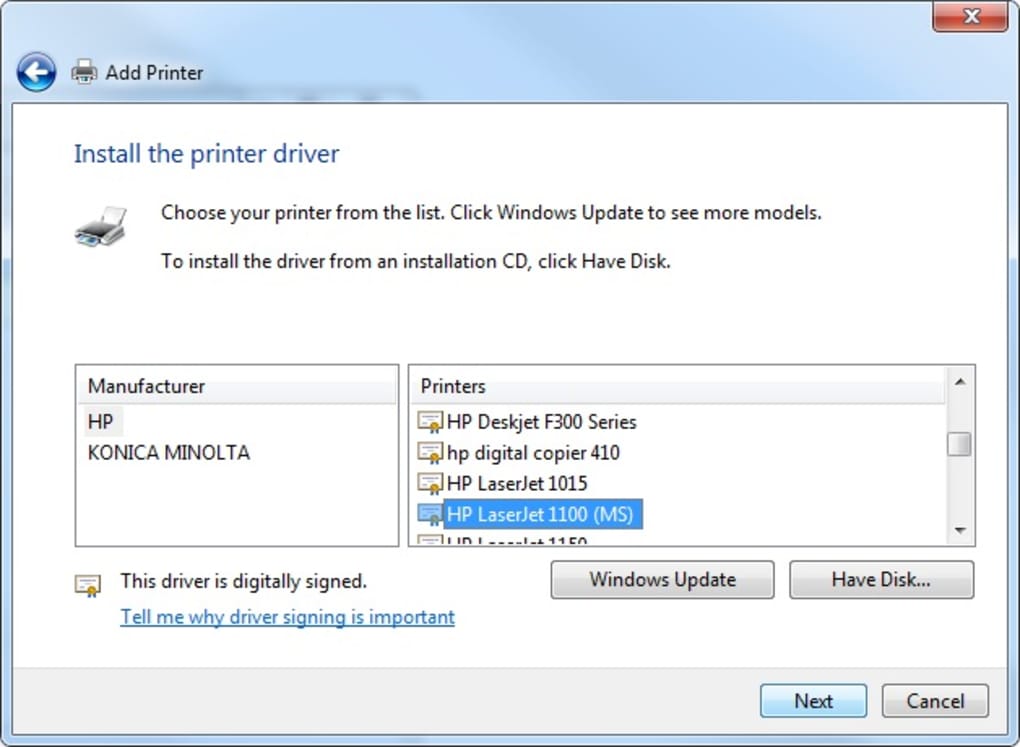
-
Restart your Computer (Recommended): After the installation is complete, it’s a good practice to restart your computer to ensure the driver is fully integrated into the operating system.
-
Test the Printer: After restarting, try printing a test page to confirm the driver is working correctly. Most printers have a built-in test page option in their printer properties.
Important Considerations:
- Internet Connection: A stable internet connection is needed for downloading the driver from HP’s website. If you lack a stable internet connection, HP may offer the driver on a CD, but this needs to be requested directly from HP.
- File Size: The driver package can be relatively large (as noted, potentially exceeding 100MB), so be prepared for a download time that depends on your internet speed.
- Compatibility: HP clearly states compatibility with Windows 8.1. While other Windows versions might work, compatibility isn’t officially guaranteed. Always aim for the officially supported operating system for optimal functionality.
Troubleshooting Common Driver Issues
Even with correct installation, you might encounter issues with the HP LaserJet Pro P1102w driver. Here are some common problems and their solutions:
-
Printer Offline: Check the printer’s power, cable connections, and wireless connectivity. Ensure the printer is correctly configured on your network. In the printer properties, check if the printer is set to “online.”
-
Print Job Errors: Examine the error messages displayed on your computer or the printer. These messages usually provide clues about the source of the problem. Common errors relate to paper jams, low toner, or incorrect printer settings.
-
Poor Print Quality: Check the toner level, paper type, and printer settings. Consider running a printer cleaning cycle (if available). A faulty print cartridge might also be the culprit.
-
Driver Conflicts: If you have multiple printer drivers installed, there might be a conflict. Try uninstalling other drivers or reinstalling the HP LaserJet Pro P1102w driver after removing conflicting ones. Use the device manager in Windows to uninstall drivers.
-
Outdated Driver: Always ensure you’re using the latest driver version from HP’s support website.
If you’ve tried these troubleshooting steps and still encounter problems, contacting HP support directly might be necessary. They can provide more specific guidance based on your individual situation.
Alternative Solutions and Considerations
While the official HP driver is the recommended solution, alternative approaches exist:
-
HP Universal Print Driver: HP offers a universal print driver, but its compatibility with the P1102w needs confirmation. This is a more generic driver that might work, but it may not offer all the features of the specific driver.
-
Third-Party Drivers: Avoid third-party drivers unless they come from highly reputable sources. Untrusted drivers can introduce security risks and instability to your system.
-
Reinstalling the Operating System (Last Resort): If all else fails, reinstalling your operating system as a last resort might resolve deeper system-level conflicts that are interfering with the printer driver. However, this is a significant undertaking and should only be considered after exhausting all other options. Ensure you back up your data before attempting this.
Remember, the most reliable and safe approach is to always use the official HP LaserJet Pro P1102w printer driver downloaded directly from the HP support website. Regular checks for driver updates are recommended to maintain optimal printer performance and security. By following these steps and paying attention to troubleshooting guidance, you can ensure seamless and efficient printing with your HP LaserJet Pro P1102w printer.
File Information
- License: “Free”
- Version: “varies-with-device”
- Latest update: “July 15, 2022”
- Platform: “Windows”
- OS: “Windows 8”
- Language: “English”
- Downloads: “19.1K”


