
The HP LaserJet Pro P1102w printer is a popular choice for home and small office users, known for its reliability and compact design. However, like all printers, it requires a properly installed and functioning driver to operate effectively. This comprehensive guide delves into the HP LaserJet Pro P1102w printer driver, explaining its purpose, installation process, performance benefits, and addressing common concerns.
Understanding the HP LaserJet Pro P1102w Printer Driver
The HP LaserJet Pro P1102w printer driver acts as a crucial intermediary between your computer and your printer. It’s a software program that translates the print commands from your computer’s operating system into a language your printer understands. Without the correct driver, your computer won’t be able to communicate with the printer, preventing you from printing documents, images, or other files.
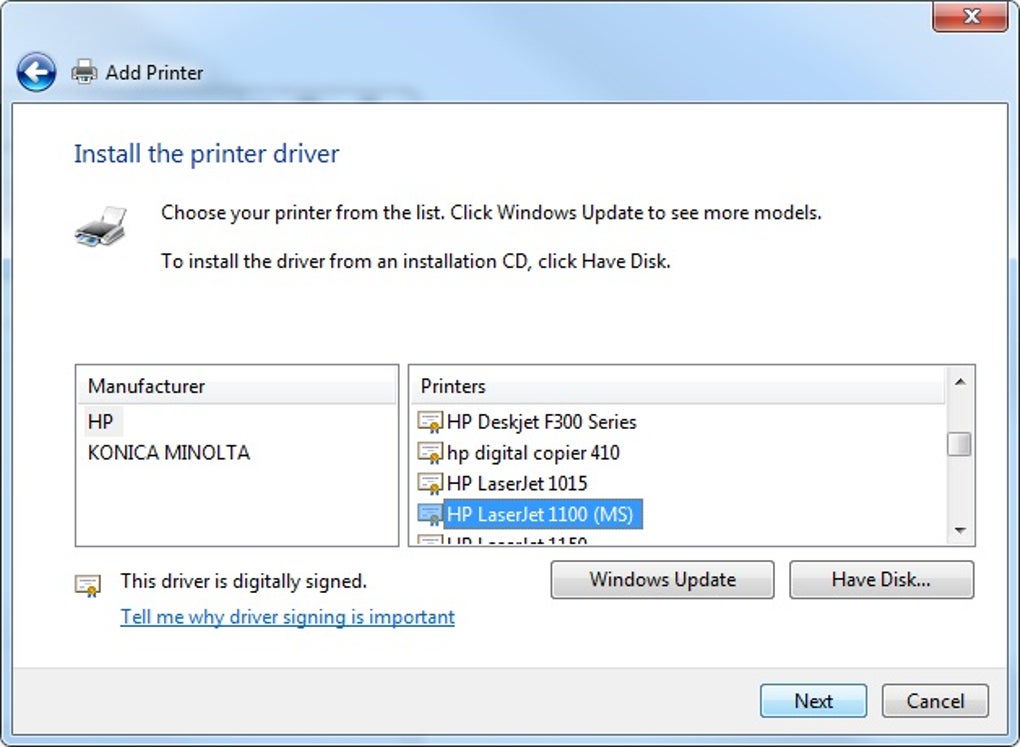
The driver isn’t merely a simple translator; it encompasses a broad range of functionalities critical to optimal printer performance. It manages tasks such as:
- Communication: Establishing and maintaining a stable connection between your computer and the printer, whether through USB or wireless networking. This involves handling data transfer, error detection, and correction.
- Print Job Management: Queuing print jobs, managing their priority, and ensuring they are processed efficiently. The driver optimizes the printing process, minimizing delays and ensuring smooth operation.
- Print Quality Control: The driver plays a key role in ensuring the output matches the original file’s quality. It manages settings such as resolution, color depth (for color printers, though the P1102w is monochrome), and other print parameters to produce high-quality prints.
- Troubleshooting: The driver includes built-in diagnostic tools and error-handling capabilities to detect and resolve common printing issues. It can identify and report problems such as connection errors, paper jams, or low toner levels.
- Feature Enhancement: While the basic functions are handled by the printer’s firmware, the driver often extends the functionality. This might include adding advanced print settings, supporting specific paper types, or enabling specialized features like duplex printing (if supported by the printer model).
Installing and Configuring the HP LaserJet Pro P1102w Driver
Installing the HP LaserJet Pro P1102w printer driver is typically a straightforward process, regardless of your technical expertise. The process typically involves these steps:
- Download the Driver: The first step is to download the correct driver from a reputable source. Hewlett-Packard’s official website is the best place to obtain the latest and most compatible driver for your specific operating system (Windows, macOS, etc.). Ensure that you select the driver compatible with your operating system version (e.g., Windows 10, Windows 11, macOS Monterey, etc.) to avoid compatibility issues. Avoid downloading drivers from untrusted sources, as these might contain malware or outdated versions that could negatively impact your system.
-
Run the Installer: Once downloaded, locate the driver installation file (usually an .exe file for Windows or a .dmg file for macOS) and double-click it to launch the installer. Follow the on-screen instructions provided by the installer. These instructions will vary slightly depending on the driver version and operating system, but generally involve selecting the installation location, accepting the license agreement, and choosing the installation type (typically a “typical” or “custom” installation).
-
Connect the Printer: During or after the driver installation, you’ll need to connect your HP LaserJet Pro P1102w printer to your computer. This can be done via a USB cable or a wireless network connection, depending on your setup. The installer usually detects the printer automatically. If not, you might need to manually specify the connection type and provide network credentials (if using Wi-Fi).
-
Test the Printer: After the installation is complete, test the printer to ensure it’s working correctly. Print a test page to verify that the connection is established and that the print quality is satisfactory. If you encounter any problems during installation or testing, consult the HP support website for troubleshooting assistance. The website often offers detailed guides, FAQs, and video tutorials to resolve common driver-related issues.
Enhancing Printer Performance and Efficiency
The HP LaserJet Pro P1102w driver doesn’t just enable printing; it significantly enhances the printer’s performance and efficiency. Here’s how:
-
Faster Print Speeds: An updated driver optimizes data transfer and processing, leading to faster print speeds. This is particularly beneficial in busy environments where printing speed directly affects productivity.
-
Improved Print Quality: The driver ensures accurate color reproduction (even though it’s a monochrome printer, the shades of gray are crucial) and consistent print quality across all documents. It helps to avoid issues like blurry text, faded images, or streaking.
-
Enhanced Resource Management: The driver manages the printer’s resources effectively, minimizing the impact on your computer’s CPU and memory usage. This prevents slowdown or performance bottlenecks during printing, especially when dealing with large documents or multiple print jobs.
-
Advanced Print Settings: Modern drivers often provide access to a wider range of print settings, offering greater control over the printing process. This allows for customization of settings like paper size, orientation, margins, and print quality, catering to diverse printing needs.
Troubleshooting Common Issues
Despite the generally smooth installation process, occasional issues can arise. Here are some common problems and their solutions:
-
Printer Not Recognized: This often stems from incorrect driver installation or connection problems. Check the cable connections, ensure the printer is powered on, and reinstall the driver.
-
Poor Print Quality: This could indicate low toner, a faulty cartridge, or incorrect driver settings. Replace the toner cartridge, adjust the driver settings (resolution, etc.), or clean the printer’s rollers.
-
Print Spooling Issues: If print jobs are stuck in the queue, check your computer’s print spooler settings and try restarting the print spooler service.
-
Driver Conflicts: Outdated or conflicting drivers can lead to printing problems. Uninstall any old drivers before installing the new one. If problems persist, consider using a driver cleaner utility to remove all driver remnants from your system before installing a fresh copy.
-
Wireless Connection Problems: If using a wireless connection, ensure your printer is connected to your Wi-Fi network correctly and that the network settings are correctly configured in the printer and driver.
If you encounter persistent problems, HP’s support website provides extensive troubleshooting resources and contact options for direct assistance.
Conclusion: A Necessary Component for Optimal Printing
The HP LaserJet Pro P1102w printer driver is not merely an optional add-on; it’s an indispensable component for anyone using this printer. It ensures seamless communication between your computer and the printer, facilitates efficient print job management, enhances print quality, and optimizes overall performance. By using the latest and correct driver, you can maximize the potential of your HP LaserJet Pro P1102w printer, ensuring reliable and high-quality printing for all your needs. Regularly checking for driver updates is recommended to leverage the latest performance improvements and bug fixes, ensuring your printer continues to operate at its best.
File Information
- License: “Free”
- Version: “20180815”
- Latest update: “August 25, 2023”
- Platform: “Windows”
- OS: “Windows 10”
- Language: “English”
- Downloads: “227.6K”
- Size: “164.63 MB”


