
The HP LaserJet Pro P1606dn is a reliable monochrome laser printer known for its efficiency and cost-effectiveness. However, like any printer, its optimal functionality relies heavily on having the correct drivers installed. This guide provides a comprehensive overview of HP LaserJet Pro P1606dn printer drivers, covering installation, troubleshooting, and alternative solutions.
Understanding Printer Drivers
Before delving into the specifics of HP LaserJet Pro P1606dn drivers, it’s crucial to understand their fundamental role. A printer driver acts as a translator between your operating system (Windows, macOS, etc.) and your printer. Without the correct driver, your computer won’t recognize the printer, and you won’t be able to print. The driver provides the necessary instructions for your operating system to communicate with the printer’s hardware, enabling tasks such as sending print jobs, managing print settings, and troubleshooting potential issues.
Think of it like this: your computer speaks one language (operating system commands), and your printer speaks another (hardware instructions). The driver is the interpreter, translating the requests from your computer into commands the printer understands. Different operating systems require different drivers; a driver designed for Windows 10 won’t work on macOS, for instance. Furthermore, even within the same operating system (e.g., Windows 10), different versions might require different drivers due to updates and improvements.
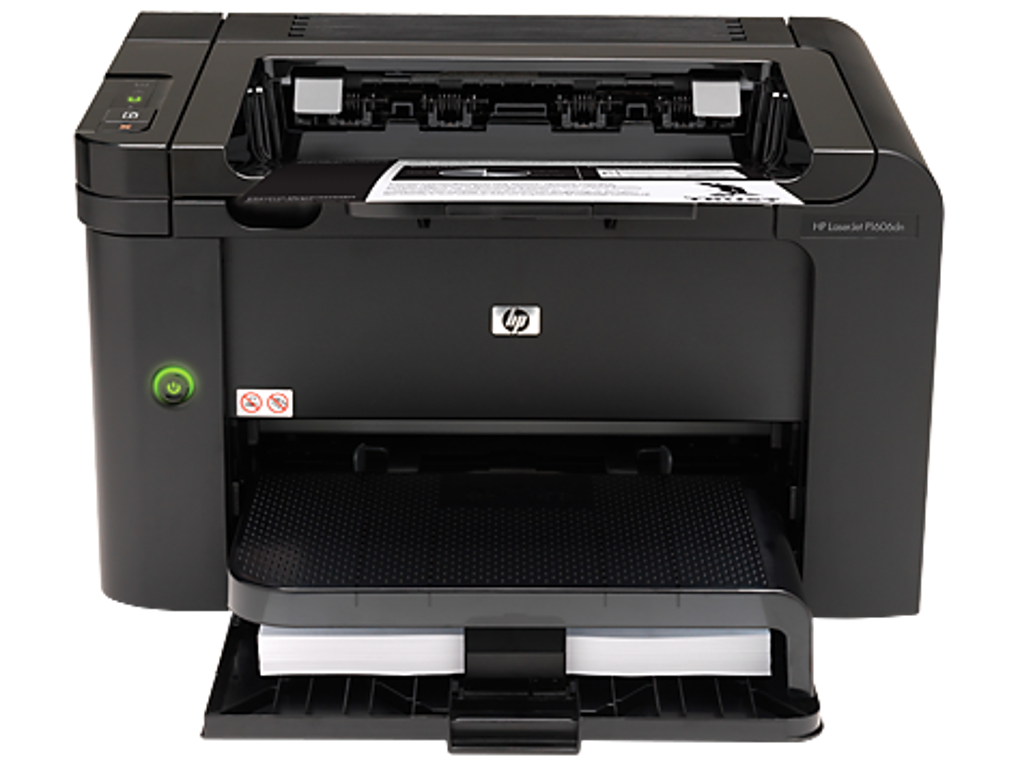
The HP LaserJet Pro P1606dn, being an older model, requires drivers specifically tailored to its hardware and software specifications. Downloading the wrong driver can lead to printing errors, incorrect settings, or even prevent the printer from functioning entirely. Therefore, it’s critical to download the drivers directly from the official HP website, ensuring compatibility and stability.
Downloading and Installing HP LaserJet Pro P1606dn Drivers
The most reliable method for obtaining HP LaserJet Pro P1606dn drivers is through the official HP website. This guarantees you’ll have the latest version, free of malware and compatible with your specific operating system. Here’s a step-by-step guide:
- Navigate to the HP Support Website: Open your web browser and go to the official HP support website (support.hp.com).
-
Search for your Printer: Use the search bar to find your printer model, “HP LaserJet Pro P1606dn.” Be precise with the model name to avoid incorrect results.
-
Select your Operating System: Once you’ve found your printer, you’ll be presented with a list of options. Crucially, select your operating system (e.g., Windows 10 64-bit, Windows 7 32-bit, etc.). This is essential because drivers are OS-specific.
-
Download the Driver: HP usually offers several driver options, including full feature software and basic drivers. The full feature software package typically includes the driver itself, along with additional utilities for printer management and troubleshooting. The basic driver is a smaller download containing only the essentials for printing. Choose the option that best suits your needs.
-
Run the Installer: Once the download is complete, locate the downloaded file (usually a .exe file for Windows) and run the installer. Follow the on-screen instructions. This usually involves accepting the license agreement, selecting the installation type, and specifying the printer connection method.
-
Connect your Printer: During the installation process, you’ll be prompted to connect your printer to your computer. Ensure the printer is turned on and connected via USB or network. The installer will guide you through the connection process.
-
Test the Printer: After the installation is complete, test the printer by printing a test page. This verifies that the driver is correctly installed and the printer is functioning properly.
Troubleshooting Driver Issues
Even with proper installation, you might encounter issues. Here are some common problems and solutions:
-
Printer not recognized: This often means the driver isn’t installed correctly or the printer isn’t properly connected. Re-check the physical connections, reinstall the driver, and ensure you’ve selected the correct OS. Restarting both your computer and the printer can also help.
-
Printing errors: This could indicate a problem with the driver, the printer itself, or even the print job. Try printing a test page to isolate the problem. If the test page prints correctly, the issue likely lies with the print job’s settings or the document itself. If the test page fails, the problem may be with the driver or the printer.
-
Slow printing: Slow printing can result from various factors including insufficient RAM, network congestion, or incorrect driver settings. Check your computer’s resources and network connection. Updating to the latest driver can also improve performance in some cases.
-
Driver incompatibility: If you’re using an older or unsupported operating system, you might encounter driver compatibility issues. Check HP’s website to confirm driver availability for your OS. Consider upgrading your operating system if necessary for optimal functionality.
Alternative Driver Sources and Considerations
While the official HP website is the recommended source, alternative websites offer drivers. However, exercise extreme caution; downloading drivers from unofficial sources poses a significant risk of malware infection. Always verify the source’s legitimacy and use reputable antivirus software.
Another crucial consideration is keeping your drivers updated. HP frequently releases updates that address bugs, improve performance, and enhance compatibility. Regularly checking the HP website for updates is recommended to maintain optimal printer performance.
HP LaserJet Pro P1606dn Driver Specifications and Compatibility
The HP LaserJet Pro P1606dn drivers are designed to be compatible with a wide range of Windows operating systems, including but not limited to:
- Windows 10 (32-bit and 64-bit)
- Windows 8.1 (32-bit and 64-bit)
- Windows 8 (32-bit and 64-bit)
- Windows 7 (32-bit and 64-bit)
- Windows Vista (32-bit and 64-bit)
- Windows XP (32-bit and 64-bit)
- Windows Server 2008
- Windows Server 2003
It’s vital to select the correct driver version matching your specific operating system architecture (32-bit or 64-bit). Attempting to install a driver incompatible with your system architecture will result in failure.
While macOS support might be limited or nonexistent for this older model, HP’s website should provide the most up-to-date information on supported operating systems. In the event of limited or no official driver support, alternative solutions might involve using generic PCL or PostScript drivers; however, this approach might not support all printer features.
In conclusion, successfully using the HP LaserJet Pro P1606dn printer hinges on having the correct and updated drivers. Following the steps outlined above and exercising caution when downloading from external sources ensures optimal printing performance and avoids potential problems. Always refer to the official HP website for the most accurate and reliable driver information and support.
File Information
- License: “Free”
- Version: “varies-with-device”
- Latest update: “November 29, 2021”
- Platform: “Windows”
- OS: “Windows 8”
- Language: “English”
- Downloads: “66.1K”


