
The HP OfficeJet Pro 8620 is a versatile multifunction printer designed for office environments, offering efficient printing, scanning, copying, and faxing capabilities. This guide provides a detailed overview of the printer’s functionalities, driver installation, troubleshooting tips, and frequently asked questions, helping you maximize its potential.
Understanding the HP OfficeJet Pro 8620’s Features and Capabilities
The HP OfficeJet Pro 8620 stands out for its speed and efficiency in handling various document types. Its dual-sided printing capability significantly reduces paper consumption and contributes to a more streamlined workflow. Beyond printing, the device integrates scanning, copying, and faxing functionalities, making it a comprehensive solution for diverse office needs. This all-in-one functionality streamlines tasks and minimizes the need for separate devices.
The printer’s speed is a major advantage, allowing for rapid processing of large print jobs. This is particularly beneficial in busy office environments where time is a crucial factor. The efficiency extends to its duplex printing, further enhancing productivity and cost savings. The ability to quickly scan, copy, and fax documents also contributes to a smoother workflow.
While designed primarily for office settings, the 8620’s robust features make it suitable for various work environments. Its capabilities are particularly advantageous for businesses needing efficient document processing. However, its relatively large footprint might be a limiting factor for smaller home offices or spaces with limited desk area. The absence of a manual feed tray might also present a minor inconvenience for specialized printing needs, but the automatic feeder is generally sufficient for most jobs.
Installing the HP OfficeJet Pro 8620 Printer Driver
Installing the appropriate driver is crucial for seamless operation of the HP OfficeJet Pro 8620. The process usually involves these steps:
-
Download: Begin by downloading the correct driver for your operating system (Windows, macOS, etc.) from the official HP website. It’s essential to specify the correct operating system to avoid compatibility issues. Incorrect drivers can lead to malfunctioning of the printer or other issues.
-
Locate the Driver: After downloading, locate the downloaded file (often a .exe or .dmg file depending on the operating system) on your computer.
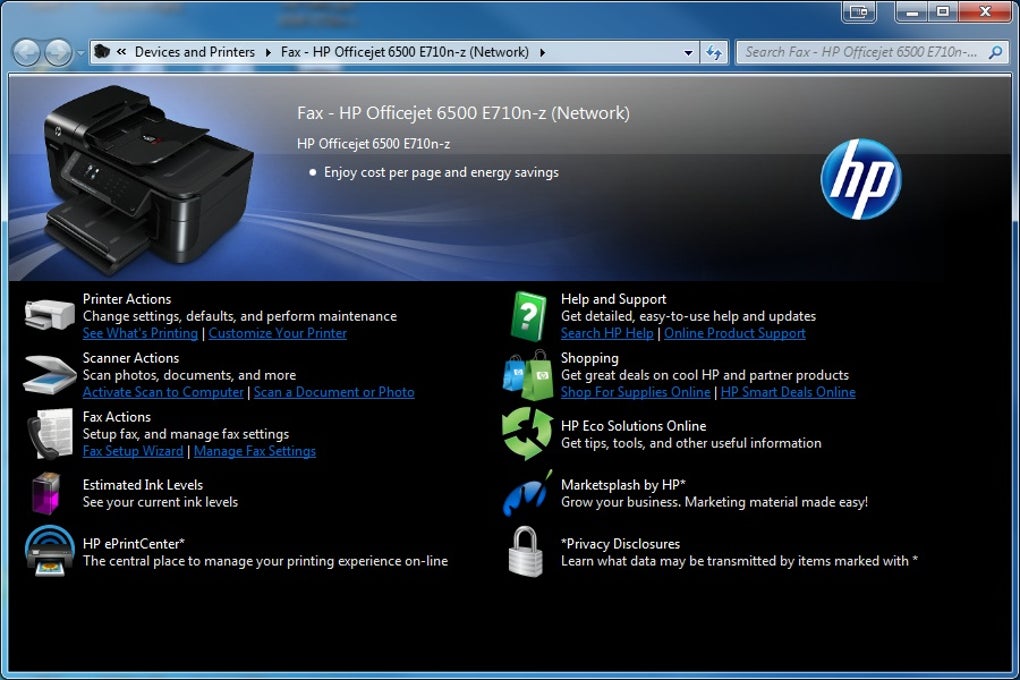
- Run the Installer: Double-click the downloaded file to launch the installation wizard. Follow the on-screen instructions carefully. The installer typically guides you through the process of selecting the connection method (USB, network, etc.) and configuring the printer settings.
-
Connection: Connect your HP OfficeJet Pro 8620 printer to your computer either via USB cable or a wireless network. The installer will detect the printer once it’s properly connected. Ensure that the printer is switched on and correctly configured for network connection if that’s your chosen method.
-
Test Print: Once the driver is installed, perform a test print to verify that everything is working correctly. A test print is generally included in the installation wizard to enable an immediate verification of the installation’s success. If the test print fails, proceed to the troubleshooting section of this guide.
-
Software Updates: Regularly check for software updates from HP to ensure optimal performance and to benefit from bug fixes and feature enhancements. Keeping the software up-to-date is important for security as well as functionality.
Troubleshooting Common HP OfficeJet Pro 8620 Issues
Even with proper installation, occasional problems might arise. Here are solutions for some common issues:
-
Printer Offline: Verify that the printer is switched on and correctly connected to your computer or network. Check the printer’s status in your computer’s print queue and make sure it’s not showing as “offline.” Restarting both the printer and computer often resolves this.
-
Connection Problems: If you are experiencing problems connecting to a wireless network, make sure the printer is properly configured for the network and that the network password is correctly entered. Consult your router’s documentation for details on setting up a printer on your network. Ensure that the wireless network is active and functioning correctly.
-
Printing Errors: Examine the error messages displayed on the printer’s control panel. These messages usually provide clues about the problem. Check the printer’s ink levels and replace empty cartridges as needed. Paper jams are another common cause of printing errors – make sure the paper path is clear.
-
Driver Issues: If the problem persists after troubleshooting basic connectivity and hardware issues, reinstalling the printer driver might resolve the issue. Sometimes driver corruption or incompatibility can lead to printing errors. Uninstall the existing driver and install a fresh copy from the HP website.
Maximizing Your HP OfficeJet Pro 8620’s Performance
To optimize your HP OfficeJet Pro 8620’s performance, consider these tips:
-
Regular Maintenance: Clean the printer regularly to prevent paper jams and ensure optimal print quality. Consult the user manual for instructions on cleaning the printer’s rollers and other components. Routine maintenance prevents many common problems.
-
Paper Quality: Use high-quality printer paper for the best print results. Using low-quality paper can lead to paper jams and poor print quality. The user manual specifies recommended paper types.
-
Ink Management: Monitor ink levels and replace cartridges promptly to avoid print interruptions. Using compatible ink cartridges can lead to lower-quality printing.
-
Software Updates: Regularly update the printer’s firmware and driver software to take advantage of performance improvements and bug fixes. These updates can often improve printing speed, reliability, and security.
-
Network Optimization: If using the printer on a network, ensure a stable network connection for optimal printing speed. A slow or unstable network connection can significantly affect performance.
Frequently Asked Questions (FAQs)
Q: What types of paper are compatible with the HP OfficeJet Pro 8620?
A: The HP OfficeJet Pro 8620 supports a range of paper types, including plain paper, photo paper, card stock, and envelopes. However, always refer to the printer’s specifications and user manual for a comprehensive list of compatible paper types and weights to ensure optimal printing.
Q: How do I scan documents to my computer?
A: The scanning process usually involves connecting the printer to your computer, launching the HP scanning software (often included with the driver installation), and then following the on-screen instructions. Specific steps might vary depending on the software version and the type of scan you’re performing (e.g., single-page, multi-page, color, black and white).
Q: What are the printer’s wireless connectivity options?
A: The HP OfficeJet Pro 8620 typically supports Wi-Fi and possibly other network connection methods. Refer to the printer’s specifications and user manual for detailed information on wireless connectivity and network setup instructions.
Q: How do I resolve a paper jam?
A: Carefully examine the paper path to locate the jammed paper. Gently remove the jammed paper, being careful not to tear it. Check the printer’s manual for detailed instructions on clearing paper jams. Repeated paper jams can indicate a problem with the paper path; contact HP support if the problem persists.
Q: Where can I find the user manual?
A: The user manual is typically available for download from the HP website on the product support page for the HP OfficeJet Pro 8620. The manual is an essential resource for troubleshooting problems, understanding features, and conducting routine maintenance.
This guide provides a comprehensive overview of the HP OfficeJet Pro 8620 printer driver and its functionalities. By understanding its features, properly installing the driver, and addressing common issues, you can significantly enhance your productivity and fully leverage this versatile multifunction printer’s capabilities. Always refer to the official HP website and documentation for the most up-to-date information and support.
File Information
- License: “Free”
- Version: “varies-with-device”
- Latest update: “July 20, 2021”
- Platform: “Windows”
- OS: “Windows 10”
- Language: “English”
- Downloads: “16K”


