
The HP OfficeJet Pro 8710 All-in-One printer series is a popular choice for both home and office use, offering a versatile combination of printing, scanning, copying, and faxing capabilities. To ensure optimal performance and functionality, installing the correct drivers is crucial. This guide provides a comprehensive overview of HP OfficeJet Pro 8710 drivers, covering compatibility, installation, troubleshooting, and frequently asked questions.
Understanding HP OfficeJet Pro 8710 Printer Drivers
Printer drivers are essential software components that act as a bridge between your printer and your computer’s operating system. They translate the print commands from your applications (like Word, Photoshop, or your web browser) into a language your HP OfficeJet Pro 8710 printer understands. Without the correct drivers, your computer won’t be able to communicate with your printer, preventing you from printing, scanning, or using any other functions.
The HP OfficeJet Pro 8710 series drivers encompass various functionalities, including:
-
Print Driver: This allows you to send print jobs from your computer to the printer. It handles tasks such as managing print settings (like paper size, print quality, and color options), queuing print jobs, and error handling. Different print drivers may offer advanced features specific to the printer’s capabilities, such as duplex printing (printing on both sides of the paper) or specialized media handling.
-
Scan Driver: This enables you to scan documents and images directly from your HP OfficeJet Pro 8710 to your computer. The scan driver allows you to configure scan settings (resolution, color mode, file format, etc.) and integrates the scanning functionality into your computer’s operating system. This often includes features like Optical Character Recognition (OCR), which allows you to convert scanned documents into editable text.
-
Copy Driver (Implicit): Although not always a separate driver, the copy function is facilitated by the combination of the print and scan drivers. The copy process essentially involves the printer scanning the original document and then printing a copy.
-
Fax Driver (If Applicable): Depending on your specific HP OfficeJet Pro 8710 model, you may have faxing capabilities. The fax driver allows you to send and receive faxes through your computer. This typically involves configuring settings such as the fax number, resolution, and transmission settings.
Driver Compatibility and Operating Systems
HP OfficeJet Pro 8710 drivers are designed to work with a wide range of operating systems. Compatibility is a crucial factor to consider when downloading and installing drivers. The official HP website automatically detects your operating system and suggests the appropriate drivers, eliminating the guesswork. However, understanding the compatibility is important for troubleshooting purposes. Generally, HP OfficeJet Pro 8710 drivers are compatible with:
-
Windows: This includes various versions, from older systems like Windows XP (32-bit) and Windows Vista (32-bit and 64-bit) to the latest versions like Windows 10 (32-bit and 64-bit) and Windows 11 (64-bit). Specific driver versions may vary based on the OS version.
-
MacOS: Although less common, HP often provides drivers for MacOS systems, enabling compatibility with Apple devices. Check the HP support website for the latest MacOS compatible drivers for your specific HP OfficeJet Pro 8710 model.
It’s crucial to download the driver specifically designed for your operating system. Installing the wrong driver can lead to various issues, including printer malfunctions, software crashes, and the inability to use the printer at all.
Downloading and Installing HP OfficeJet Pro 8710 Drivers
The recommended method for downloading HP OfficeJet Pro 8710 drivers is through the official HP website. This ensures you get the latest version, free from malware and other potential risks associated with third-party download sites. Here’s a step-by-step guide:
-
Visit the HP Support Website: Go to the official HP support website (support.hp.com).
-
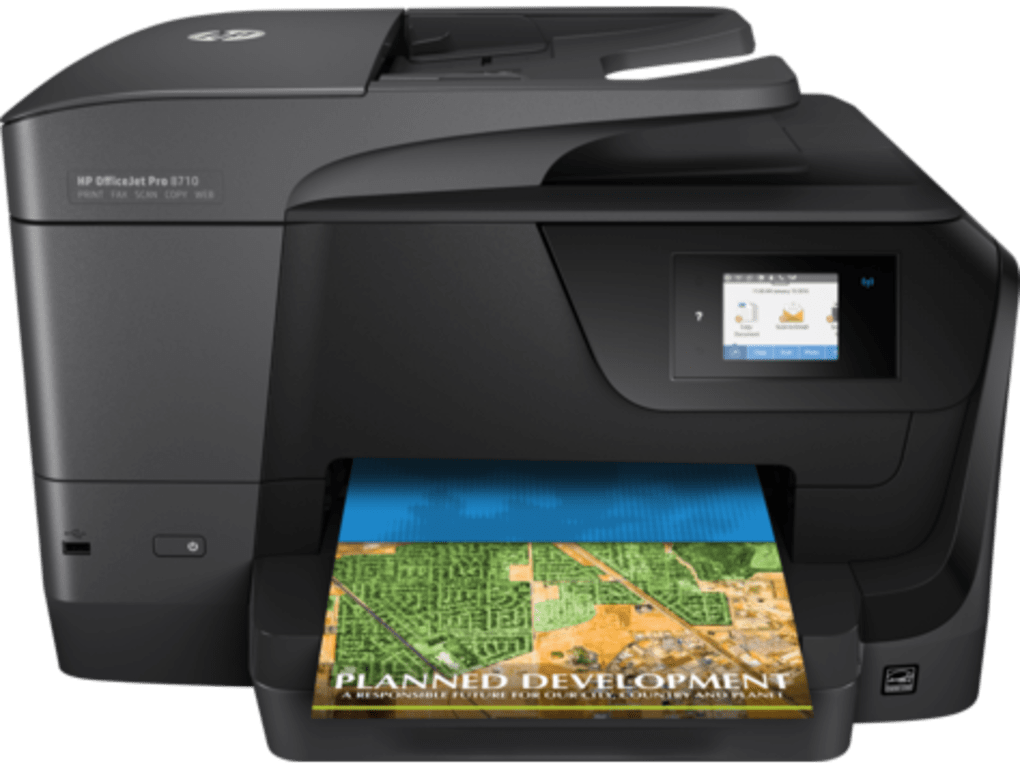
Identify your Printer Model: You need to know your exact HP OfficeJet Pro 8710 model number. This is usually found on a sticker on the printer itself.
-
Search for Drivers: Use the search bar on the HP support website to search for your printer model.
-
Select your Operating System: The website will prompt you to select your operating system (Windows, MacOS, etc.) and the bit version (32-bit or 64-bit).
-
Download the Driver: Once you’ve selected the correct operating system, download the driver package. This is usually a self-extracting executable file (.exe for Windows).
-
Run the Installer: Locate the downloaded file and double-click to run the installer. Follow the on-screen instructions to install the driver. The installer will guide you through the process, often automatically detecting your printer and configuring the necessary settings.
-
Connect your Printer: Ensure your printer is connected to your computer via USB or network before starting the installation.
-
Restart your Computer (Recommended): After installing the drivers, restarting your computer is recommended to ensure the changes take effect properly.
Troubleshooting Common Driver Issues
Despite following the installation instructions, you might encounter some issues. Here are some common problems and their solutions:
-
Printer not found: Ensure your printer is properly connected and turned on. Check your USB cable or network connection. Restart your computer and the printer.
-
Driver installation errors: Try downloading the driver again from the HP website. Ensure you have sufficient disk space. If errors persist, contact HP support.
-
Print quality issues: Check the print settings, ensure you’re using the correct paper type, and clean the printer cartridges or toner. Consider adjusting print resolution or color settings.
-
Scanning issues: Ensure the scanner is correctly connected and configured in your operating system’s settings. Try scanning a test document.
-
Fax issues (if applicable): Check your fax settings, ensure the fax line is working correctly, and verify the fax number you’re trying to use.
If you continue experiencing problems, consult the HP OfficeJet Pro 8710 user manual or contact HP support for further assistance. Their support website and phone support options can offer tailored solutions based on your specific issue.
Frequently Asked Questions (FAQs)
Q: Where can I find the latest drivers for my HP OfficeJet Pro 8710?
A: The best place to find the latest drivers is on the official HP website (support.hp.com).
Q: My printer is not working after installing the new drivers. What should I do?
A: Try uninstalling the drivers completely, then restart your computer and reinstall them. Check your printer’s connection, and ensure it’s turned on. Contact HP support if the issue persists.
Q: I have Windows 11. Will the HP OfficeJet Pro 8710 drivers work?
A: HP generally supports its newer printers with the latest Windows versions. Check the HP support website to confirm compatibility with Windows 11.
Q: Are there any third-party drivers for my HP OfficeJet Pro 8710?
A: While third-party drivers might exist, it’s strongly recommended to use only official drivers from HP to avoid potential malware and compatibility issues.
Q: How often should I update my HP OfficeJet Pro 8710 drivers?
A: Check the HP support website periodically for updates. HP usually releases driver updates to address bugs, improve performance, and add new features. Major updates are usually announced, but it’s good practice to check occasionally.
By following the guidelines and troubleshooting tips provided in this comprehensive guide, you can effectively manage and resolve any driver-related issues with your HP OfficeJet Pro 8710 All-in-One printer, ensuring optimal performance and reliable functionality. Remember, using the official HP website for driver downloads and support is the best way to maintain the health and efficiency of your printer.
File Information
- License: “Free”
- Version: “varies-with-device”
- Latest update: “July 20, 2021”
- Platform: “Windows”
- OS: “Windows XP”
- Language: “English”
- Downloads: “4.5K”


