
The HP OfficeJet Pro 8710 Printer Driver is essential software for users of the HP OfficeJet Pro 8710 printer series. This comprehensive guide explores its functionality, compatibility, installation process, troubleshooting tips, and answers frequently asked questions. Understanding this driver is crucial for ensuring optimal performance and functionality of your HP OfficeJet Pro 8710 printer.
Understanding the HP OfficeJet Pro 8710 Printer Driver
The HP OfficeJet Pro 8710 Printer Driver acts as a translator between your computer’s operating system and your printer. It allows your computer to communicate with the printer, sending print jobs and receiving status updates. Without the correct driver installed, your computer won’t recognize the printer, and you won’t be able to print. Think of it as the essential software bridge connecting your hardware (the printer) to your software (your computer’s applications).
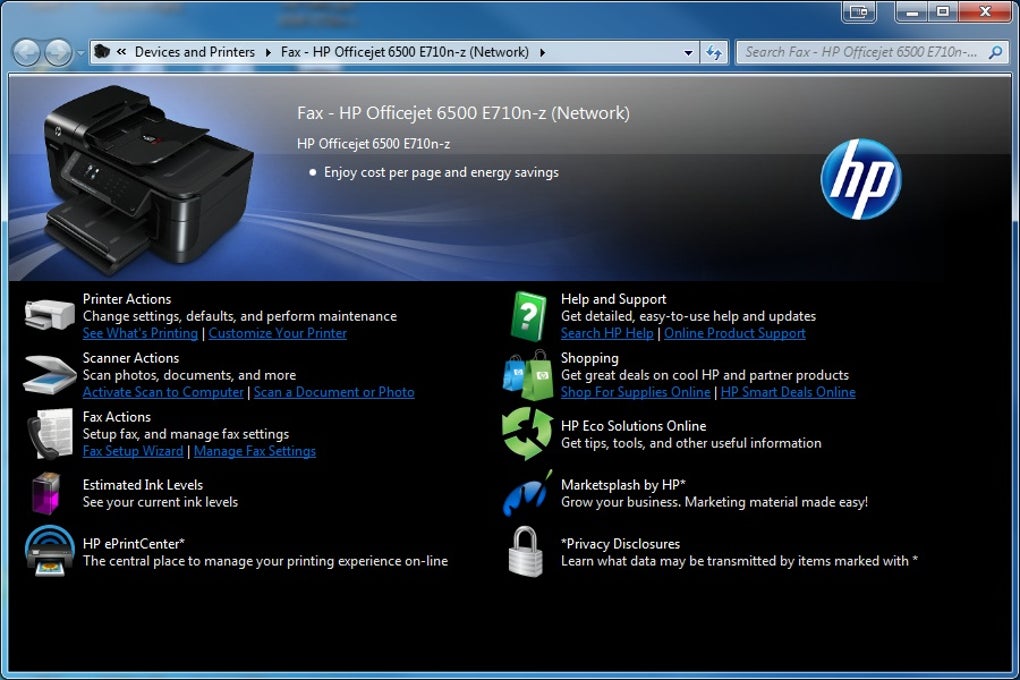
The driver itself is not a physical component; it’s a software package containing files and instructions necessary for the printer’s operation. These instructions tell the operating system how to manage the printer’s functions – printing, scanning, copying, and faxing (depending on the model’s features). The driver manages various aspects of the printing process, including:
- Print Job Handling: Receiving print commands from applications, processing the data, and sending it to the printer.
- Error Handling: Identifying and reporting errors that occur during printing, such as paper jams or ink cartridge issues.
- Printer Settings: Allowing you to customize print settings like paper size, print quality, and color options.
- Scanner Functionality: Enabling scanning capabilities, allowing you to digitize documents and images.
- Fax Functionality (if applicable): Enabling fax transmission and reception if your printer model supports it.
Driver Compatibility and System Requirements
The HP OfficeJet Pro 8710 printer driver has specific compatibility requirements. While it is designed to work seamlessly with various versions of Windows, it’s crucial to verify compatibility before installation. The original release focused primarily on 64-bit Windows 8.1 systems. Note that support for Windows 10 was not initially included, and it’s essential to check the HP website for any updates or newer drivers that may offer broader compatibility.
Before installing the driver, you should check the following:
- Operating System: Confirm whether your operating system (e.g., Windows 7, 8.1, 10, 11) is supported.
- System Resources: Ensure your computer meets the minimum system requirements for the driver, such as available RAM and hard drive space.
- Printer Connection: Make sure your printer is properly connected to your computer (either via USB or network connection).
- Internet Access: Downloading the latest driver might require a stable internet connection.
Installing the HP OfficeJet Pro 8710 Printer Driver
The installation process is generally straightforward:
- Download the Driver: Visit the official HP website’s support section. Enter your printer model number (HP OfficeJet Pro 8710) to locate the appropriate driver for your operating system. Download the driver file to a readily accessible location on your computer.
- Run the Installer: Once downloaded, locate the driver file and double-click it to launch the installation process. Follow the on-screen instructions. The installer will guide you through the process, prompting you to accept license agreements and select installation options.
- Connect the Printer: If you haven’t already, connect your HP OfficeJet Pro 8710 printer to your computer either via USB or your network. The installer may automatically detect your printer; if not, you may need to manually specify the connection type and port.
- Complete the Installation: The installation process might take a few minutes, depending on your system’s speed and the size of the driver file. Once completed, restart your computer to ensure the changes are fully implemented.
- Test the Printer: After restarting, test your printer by printing a test page or document to confirm that the driver is working correctly.
Troubleshooting Common Issues
Even with proper installation, you may encounter problems. Here are some common issues and troubleshooting steps:
- Printer Not Recognized: Check the printer’s power and connection to the computer. Ensure the USB cable is securely connected or the network connection is stable. If using a network connection, confirm your printer is correctly configured on your network.
- Printing Errors: Check the printer’s status for error messages. These messages often provide clues about the problem (e.g., paper jam, ink cartridge issues). Resolve the error as indicated and retry printing.
- Incorrect Print Output: If the printed output is incorrect (e.g., wrong colors, blurry text), check your print settings within the application you are using. Ensure the correct printer driver is selected and the appropriate print settings are configured.
- Driver Installation Errors: If you encounter errors during the driver installation process, check for potential conflicts with other software. Try restarting your computer and reinstalling the driver. Refer to HP’s support documentation for more specific troubleshooting steps related to error codes.
- Outdated Driver: An outdated driver may lead to compatibility problems. Regularly check the HP website for updated drivers to ensure optimal performance and compatibility with your operating system.
Frequently Asked Questions (FAQs)
Q: Is the HP OfficeJet Pro 8710 Printer Driver free?
A: Yes, the driver itself is typically offered as a free download from HP’s official website.
Q: What operating systems are supported?
A: While the initial release focused on 64-bit Windows 8.1, it’s crucial to check the HP website for the latest driver updates, which may include support for other operating systems, such as Windows 10 or 11.
Q: Can I use this driver with other HP printers?
A: No, this driver is specifically designed for the HP OfficeJet Pro 8710 printer series. Using it with other printer models might not work correctly and could lead to printing errors.
Q: What should I do if the driver installation fails?
A: If the installation fails, try the following: * Restart your computer. * Run the installer as an administrator. * Check for any error messages during installation for guidance. * Consult HP’s support website for additional troubleshooting advice.
Q: How do I update the driver?
A: Periodically visit the HP website’s support section, enter your printer model, and check for newer driver versions. Download and install the updated driver as instructed to ensure optimal performance and compatibility.
Q: Why is my printer not printing after driver installation?
A: Check the printer’s power, connection (USB or network), and the printer’s status for any error messages. Ensure you have selected the correct printer and driver in your printing application’s settings. If problems persist, refer to the troubleshooting section above.
By following the guidelines in this comprehensive guide, you should be able to successfully install and utilize the HP OfficeJet Pro 8710 Printer Driver, ensuring optimal functionality for your printing needs. Remember to always consult the official HP website for the most up-to-date information and support.
File Information
- License: “Free”
- Version: “varies-with-device”
- Latest update: “July 15, 2022”
- Platform: “Windows”
- OS: “Windows 7”
- Language: “English”
- Downloads: “41.7K”


