
HP Print and Scan Doctor is a free, lightweight utility designed to diagnose and resolve a wide range of printing and scanning issues for HP devices. This powerful tool simplifies troubleshooting, offering a user-friendly interface and detailed instructions to guide users through the process. Whether your problem stems from connectivity issues, driver problems, or other unforeseen complications, HP Print and Scan Doctor provides a streamlined solution to get your HP printer and scanner back up and running.
Understanding HP Print and Scan Doctor’s Functionality
HP Print and Scan Doctor acts as a comprehensive diagnostic tool, effectively bridging the gap between your computer and your HP printer or scanner. Its primary function is to identify and rectify problems hindering the smooth operation of these devices. The software achieves this through a systematic process involving several key steps:
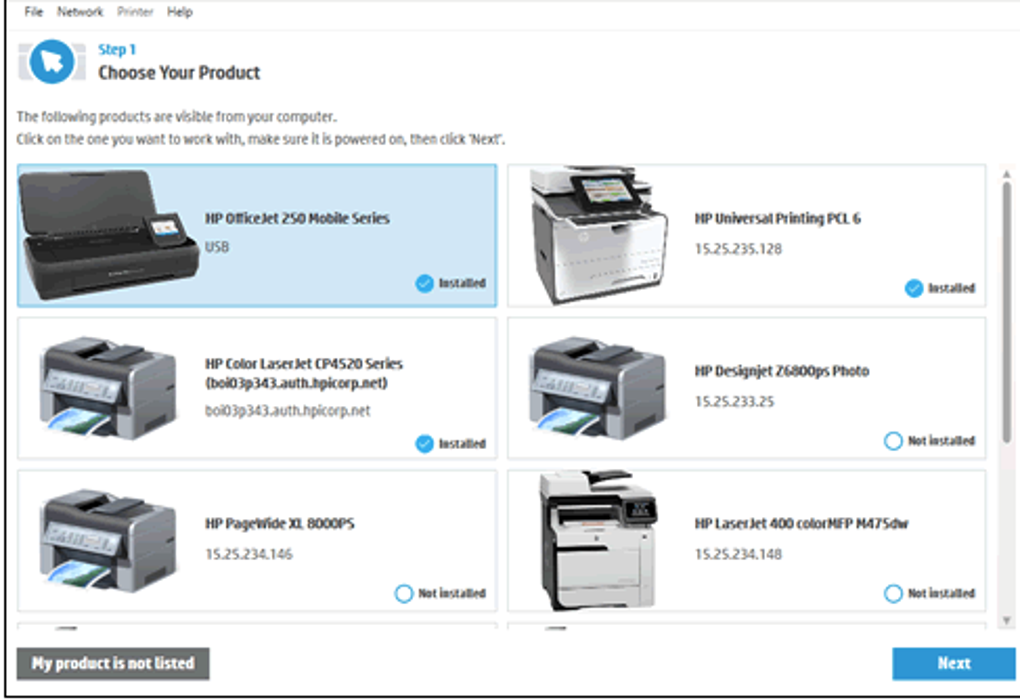
- Product Detection: Upon launching the application, HP Print and Scan Doctor initiates a search for connected HP printers and scanners. This search encompasses both USB-connected and wirelessly networked devices. If multiple HP devices are detected, the user is presented with a selection screen allowing them to choose the specific device requiring attention. For situations where the printer is not automatically detected, a manual input option is available to guide the user through the process of identifying their device.
-
Comprehensive Diagnostics: Once the target device is selected, the application begins its thorough diagnostic scan. This scan meticulously examines various aspects of the printer and scanner’s functionality, including:
-
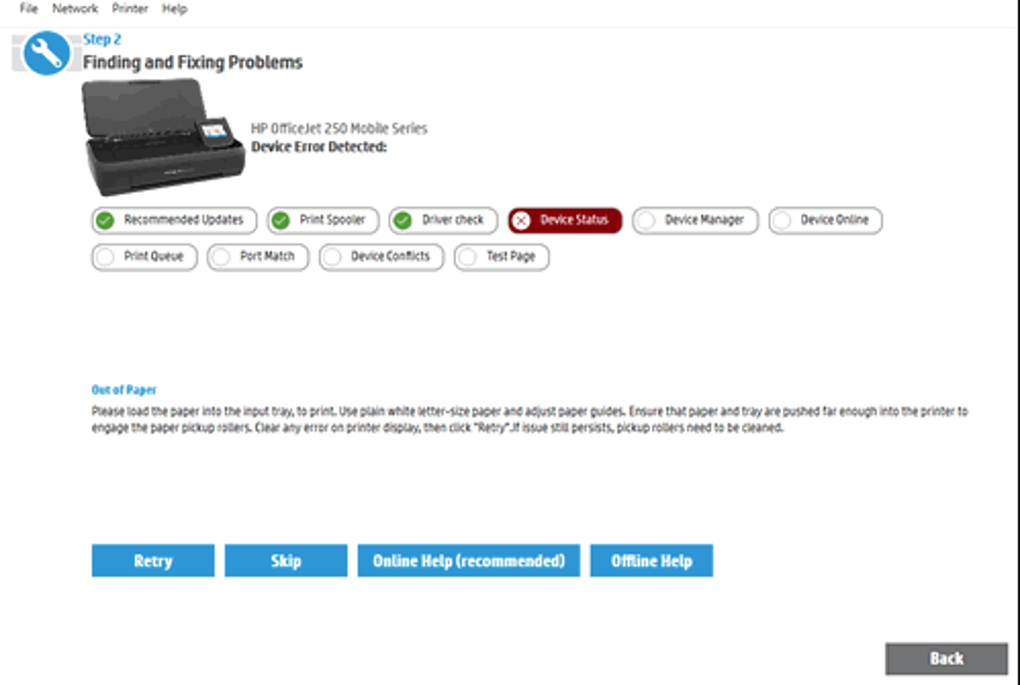
Printer Diagnostics: The software checks the print spooler, driver status, device status, device manager entries, online status, print queue, port matching, and potential device conflicts. Each check is visually represented with a clear indicator: a green checkmark signifies a successful pass, while a red ‘X’ indicates an issue requiring attention.
-
Scanner Diagnostics: Similarly, the scanner undergoes a thorough examination, assessing the functionality of Windows Image Acquisition (WIA) Scan, HP Twain Scan, registry entries related to scanning, and the overall HP Scan functionality. This ensures all aspects of scanning capabilities are tested.
-
Recommended Updates: HP Print and Scan Doctor proactively checks for and suggests necessary driver updates, firmware updates, or other software updates that may resolve the problem. These suggestions are presented clearly, and the user can choose to proceed with the update.
-
-
Issue Identification and Resolution: Should any issues be detected during the diagnostic process, HP Print and Scan Doctor highlights the specific problem area. Instead of simply reporting an error, the software provides detailed explanations and step-by-step instructions to guide the user towards a resolution. The user interface clearly shows what steps caused the failure and includes troubleshooting advice specific to that error. Once the user attempts a resolution, the option to “Retry” the diagnostic test is provided, allowing the user to verify the effectiveness of the troubleshooting steps.
- Test Pages and Scans: To confirm the success of the troubleshooting, users can print a test page after printer diagnostics and perform a test scan after the scanner diagnostics. This allows immediate verification of whether the issue has been resolved. This feature is crucial in providing immediate feedback to the user and ensuring the effectiveness of the troubleshooting process.
Downloading and Using HP Print and Scan Doctor
Downloading and installing HP Print and Scan Doctor is a straightforward process:
-
Ensure Printer Power: Before initiating the download, ensure that the HP printer or scanner you intend to troubleshoot is powered on and connected to your computer (either via USB or wirelessly).
-
Download the Software: Visit the official HP support website to download the latest version of HP Print and Scan Doctor. The software is freely available for download and requires minimal system resources.
-
Installation Process: The installation process is typical for Windows applications. You may be prompted to grant the software administrator privileges to make changes to your system settings. Accept these prompts to allow the installation to complete properly.
-
Accepting Terms: Before using the software, you will need to accept the HP Software license agreement. Review the terms and conditions before proceeding.
-
Compatibility: HP Print and Scan Doctor is compatible with various Windows operating systems, including Windows XP, Windows Vista, Windows 7, Windows 8, Windows 10, and Windows 11, supporting both 32-bit and 64-bit architectures. However, it is not compatible with Apple macOS.
- Uninstallation: The HP Print and Scan Doctor utility can be easily uninstalled from your Windows PC using standard Windows uninstall procedures found in the control panel.
Alternative Solutions and Comparisons
While HP Print and Scan Doctor excels in its focus on HP devices, alternative software solutions exist. However, these solutions may have limitations in terms of compatibility or functionality. Here is a comparison to other relevant applications:
-
Brother Print&Scan: This software, as the name suggests, is exclusively designed for Brother printers and scanners. While it offers a similar diagnostic and troubleshooting capability, its applicability is restricted to Brother devices. The interface of Brother Print&Scan is generally considered more user-friendly compared to HP Print and Scan Doctor, which some users find slightly cluttered. Like HP Print and Scan Doctor, Brother Print&Scan is available for free download.
-
HP Driver Updates Scanner: This HP utility focuses specifically on identifying and installing updated printer drivers. While not as comprehensive as HP Print and Scan Doctor in terms of diagnostic capabilities, it ensures that your HP printer is utilizing the latest drivers. The availability of a free trial is often advertised.
Both Brother Print&Scan and HP Driver Updates Scanner offer user-friendly interfaces, a stark contrast to the sometimes overwhelming interface of HP Print and Scan Doctor. While HP Print and Scan Doctor offers a comprehensive suite of tools, users who only require driver updates may find the Driver Updates Scanner to be more efficient. Brother Print&Scan is another valuable tool, but its limited compatibility restricts its appeal.
Advantages and Disadvantages of HP Print and Scan Doctor
Like any software, HP Print and Scan Doctor has its strengths and weaknesses.
Pros:
- Safety: The software is safe and reliable, stemming from its development by Hewlett-Packard, a reputable technology company.
- Lightweight: The application has a small footprint, requiring minimal system resources. This is beneficial for users with less powerful machines.
- User-Friendly Interface: While some users may find the interface slightly cluttered, the intuitive design and clear instructions generally lead users to a resolution efficiently.
- Comprehensive Diagnostics: The tool offers an exceptionally thorough scan, identifying a broad range of printer and scanner issues.
- Detailed Test Results: The results are presented clearly, showing which tests passed or failed, allowing users to focus on problem areas.
- Step-by-Step Instructions: The software guides users through troubleshooting processes, making it accessible to individuals with varied technical skills.
- USB and Wireless Connectivity Support: HP Print and Scan Doctor supports both USB and wireless connections, increasing its usability and compatibility.
Cons:
- Not Cross-Platform: The software’s compatibility is limited to Microsoft Windows operating systems, excluding users of macOS and other operating systems.
Conclusion
HP Print and Scan Doctor emerges as a valuable, free resource for users experiencing issues with their HP printers and scanners. Its comprehensive diagnostic capabilities, user-friendly guidance, and detailed instructions empower users to resolve various problems effectively. While its lack of cross-platform compatibility remains a drawback, its strengths significantly outweigh this limitation for Windows users. The software’s continuous updates ensure compatibility with the latest Windows operating systems and often include fixes for newly discovered issues. This tool is a must-have for anyone owning an HP printer or scanner, providing a reliable and efficient troubleshooting solution at their fingertips.
File Information
- License: “Free”
- Latest update: “May 7, 2025”
- Platform: “Windows”
- OS: “Windows 7”
- Language: “English”
- Downloads: “132.3K”
- Size: “11.98 MB”


