
The HP USB Disk Storage Format Tool is a freeware utility developed by Hewlett-Packard (HP) designed for formatting and managing USB drives and other storage devices on Windows operating systems. Its straightforward interface and ease of use make it a popular choice for users needing a simple yet effective tool for these tasks. This guide provides a detailed overview of the tool’s features, functionality, and potential troubleshooting steps.
Understanding the HP USB Disk Storage Format Tool’s Functionality
The HP USB Disk Storage Format Tool is a lightweight application that doesn’t require installation. Simply download the executable file and run it directly. This eliminates the need for complex setup procedures and makes it readily accessible for quick formatting tasks. The tool’s minimal memory footprint ensures it won’t significantly impact your system’s performance.
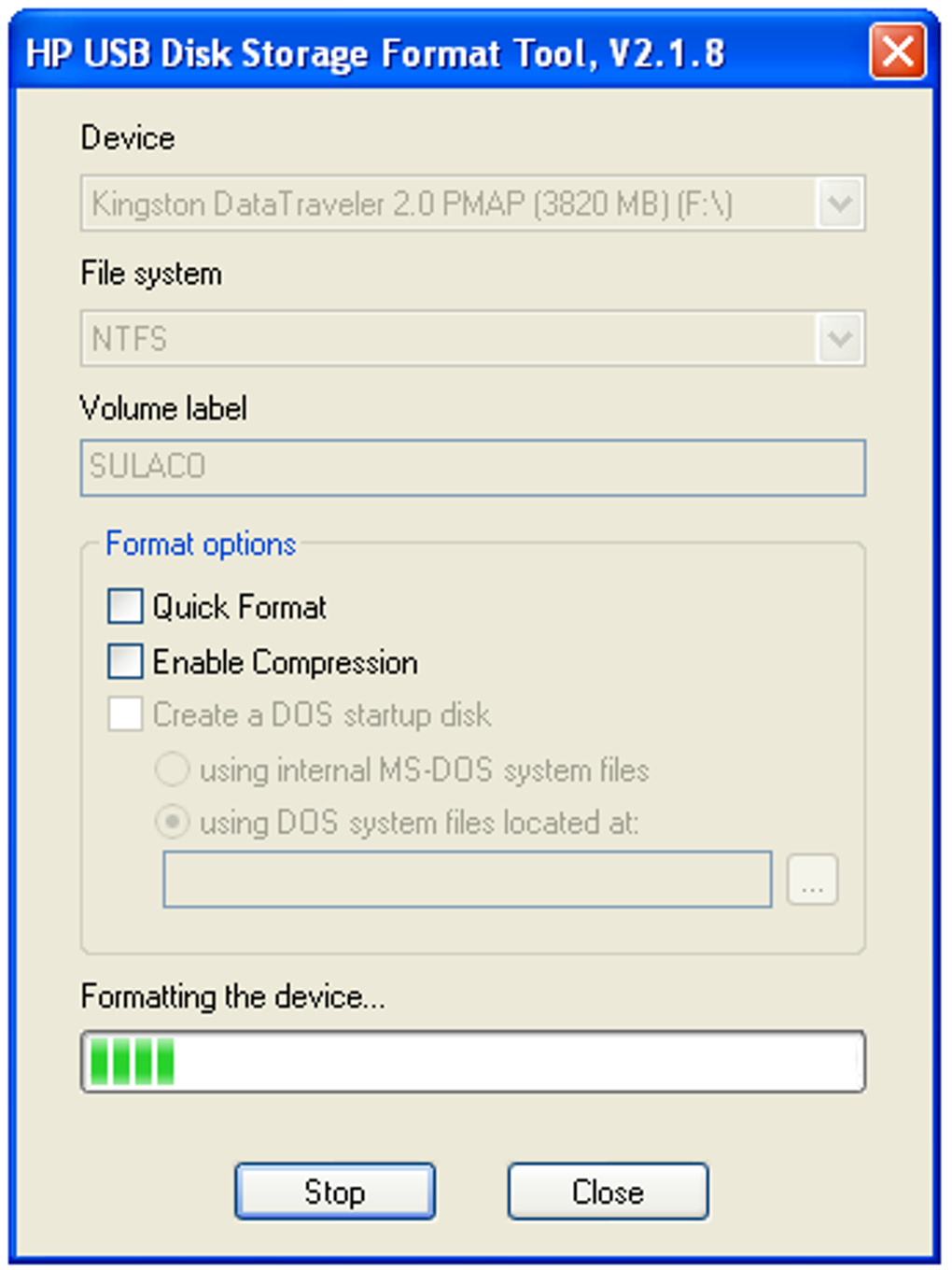
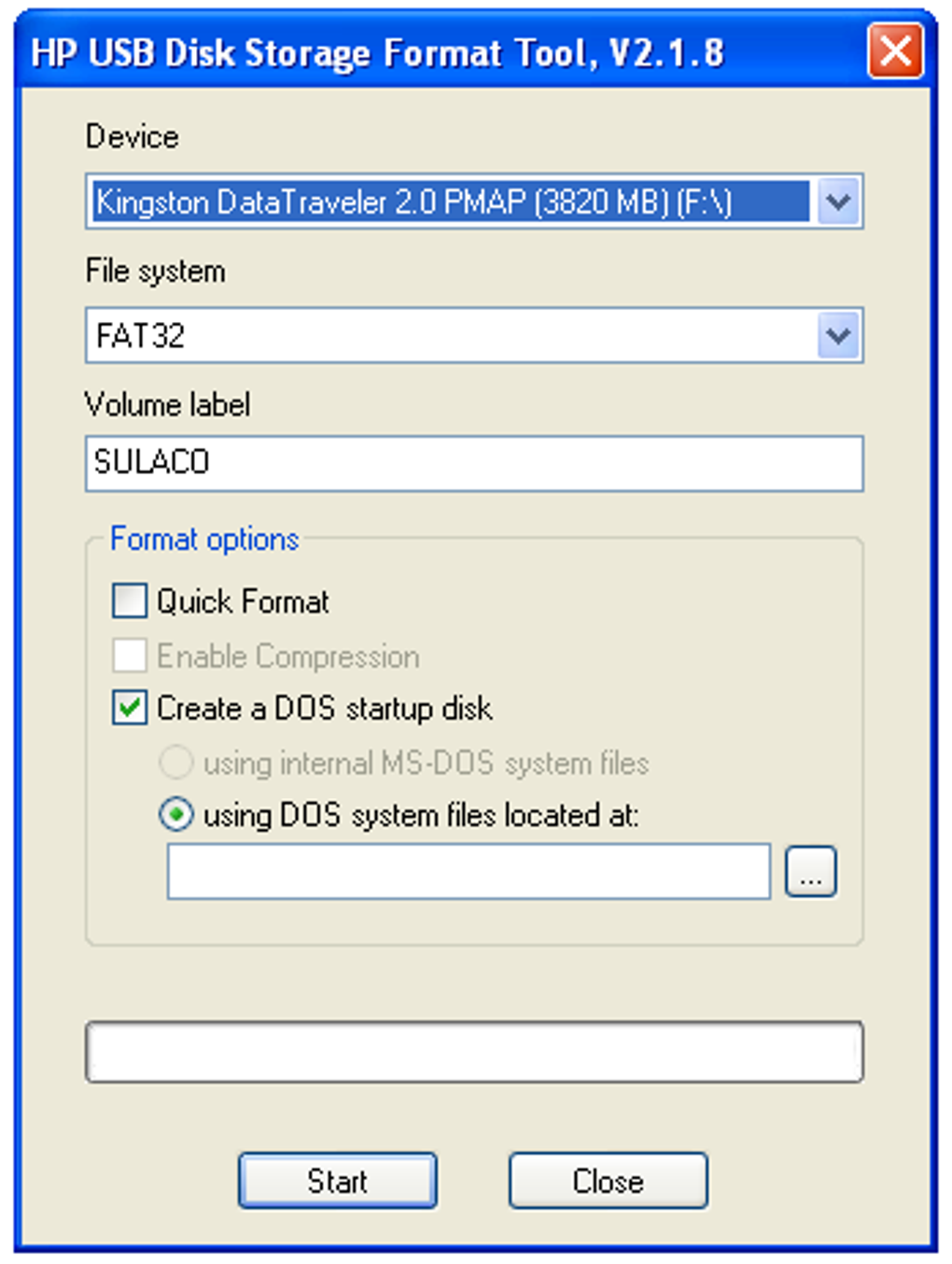
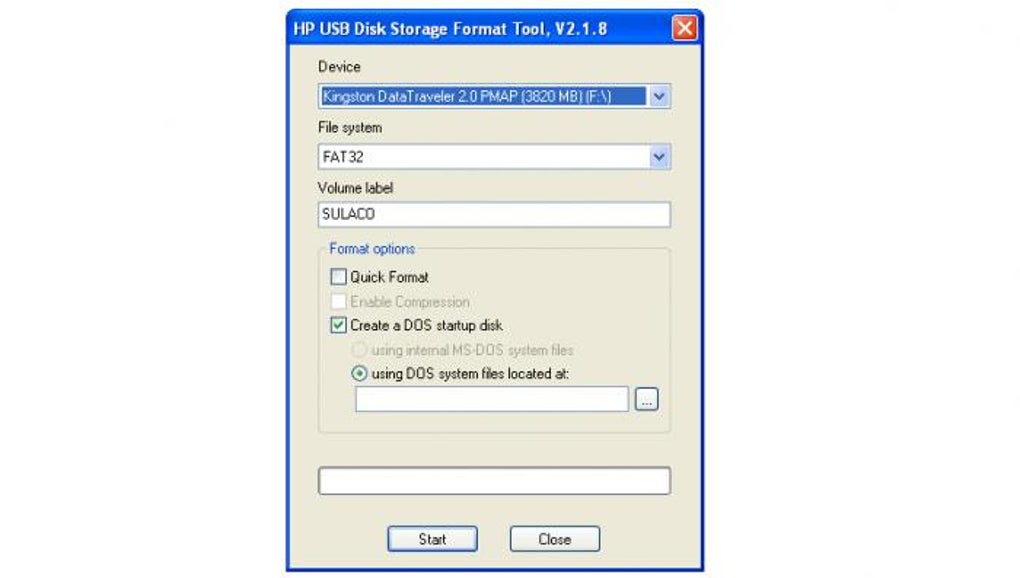
The main window presents a clean and intuitive interface. Users can select the target device (USB drive, hard drive, etc.) from a dropdown menu. The key options are clearly displayed, allowing users to easily choose the desired file system (FAT32 or NTFS), assign a volume label (optional), and configure formatting options. These options include:
-
Quick Format: This option performs a rapid format, suitable for most situations. It’s generally faster but doesn’t perform a thorough check for bad sectors.
-
Enable Compression: Selecting this option enables file compression on the formatted drive, maximizing storage space. However, this will slightly increase formatting time and may not be suitable for all types of storage media.
-
Create a DOS startup disk: This allows users to create a bootable USB drive containing DOS system files. This is useful for situations requiring DOS-based boot processes, such as system repairs or accessing older hardware. When selected, a dropdown menu appears, prompting users to specify the location of the necessary DOS system files.
Formatting and Creating Bootable Drives
The process of formatting a drive using the HP USB Disk Storage Format Tool is straightforward:
- Select the Device: Choose the target storage device from the dropdown menu. Ensure you select the correct drive; incorrect selection could lead to data loss on an unintended drive.
-
Choose File System: Select either FAT32 or NTFS. FAT32 is generally compatible with a wider range of devices, including older systems, but has a file size limitation (typically 4GB). NTFS offers larger file size support and improved security features but might not be compatible with all systems.
-
Assign Volume Label (Optional): Enter a descriptive name for the drive. This is purely for organizational purposes and doesn’t affect the formatting process.
-
Configure Formatting Options: Select the desired options (Quick Format, Enable Compression, Create a DOS startup disk) as needed.
-
Start the Format: Click the “Start” button to initiate the formatting process. A warning message will appear, explicitly reminding you that all data on the selected drive will be erased. Confirm by clicking “Yes” to proceed.
-
Monitor Progress: The tool will display the progress of the formatting process. This may take some time, depending on the size of the drive and selected options.
-
Completion: Once completed, a confirmation message will appear, providing details about the newly formatted drive, including the file system, volume label, and capacity.
Creating a DOS bootable drive involves the same steps, with the additional requirement of specifying the path to the DOS system files. The tool will then copy these files to the selected drive, making it bootable from a DOS environment.
Troubleshooting Write Protection Errors
A common error encountered when formatting drives is “Device media is write-protected.” This indicates that the drive’s write protection switch is engaged, preventing any changes to its contents. Here’s how to resolve this:
- Check the Physical Switch: Carefully examine the USB drive for a physical write-protection switch. This is typically a small slider switch located on the side of the drive. Ensure the switch is in the unlocked position.
-
Command Prompt Solution: If a physical switch is absent or the issue persists, use the Windows Command Prompt. Open Command Prompt as an administrator (right-click the icon and select “Run as administrator”). Enter the following commands, replacing
X:with the drive letter of the target drive:diskpart list disk select disk X attributes disk clear readonly exitThese commands will remove the write protection attribute from the drive. After this, try formatting the drive using the HP USB Disk Storage Format Tool again.
Running the Tool as Administrator
For optimal performance and to avoid potential permission errors, particularly when dealing with system drives or encountering write protection issues, always run the HP USB Disk Storage Format Tool as an administrator. Right-click the executable file and select “Run as administrator” from the context menu.
Alternative Formatting Tools
Several alternative formatting tools offer similar functionality to the HP USB Disk Storage Format Tool. Some popular options include:
-
Rufus: A widely used, open-source utility known for its speed and comprehensive features.
-
Etcher: Another popular open-source option, well-regarded for its simplicity and reliability, particularly for creating bootable USB drives for operating system installations.
-
Media Creation Tool: Microsoft’s official tool for creating Windows installation media.
-
UNetbootin: A cross-platform tool for creating bootable USB drives, supporting various operating systems.
-
Universal USB Installer: Another cross-platform option focusing on installing various Linux distributions from a USB drive.
While these alternatives offer similar core functionality, the HP USB Disk Storage Format Tool remains a practical choice due to its simplicity, ease of use, and lack of unnecessary features.
System Compatibility and User Experience
The HP USB Disk Storage Format Tool is primarily designed for Windows operating systems, supporting both 32-bit and 64-bit architectures. While it’s designed for older Windows versions, it remains compatible with newer versions, including Windows 10 and Windows 11. Its simple, single-window interface ensures ease of navigation and use, making it user-friendly even for those unfamiliar with similar utilities. The absence of ads ensures a clean, secure user experience. Its lightweight nature ensures it won’t burden system resources.
Conclusion
The HP USB Disk Storage Format Tool provides a simple, efficient, and reliable solution for formatting USB drives and other storage devices on Windows. Its straightforward interface, minimal resource consumption, and ease of use make it a practical choice for both novice and experienced users. While alternative tools exist, the HP USB Disk Storage Format Tool stands out due to its simplicity, making it an excellent choice for straightforward formatting tasks. Remember to always exercise caution when formatting drives, ensuring you select the correct drive to avoid accidental data loss.
File Information
- License: “Free”
- Latest update: “May 24, 2023”
- Platform: “Windows”
- OS: “Windows 8”
- Language: “English”
- Downloads: “991.8K”
- Size: “98.30 KB”


