
Internet Explorer, once the dominant web browser, has gradually faded into the background as newer browsers like Chrome, Firefox, and Safari have gained popularity. However, some websites and web applications still rely on Internet Explorer’s rendering engine, leaving users who primarily utilize modern browsers facing compatibility issues. This is where IE Tab comes in – a powerful extension designed to solve this exact problem. IE Tab acts as a bridge, allowing you to render web pages using the Internet Explorer engine directly within your Google Chrome browser. This eliminates the need to switch between browsers and ensures consistent viewing of websites built on older technologies.
Understanding IE Tab and its Functionality
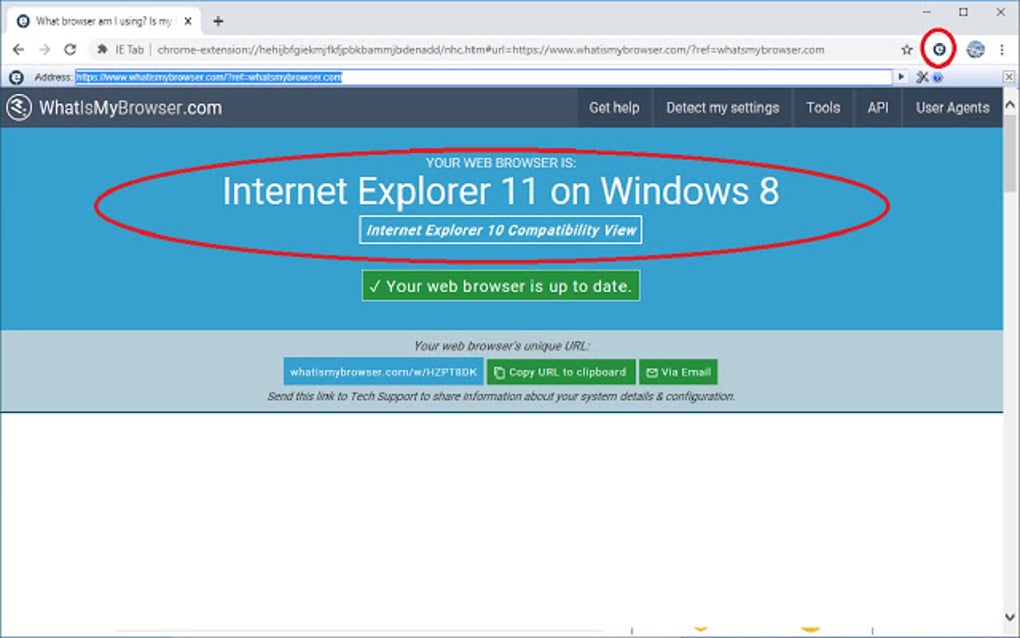
IE Tab is a Google Chrome extension that effectively emulates the Internet Explorer rendering engine. This means that websites designed specifically for Internet Explorer, and which may display incorrectly or not function at all in modern browsers, can now be rendered accurately within Chrome. The extension handles the complexities of this emulation seamlessly, providing a user-friendly solution for navigating websites that rely on older web standards.
The core function of IE Tab is to create a “tab” within Chrome that behaves as if it were Internet Explorer. When you open a webpage using IE Tab, the extension intercepts the request and renders the page using the embedded Internet Explorer engine. This process is entirely transparent to the user; it feels as if you’re browsing within a standard Chrome tab, but with the crucial difference of the underlying rendering engine.
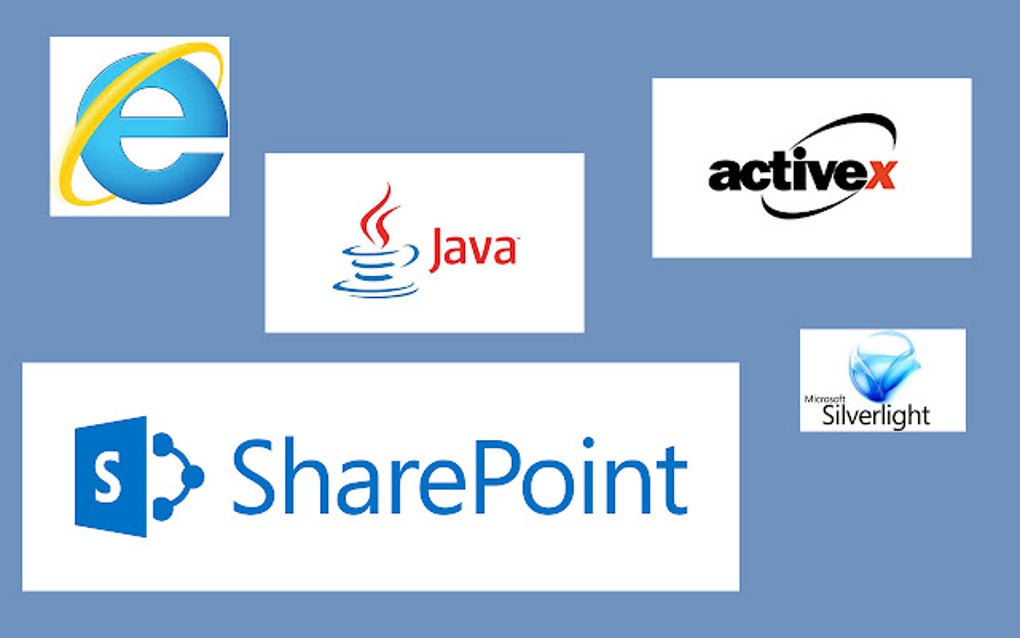
This makes IE Tab particularly useful for:
-
Accessing legacy websites: Many older company intranets, government websites, or specialized applications might only function correctly in Internet Explorer. IE Tab provides a convenient way to access these resources without the inconvenience of installing and managing a separate Internet Explorer instance.
-
Troubleshooting website compatibility: Web developers often use IE Tab to test their websites’ compatibility with Internet Explorer. By rendering the site within the IE Tab extension, developers can quickly identify and resolve any rendering inconsistencies or functional issues that might only appear in Internet Explorer.
-
Using web applications designed for Internet Explorer: Some specialized web applications, particularly those used in corporate environments, may rely heavily on Internet Explorer’s specific functionalities. IE Tab makes it possible to use these applications within the familiar environment of Chrome.
IE Tab: A Practical Solution for Diverse Users
The benefits of using IE Tab extend beyond simple compatibility. It offers a practical solution for several user groups:
For Businesses: Companies with legacy systems or internal applications built on Internet Explorer will find IE Tab invaluable. It allows employees to continue using familiar workflows without compromising on productivity or requiring extensive IT support to migrate to entirely new systems. The cost savings in avoiding a full system overhaul are significant.
For Developers: Web developers utilize IE Tab for rigorous compatibility testing. Ensuring websites function across all major browsers, including Internet Explorer, is crucial for a positive user experience. IE Tab simplifies this process, providing a consistent and efficient way to identify and resolve rendering errors.
For Individuals: While less common, individual users might encounter websites or online services that require Internet Explorer. IE Tab offers a user-friendly solution, avoiding the necessity of installing and maintaining a dedicated Internet Explorer installation. This is particularly important for users with limited technical expertise.
Addressing Common Concerns and Limitations
While IE Tab offers a valuable solution, it’s important to acknowledge some potential limitations:
-
Performance: Emulating an entire browser engine within another browser can impact performance. Users may experience slightly slower loading times or increased resource consumption compared to browsing directly in Chrome. However, this performance hit is typically minor and is outweighed by the convenience of using IE Tab in most cases.
-
Security: Like any browser extension, IE Tab requires trust. While the extension itself is reputable, users should still ensure they download it from a trusted source (such as the official Chrome Web Store) to prevent malware installation. It’s also crucial to regularly update the extension to benefit from the latest security patches.
-
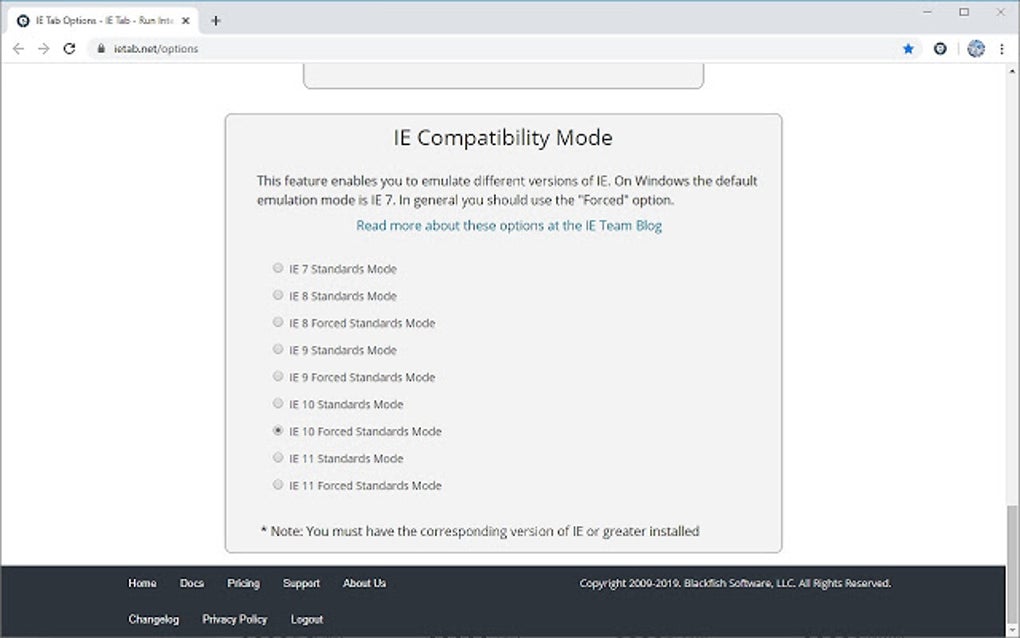
Limited Functionality: While IE Tab strives for a complete emulation of Internet Explorer, some niche functionalities or very specific web standards might not be fully replicated. In these rare instances, using a dedicated Internet Explorer installation might still be necessary.
IE Tab: Technical Specifications and User Experience
IE Tab is available for free download from the Chrome Web Store. It’s a lightweight extension that integrates seamlessly into the Chrome interface. The installation process is straightforward and requires minimal technical knowledge. The extension’s user interface is intuitive and easy to navigate.
Key Features:
-
Seamless Integration: IE Tab blends seamlessly into the Chrome environment, allowing users to switch between regular Chrome tabs and IE Tab-enabled tabs without disruption.
-
Easy Activation: Enabling IE Tab for a specific webpage is simple; usually, a single click or a right-click option is sufficient.
-
Regular Updates: The developers of IE Tab regularly release updates to ensure compatibility with the latest versions of Chrome and to address security vulnerabilities.
Technical Specifications:
- License: Free
- Version: (Check the Chrome Web Store for the most current version)
- Platform: Google Chrome
- Language: English (and potentially other languages, check the Chrome Web Store)
- Developer: Blackfish Software
Comparing IE Tab to Alternative Solutions
While IE Tab provides a robust solution for accessing Internet Explorer-dependent websites within Chrome, other alternatives exist. However, each alternative presents its own advantages and disadvantages:
-
Using a Virtual Machine: Running Internet Explorer within a virtual machine offers a complete emulation of the Internet Explorer environment. This provides the most accurate rendering and functionality but requires significantly more system resources and technical expertise.
-
Switching Browsers: The simplest, albeit least efficient, method is switching between Chrome and Internet Explorer. This approach is cumbersome and impractical for users who regularly need to access websites requiring Internet Explorer.
-
Using Other Emulation Tools: Other browser extensions might offer similar emulation capabilities, but IE Tab remains a popular and reliable choice, known for its stability and ease of use.
Compared to these alternatives, IE Tab stands out due to its ease of use, low system resource consumption, and seamless integration within the Chrome browser. It provides a balance between functionality and efficiency, making it the preferred solution for many users.
Conclusion: A Powerful and Convenient Tool
IE Tab remains a valuable tool for users and developers alike. Its ability to bridge the gap between modern browsers and legacy Internet Explorer-dependent websites makes it a powerful and convenient solution. Whether for accessing older intranets, testing web application compatibility, or simply navigating stubborn websites, IE Tab provides a simple, efficient, and reliable method for ensuring consistent web browsing across different technologies. The free availability and straightforward interface make it accessible to a broad range of users, solidifying its place as a practical and indispensable browser extension. While alternatives exist, IE Tab’s balance of functionality, ease of use, and low resource consumption makes it a compelling choice for navigating the complexities of web compatibility.
File Information
- License: “Free”
- Version: “18.8.6.1”
- Latest update: “August 8, 2025”
- Platform: “chrome”
- Language: “English”
- Downloads: “17.5K”


