
ImBatch is a free, powerful, and versatile application designed for batch processing images. This means it allows you to apply the same edits or transformations to multiple images simultaneously, saving you significant time and effort compared to manually editing each image individually. Whether you need to resize hundreds of photos for a website, convert image formats for a specific application, or apply a uniform set of edits to a large collection, ImBatch streamlines the process. This in-depth guide will explore ImBatch’s features, capabilities, and workflow, enabling you to leverage its full potential for efficient image management.
Understanding ImBatch’s Workflow: A Step-by-Step Guide
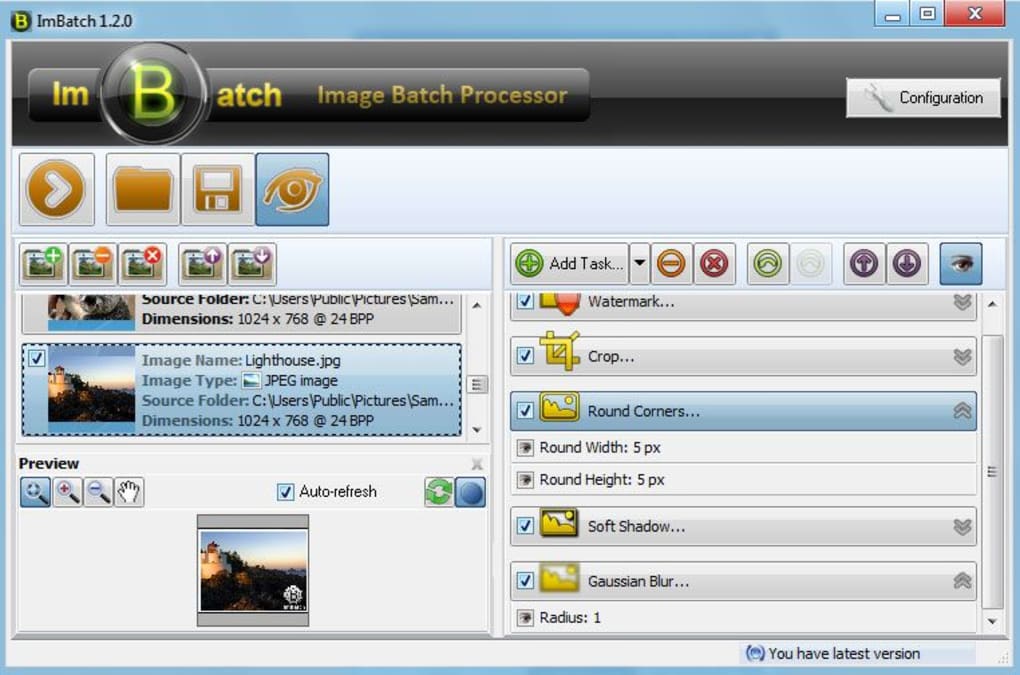
ImBatch’s user interface is designed for intuitive operation, even for users with limited experience in image editing software. The core workflow revolves around three primary stages: adding images, defining tasks, and specifying output settings.
1. Adding Images: The process of adding images to ImBatch is straightforward. You can either drag and drop your image files directly into the designated area of the ImBatch interface, or utilize the built-in “Add” button to browse your computer’s file system and select the images you wish to process. ImBatch supports a wide range of image formats, ensuring compatibility with most commonly used image types. The application displays the selected images, allowing you to review your selection before proceeding to the next step.
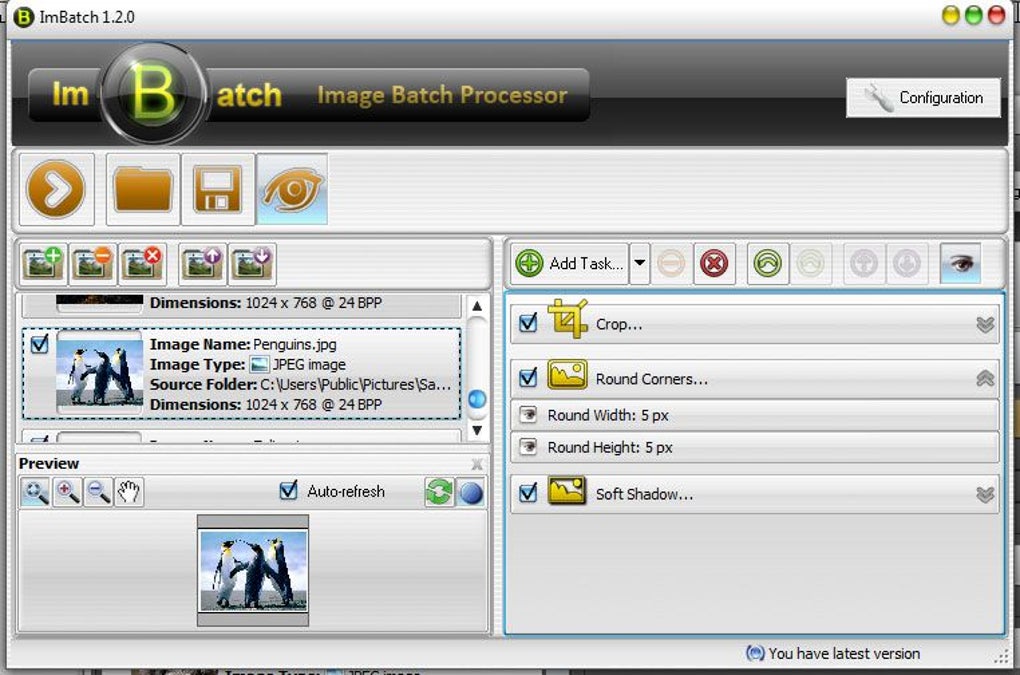
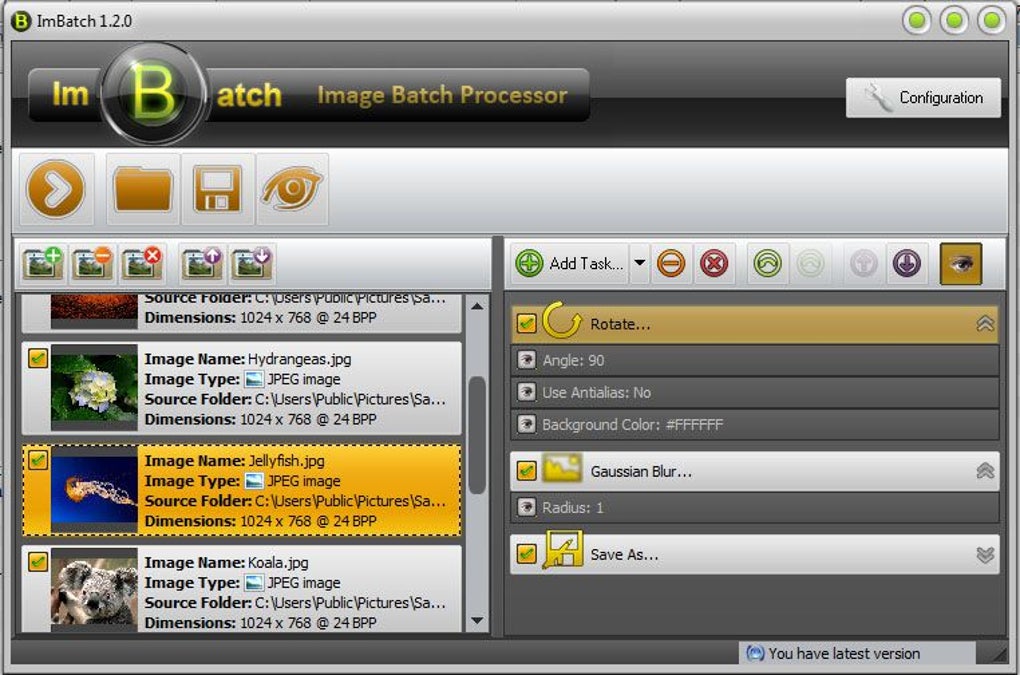
2. Defining Tasks: This is where the true power of ImBatch comes into play. The “Add Task” button opens a comprehensive menu of image manipulation options. These options are organized logically, allowing users to easily locate and select the specific transformations they want to apply to their images. The range of tasks is extensive, covering a broad spectrum of image editing needs. These tasks can include, but are not limited to:
-
Resizing: Adjusting the dimensions of your images, either by specifying exact pixel dimensions or using percentage-based scaling. This is crucial for optimizing images for web use, printing, or other specific applications. ImBatch offers various resizing algorithms to ensure image quality is maintained or optimized depending on your needs.
-
Rotation: Rotating images by a specified angle, allowing for quick correction of improperly oriented pictures. This is especially helpful when dealing with a large number of images that may require rotation.
-
Adding Shadows: Applying drop shadows to images, a common effect used to enhance the visual appeal and create a sense of depth. ImBatch allows for customization of the shadow’s color, blur radius, and offset.
-
Flipping: Horizontally or vertically flipping images, providing a quick way to reverse the orientation. This can be helpful for correcting mistakes or creating intentional mirroring effects.
-
Rounding Corners: Adding rounded corners to images, a popular aesthetic effect often used in web design and other applications. ImBatch provides controls for adjusting the radius of the rounded corners.
-
Color Conversion: Converting images between different color spaces (e.g., RGB to CMYK) which is vital for professional printing and specific design workflows.
-
Watermarking: Applying watermarks to protect your images from unauthorized use. This feature allows for customization of the watermark’s text, font, size, position, and opacity.
-
Batch Renaming: ImBatch allows for batch renaming of images, implementing automated naming conventions. This is critical for organization when dealing with large sets of photos. You can use sequential numbering, date stamps, or other criteria to ensure clear and consistent file naming.
- Adding Text: Overlaying text onto images, which is useful for adding captions, titles, or other textual information. ImBatch enables customization of text properties, including font, size, color, and position.
The key advantage of ImBatch’s task-based approach is the ability to chain multiple tasks together. You can apply multiple transformations in a specific order, ensuring that the desired effects are achieved accurately and efficiently. For instance, you might first resize your images, then apply a watermark, and finally convert them to a specific file format. This ordered approach is highly effective for complex batch image processing workflows.
3. Specifying Output Settings: Once you’ve defined your tasks, the final step is to configure the output settings. This includes specifying the desired file format (JPEG, PNG, TIFF, etc.), the output directory where the processed images will be saved, and a naming convention for the output files. ImBatch offers a high degree of control over the output, ensuring you can tailor the process to your specific needs. It also allows you to choose the quality level for compressed formats like JPEG, striking a balance between file size and image quality.
ImBatch’s Advantages and Limitations
ImBatch’s strengths lie in its simplicity, versatility, and speed. Its intuitive interface and task-based workflow make it accessible to users of all skill levels. The comprehensive range of image manipulation options allows for a high degree of customization, while its batch processing capabilities dramatically reduce processing time compared to manual editing. The fact that it’s free is another major benefit, making it a highly attractive option compared to commercial alternatives.
However, ImBatch is not without limitations. The user interface, while functional, is not the most visually appealing and lacks some of the advanced features and refinements found in professional-grade image editing software. Additionally, there’s no automatic shutdown feature at the end of large jobs, requiring manual intervention. This can be inconvenient for very large batch processing tasks that run for extended periods. Finally, the lack of extensive alt text for all options can increase the learning curve for novice users.
Comparing ImBatch to Alternative Solutions
ImBatch competes with a broad range of image processing applications, both free and commercial. Compared to free alternatives, ImBatch often stands out due to its extensive feature set and robust batch processing capabilities. However, professional-grade software such as Adobe Photoshop offers far more advanced features and editing capabilities, albeit at a significant cost. The choice of software depends heavily on individual needs and budget constraints. For users who primarily require efficient batch processing of images with a solid set of editing tools, ImBatch provides an excellent free solution. For users needing advanced editing capabilities, professional software might be a more suitable investment.
Conclusion: ImBatch’s Place in the Image Processing Landscape
ImBatch fills a valuable niche in the image processing landscape. It offers a user-friendly and powerful solution for batch image processing tasks without the complexity and cost of professional software. While it lacks some advanced features, its simplicity, speed, and extensive task options make it a highly effective tool for individuals and businesses needing to efficiently manage and manipulate large collections of images. Its intuitive interface and clear workflow make it accessible to a wide range of users, reinforcing its position as a valuable and versatile free application for batch image processing. For those who prioritize efficiency and a comprehensive set of essential editing tools without the steep learning curve and cost of professional software, ImBatch is undoubtedly worth considering.
File Information
- License: “Free”
- Latest update: “February 4, 2025”
- Platform: “Windows”
- OS: “Windows 8”
- Language: “English”
- Downloads: “21.9K”
- Size: “29.91 MB”


