
Insomnia is a simple, free application designed to prevent your computer from entering sleep mode. This can be incredibly useful in various situations, from overnight downloads and remote control sessions to keeping your system active for specific tasks that require uninterrupted operation. This comprehensive guide will delve into the features, functionality, and alternatives of Insomnia, as well as address some common concerns and misconceptions.
Understanding Insomnia’s Core Functionality
At its heart, Insomnia serves a single, crucial purpose: preventing your computer from going to sleep. Unlike more complex power management utilities, Insomnia doesn’t offer a multitude of configuration options or advanced features. Its simplicity is its strength. It operates silently in the background, ensuring your computer remains awake as long as the application is running, regardless of mouse or keyboard inactivity. This is particularly beneficial when performing tasks such as long file transfers, running intensive computations, or controlling your computer remotely.
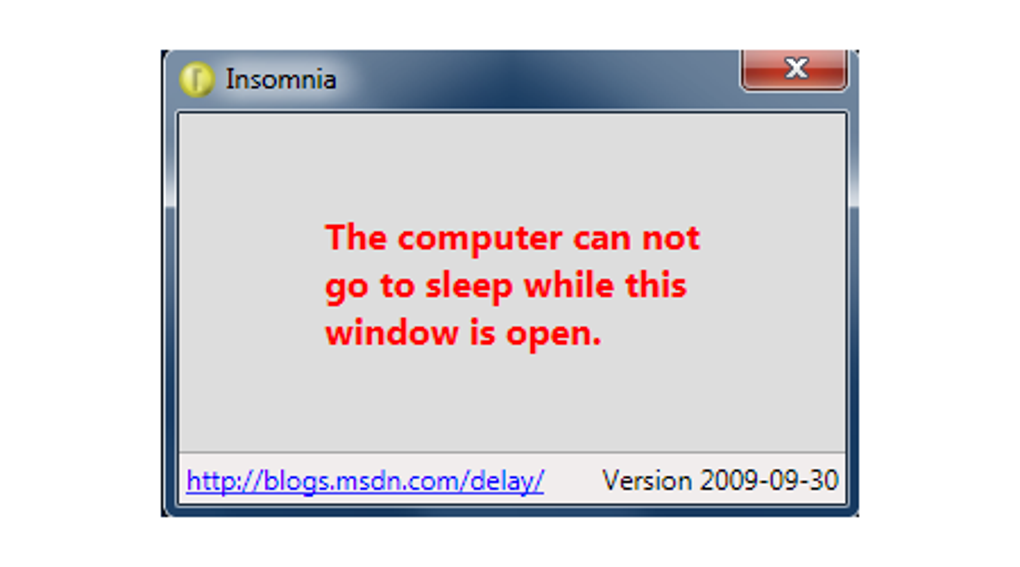
The application’s minimalistic approach eliminates any potential for complex settings to cause confusion or unexpected behavior. You simply run the application, and it prevents sleep. No need to adjust settings, configure timers, or manage complex interfaces. This ease of use makes it an ideal choice for users of all technical levels. Once launched, Insomnia’s unobtrusive presence in the system tray ensures it remains active without cluttering your desktop.
While its core function is straightforward, this simplicity is what makes Insomnia highly effective. Its lack of extraneous features ensures that it focuses entirely on its primary task, providing a reliable and dependable solution for preventing sleep. It is a focused tool, doing exactly what it promises and nothing more, which can be a significant advantage in a world of overly complex software.
Installation and Usage: A Step-by-Step Guide
Insomnia’s installation process is equally straightforward. The application is distributed as a ZIP archive, which contains versions compatible with various operating systems and architectures (32-bit and 64-bit). Upon extracting the archive, users simply need to select the appropriate executable file for their system and launch it. No complex installation wizard or administrator privileges are required, making it quick and easy to get started.
After launching, Insomnia minimizes to the system tray, discreetly running in the background. The small system tray icon serves as a visual indicator that the application is active and preventing your computer from sleeping. There are no visible windows or interfaces to manage, allowing for completely seamless operation.
To stop Insomnia’s functionality, simply close the application. This can be done by right-clicking on the system tray icon and selecting the “Exit” or “Close” option, or by ending the process through the operating system’s task manager. This simple on/off approach makes it incredibly easy to control when the application is active and when it’s not.
Advantages and Disadvantages of Using Insomnia
Insomnia offers several key advantages that make it an attractive choice for users seeking a simple solution to prevent their computer from sleeping.
Pros:
- Simplicity: Its ease of use is its most significant advantage. The lack of complex settings and interfaces makes it accessible to all users, regardless of technical expertise.
- Reliability: Insomnia consistently performs its core function, effectively preventing sleep without introducing any unnecessary complexity.
- Lightweight: The application’s small size ensures minimal impact on system resources. It runs unobtrusively in the background, consuming minimal CPU and memory.
- Free and Open-Source (Potentially): The availability of source code allows for community contributions and ensures transparency, although the availability of this is not explicitly stated on all distribution platforms.
- Cross-Platform Compatibility (Potentially): While the original download references Windows versions, alternative builds might exist for other operating systems. This needs further verification.
Cons:
- Limited Functionality: The lack of additional features might be a disadvantage for users requiring more comprehensive power management capabilities, like the ability to schedule sleep or wake times.
- No Configuration Options: The absence of settings limits customization and prevents fine-tuning the application to specific user needs beyond simply preventing sleep.
- Potential for Unexpected Behavior (if not well-maintained): Outdated versions of Insomnia might have compatibility issues with newer operating systems or present security risks. Using the latest version is strongly recommended.
- Reliance on Manual Operation: Insomnia requires manual activation and deactivation, unlike some alternatives that might offer scheduled automatic operation.
Alternatives to Insomnia: Exploring Other Options
While Insomnia provides a straightforward solution, several alternative applications offer similar functionality with added features. Some of these alternatives include:
- Mouse Jigglers: These applications simulate mouse movement, tricking the system into believing there’s user activity. However, they might be less reliable than dedicated sleep prevention tools and can wear out mice over extended periods.
- Caffeine: A more feature-rich application that offers configurable settings for preventing sleep, providing more control than Insomnia. However, this increased functionality also comes with increased complexity.
- Scheduled Task Automation: Operating systems often provide built-in tools to run scripts or applications at specific intervals. This approach could be used to periodically wake the computer, but is more complex to configure than using a dedicated application.
The best alternative will depend on the individual user’s needs and technical expertise. Users requiring simple, reliable sleep prevention might find Insomnia perfectly adequate. Those needing more advanced features or automation capabilities should consider exploring alternatives with more comprehensive functionalities.
Security Considerations and Best Practices
Using any third-party application carries inherent security risks. It’s crucial to download Insomnia only from trusted sources, such as the official developer’s website or well-established software repositories. Downloading from untrusted sources could expose your system to malware or other malicious code. Always verify the application’s digital signature or integrity to ensure its authenticity.
Furthermore, it’s advisable to regularly update Insomnia to benefit from bug fixes and security patches. Outdated versions can introduce vulnerabilities that might be exploited by malicious actors. Staying up-to-date with the latest release helps mitigate security risks and ensures optimal performance.
In conclusion, Insomnia provides a straightforward, effective, and free solution for preventing your computer from entering sleep mode. Its simplicity is both its strength and its weakness. While this minimalistic approach makes it ideal for users who just need a reliable way to keep their computers awake, users requiring more advanced features should consider exploring the alternatives outlined above. Always prioritize downloading from trusted sources and keeping the application updated to maintain optimal security and performance.
File Information
- License: “Free”
- Latest update: “July 12, 2023”
- Platform: “Windows”
- OS: “Windows 98”
- Language: “English”
- Downloads: “31.3K”
- Size: “326.34 KB”


