
In the vast and ever-evolving landscape of software, Java remains a ubiquitous and powerful platform, driving everything from enterprise applications to web applets and mobile experiences. For users of 64-bit Windows systems, the Java Runtime Environment 64 (JRE 64) is an indispensable component, serving as the foundational engine that allows these diverse Java-based applications to run smoothly and efficiently. This comprehensive guide delves into the specifics of JRE 64, explaining its critical role, installation process, key features, and why it’s a fundamental requirement for anyone looking to fully leverage the capabilities of modern software on their 64-bit machine.
Java’s enduring popularity stems from its promise of “write once, run anywhere.” This portability is largely achieved through the Java Virtual Machine (JVM), a core part of the JRE. The JRE acts as the bridge between compiled Java code and the underlying operating system, translating the instructions into a language that the computer can understand and execute. Without JRE 64 installed on a 64-bit Windows system, any application, web applet, or multimedia content developed using Java would simply fail to launch, leaving a significant portion of the digital world inaccessible.
PhanMemFree.org understands the critical importance of having the right tools for your system, and JRE 64 stands out as a free-of-charge development bundle that is absolutely essential. It’s not merely a utility; it’s a gateway to a richer computing experience, enabling sophisticated multimedia, interactive web content, and robust desktop applications to function as intended. This specific version, designed meticulously for 64-bit Windows, ensures optimal performance, stability, and compatibility, distinguishing itself from its 32-bit counterpart which, while still functional on 64-bit systems, often leads to compromises and update issues. Whether you’re a casual user encountering Java-based websites or a professional needing to run specialized software, JRE 64 is the silent workhorse powering your digital interactions.
Understanding the Java Runtime Environment 64-bit
To truly appreciate the value of JRE 64, it’s essential to grasp what the Java Runtime Environment is at its core, how it differs from other Java components, and why a 64-bit version is specifically designed for today’s advanced operating systems. This understanding will clarify why it’s a non-negotiable installation for any 64-bit Windows user.
What is JRE and Why is it Essential?
The Java Runtime Environment (JRE) is fundamentally a software layer that provides the minimum requirements for executing a Java application. It comprises three main components:
- Java Virtual Machine (JVM): This is the heart of the JRE, responsible for executing Java bytecode. When a Java program is compiled, it’s converted into an intermediate language called bytecode, which is platform-independent. The JVM then takes this bytecode and interprets it for the specific hardware and operating system it’s running on, allowing Java programs to run on any device with a compatible JRE.
- Java Class Libraries: These are a set of pre-written classes and interfaces that provide reusable code for common functionalities, such as input/output operations, networking, graphical user interface (GUI) elements, and more. These libraries simplify development and ensure consistency across different Java applications.
- Support Files: This includes various auxiliary files, configuration files, and other components necessary for the JVM and class libraries to function correctly.
Without JRE, your computer would not be able to understand or execute any program written in Java. This includes a vast array of applications:
- Desktop Applications: Many popular desktop applications, from productivity tools to scientific software, are built using Java.
- Web Applets and Web Start Applications: Though less common today due to evolving web technologies, Java applets were historically a key component for interactive web content, and JRE still supports older web-based Java applications.
- Embedded Systems: Java is used in various embedded systems, from smart cards to industrial controllers.
- Server-Side Applications: While the Java Development Kit (JDK) is primarily used for server-side development, the JRE is crucial for running these server applications once they are deployed.
In essence, JRE is the engine that drives Java’s cross-platform capabilities. It ensures that a Java program developed on one operating system can run seamlessly on another, provided the correct JRE is installed. For a 64-bit Windows user, JRE 64 is specifically tailored to harness the full potential of their system’s architecture, providing robust performance and stability.
The Crucial Distinction: JRE vs. JDK
A common point of confusion for new users is the difference between the Java Runtime Environment (JRE) and the Java Development Kit (JDK). While both are integral to the Java ecosystem, they serve distinct purposes:
-
Java Runtime Environment (JRE): As discussed, the JRE is designed for running Java applications. If you are a end-user who simply wants to use software written in Java, JRE is all you need. It contains the JVM and the necessary class libraries to execute compiled Java code. Think of it as the player for a video file – you can watch the video, but you can’t edit or create it.
-
Java Development Kit (JDK): The JDK, on the other hand, is a superset of the JRE and is intended for developers who write, compile, and debug Java applications. It includes everything in the JRE, plus additional development tools such as:
- Java Compiler (javac): Converts Java source code (
.javafiles) into Java bytecode (.classfiles). - Debugger (jdb): Helps developers find and fix errors in their code.
- Archiver (jar): Packages related class files and resources into a single JAR file.
- Documentation Generator (javadoc): Creates API documentation from source code comments.
- Java Compiler (javac): Converts Java source code (
If your goal is to create new Java programs or modify existing ones, then downloading the JDK is essential as it provides the full-featured Software Development Kit (SDK) for Java. However, for the vast majority of users who only need to run Java-based software, JRE 64 is the appropriate and sufficient choice. It’s lighter, quicker to install, and designed purely for execution, without the overhead of development tools. PhanMemFree emphasizes clarity in these distinctions, ensuring users download precisely what they need.
Tailored for 64-bit Architecture
The “64” in JRE 64 is not just a numerical suffix; it signifies a crucial adaptation for modern computing. Most contemporary personal computers and operating systems, especially Windows, utilize a 64-bit architecture. This architecture offers several significant advantages over the older 32-bit systems:
- Increased Memory Addressing: 64-bit systems can address significantly more RAM (up to 16 exabytes theoretically, practically limited by hardware, but vastly more than the 4GB limit of 32-bit systems). This is vital for running memory-intensive applications and handling larger datasets.
- Improved Performance: With wider data paths, 64-bit processors can process more information per clock cycle, leading to faster execution of complex operations.
- Enhanced Security: Many 64-bit operating systems include advanced security features that are not available or are less effective on 32-bit systems.
Installing a 64-bit version of JRE on a 64-bit Windows system is paramount to fully capitalize on these benefits. While it is technically possible to run a 32-bit JRE on a 64-bit Windows OS, it is highly inadvisable. Such a setup often leads to:
- Performance Bottlenecks: The 32-bit JRE cannot leverage the full memory capacity or optimized instruction sets of the 64-bit processor, potentially slowing down Java applications.
- Compatibility Issues: Some Java applications might expect a 64-bit environment and behave erratically or fail to launch entirely with a 32-bit JRE.
- Update Problems: As highlighted in the original content, running 32-bit Java on 64-bit Windows can “cause compromises such as update issues.” This means you might miss out on crucial security patches and performance improvements, leaving your system vulnerable or inefficient.
- Browser Conflicts: Modern 64-bit web browsers often prefer or require 64-bit plugins. Using a 32-bit JRE can lead to issues with Java applets loading correctly within these browsers.
Therefore, for optimal performance, maximum compatibility, and robust security, JRE 64 is the definitive choice for anyone running a 64-bit Windows operating system. It ensures that your Java applications run seamlessly, taking full advantage of your system’s capabilities.
Seamless Installation and Configuration
One of the most user-friendly aspects of JRE 64 is its straightforward installation process. PhanMemFree has made the download readily available, and the subsequent setup is designed for minimal user intervention, ensuring that even those with limited technical expertise can integrate Java into their system without hassle. However, there are a few important considerations to ensure a smooth and successful deployment.
A Step-by-Step Guide to Installation
Installing Java Runtime Environment 64 on your system is remarkably easy, typically taking only a few minutes. Here’s a detailed breakdown of the process:
- Download the Installer: First, navigate to PhanMemFree.org or a trusted source to download the official JRE 64 installer for Windows. Ensure you are downloading the 64-bit version (often indicated by “x64” or similar in the filename). The file size is usually manageable, around 80-90 MB for recent updates.
- Administrator Access: Before proceeding with the installation, confirm that you have administrator access to your Windows desktop. This is a standard requirement for installing system-level software that modifies core components of the operating system. Without admin rights, the installation might fail or complete with errors.
- Prepare Your System: It is highly advisable to close all open applications, including any web browsers (like Microsoft Edge, Mozilla Firefox, Chrome, etc.), before starting the installation. This prevents potential conflicts with files that might be in use and ensures that the JRE can integrate seamlessly with your browser plugins and system paths without requiring a reboot.
- Launch the Installer: Locate the downloaded executable file (e.g.,
jre-8uXXX-windows-x64.exe, where XXX is the update number) and double-click it to begin the setup wizard. - Follow the On-Screen Prompts: The installation wizard is designed to be intuitive. You’ll generally be presented with a welcome screen, followed by license agreements (which you should review), and then options for the installation destination.
- Default Installation: For most users, clicking “Install” or repeatedly clicking the “Next” button with the default options is sufficient. The installer will automatically select a suitable directory (e.g.,
C:\Program Files\Java\jre-1.8) and integrate Java with all main web browsers found on your system. - Custom Installation (Optional): If you require a different installation path or wish to exclude certain components (though this is rarely recommended for JRE), you might choose a “Custom” installation. However, for general use, the default is best.
- Default Installation: For most users, clicking “Install” or repeatedly clicking the “Next” button with the default options is sufficient. The installer will automatically select a suitable directory (e.g.,
- Offline Installation Capability: A significant advantage of the JRE installer is that the entire installation process doesn’t need to remain connected to the internet after the initial download of the executable file. This means you can download the file once, save it to a known location (like your Downloads folder or a dedicated “Software” folder for easy visibility), and then copy it to other computers that may not have network access for offline installation. This makes it a highly convenient solution for system administrators or users managing multiple machines.
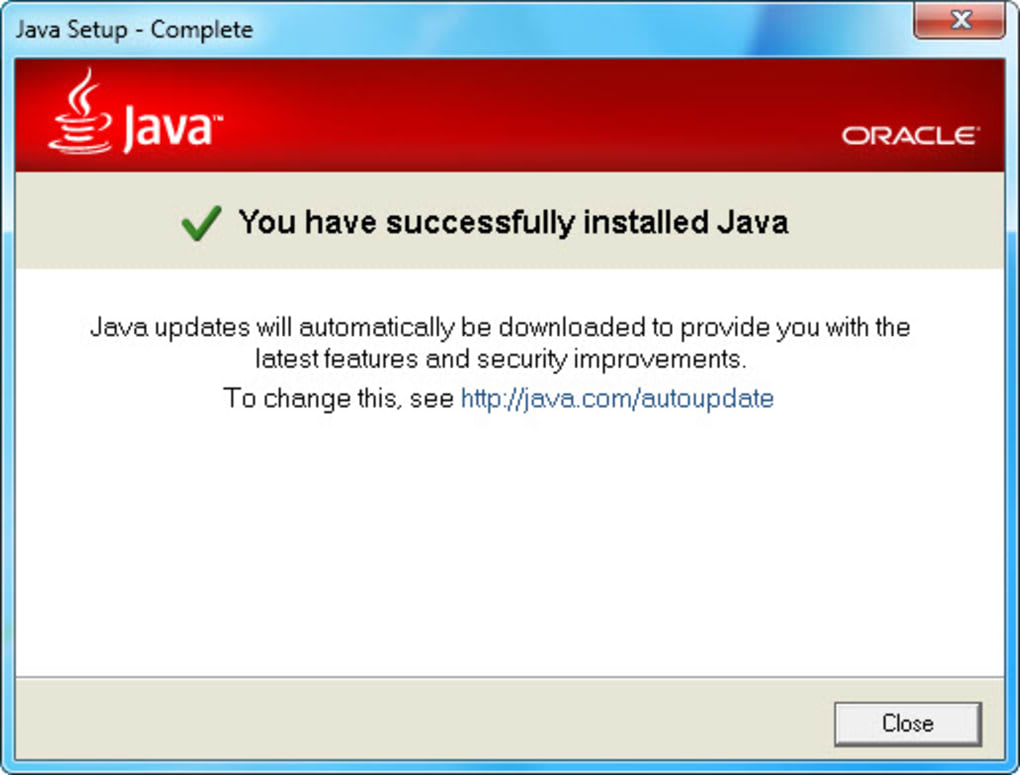
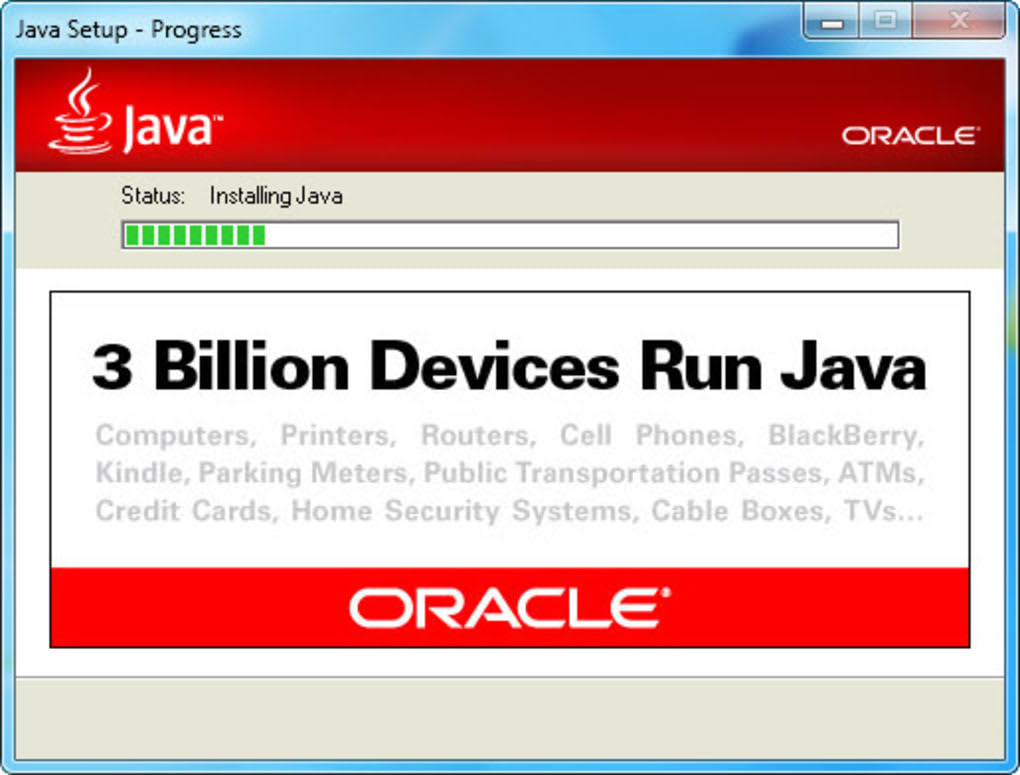
- Completion: Once the installation progress bar completes, you will typically see a “Successfully Installed” or “Finish” screen. Click “Finish” to exit the wizard.
Upon successful installation, Java will be integrated into your system and accessible by any Java-based application or web browser that requires it. The ease and efficiency of this process are key reasons why JRE 64 is such a widely adopted utility.
Post-Installation: Accessing the Java Control Panel
While the installation of JRE 64 is largely automatic, Java also provides a centralized control panel for managing its settings and configurations. This allows users to fine-tune various aspects of their Java environment, though for most, the default settings are perfectly adequate.
To access the Java Control Panel:
- Open the Windows Control Panel: Navigate to your Windows Control Panel (you can search for “Control Panel” in the Start menu).
- Locate the Java Icon: Within the Control Panel, you will find a distinct “Java” icon. Depending on your Control Panel view (Category, Large icons, or Small icons), its location might vary, but it’s typically easy to spot.
- Launch the Java Control Panel: Click on the Java icon to open the fully-featured Java Control Panel.
Inside the Java Control Panel, you’ll find several tabs that allow you to manage different aspects of Java:
- General: Contains information about your Java version, temporary internet files settings, and network settings. You can manage disk space for temporary files and view them here.
- Update: This is a crucial tab. It manages automatic Java updates, allowing you to check for updates, set update frequency, or disable updates (though disabling is not recommended due to security implications).
- Java: This tab lets you view and manage the Java Runtime Versions installed on your system. It’s particularly useful if you have multiple versions of Java installed.
- Security: This tab allows you to manage security settings, including the security level for Java content in browsers and managing your exception site list. This is where you might add websites that require an older or less secure Java version to run (use with caution).
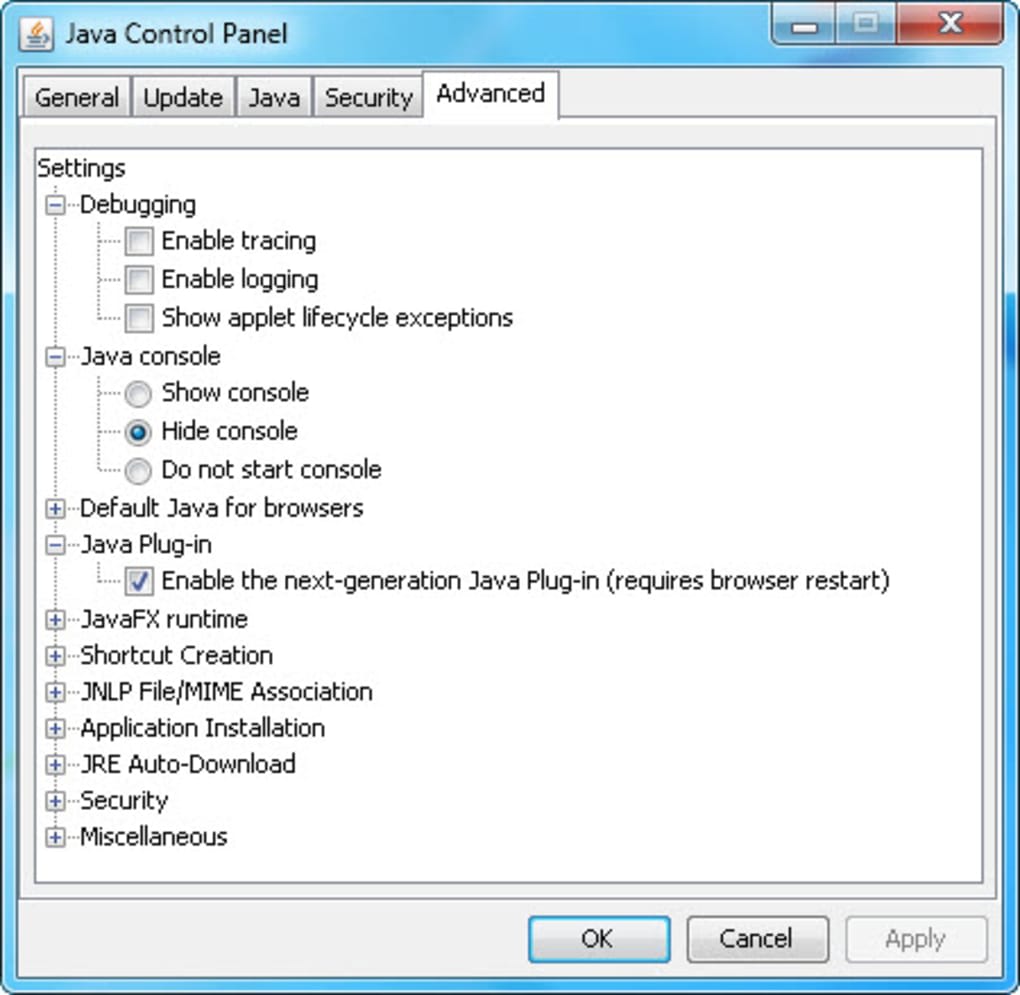
- Advanced: Offers a wide range of advanced settings for debugging, Java console, default Java for browsers, mixed code security, and more.
While the original content noted that the “Control panel is a bit dull,” its utility lies in its comprehensive options. For everyday users, the “Update” and “Security” tabs are the most important for ensuring their Java environment remains secure and up-to-date. For developers or power users, the “Advanced” tab offers granular control over Java’s behavior. Regular checks, especially on the update settings, are highly recommended to benefit from the latest security features and performance enhancements.
Why 64-bit is Paramount for Compatibility
As iterated earlier, the significance of installing the 64-bit version of Java Runtime Environment on a 64-bit Windows machine cannot be overstated. This isn’t just about matching numbers; it’s about ensuring seamless operation, maximizing performance, and maintaining compatibility across your software ecosystem. The warning from the original text bears repeating: “Running 32-bit Java on 64-bit Windows will cause compromises such as update issues.”
Beyond update issues, using the incorrect architecture can lead to:
- Application Failures: Some demanding Java applications, especially those requiring large amounts of memory or specific native libraries, might simply refuse to run with a 32-bit JRE on a 64-bit system.
- Performance Degradation: Even if an application runs, it won’t be optimized. The 32-bit JRE cannot access all available system memory, which can lead to frequent garbage collection cycles and slower execution, especially for resource-intensive tasks.
- Security Vulnerabilities: Older 32-bit JRE versions might not receive the same level of security patching or might not be able to leverage the hardware-assisted security features available on 64-bit processors, leaving your system more exposed to threats.
- Browser Plugin Conflicts: Modern web browsers are increasingly 64-bit native. A 32-bit Java plugin might not integrate correctly, causing web applets to malfunction or fail to load, potentially impacting your browsing experience on Java-dependent websites.
Therefore, the choice is clear: if your Windows system is 64-bit, you absolutely need JRE 64. It is the only way to guarantee that all Java-based applications, both desktop and web-based, function correctly, efficiently, and securely on your modern operating system. PhanMemFree consistently provides the latest and most appropriate versions to ensure users can avoid these potential pitfalls.
Key Features and Benefits for Users
Java Runtime Environment 64 isn’t just a basic necessity; it’s a powerful enabler that brings a host of benefits to the end-user. Its design focuses on seamless execution, robust integration, and consistent performance, making it an essential utility in today’s computing environment.
Effortless Execution of Java Applications and Applets
The primary and most crucial function of JRE 64 is to provide the environment necessary for running any Java-based desktop application or web applet. This capability is fundamental to interacting with a wide range of software. From specialized business applications to educational tools and even certain games, Java is the underlying technology. With JRE 64 installed, users can:
- Launch Desktop Programs: Seamlessly open and use applications coded in Java without any compatibility concerns related to the underlying Java environment. These applications benefit from the 64-bit architecture, potentially leading to faster load times and smoother operation, especially for those that are memory-intensive.
- Experience Interactive Web Content: For websites that still rely on Java applets (though less common today, some legacy systems and specialized platforms continue to use them), JRE 64 ensures that these interactive elements load and function correctly within your web browser. This means you can access advanced multimedia content, sophisticated animations, and interactive forms that would otherwise be unavailable.
- Cross-Platform Consistency: Java’s promise of “write once, run anywhere” is fully realized with the JRE. An application developed on a different operating system, but built with Java, will behave consistently on your 64-bit Windows system, ensuring a reliable user experience without needing platform-specific modifications.
The “effortless” nature of this execution comes from the JRE’s ability to abstract the complexities of the operating system from the Java application. The JVM within JRE 64 handles the translation, memory management, and security policies, allowing the application developer to focus on the application’s logic, and the user to simply run the software.
Browser Integration and Multimedia Enhancement
Beyond standalone desktop applications, JRE 64 plays a significant role in enhancing the web browsing experience, particularly for sites that leverage Java technology. The integration with major web browsers, as highlighted by the original content (e.g., Microsoft Edge or Mozilla Firefox), means that once JRE 64 is installed, your browser can recognize and properly execute Java applets embedded within webpages.
This integration brings several advantages:
- Rich Multimedia Content: Java has historically been a robust platform for delivering interactive multimedia. JRE 64 enables your browser to display advanced animations, dynamic charts, streaming video components, and other rich content that relies on Java, directly within the browser window.
- Interactive Web Applets: While applets are declining in use, older enterprise applications, scientific simulations, or educational tools might still depend on them. JRE 64 ensures these applets load and run correctly, providing interactive functionality that pure HTML/CSS/JavaScript might not fully replicate in those specific contexts.
- Consistency Across Browsers: The JRE installation aims to integrate with all main web browsers, meaning that once installed, you generally don’t need to configure Java separately for each browser you use. This provides a consistent experience regardless of your preferred browsing tool.
It’s important to note that due to evolving web standards and security concerns, most modern web browsers have restricted or deprecated support for Java browser plugins. However, for specific environments or legacy applications, the browser integration provided by JRE 64 remains a critical feature, bridging the gap between desktop Java functionality and web-based applications.
The Convenience of Automatic Updates
In today’s interconnected world, keeping software updated is paramount for security and performance. JRE 64 simplifies this crucial task through its built-in automatic update mechanism. The original content rightly lists “Automatic updates” as a key “Pro,” and for good reason.
Here’s why automatic updates are a significant benefit:
- Enhanced Security: Java, being a widely used platform, is a frequent target for security vulnerabilities. Oracle (the maintainer of Java) regularly releases security patches and updates. Automatic updates ensure that your JRE 64 installation always has the latest fixes, protecting your system from potential exploits and malware that target older, unpatched versions of Java.
- Improved Performance: Updates often include performance enhancements, bug fixes, and optimizations that can make your Java applications run faster and more efficiently. Regular updates mean your Java environment is always operating at its peak.
- Increased Compatibility: As operating systems and other software evolve, Java updates often include compatibility improvements to ensure seamless integration with the latest versions of Windows and web browsers.
- Reduced User Effort: Instead of manually checking for and downloading updates, the automatic update feature handles it in the background or prompts you at convenient times. This “set it and forget it” convenience reduces the burden on the user, allowing them to focus on their work or entertainment without worrying about outdated software.
Users can manage these update settings via the Java Control Panel, deciding how frequently they want to be notified or if updates should be installed silently. While some users prefer manual control, enabling automatic updates is generally the recommended approach for maintaining a secure and high-performing Java environment on your 64-bit Windows system.
Addressing Common Concerns and Optimizing Performance
While JRE 64 is largely a “install and forget” component for most users, understanding its minor drawbacks and how to address potential issues can further enhance the user experience. Moreover, optimizing its performance and ensuring its continued smooth operation is key to leveraging its full potential.
Navigating the Java Control Panel
The original review mentions that the “Control panel is a bit dull.” While it might not win any awards for its aesthetic design, its functionality is undeniable. For users who need more control or are troubleshooting issues, the Java Control Panel is the central hub for managing their Java environment.
Despite its plain interface, the Control Panel offers vital settings:
- Security Settings: This is arguably the most important section. Users can adjust the security level for running Java applets and web start applications. For specific legacy applications or trusted internal websites, you might need to lower the security level or add sites to an “Exception Site List,” though this should be done with extreme caution as it can expose your system to risks. Understanding these settings is crucial for balancing functionality and security.
- Temporary Internet Files: Java stores temporary files (like downloaded applets) in a cache. The Control Panel allows you to view, manage, and clear this cache. Clearing it can sometimes resolve issues with applets not loading correctly or using outdated versions. You can also adjust the amount of disk space allocated to this cache.
- Update Configuration: As discussed, this tab allows you to configure how and when Java checks for and installs updates. Ensuring this is set up correctly guarantees you receive critical security patches and performance improvements.
- JVM Settings (Advanced Tab): For power users or developers, the “Advanced” tab offers options to configure JVM arguments, debugging settings, and other low-level parameters that can influence how Java applications run. This can be useful for troubleshooting performance issues or ensuring compatibility with specific application requirements.
Even with a “dull” interface, the comprehensive nature of the Java Control Panel ensures that users have all the necessary tools at their disposal to customize and maintain their Java Runtime Environment. PhanMemFree advises users to familiarize themselves with these settings, particularly those related to security and updates, to ensure a robust and protected computing experience.
Potential Issues and Solutions
While JRE 64 is generally stable, like any software, users might occasionally encounter issues. Knowing common problems and their solutions can save time and frustration:
- Applets Not Loading/Running:
- Solution: Check your browser’s settings. Many modern browsers (like Chrome, Firefox, Edge) have removed or significantly restricted support for Java plugins due to security concerns and the move towards HTML5. If you absolutely need to run an applet, you might need to use an older browser version (not recommended for general browsing due to security risks) or a specialized browser designed for legacy content. Also, check the Java Control Panel’s Security tab to ensure the website is not blocked and the security level is appropriate. Clearing the Java cache (from the General tab in the Control Panel) can also help.
- “Potentially Unwanted Application” Warnings:
- Solution: As noted in one user review on PhanMemFree, some antivirus programs might flag Java installers as “Potentially unwanted application” (PUA) or similar. This is often a false positive, especially if you download JRE 64 from a reputable source like PhanMemFree.org or Oracle’s official site. Ensure your antivirus definitions are up-to-date. If you trust the source, you might need to temporarily disable your antivirus or add an exception during installation, but exercise extreme caution when doing so. Always verify the downloaded file’s integrity.
- Update Issues:
- Solution: If automatic updates aren’t working, check the “Update” tab in the Java Control Panel. Ensure that “Check for Updates Automatically” is enabled and that you have an active internet connection. If manual updates fail, try downloading the latest installer directly from PhanMemFree.org and running it to overwrite the existing installation.
- Performance Problems:
- Solution: Ensure you are running the 64-bit JRE on your 64-bit Windows system. Verify that your system meets the minimum requirements for Java. For specific, resource-intensive applications, you might explore configuring JVM arguments via the Advanced tab in the Java Control Panel, though this is for advanced users. Also, ensure your system has sufficient RAM and a fast processor.
- Multiple Java Versions:
- Solution: Sometimes, different applications might install their own specific JRE versions, or you might have installed both 32-bit and 64-bit versions. This can lead to conflicts. The Java tab in the Java Control Panel allows you to see all installed Java Runtime Environments. It’s generally best to keep only the latest 64-bit version for your system, uninstalling older or redundant versions from Windows’ “Add or Remove Programs” utility.
By understanding these common issues and their solutions, users can maintain a robust and problem-free Java environment, maximizing the utility of JRE 64 on their Windows system. PhanMemFree.org is committed to providing reliable software and support to help users navigate these technical aspects with ease.
In conclusion, Java Runtime Environment 64 is far more than just another piece of software; it is an indispensable foundation for any 64-bit Windows user. It acts as the gateway to a vast ecosystem of Java-based applications, web applets, and interactive multimedia content. Its straightforward installation, seamless browser integration, and crucial automatic updates ensure that your system remains secure, performant, and compatible with the latest Java technologies. While the distinction between JRE and JDK is vital for developers, for the everyday user, JRE 64 provides precisely what’s needed to effortlessly run Java software, capitalizing on the full power of modern 64-bit architecture.
From its core components—the Java Virtual Machine and extensive class libraries—to its user-friendly control panel, JRE 64 empowers your Windows machine to unlock a world of digital possibilities. By understanding its functions, ensuring proper installation, and leveraging its update mechanisms, users can guarantee a smooth, reliable, and secure environment for all their Java-dependent activities. PhanMemFree.org stands as a reliable source for this essential utility, ensuring that users always have access to the tools they need to enhance their computing experience.
File Information
- License: “Free”
- Latest update: “February 5, 2025”
- Platform: “Windows”
- OS: “Windows 8.1”
- Language: “English”
- Downloads: “780.2K”
- Size: “88.60 MB”


